
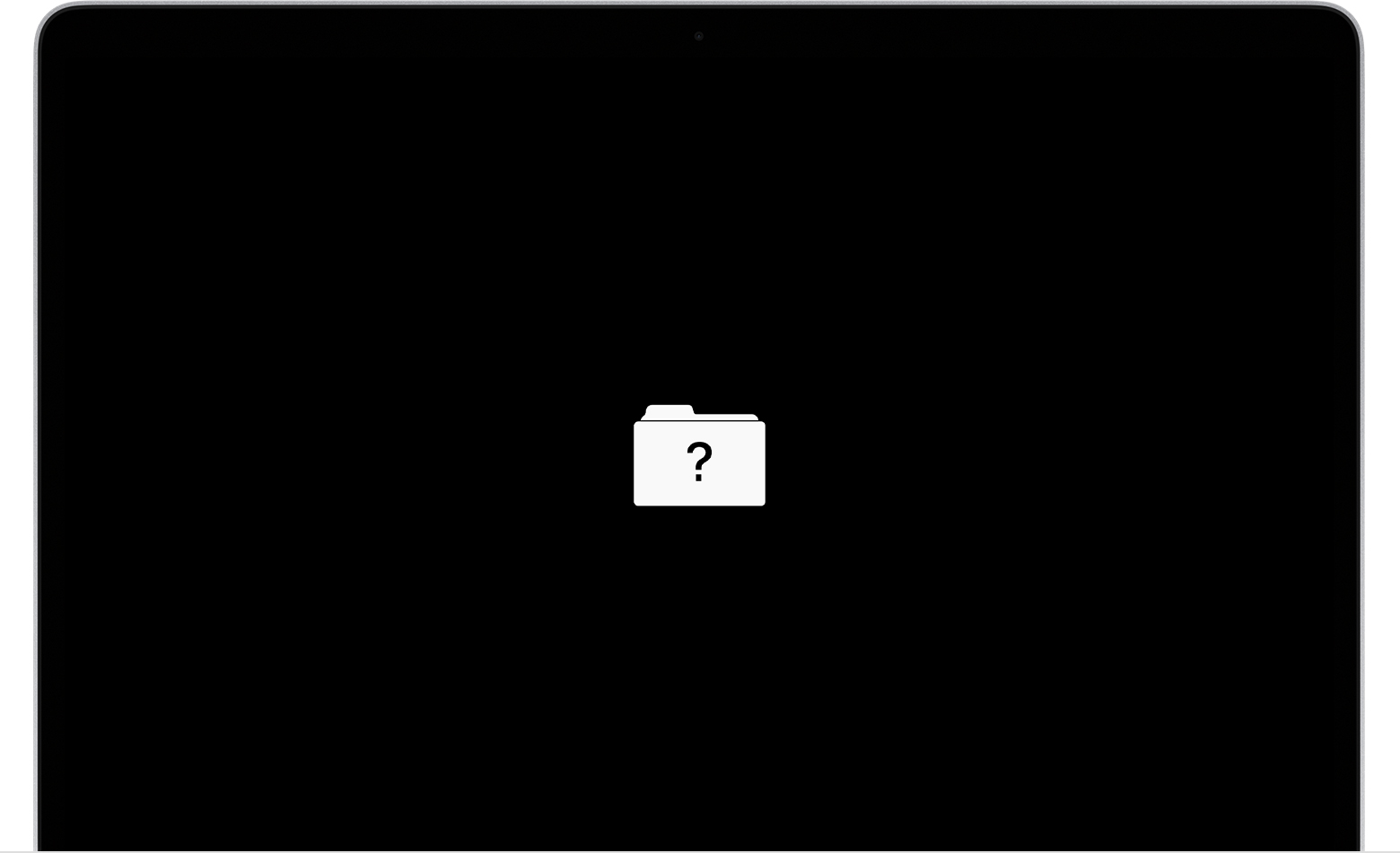
When your Mac shows a blinking folder with a question mark on the screen, it feels like a sudden stop. You press the power button, expect the Apple logo, but instead see this icon blinking again and again. For many users, especially those who rely on their Mac for work or study, this can be worrying. The blinking folder means your Mac cannot find the startup disk or the operating system. Understanding why this happens, what it means, and how to fix it can save you time and help prevent bigger problems.
This article explains the Mac blinking folder with question mark problem in detail. You will learn what causes it, how to diagnose the issue, practical solutions, and ways to prevent it. We will also cover data recovery options and share expert tips that beginners often miss. By the end, you will know exactly what to do if you see this icon and how to protect your Mac in the future.
What Does The Blinking Folder Mean?
The blinking folder with question mark is a startup warning. When you turn on your Mac, it tries to find a disk with the operating system (macOS). If it cannot find this disk, the system displays a blinking folder with a question mark. This can happen on any Mac model: MacBook Air, MacBook Pro, iMac, or Mac Mini.
The icon tells you that your Mac is confused. It does not know where to start, because the disk is missing, unreadable, or corrupted. Sometimes, this issue is temporary. Other times, it signals a deeper problem.
Common Causes Of The Blinking Folder
Several reasons can trigger the blinking folder. Understanding these helps you find the right solution.
- Startup Disk Not Found: The most common cause. Your Mac cannot locate the startup disk, either because it is disconnected or damaged.
- Corrupted macOS: If the operating system files are missing or corrupted, your Mac cannot boot.
- Failed Hard Drive or SSD: Physical failure of the disk means it cannot be read.
- Loose or Damaged Cable: For desktop Macs, internal cables connecting the disk may be loose or broken.
- Recent System Update: Sometimes, updates or installations cause disk path errors.
- Accidental Deletion: System files deleted by mistake can lead to startup issues.
- Third-Party Software Conflicts: Software that modifies system files can cause problems.
- PRAM/NVRAM or SMC Issues: These small chips store system settings. If they malfunction, startup can fail.
- Firmware Problems: Rare, but firmware bugs can prevent disk detection.
Non-obvious insight: Many beginners think this is always a hardware issue, but software corruption is often the cause, especially after unsuccessful macOS updates.

Credit: www.yellowbrickdatarecovery.com
How To Diagnose The Blinking Folder Problem
Before jumping to solutions, it helps to diagnose the issue. This saves time and avoids unnecessary repairs.
Check For Temporary Issues
Sometimes, the blinking folder is a one-time error. Try restarting your Mac. If the icon disappears and the system boots, it was likely a minor glitch.
Listen For Disk Sounds
On older Macs with hard drives, listen for clicking or grinding sounds. These noises signal hardware failure.
Use Disk Utility
If your Mac boots into macOS Recovery, use Disk Utility to check the disk.
- Restart your Mac and immediately hold Command + R.
- When the recovery screen appears, select Disk Utility.
- Look for your startup disk. If it appears, run First Aid to check for errors.
Check Startup Disk Settings
If you recently changed disks or updated macOS, your startup disk may not be set correctly.
- Boot into recovery mode (Command + R).
- Choose Apple menu > Startup Disk.
- Select your main disk and restart.
Compare Disk Status
Here’s a quick comparison of what you might see in Disk Utility:
| Status | Meaning | Action Needed |
|---|---|---|
| Disk appears, no errors | Disk is healthy | Set as startup, restart |
| Disk appears, errors found | Disk may be corrupted | Repair with First Aid |
| Disk not detected | Disk may be disconnected or failed | Check cables or seek repair |
Try Safe Mode
Safe Mode loads minimal drivers and checks the system.
- Turn off your Mac.
- Hold Shift while turning it on.
- If it boots, the issue may be software-related.
Non-obvious insight: Beginners often skip safe mode or recovery mode, but these can reveal whether the issue is software or hardware.
Step-by-step Solutions
Once you know the cause, follow these steps to fix the blinking folder issue.
1. Reset Nvram/pram
NVRAM and PRAM store startup disk info. Resetting them can fix disk detection.
- Shut down your Mac.
- Turn it on and immediately hold Option + Command + P + R for 20 seconds.
- Release keys and check if the Mac boots.
2. Boot Into Recovery Mode
Recovery Mode lets you repair disks or reinstall macOS.
- Restart your Mac and hold Command + R.
- When the recovery screen appears, use Disk Utility to repair the disk.
- If repairs fail, try reinstalling macOS.
3. Reinstall Macos
If the disk is healthy but macOS is missing or corrupted, reinstall.
- In Recovery Mode, choose Reinstall macOS.
- Follow the prompts. You need internet access.
4. Check Internal Connections
For desktop Macs, open the case (if safe) and check cables connecting the disk. Sometimes, reseating cables solves the problem.
5. Replace Or Repair The Disk
If the disk is dead, it must be replaced. For MacBooks, this usually means visiting a repair shop. For older Macs, you can swap disks yourself.
6. Use Target Disk Mode
If you have another Mac, connect both with a Thunderbolt or USB-C cable.
- Start the broken Mac while holding T.
- The Mac acts as an external disk. You can access files and check disk health.
7. Restore From Backup
If you have a Time Machine backup, restore your Mac after reinstalling macOS.
8. Seek Professional Help
If all else fails, contact Apple Support or a certified repair shop. Do not open your Mac if it is under warranty.
Quick Solutions Table
Here’s a summary of solutions and when to use them:
| Solution | Best For | Success Rate |
|---|---|---|
| Reset NVRAM/PRAM | Startup disk errors | Medium |
| Disk Utility Repair | Corrupted disk | High |
| Reinstall macOS | Missing OS | High |
| Replace disk | Failed hardware | High |
Data Recovery: How To Save Your Files
One big worry with the blinking folder is data loss. If the disk is damaged, files may be at risk.
Using Recovery Mode
If you can access Disk Utility, try repairing the disk. This sometimes restores access.
Target Disk Mode
Connect your Mac to another computer. If the disk mounts, copy important files.
Professional Data Recovery
If the disk is unreadable, data recovery services can help. They use special tools to recover files. Costs range from $100 to over $1000, depending on damage.
Backup Importance
Backing up regularly prevents data loss. Use Time Machine or cloud services to keep your files safe.
Preventing The Blinking Folder Issue
Prevention is easier than repair. Here are practical steps to avoid seeing the blinking folder.
- Backup Often: Use Time Machine or another backup tool.
- Update macOS Carefully: Avoid interrupting updates. Always check compatibility.
- Check Disk Health Regularly: Use Disk Utility every few months.
- Avoid Untrusted Software: Only install software from reliable sources.
- Handle Macs Gently: Physical shocks can damage disks.
- Maintain Good Power Supply: Sudden power loss can corrupt files.
- Clean Internal Parts: Dust and heat can damage hardware.
- Monitor Storage Space: Keep at least 10% free space to avoid corruption.
- Replace Old Disks: SSDs last longer than hard drives but still wear out.
- Watch for Early Signs: Slow boot, frequent crashes, and strange noises often mean disk trouble.
The Difference Between Hardware And Software Causes
Understanding whether the blinking folder is caused by hardware or software is key for quick fixes.
Hardware Causes
- Failed hard drive/SSD
- Loose cables
- Physical damage
Software Causes
- Corrupted macOS
- Wrong startup disk setting
- Software conflicts
How To Tell The Difference
If Disk Utility cannot see the disk at all, it’s likely hardware. If the disk appears but shows errors, it may be software. Safe Mode and Recovery Mode help separate these causes.
Expert tip: Always try software fixes before opening your Mac or replacing hardware.
Mac Models And The Blinking Folder
The blinking folder appears on all modern Macs, but fixing it can differ by model.
Macbook Pro And Air
These laptops often use soldered SSDs. Replacing the disk is difficult and may require professional help.
Imac And Mac Mini
Desktops usually have removable disks. You can check cables and replace disks more easily.
Older Macs
Older Macs have hard drives that make loud noises when failing. Newer Macs use SSDs, which fail silently.
Apple Silicon Macs (m1, M2)
These use integrated storage. If the system cannot find macOS, it may require Apple service.
Model Comparison Table
Here’s how the blinking folder issue differs by model:
| Mac Model | Disk Type | Repair Difficulty | Typical Solution |
|---|---|---|---|
| MacBook Pro/Air (2018+) | Soldered SSD | High | Apple Service |
| iMac (2015+) | Removable SSD | Medium | User/Shop Repair |
| Mac Mini | Removable SSD/HDD | Medium | User/Shop Repair |
| Older Macs | Hard Drive | Low | User Repair |
Credit: www.salvagedata.com
When To Replace Your Mac
Sometimes, fixing the blinking folder is not cost-effective. If your Mac is over 7 years old, repair costs may be higher than a new device. New Macs have better speed, battery, and support.
- If disk repair fails and the Mac is old, consider replacement.
- If professional recovery is too expensive, weigh the cost against buying a new Mac.
- If you need reliability, newer Macs are less likely to have startup issues.
What To Do After Fixing The Problem
Once you fix the blinking folder, take steps to avoid future trouble.
- Backup immediately: Protect your files.
- Run Disk Utility: Check for lingering errors.
- Update macOS: Install the latest version.
- Monitor system health: Use tools like SMART Utility for disks.
- Keep startup disk settings correct: Set your main disk as the default.
- Remove untrusted software: This can prevent future corruption.
Pro tip: Many users forget to check disk health after fixing the issue, leading to repeat problems.
Credit: www.reddit.com
Real-world Example
Maria, a freelance designer, saw the blinking folder on her MacBook Air. She tried restarting, but the icon stayed. Using Recovery Mode, she found her disk but could not repair it. She then used Target Disk Mode with her friend’s Mac.
Her files were safe, so she backed up, replaced the disk, and reinstalled macOS. Now, Maria backs up every week and checks disk health monthly.
Useful Resources
Apple’s official guide explains the blinking folder and offers troubleshooting steps. For detailed help, visit Apple Support.
Frequently Asked Questions
Why Does My Mac Show A Blinking Folder With A Question Mark?
Your Mac shows this icon because it cannot find the startup disk or the operating system. This can be caused by a missing, corrupted, or failed disk.
Can I Fix The Blinking Folder Without Losing My Files?
Yes, in many cases. Use Disk Utility or Target Disk Mode to access your files. Always try to backup before making repairs.
Is The Blinking Folder Always A Sign Of Hardware Failure?
No. Sometimes it is caused by software problems, like corrupted macOS or wrong disk settings. Try software fixes first.
How Much Does Professional Repair Cost?
Repair costs depend on the issue. Disk replacement can be $150–$400. Data recovery can be $100–$1000. Older Macs may cost more to fix.
How Can I Prevent The Blinking Folder Problem?
Backup regularly, update macOS carefully, check disk health, and avoid untrusted software. Handle your Mac gently and keep it clean.
Seeing a blinking folder with question mark is stressful, but with the right knowledge, you can fix it and protect your Mac. Follow the steps above, and you’ll be ready if this icon appears again. Remember: backup is your best defense.