
When your modem starts blinking, it grabs your attention. The tiny lights on your modem are not just decoration—they tell you how your internet connection is working. If you’ve ever seen a blinking light and wondered “Is something wrong?” you’re not alone. Many people, especially those new to home networking, find these signals confusing. But understanding what these lights mean can help you fix issues faster, avoid unnecessary calls to your provider, and get back online sooner.
In today’s digital world, a stable internet connection is essential for work, study, and entertainment. When the lights on your modem start blinking in unusual patterns, it can be frustrating. This article will help you decode those blinking lights, explain what each color and pattern means, and offer practical steps to solve common problems.
We’ll also look at the differences between modem types, share real-life examples, and answer the most frequent questions about modem lights.
Understanding Modem Lights: What Do They Mean?
Every modem comes with several indicator lights. These lights show the status of your connection, the power, and the activity between your device and the internet. Here’s a breakdown of the most common lights you’ll see:
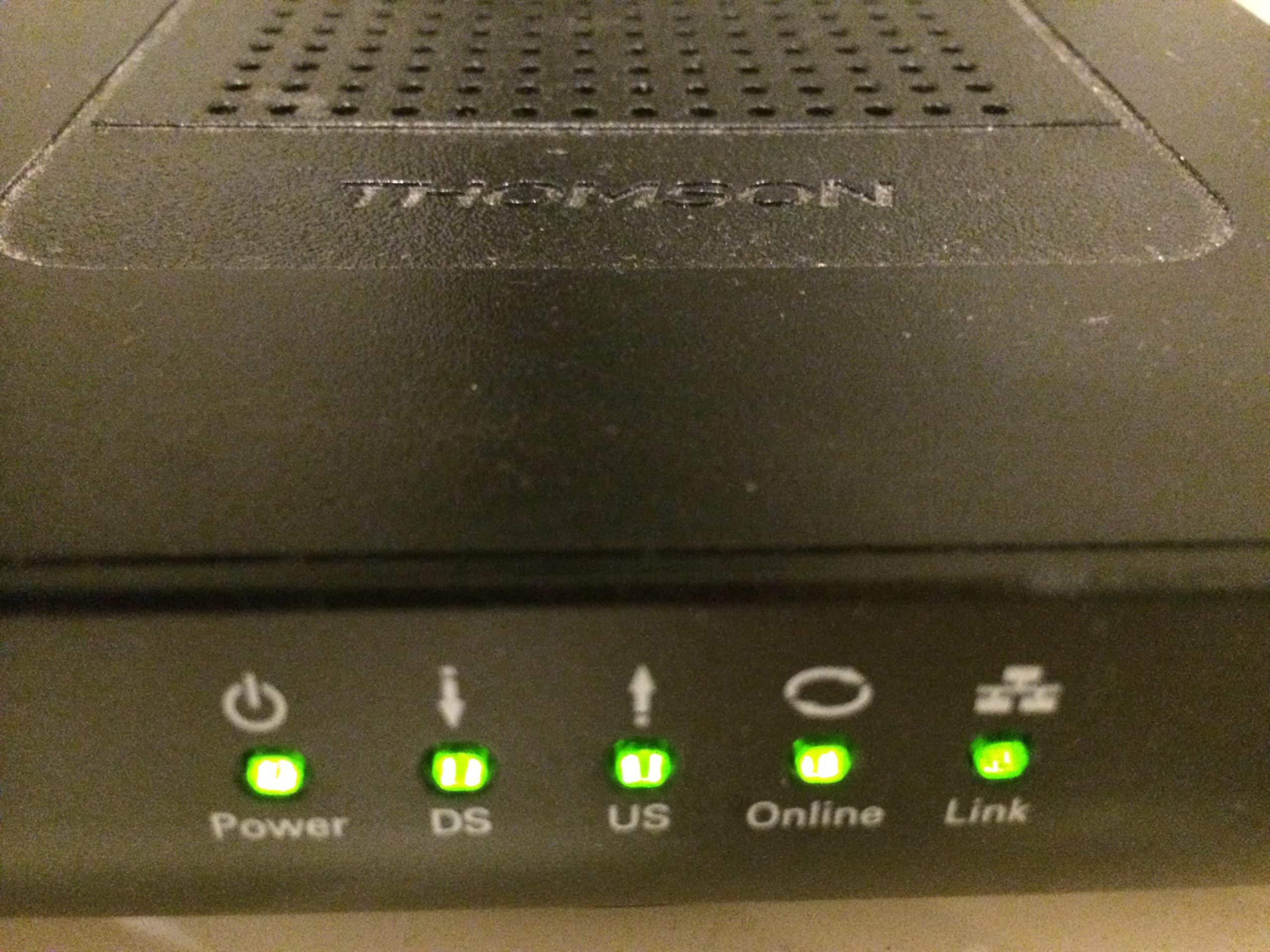
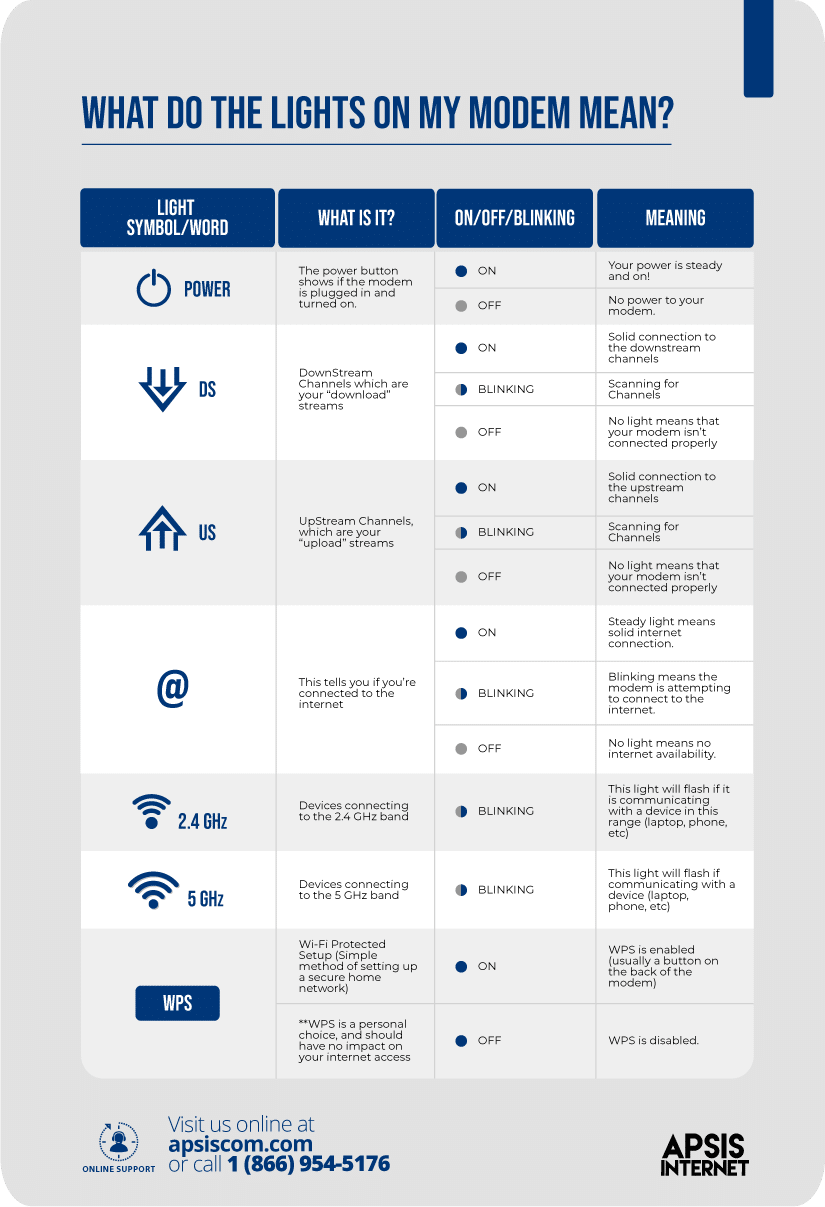
- Power: Shows if your modem is turned on.
- Downstream: Indicates data coming from the internet to your device.
- Upstream: Shows data going from your device to the internet.
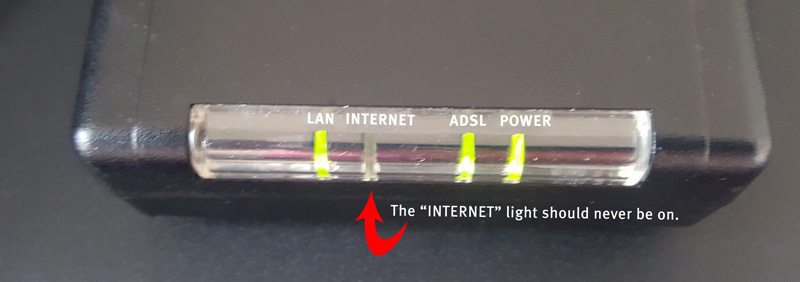
- Online/Internet: Confirms if you are connected to the internet.
- LAN/WAN: Shows activity between your modem and your local devices.
Each light can be solid, blinking, or off. The pattern tells you about the current state:
- Solid light: Everything is working normally.
- Blinking light: Activity is happening or there’s a problem.
- No light: Something might be disconnected or powered off.
Common Light Colors And Their Meanings
Modem lights can be green, amber, blue, or red. Each color has a specific meaning:
- Green: Normal operation or active connection.
- Amber/Orange: Connection in progress or weak signal.
- Blue: High-speed connection, often seen on newer modems.
- Red: Error or no connection.
Some modems combine colors and blinking patterns to communicate more details. For example, a blinking amber light may mean your modem is trying to connect, while a blinking red light signals a connection failure.
Why Do Modem Lights Blink?
Blinking lights on a modem usually indicate activity or a change in connection status. Here are the most common reasons:
- Data Transmission: When your modem is sending or receiving data, the downstream and upstream lights blink. This is normal and shows active communication.
- Startup Sequence: When you first power on your modem, the lights blink as it initializes and connects to your provider.
- Firmware Updates: Some modems blink during updates. The process can take a few minutes.
- Connection Problems: Continuous blinking, especially on the internet or online light, often means your modem cannot connect to your provider.
- Hardware Issues: If all lights blink together or in unusual patterns, it may signal a hardware malfunction.
Example: Typical Startup Sequence
When you plug in a modem, you might see the following:
- Power light turns solid.
- Downstream light blinks, then turns solid (connecting to provider).
- Upstream light blinks, then solidifies.
- Online/Internet light blinks, then becomes solid.
If the online light never turns solid, your modem is stuck connecting. This is the first sign of a potential issue.
Credit: www.atcnet.net
Types Of Modems And Light Patterns
Different types of modems have unique light arrangements. Here’s how they compare:
| Modem Type | Typical Lights | Common Blinking Patterns |
|---|---|---|
| Cable Modem | Power, Downstream, Upstream, Online, LAN | Downstream/Upstream blink during connection; Online blinks if not connected |
| DSL Modem | Power, DSL, Internet, LAN | DSL blinks during sync; Internet blinks if not connected |
| Fiber Modem | Power, Optical, Internet, LAN | Optical blinks if signal lost; Internet blinks during setup |
| Cellular Modem | Power, Signal, Internet, LAN | Signal blinks if weak; Internet blinks during reconnect |
Each modem type uses blinking lights to show its status, but the meaning can vary. Always check your modem’s manual for specific details.
Diagnosing Common Blinking Patterns
Let’s look at the most frequent blinking patterns and what they mean:
1. Downstream Or Upstream Light Blinking
If either the downstream or upstream light blinks for a long time, your modem is struggling to connect. Possible causes:
- Cable or line issues
- Provider maintenance
- Loose connections
Solution: Check cables, restart the modem, contact your provider if the problem persists.
2. Internet/online Light Blinking
This light should turn solid when connected. If it keeps blinking:
- The modem can’t reach the provider
- Your account might not be activated
- Outages or service interruptions
Solution: Verify your account status, check for outages, restart the modem.
3. Lan/wan Light Blinking
A blinking LAN/WAN light shows activity between your modem and devices. This is normal if devices are communicating.
Solution: No action needed if the blinking is steady and internet is working.
4. Power Light Blinking
A blinking power light is rare and usually signals hardware problems.
Solution: Unplug the modem, wait 30 seconds, plug it back in. If the blinking continues, the modem may need repair.
How To Troubleshoot Blinking Lights
If you see blinking lights on your modem, follow these steps:
1. Check Cables And Connections
Make sure all cables are securely plugged in. Damaged cables can cause connection issues.
2. Restart The Modem
Unplug the power, wait 30 seconds, then plug it back in. This simple step fixes many problems.
3. Verify Provider Status
Check if your internet provider is experiencing outages. You can do this on their website or by calling support.
4. Inspect Splitters And Filters
If you use splitters or filters (common with DSL), ensure they are installed correctly.
5. Update Firmware
Some modems require firmware updates. Check your provider’s instructions.
6. Try A Different Outlet
Power issues can cause blinking lights. Test the modem in another outlet.
7. Contact Support
If the problem continues, contact your provider. They can check your line remotely.
Example: Troubleshooting Sequence
Imagine your modem’s internet light is blinking. You:
- Check cables: Everything is plugged in.
- Restart modem: Light still blinks.
- Check provider website: No outages reported.
- Try another outlet: No change.
- Contact support: They find a fault outside your home.
This methodical approach saves time and helps pinpoint the real issue.
Modem Light Patterns: What’s Normal And What’s Not
Some blinking patterns are normal; others mean trouble. Here’s a quick reference:
| Light | Blinking Pattern | Meaning | Action Needed |
|---|---|---|---|
| Power | Blinking | Hardware issue | Restart or replace modem |
| Downstream | Slow blinking | Searching for signal | Check cable, wait for sync |
| Upstream | Fast blinking | Syncing with provider | Wait for solid light |
| Internet | Blinking | No connection | Restart, check provider |
| LAN | Blinking | Normal activity | No action |
Non-obvious Insights: What Beginners Usually Miss
1. Modem Vs Router Lights
Many people confuse modem and router lights. Your modem connects to the internet, while your router distributes the connection to devices. If your router lights are blinking but your modem’s are solid, the issue is inside your network—not with your provider.
2. Blinking Doesn’t Always Mean Error
Not all blinking is bad. For example, a blinking LAN light means data is flowing. Only certain lights, like a blinking internet or power light, signal trouble.
3. Firmware Update Patterns
During firmware updates, some modems blink all lights. This looks alarming but is normal. Wait until the update finishes before unplugging.
Real-life Examples Of Modem Light Issues
Let’s look at a few real situations:
- Case 1: Cable Damage
Maria noticed her modem’s downstream light kept blinking. After checking her cables, she found one was frayed. Replacing the cable fixed the issue.
- Case 2: Provider Outage
Raj’s internet light blinked for hours. He checked his provider’s website and saw a local outage notice. The lights returned to normal after service was restored.
- Case 3: Firmware Update
Jen saw all her modem lights blinking after a storm. She waited 10 minutes, and the lights became solid. Her modem was updating its firmware.
How Modem Light Behavior Has Changed Over Time
Modern modems have more advanced lights and patterns than older models. In the past, most modems had simple green or red lights. Today, you’ll see multiple colors and faster blinking, which can signal different speeds and types of activity.
For example, DOCSIS 3.1 cable modems use blue lights to show gigabit speeds. Older DSL modems only used green and red, making it harder to know the exact problem.
Comparing Popular Modem Brands And Their Light Signals
Here’s how three top brands handle blinking lights:
| Brand | Light Colors | Unique Features | Common Blinking Issue |
|---|---|---|---|
| Netgear | Green, Amber, Red | Smart LED patterns for errors | Amber internet light means weak signal |
| Arris | Green, Blue, Red | Blue for high-speed connection | Blinking blue means syncing |
| TP-Link | Green, Orange, Red | Separate lights for LAN ports | Blinking orange means firmware update |
Different brands use colors and patterns to help users diagnose problems quickly.
How Internet Providers Use Modem Lights For Remote Diagnosis
Most providers can check your modem’s status remotely. If you call support, they ask about the blinking pattern to diagnose problems. For example:
- If your downstream light blinks, they know the modem isn’t receiving signal.
- If your upstream blinks, they check for line issues.
- If your internet light blinks, they check account status.
This method is efficient and saves time for both users and providers.
When Should You Replace Your Modem?
If you see blinking lights often and troubleshooting doesn’t help, your modem may be old or damaged. Signs it’s time to replace:
- Frequent loss of connection
- Power light blinks or won’t turn solid
- Firmware updates fail
According to industry data, most modems last 4-6 years. Upgrading can improve speed and reliability.
Credit: www.joshvamos.com
Avoiding Common Mistakes When Dealing With Blinking Lights
Many users make mistakes when they see blinking lights:
1. Unplugging During Firmware Updates
Never unplug your modem during a firmware update. You could damage the device.
2. Ignoring Cable Quality
Cheap or old cables cause blinking issues. Always use good-quality cables.
3. Skipping Provider Checks
Always check your provider’s status before assuming your modem is broken.
4. Mixing Up Modem And Router Issues
Know which device is causing the problem. Router issues affect only local devices, modem issues affect all internet access.
Practical Tips For Long-term Modem Health
- Keep your modem dust-free: Dust can cause overheating and hardware issues.
- Update firmware regularly: Check your provider’s website for updates.
- Place modem in a cool, open area: Avoid stacking with other devices.
- Label cables: Helps during troubleshooting.
These steps prevent many blinking light issues and extend the life of your modem.
Credit: apsiscom.com
The Role Of Modem Lights In Home Networking
Modem lights are essential for diagnosing problems. They help you:
- Understand if your internet is working
- Find out which part of your connection is faulty
- Communicate clearly with support
In large homes, where multiple devices rely on the modem, knowing the meaning of blinking lights saves time and reduces frustration.
When To Call For Professional Help
Some blinking issues require expert attention:
- Persistent power light blinking
- All lights blinking at once
- No lights at all
Contact your provider or a professional if you see these patterns. Hardware replacement or line repair may be needed.
How To Read Your Modem’s Manual
Each modem model has a manual or quick start guide. These guides explain light patterns and troubleshooting steps. If you lost your manual, most brands offer digital versions online.
For more technical details, you can check Wikipedia’s modem entry.
Frequently Asked Questions
What Does A Blinking Internet Light Mean On My Modem?
A blinking internet light usually means your modem is trying to connect but hasn’t reached your provider yet. It can be caused by outages, cable issues, or account problems.
Is It Normal For The Lan Light To Blink Constantly?
Yes, a blinking LAN light shows active communication between your modem and connected devices. This is normal if you’re using the internet.
Why Does My Modem’s Power Light Blink?
A blinking power light is rare and often signals a hardware problem. Try restarting your modem. If the light keeps blinking, the device may need repair or replacement.
How Can I Tell If The Blinking Is Due To A Firmware Update?
During a firmware update, some or all modem lights may blink in a unique pattern. Wait 5-10 minutes before unplugging. Check your provider’s website to confirm update schedules.
What Should I Do If My Modem Lights Blink After A Storm?
Storms can cause power surges and damage cables. If your modem lights blink after a storm, check all cables, restart the modem, and contact your provider if the issue continues.
Conclusion
Understanding lights on modem blinking makes home networking much easier. By learning what each light means, you can fix problems quickly, avoid common mistakes, and keep your internet running smoothly. The next time your modem starts blinking, you’ll know exactly what to do.