
If your Lenovo Yoga laptop screen starts blinking, it can be frustrating and even alarming. Sometimes, the blinking is a minor issue, but other times, it points to bigger hardware or software problems. Understanding why your screen is blinking and how to fix it can save time, money, and stress. This guide explains the main causes, practical solutions, and ways to prevent screen blinking on Lenovo Yoga devices. Whether you use your Yoga for work, school, or entertainment, you’ll find useful advice here to keep your laptop running smoothly.
Why Lenovo Yoga Screen Blinking Happens
Screen blinking (also called screen flickering) is when your laptop display flashes, dims, or rapidly turns off and on. This can happen randomly or only when you do specific actions, like opening an app or moving the laptop. The problem often makes it hard to read, work, or enjoy videos. Let’s break down the most common reasons why this happens on Lenovo Yoga laptops:
Hardware Issues
- Loose or damaged cables: Inside your laptop, the screen connects to the motherboard with tiny cables. If these come loose or get damaged, the screen can blink.
- Faulty display panel: Sometimes, the actual screen panel is defective or has developed a problem over time.
- Battery or power supply problems: An old battery or a failing charger can cause inconsistent power, which sometimes leads to blinking.
Software And Driver Problems
- Outdated or corrupted display drivers: The driver is the software that helps your computer ‘talk’ to the screen. If it’s old or corrupted, the screen can start to blink.
- Conflicting apps: Certain applications, especially ones that control graphics or display settings, can conflict with the system and cause flickering.
- Operating system bugs: Sometimes, after a Windows update, bugs can appear that affect how the screen works.
Settings And Environmental Causes
- High refresh rates: Setting your screen to a refresh rate higher than it supports can make it blink or flicker.
- Overheating: If your Yoga gets too hot, it can affect the screen’s behavior.
- External devices: Sometimes, connecting an external monitor or device can cause conflicts.
Knowing the cause is the first step. Next, let’s look at how to check what’s wrong.
Identifying The Cause Of Screen Blinking
Before you fix anything, you need to find out what’s causing the problem. Here are some easy steps to help you diagnose the issue:
1. Check When The Blinking Happens
- Does it happen all the time?
- Only when opening certain apps?
- Only on battery or when plugged in?
Make notes. This helps narrow down the possible causes.
2. Safe Mode Test
Boot your Lenovo Yoga into Safe Mode. In Safe Mode, Windows only loads basic drivers. If the screen does not blink in Safe Mode, the problem is likely software-related (like a bad driver or app). If it still blinks, hardware is the likely cause.
3. External Monitor Test
Connect your Yoga to an external monitor or TV with HDMI or USB-C.
- If the external screen does NOT blink, the issue is probably with your Yoga’s own display or its cables.
- If both screens blink, the problem is likely with the graphics card or drivers.
4. Device Manager Check
Open Device Manager in Windows and look for warning symbols (yellow triangles) under Display adapters or Monitors. These symbols often point to driver problems.
5. Observe Environment
Does the blinking get worse when your laptop is hot? Do you see blinking when you move the screen hinge? These clues can hint at hardware issues.
Common Solutions For Lenovo Yoga Screen Blinking
After you check the cause, it’s time to try solutions. Start with the easiest fixes, and move to more advanced ones if needed.
Update Display Drivers
Outdated or corrupt drivers are a common cause. Here’s how to update them:
- Right-click the Start button and select Device Manager.
- Expand Display adapters.
- Right-click your graphics card (Intel HD, NVIDIA, etc.) And select Update driver.
- Choose Search automatically for updated driver software.
If Windows does not find a new driver, visit the official Lenovo Support site and download the latest driver for your model.
Roll Back Recent Drivers
If the blinking started after a driver update, try rolling back:
- In Device Manager, right-click your display adapter.
- Select Properties > Driver tab.
- Click Roll Back Driver (if available).
Uninstall Problematic Apps
Some apps (especially screen recording or video software) can cause blinking. Try uninstalling recently added apps:
- Go to Settings > Apps.
- Uninstall apps installed just before the problem started.
Change Refresh Rate
A refresh rate too high for your screen can cause flickering.
- Right-click your desktop and select Display settings.
- Click Advanced display settings.
- Under Refresh rate, try lowering the value to 60Hz.
Disable Hardware Acceleration
Some apps, like browsers, use hardware acceleration. Try turning it off:
- In Chrome: Go to Settings > System > Turn off Use hardware acceleration when available.
- In Microsoft Edge: Similar path under System settings.
Restart the app after making this change.
Windows Updates
Make sure your system is up-to-date.
- Go to Settings > Update & Security > Windows Update.
- Click Check for updates.
Sometimes, Microsoft releases fixes for display issues.
Check Power Settings
Power-saving settings can sometimes cause blinking.
- Go to Control Panel > Power Options.
- Select Balanced or High performance.
- Avoid using custom or extreme power-saving plans.
Physical Inspection
If software fixes don’t help, check hardware:
- Gently adjust the screen hinge. If blinking changes, the cable inside may be loose.
- Look for visible cracks or damage on the screen.
- Listen for odd noises (like buzzing) near the screen.
If you find physical problems, contact Lenovo support or a repair shop.
Advanced Troubleshooting
If basic steps don’t work, try these advanced solutions. These require more confidence and care.
System Restore
If the problem started recently, you can use Windows System Restore to go back to a time before the issue.
- Type System Restore in the Windows search bar.
- Open Create a restore point.
- Click System Restore… and follow the prompts.
This won’t affect your files, but may remove recently installed apps or drivers.
Bios And Firmware Update
Sometimes, a BIOS update can fix hardware communication problems.
- Go to the Lenovo Support website.
- Search for your Yoga model.
- Download and install the latest BIOS update, following Lenovo’s instructions carefully.
A failed BIOS update can harm your laptop, so only do this if you’re comfortable.
Reinstall Windows
As a last resort, reinstall Windows. Back up your data first. You can use Windows’ Reset this PC feature:
- Go to Settings > Update & Security > Recovery.
- Under Reset this PC, click Get started.
Choose Keep my files if you don’t want to lose documents, but always back up important data.
Hardware Repair
If none of these steps work, the issue is probably hardware-related. Common hardware repairs include:
- Replacing the screen cable (LVDS/eDP cable)
- Replacing the screen panel
- Repairing the motherboard (rare but possible)
Most users should not try these repairs themselves, as opening the laptop can void the warranty.
Data Table: Common Causes And Solutions
Here is a quick comparison of the most common causes and their likely fixes.
| Cause | How to Check | Best Solution |
|---|---|---|
| Outdated Driver | Device Manager warning; after update | Update or roll back driver |
| Loose Cable | Screen blinks when hinge moves | Professional hardware check |
| Conflicting App | Began after new app install | Uninstall app |
| High Refresh Rate | Custom display settings | Lower to 60Hz |
| Overheating | Hot base, fans loud | Improve cooling, clean vents |
Lenovo Yoga Models And Blinking Issues
Not every Lenovo Yoga is the same. Some models are more likely to have screen blinking, due to hardware design or software compatibility. Here’s a look at popular Yoga models and their common issues.
Yoga 7 Series
These mid-range models use both Intel and AMD chips. Some Yoga 7 users report more blinking when using integrated graphics. Keeping drivers and BIOS updated helps.
Yoga C940/c930
These premium models have high-resolution touchscreens. Some users see flickering after Windows updates, especially with HDR enabled. Lowering the refresh rate or disabling HDR can help.
Yoga Slim
Slim models sometimes overheat faster, which can trigger blinking. Using a cooling pad or cleaning air vents helps reduce the problem.
Table: Yoga Models And Common Blinking Triggers
| Model | Typical Cause | Special Fix |
|---|---|---|
| Yoga 7i | Driver conflict | Update all Intel/Lenovo drivers |
| Yoga C940 | HDR bug | Disable HDR in settings |
| Yoga Slim 7 | Overheating | Clean vents, use cooling pad |
| Yoga 9i | Firmware issue | Update BIOS/firmware |

Credit: www.reddit.com
Prevention Tips For Screen Blinking
Once you fix the problem, you’ll want to avoid it in the future. Here are some practical tips:
- Keep drivers and Windows updated: Check for updates monthly.
- Avoid installing unknown apps: Stick to trusted sources for software.
- Clean your laptop regularly: Dust in vents can cause overheating.
- Be gentle with the hinge: Avoid opening and closing the screen roughly.
- Use a surge protector: Power surges can damage display hardware.
- Don’t set very high display settings: Use standard refresh rates and resolutions.
When To Seek Professional Help
Some problems are best left to experts. You should contact Lenovo support or a repair technician if:
- The screen is cracked or has lines/colors permanently.
- The blinking started after a drop or spill.
- Software fixes did not help at all.
- The laptop is under warranty (opening it may void your coverage).
Professional repair shops can check cables, replace screens, or fix motherboards. The cost varies depending on the damage, but it’s often less expensive than buying a new laptop.

Credit: www.reddit.com
Data Table: Diy Vs. Professional Repair
Understanding the difference between what you can try at home and what needs a specialist helps you avoid mistakes.
| Action | DIY Safe? | When to Get Help |
|---|---|---|
| Update Drivers | Yes | If device manager errors persist |
| Change Settings | Yes | If nothing changes after adjustments |
| Open Laptop for Cable Check | No | If blinking changes with hinge movement |
| Replace Screen | No | If display is physically damaged |
Non-obvious Insights And Expert Tips
Most guides stop at the basics, but here are two less obvious points most beginners miss:
- Background apps can cause flicker. Even if you haven’t installed anything new, apps running quietly (like screen filter or color calibration tools) can interfere with the display. Open Task Manager (Ctrl+Shift+Esc), check what’s running, and end unnecessary tasks to see if the flickering stops.
- Third-party docks and adapters can trigger blinking. If you connect your Yoga to external displays using a dock, adapter, or USB hub, try removing it. Some cheap adapters do not handle high resolutions well, causing the internal screen to blink or flicker.
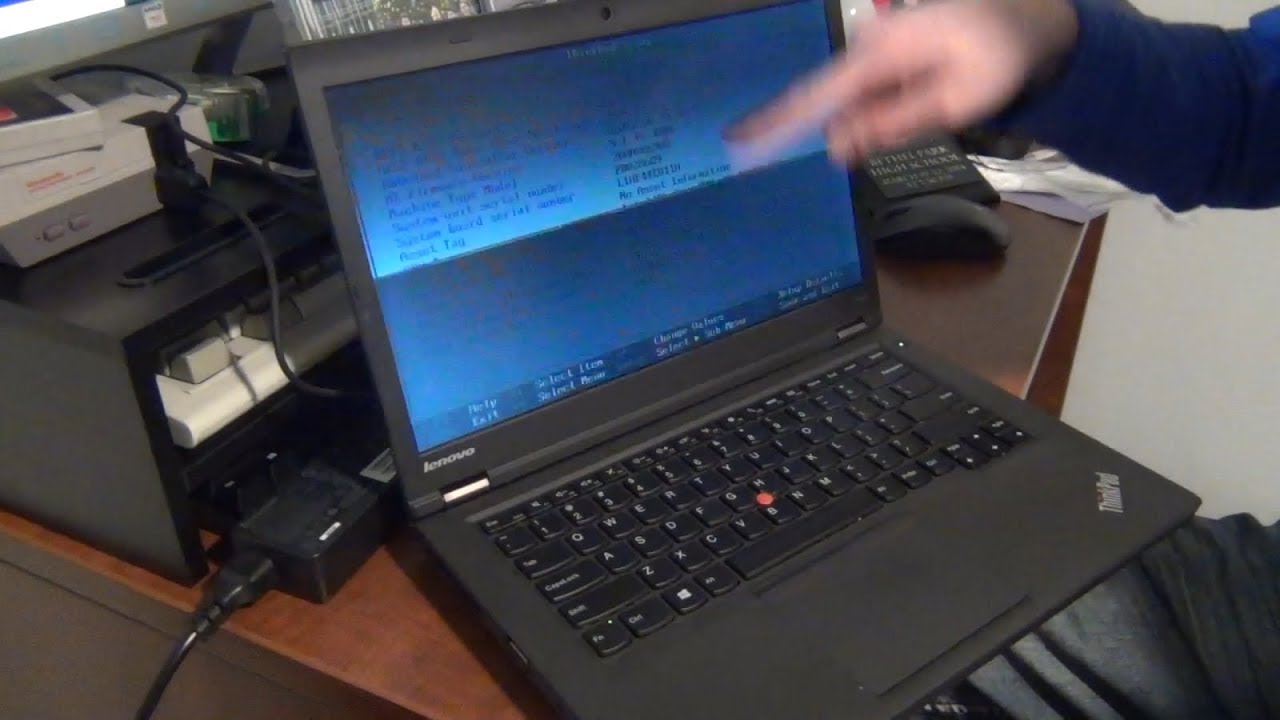
Also, remember that screen blinking can sometimes start after a Windows update but not fix itself with the next update. Rolling back an update or waiting for a patch can sometimes solve the issue, but you should always back up important files before making big changes.
Credit: www.youtube.com
Useful Resources
If you want more technical details about how screens work, you can check the Laptop display Wikipedia page. It explains types of screens, common problems, and technology behind them.
Frequently Asked Questions
Why Does My Lenovo Yoga Screen Only Blink When On Battery?
When your laptop runs on battery, it uses different power and brightness settings to save energy. Sometimes, this can cause the screen to blink or dim if there’s a conflict with drivers or Windows power plans. Try updating drivers and switching to a balanced or high-performance power plan.
Is Screen Blinking Dangerous For My Laptop?
Screen blinking itself usually does not damage your hardware, but it can be a sign of a deeper problem. Ignoring it could allow a small issue (like a loose cable) to become a bigger one. It’s best to address blinking early to avoid future damage or data loss.
Will A Factory Reset Always Fix Screen Blinking?
A factory reset can help if the cause is software-related (bad drivers, apps, or settings). However, it will not fix hardware problems like a broken screen or cable. Always back up your data before resetting, and try less drastic solutions first.
Can Overheating Cause Permanent Screen Damage?
If your Lenovo Yoga overheats often, it can eventually damage the screen, battery, or other parts. Regular cleaning, using your laptop on a hard surface, and avoiding blocked vents can prevent overheating and related display problems.
What Should I Do If My Lenovo Yoga Is Still Under Warranty?
If your device is under warranty, avoid opening it yourself. Contact Lenovo support or an authorized repair center. Warranty repairs are often free, and opening the laptop could void your coverage.
With the right steps, you can usually solve Lenovo Yoga screen blinking without too much trouble. Stay calm, check each possible cause, and don’t hesitate to get professional help if needed. This way, you’ll keep your Yoga running bright and clear for years to come.