
When your HP laptop charging light starts blinking white and orange, it can be worrying. Is it a sign of a dying battery? A charger problem? Or maybe something more serious? For many HP laptop users, this blinking pattern is confusing and stressful. You need your laptop for work, study, or fun, so a charging issue is the last thing you want. The good news: this light is not just a random warning. It’s your laptop’s way of telling you exactly what’s wrong—if you know how to read the signs.
This guide will explain everything you need to know about the HP laptop charging light blinking white and orange. You’ll learn what these colors mean, why they blink, and what you should do next. We’ll cover common causes, troubleshooting steps, and when to seek help. You’ll also find tips to avoid battery and charging issues in the future. By the end, you’ll have the knowledge to fix most charging light problems yourself—and the confidence to know when you really need a pro.
Understanding Hp Laptop Charging Light Codes
The charging light on an HP laptop is more than decoration. It’s a smart indicator. Depending on the model, the light may be near the charging port, on the side, or above the keyboard. It changes color and blinks to show battery status or warn of problems.
What Do The Colors And Blinking Patterns Mean?
Here’s a quick overview of what the most common light codes mean on HP laptops:
- Solid white: Battery is fully charged.
- Solid orange (amber/yellow): Battery is charging.
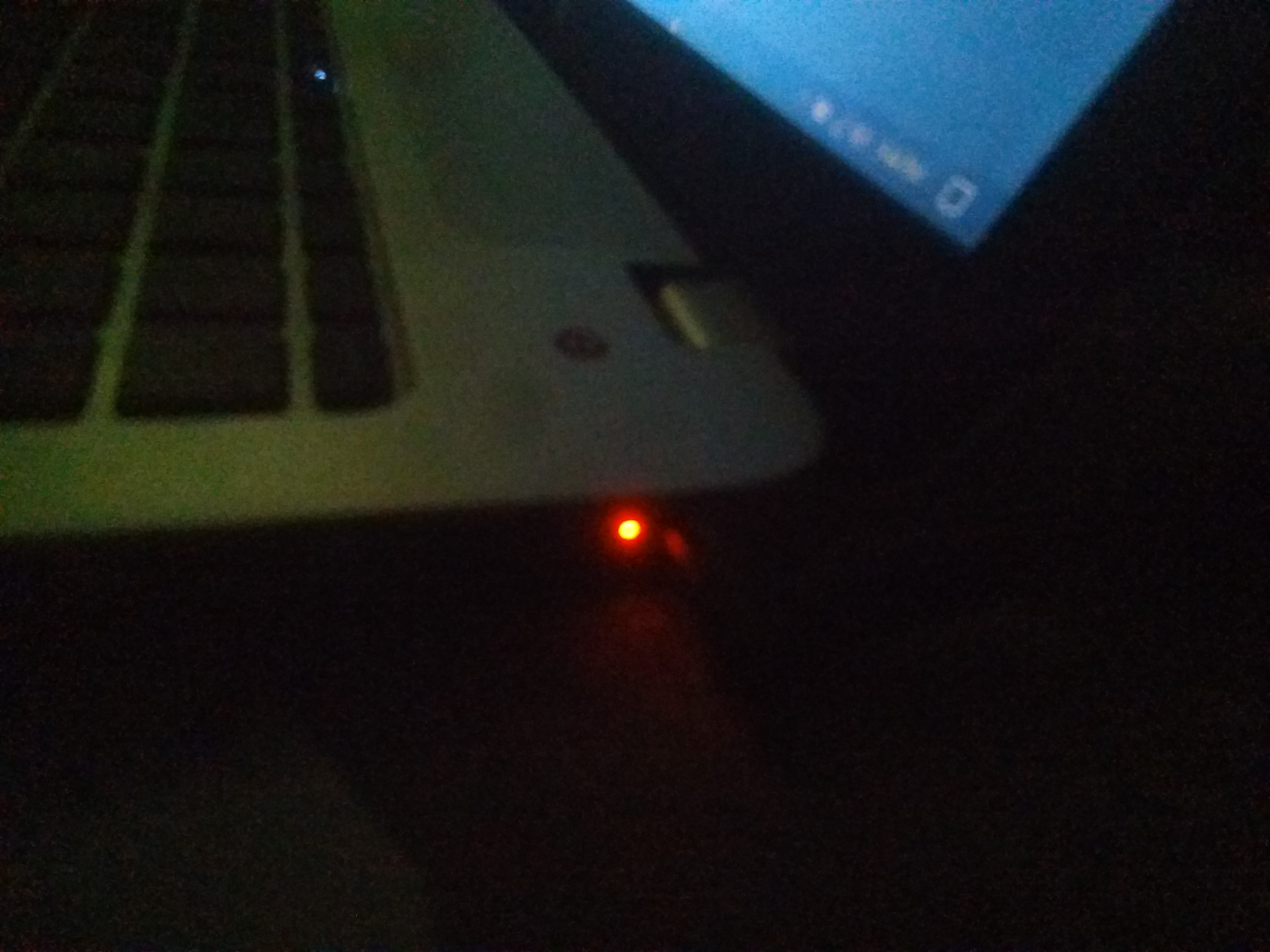
- Blinking white and orange: There’s a problem—often with the battery or power.
- No light: Laptop is not getting power or battery is not detected.
But when you see the charging light blinking white and orange, it’s usually a sign of a battery or charging fault. The exact meaning can vary by model, but in most cases:
- Blinking white: Critical battery error, battery not charging, or battery not detected.
- Blinking orange: Battery is low, charging error, or power adapter issue.
- Alternating white and orange: Hardware error related to the battery, charger, or motherboard.
Why Do Hp Laptops Use This System?
HP uses these color codes to quickly tell you about battery health and charging status without needing to check software. If you understand these signals, you can act fast and prevent bigger problems.
Common Causes Of Charging Light Blinking White And Orange
Seeing your HP laptop charging light blink white and orange is a clear warning. Let’s break down the most common reasons for this issue.
- Battery Failure or Battery Not Detected
- If the battery is loose, disconnected, or faulty, the laptop may blink these colors.
- Sometimes, an old battery can no longer hold a charge and needs replacing.
- Charger or Power Adapter Problems
- Using the wrong adapter (wrong wattage/voltage) can cause charging errors.
- A damaged or faulty charger will also trigger warning lights.
- Loose or Damaged Charging Port
- If the charging pin is bent or dirty, power won’t flow correctly.
- This can cause the battery to stop charging and the light to blink.
- Motherboard or Circuit Problems
- Faulty circuits inside the laptop can cause detection problems.
- Liquid spills or drops may damage the internal charging system.
- Software or Firmware Bugs
- Outdated BIOS or drivers may misreport battery status.
- A simple software glitch can sometimes trigger blinking lights.
- Overheating Battery or Laptop
- If the battery or motherboard gets too hot, the laptop may stop charging as a safety measure.
Uncommon Causes (often Missed)
- Third-party replacement batteries: Non-HP batteries may not communicate correctly with the laptop.
- Electrical surges: A power surge can confuse the charging system until the laptop is reset.
Understanding these causes is the first step to a fix. The next section will guide you through troubleshooting.

Credit: www.youtube.com
How To Troubleshoot Hp Laptop Charging Light Blinking White And Orange
Fixing this issue starts with careful checks and simple steps. Here’s a practical process to follow.
Step 1: Basic Checks
- Inspect the Charger and Cable
- Use only the original HP charger.
- Check for frayed wires, bent pins, or loose connections.
- Try a different wall outlet.
- Check the Battery Connection
- For laptops with a removable battery, power off and remove the battery.
- Clean battery contacts with a dry cloth.
- Re-insert the battery firmly.
- Look at the Charging Port
- Shine a light inside—look for dust, debris, or bent pins.
- Clean gently with a toothpick or compressed air.
- Test With and Without the Battery
- Remove the battery and plug in the charger.
- If the laptop powers on, the charger and motherboard are likely fine. If not, the charger or motherboard may be at fault.
Step 2: Hard Reset (simple Fix For Many Errors)
A hard reset can clear software errors that confuse the charging light.
- Power off the laptop.
- Unplug all cables and devices.
- Remove the battery (if possible).
- Hold the power button for 15–30 seconds.
- Reconnect the battery and charger, then power on.
This simple step often fixes “phantom” blinking light issues.
Step 3: Software And Bios Update
- Boot into Windows (if possible).
- Go to HP Support Assistant or the HP website.
- Download and install the latest BIOS and battery drivers.
- Restart and check the charging light.
An outdated BIOS can cause false battery errors, especially after a Windows update.
Step 4: Battery Health Check
HP laptops often have built-in diagnostics.
- Power off your laptop.
- Press the Esc key, then the F2 key (while holding Esc) to enter HP Diagnostics.
- Run the “Battery Test” or “System Test.”
- Review the results for errors like “Battery Not Detected” or “Replace Battery.”
If the test fails, your battery is likely faulty.
Step 5: Try A Different Charger
If you have access to another official HP charger, test it. Chargers can fail even if they look fine. Avoid third-party or “universal” adapters—they often cause more problems.
Step 6: Seek Professional Help
If none of the above steps solve the issue, the problem is likely with the motherboard, charging circuit, or a deeply failed battery. At this point, visit an HP service center.
Comparing Hp Charging Light Patterns Across Models
Not all HP laptops use the same light codes. Here’s a table comparing common patterns:
| Model Series | Solid White | Solid Orange | Blinking White & Orange | No Light |
|---|---|---|---|---|
| HP Pavilion | Fully charged | Charging | Battery/charger error | No power/battery |
| HP Envy | Fully charged | Charging | Battery not detected | Shutdown/critical error |
| HP EliteBook | Fully charged | Charging | Power fault | No power source |
| HP Spectre | Fully charged | Charging | Battery/adapter error | Disconnected |
Always check your HP model’s user manual, as some codes change between generations.
Credit: h30434.www3.hp.com
When To Replace Your Battery Or Charger
Sometimes, the blinking light means something must be replaced. But how do you know which part is failing?
Battery Replacement Signs
- Battery health test fails (“Replace Battery” warning).
- Laptop works only when plugged in, not on battery.
- Battery percentage jumps or drops suddenly.
- Battery is swollen or leaks.
Charger Replacement Signs
- Charger gets very hot or makes crackling sounds.
- Cable is cut, frayed, or pin is damaged.
- Laptop charges with another charger but not yours.
- Charging light blinks with your charger but not with a different one.
Table: Battery Vs Charger Problem Signs
| Symptom | Battery Issue? | Charger Issue? |
|---|---|---|
| Laptop won’t turn on (with charger) | No | Yes |
| Laptop shuts off if unplugged | Yes | No |
| Charging light blinks with one charger only | No | Yes |
| Battery test fails in diagnostics | Yes | No |
If you’re unsure, visiting an HP service center is the safest option.
Preventing Charging Light Problems
Avoiding charging errors is easier than many people think. Here are the best ways to keep your HP laptop’s charging system healthy:
- Use Only Genuine HP Chargers
- Third-party or knock-off chargers often have voltage mismatches.
- Only use chargers with the exact voltage and amperage rating.
- Keep Charging Ports Clean
- Dust and debris can block proper connection.
- Clean ports gently every few months.
- Avoid Extreme Temperatures
- High heat ages batteries fast.
- Don’t leave your laptop in hot cars or direct sunlight.
- Don’t Let the Battery Drain Completely
- Modern batteries last longer if you keep charge between 20% and 80%.
- Update BIOS and Drivers Regularly
- HP releases updates that improve battery management.
- Avoid Physical Damage
- Don’t drop, bump, or twist your laptop.
- Store Long-Term at Half Charge
- If you won’t use your laptop for weeks, store it at 40–60% charge.
Two Non-obvious Tips Most Users Miss
- Unplug After Full Charge: Leaving your laptop plugged in 24/7 can stress the battery over time. Even modern systems sometimes overcharge slightly, so unplug for a few hours each day.
- Battery Calibration: Every 2–3 months, let the battery run down to about 10%, then fully recharge. This helps the system “learn” real battery capacity and keeps charging lights accurate.

Credit: www.ifixit.com
When To Contact Hp Support
If you’ve tried all the steps above and your charging light keeps blinking white and orange, it’s time for expert help. Here’s when to call HP or visit a service center:
- Battery is swollen, leaking, or smells burnt.
- Laptop won’t turn on at all, even with a known-good charger.
- Diagnostics show hardware errors that won’t clear.
- You see sparks or smoke from the charger or port.
HP offers online chat, phone, and in-person support. Many battery and charging issues are covered under warranty for up to 1 year (sometimes longer for business models).
For more details on HP’s official battery policies, visit the HP official support site.
Real-world Example: Resolving A Blinking Charging Light
Let’s look at a typical case. Sarah owns an HP Pavilion laptop. One day, she notices the charging light blinks white and orange. The battery icon in Windows says “Plugged in, not charging.” Here’s what she does:
- Checks the charger—no cuts, but the tip is a bit bent.
- Removes the battery, cleans contacts, and tries again. Still blinking.
- Runs HP Diagnostics—battery test fails (“Replace Battery”).
- Borrows a charger from a friend—light turns solid orange, and charging resumes.
- Orders a new HP battery, installs it, and the laptop works as normal.
Sarah’s issue was a combination of battery failure and a damaged charger tip. Both needed replacing. This example shows that sometimes, more than one part is involved.
Data: How Common Are Charging Light Issues?
According to HP’s support data, charging light errors are among the top 5 reasons for laptop service calls. About 15–20% of HP laptops will show some kind of charging light warning during their lifetime. Most are fixed with a new battery or charger, but about 5% need motherboard repairs.
Frequently Asked Questions
Why Does My Hp Laptop Charging Light Blink White And Orange Even With A New Battery?
Sometimes, the charging light will keep blinking even after you replace the battery. This usually means there’s a problem with the charger, charging port, or motherboard. Try a different official HP charger first. If that fails, run HP Diagnostics to check for hardware errors. Sometimes, a BIOS update will fix the problem.
Is It Safe To Use My Hp Laptop When The Charging Light Is Blinking?
If the charging light is blinking but the laptop still works, you can use it for a short time. However, continuous blinking is a warning that something is wrong. Prolonged use may damage the battery or motherboard. Save your work and troubleshoot as soon as possible.
Can A Third-party Charger Cause The Charging Light To Blink?
Yes, using a non-HP or incompatible charger is a common cause of blinking charging lights. These chargers may not supply the correct voltage or may not communicate properly with the laptop. Always use an official HP charger for your model.
What Should I Do If The Charging Light Blinks And The Laptop Won’t Turn On?
If your HP laptop won’t turn on and the charging light blinks, unplug everything and try a hard reset. Remove the battery (if possible), hold the power button for 15–30 seconds, then reconnect and try again. If the laptop still doesn’t start, the problem is likely hardware-related. Contact HP support.
How Can I Tell If My Battery Or Charger Is The Problem?
Try these steps:
- Remove the battery and power the laptop with the charger only. If it works, the battery is likely the problem.
- Try another HP charger if possible. If the laptop charges, your charger is faulty.
- Run HP Diagnostics for a clear answer.
Seeing your HP laptop charging light blinking white and orange is never fun, but now you know what it means and how to fix it. With a bit of careful troubleshooting, most users can solve this problem without a trip to the repair shop. And with good charging habits, you’ll keep your laptop running smoothly for years to come.