
A blinking Caps Lock key and a blank screen on an HP laptop can turn a normal day into a stressful puzzle. Many users suddenly face this issue: you press the power button, the screen stays black, but the Caps Lock light blinks again and again. Is the laptop dead? Is it a minor problem? The answer is not always simple, but with the right steps, you can often fix the problem or at least understand what is happening.
If you are reading this, you might be worried about losing your data, missing work, or paying for expensive repairs. The good news is, you are not alone. This issue is common, especially with HP laptops, and there are clear ways to approach it. This guide covers why the Caps Lock blinks continuously with no display, what the blinks mean, and practical steps to solve it—whether you are a beginner or have some technical background.
Understanding The Problem: What Does Caps Lock Blinking Mean?
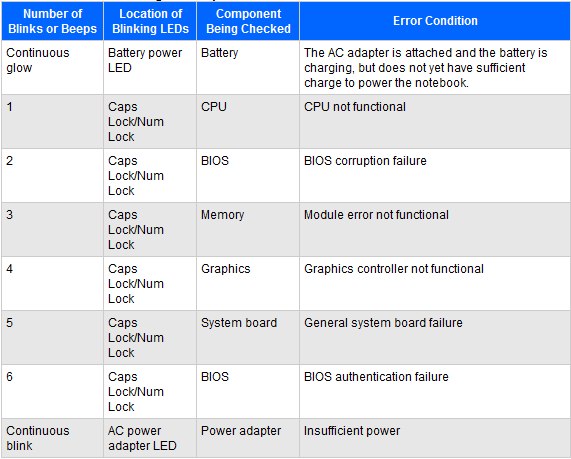
When your HP laptop shows a black screen and the Caps Lock key blinks, it is sending you a signal. HP designed these blinking lights as error codes. Each pattern of blinking—single, double, triple, or more—points to a specific hardware problem inside the laptop.
Common Blink Codes
Here are the most common Caps Lock blink codes and what they mean:
- 1 blink: CPU failure
- 2 blinks: BIOS corruption
- 3 blinks: Memory (RAM) problem
- 4 blinks: Graphics card failure
- 5 blinks: System board failure
- Continuous blinking: Power or motherboard issue
Sometimes, the code is a combination of Caps Lock and Num Lock blinks. If your laptop does not have a Num Lock, just count the Caps Lock blinks between pauses.
Why is there no display? Usually, the hardware problem stops the laptop from starting, so the screen stays black. If you hear the fan or other lights turn on, it means power is reaching the laptop, but something is blocking the normal start-up process.
Why Does This Happen? Common Causes
Several things can make your HP laptop show a blinking Caps Lock and no display. Here are the main causes:
- Faulty RAM (Memory): Loose, damaged, or dirty RAM modules are the most frequent reason.
- BIOS Corruption: If the BIOS is damaged (by a failed update or sudden power loss), the laptop cannot start.
- Motherboard Issues: Problems with the main board, like short circuits or damaged chips, can cause this symptom.
- CPU or GPU Failure: If the processor or graphics chip fails, the laptop may not show any display.
- Loose or Damaged Connections: Internal cables or components may have moved or become dirty.
- Power Supply Problems: Low or unstable power can cause the laptop to get stuck during start-up.
- Peripheral Devices: Sometimes, attached USBs or devices can interrupt the normal boot process.
Non-obvious insight: Sometimes, a simple static buildup in the laptop’s circuits can cause this problem. Draining the power fully (see below) can fix it.
Credit: h30434.www3.hp.com
First Steps: Quick Checks Before Advanced Troubleshooting
Before you open your laptop or worry about repairs, try these simple steps:
- Check the Power Source. Plug the laptop directly into a wall outlet using the original charger. Avoid power strips or extension cords.
- Remove All External Devices. Unplug USB drives, SD cards, printers, or anything else connected to the laptop.
- Listen and Observe. When you press the power button, do you hear the fan? Does any other light turn on? Count the Caps Lock blinks between pauses.
- Try a Hard Reset (Power Drain).
- Turn off the laptop.
- Unplug the charger.
- Remove the battery (if possible).
- Press and hold the power button for 15–30 seconds. This drains any leftover static power.
- Reconnect the battery and charger, then try to start the laptop.
This process often fixes minor hardware confusion or static issues, especially after a power surge or recent move.
Decoding The Blink Codes: What Is Your Laptop Telling You?
Not all blinks mean the same thing. Here’s a quick reference for HP’s most common blink codes:
| Blink Pattern | Likely Problem | Next Step |
|---|---|---|
| 1 blink | CPU not detected | Service needed |
| 2 blinks | BIOS corruption | Try BIOS recovery |
| 3 blinks | RAM failure | Reseat or replace RAM |
| 4 blinks | Graphics error | Service needed |
| 5 blinks | Motherboard failure | Service needed |
| Continuous blinking | Power or board issue | Check charger, hard reset |
Pro tip: If you are not sure about the pattern, record a video with your phone and count the blinks between pauses.
Credit: www.youtube.com
Step-by-step Troubleshooting For Hp Laptops
Now, let’s go deeper. Here is how to fix the Caps Lock blinking with no display problem, based on the most common causes.
1. Memory (ram) Troubleshooting
RAM is the most common cause of this issue, especially with 3 blinks.
How to check and fix:
- Unplug the laptop and remove the battery.
- Open the RAM cover. Use a small screwdriver to access the RAM slot (see your laptop’s manual).
- Remove the RAM module. Gently push the clips on both sides until the RAM pops out.
- Clean the contacts. Use a clean, soft eraser or a dry lint-free cloth to wipe the gold edges.
- Reseat the RAM. Insert it back, making sure it clicks into place.
- Try one stick at a time (if you have more than one).
- Start the laptop with each RAM module separately.
If the laptop works with one module but not the other, the faulty one needs replacement.
Data table: RAM Error Rates
| RAM Age (Years) | Chance of Failure |
|---|---|
| 0–2 | Low (1–2%) |
| 2–5 | Medium (3–6%) |
| 5+ | High (10%+) |
Non-obvious insight: Sometimes, RAM works loose after a laptop is dropped or bumped. Simply reseating it (removing and reinserting) can fix the issue, even if the RAM is not damaged.
2. Bios Recovery
If you see 2 blinks or suspect a BIOS issue, try this:
- Turn off the laptop.
- Press and hold the Windows + B keys.
- While holding, press and hold the Power button for 2–3 seconds.
- Release all keys.
The laptop may beep or show an HP BIOS recovery screen. Follow the instructions to recover the BIOS.
If this does not work, the BIOS chip may need professional reprogramming.
3. Display And Graphics Card Check
A failed graphics chip (4 blinks) is hard to fix at home. However, sometimes the problem is with the display, not the graphics card.
- Test with an external monitor. Connect the laptop to a TV or monitor using HDMI or VGA. If you see an image on the external screen, your laptop’s display or cable is the problem.
- Check for faint images. Shine a flashlight on the laptop’s screen at an angle while it is on. If you see a faint desktop, the backlight may have failed.
4. Power And Motherboard Issues
Continuous blinking often means a power or board issue.
- Try a different charger. HP chargers have a special chip; using a non-HP charger can sometimes cause errors.
- Check the battery. Remove it and try to start the laptop with only the charger.
- Look for damage. Smell for burnt plastic, check for swollen batteries, or listen for unusual sounds.
If these steps do not help, the motherboard or CPU may need professional repair.
When To Seek Professional Help
Not every problem can be fixed at home. Here are signs you need a repair shop:
- The laptop shows 1, 4, or 5 blinks (CPU, graphics, or board failure).
- You have tried all steps but still get blinking lights and no display.
- The laptop was dropped, got wet, or has physical damage.
- You are not comfortable opening the laptop.
HP service centers can run diagnostics and replace chips or boards. If your laptop is still under warranty, contact HP support.
External link: For official HP blink code references, see the HP Support site.
Common Mistakes To Avoid
Many users make these errors, which can make the problem worse:
- Ignoring the blink code. Each pattern tells you what is wrong. Guessing blindly wastes time.
- Using the wrong charger. Non-HP adapters may fit but can damage the board.
- Forcing RAM into the slot. RAM fits only one way. Forcing it can break the slot.
- Not removing static electricity. Always unplug and press the power button before opening the laptop.
- Skipping basic checks. Simple things—like a loose charger or USB stick—can stop a laptop from starting.
Practical advice: Write down what you try and what you see. This helps if you need to call a technician later.
Data: How Common Is This Problem?
HP laptops are popular, but hardware errors are not rare. Surveys and forums show:
- About 8–12% of HP laptop users report a boot-up issue at least once in the laptop’s life.
- Blinking Caps Lock with no display is among the top three most-reported HP boot problems.
- RAM issues cause about 40% of these cases, BIOS about 15%, and motherboard/graphics the rest.
These numbers show that while the problem is serious, it is also well understood.
Preventing Future Problems
Once you fix your laptop, you want to avoid this problem in the future. Here’s how:
- Keep firmware and BIOS updated. Use HP’s official website to download updates.
- Handle your laptop carefully. Avoid dropping, shaking, or pressing hard on the case.
- Use only HP chargers. Third-party adapters often cause problems.
- Clean the vents and keyboard. Dust can cause overheating and static.
- Check RAM after travel. If your laptop was moved, reseat the memory.
- Back up your data. Hardware can fail at any time; a backup keeps your files safe.
Comparison: Hp Vs Other Brands For Blink Codes
How does HP compare to other laptop brands when it comes to error signals?
| Brand | Error Signal Method | User Friendliness |
|---|---|---|
| HP | Blink codes (LEDs, Caps Lock, Num Lock) | Clear but requires manual lookup |
| Dell | Blink codes, beep codes | Similar to HP |
| Lenovo | Beep codes, sometimes on-screen | Beep codes can be confusing |
| Apple | Chimes, on-screen icons | User friendly |
HP’s blink codes are useful but require you to look up the meaning. Not all users realize this and may miss an easy fix.
Real User Example
Sara, a college student, had an HP Pavilion laptop. One day, it would not turn on—the screen was black, and the Caps Lock blinked three times. She was worried about her assignments.
After searching online, she:
- Removed the battery and charger.
- Opened the back panel and found two RAM sticks.
- Cleaned the contacts with a dry cloth.
- Inserted one stick at a time.
The laptop started with the first stick but not the second. She replaced the faulty RAM for $30 and her laptop worked again.
Key lesson: You do not always need a new laptop—sometimes, a simple fix is enough.
Cost Of Repair: What To Expect
If you need professional help, here’s what repairs usually cost in the US:
- RAM replacement: $30–$100 (parts and labor)
- BIOS reprogramming: $50–$120
- Motherboard repair: $120–$300
- CPU/GPU replacement: $150–$400 (not always possible)
If your laptop is old and the repair cost is more than half the price of a new one, consider buying a new device instead.

Credit: perurunningtours.com
Advanced Solutions: For Experienced Users
If you have some technical skill, you can try these advanced tips:
- Clear the CMOS battery. The CMOS battery keeps your laptop’s hardware settings. Removing it for 10 minutes can sometimes reset hardware errors.
- Check for short circuits. Look for burnt spots or damaged components on the motherboard.
- Try a different RAM slot. Sometimes, only one slot is damaged.
- Test components in another laptop. If you have access to another HP laptop, test your RAM or battery there.
Warning: If you are not sure, do not try these steps, as you can cause more damage.
Frequently Asked Questions
Why Does My Hp Laptop Only Show A Blinking Caps Lock And No Display?
This usually means a hardware problem. The blinking Caps Lock is an error code. Common reasons are faulty RAM, BIOS corruption, or motherboard issues.
Can I Fix The Blinking Caps Lock Issue At Home?
Yes, in many cases. Start with a hard reset and check the RAM. If the problem is more serious (CPU or motherboard), you may need professional help.
How Do I Know What The Caps Lock Blinks Mean?
Count the number of blinks between pauses. Each number points to a different problem (for example, 3 blinks means RAM issue). Check the HP support site for a full list of codes.
Will I Lose My Files If My Laptop Has This Problem?
Not always. If the hard drive is not damaged, your files are safe. When the laptop works again, back up your data immediately. If you cannot fix it, a technician can often recover your files.
Is It Worth Repairing An Old Hp Laptop With This Problem?
It depends on the repair cost and the laptop’s age. If the repair is more than half the price of a new laptop, consider replacing it. Otherwise, fixing RAM or BIOS is usually affordable.
A blinking Caps Lock with a black screen is worrying, but it does not always mean the end for your HP laptop. By understanding the blink codes, trying simple fixes, and knowing when to seek help, you can often solve the problem without stress.
Remember, most issues are fixable, and knowing what to do saves both time and money. If you act with care and patience, your laptop can be up and running again soon.