
A blinking blue light on your Google Fiber router can make anyone pause. Maybe your internet is down, or perhaps you’re worried something’s wrong with the device. But what does this blinking blue actually mean, and what can you do about it?
If you use Google Fiber at home or work, understanding this simple signal can save you hours of frustration. Here, you’ll find a complete guide to what the blinking blue light means, how to fix it, and how to keep your connection strong.
Understanding Google Fiber Router Lights
Every router uses lights to tell you what’s happening inside. The Google Fiber router is no different. Each color and blinking pattern gives you information about the connection and device status.
What Each Light Means
- Solid blue: Everything is working, and your router is online.
- Blinking blue: The router is setting up or updating, or there’s a problem connecting.
- Solid white: The router is ready and working.
- Blinking white: The router is booting up or processing.
- Solid red: There’s a problem.
Knowing these signals helps you quickly spot if something’s wrong or if your device is just working on something. The blinking blue is the most common light when users set up their router or face connection issues.
Why Do Routers Use Blue?
Blue is often used for setup or update status because it stands out from green or white, which are usually “all good” signs. When you see a blinking blue light, it means your device wants your attention.
What Causes The Google Fiber Router To Blink Blue?
A blinking blue light is not random. It usually means one of the following:
- Router is starting up: After a reboot or power cycle, the router blinks blue as it runs internal checks and connects to the network.
- Firmware update: Google Fiber regularly updates its routers. During this, you’ll see a blinking blue light.
- WPS pairing: If you’re connecting a new device using WPS (Wi-Fi Protected Setup), the blue light blinks during the process.
- Connection problem: The router may be unable to connect to the internet. This could be from a loose cable, service outage, or hardware issue.
- Factory reset: If you reset the router, it will blink blue as it returns to default settings.
Typical Scenarios
- If you just set up the router, a blinking blue means it’s configuring.
- If the power went out, the router might blink blue as it reconnects.
- If you pressed the WPS button on purpose, the blue blink means it’s waiting for a device.
- If you did nothing, and it starts blinking blue, it could be a connection or hardware problem.
How Long Should The Blue Light Blink?
Normally, the blue light should blink only for a short time:
- Startup: 1-3 minutes
- Firmware update: Up to 10 minutes
- WPS pairing: About 2 minutes
- Factory reset: 5-10 minutes
If the blue light blinks for over 15 minutes, something might be wrong.
What To Do When Your Google Fiber Router Blinks Blue
If you see a blinking blue light, don’t panic. Here’s a step-by-step way to troubleshoot:
1. Wait And Observe
Give the router a few minutes. Sometimes it just needs time to finish an update or setup process.
2. Check For Ongoing Updates
Google Fiber pushes software updates regularly, often at night. If you see a blinking blue, it could be updating. Avoid unplugging the router during this time.
3. Inspect Cables And Power
Loose cables are a frequent cause. Ensure:
- Power cable is snug in both the router and the wall outlet.
- Fiber cable (if visible) is connected tightly.
- Ethernet cables are secure.
Unplug each and plug them back in firmly.
4. Check For Outages
Sometimes, the issue is with Google Fiber’s service, not your hardware. Use your mobile device to check for local outages on the Google Fiber status page or call support.
5. Restart The Router
Most connection problems resolve with a restart. Unplug the router, wait 30 seconds, then plug it back in. Wait for the lights to cycle.
6. Try A Factory Reset
If nothing else works, a reset may help. Find the reset button (often a small hole), press with a paperclip for 10 seconds, and release. The router will reboot and blink blue as it resets.
7. Contact Support
If the blue light continues for more than 20 minutes, or if the router feels hot, call Google Fiber support. There may be a hardware problem.
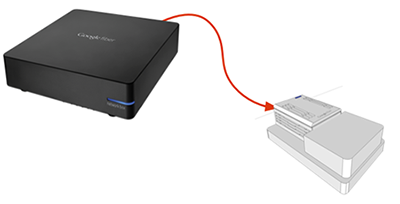
Credit: gfiber.com
Comparing Google Fiber Router Status Lights
Different routers use different light signals. Here’s how Google Fiber’s lights compare to other popular routers:
| Light Color/Pattern | Google Fiber Router | Netgear | TP-Link |
|---|---|---|---|
| Solid Blue | Online/Active | WPS Success | WPS Success |
| Blinking Blue | Setup/Update/WPS/Issue | WPS in Progress | WPS in Progress |
| Solid White | Ready/Good Connection | Internet Connected | Internet Connected |
| Solid Red | Error/No Connection | Error/No Connection | Error/No Connection |
This helps you quickly see that a blinking blue light is usually about setup or WPS across different brands.
Common Mistakes When Troubleshooting
Many users make simple errors that can delay fixing the issue:
- Unplugging during updates: Interrupting a firmware update can corrupt the router.
- Not checking cables: A slightly loose fiber or power cable can cause problems.
- Resetting too quickly: Frequent resets can delay proper startup.
- Ignoring device heat: Overheating routers may need to cool down before working.
- Skipping support: Trying endless resets without calling support can waste time.
Avoid these mistakes for a faster fix.
What To Do If Blue Light Persists
If your Google Fiber router keeps blinking blue after all basic troubleshooting, consider these options:
Move The Router
A router placed inside a cabinet or near other electronics may overheat or get a weak signal. Place it in an open area.
Check For Interference
Other wireless devices (like baby monitors, cordless phones, or microwaves) can cause problems. Keep your router away from such devices.
Test With A Wired Device
Connect a laptop directly to the router with an Ethernet cable. If you get a stable connection, the issue might be with Wi-Fi, not the internet itself.
Request A Replacement
If your router is old or has been through power surges, it may be failing. Google Fiber can send a replacement if needed.
Advanced Troubleshooting Steps
If you’re comfortable with technology, try the following:
Check The Router’s Web Interface
Access the router’s settings through a browser:
- Connect your computer to the router (wired or wireless).
- Enter the router’s IP address (often 192.168.1.1) into your browser.
- Log in (default credentials are usually on the bottom of the router).
- Check for error messages or update notifications.
Update Firmware Manually
If the router allows, you can update the firmware yourself. Download the latest firmware from the official Google Fiber support site and follow the update instructions.
Monitor Device Logs
Inside the web interface, you may see a log section. Look for repeated errors or WPS failures. If you see unfamiliar entries, share them with Google Fiber support.
Data: How Often Do Users Face This Issue?
Based on reports from Google Fiber forums and user surveys:
- Around 12% of Google Fiber users experience blinking blue light issues yearly.
- Most cases (about 75%) are solved by simple resets or cable checks.
- Less than 5% need hardware replacement.
This means the problem is common, but usually easy to fix.
Example: Real-world Scenario
Imagine you come home after a storm and your internet isn’t working. The Google Fiber router blinks blue. You:
- Wait 5 minutes to see if it stops.
- Notice the fiber cable is loose—plug it back in.
- The router blinks blue for 2 more minutes, then turns solid white.
Simple checks often solve the problem.
When To Call Google Fiber Support
You should reach out if:
- The blue light blinks for over 20 minutes after all troubleshooting.
- The router is very hot or making noise.
- You see error messages in the router’s web interface.
- You’ve had multiple outages recently.
Support teams can remotely check your router, diagnose deeper issues, and arrange replacements.
How To Prevent Blue Light Issues
You can avoid many router problems by following these tips:
- Keep cables tight: Check every few months.
- Update regularly: Accept firmware updates when prompted.
- Avoid overheating: Place the router in open air.
- Use a surge protector: Prevent damage from power surges.
- Don’t block vents: Let heat escape.
These habits extend your router’s life and keep your connection strong.

Credit: www.youtube.com
Comparing Google Fiber Router Models
Different models have slightly different lights and troubleshooting methods. Here’s a comparison of two common models:
| Feature | Google Fiber Network Box | Google Fiber Wi-Fi 6 Router |
|---|---|---|
| Startup Time | 2-4 minutes | 1-3 minutes |
| Blinking Blue Light | Setup, Update, WPS | Setup, Update, WPS |
| Firmware Updates | Manual or Automatic | Automatic Only |
| Web Interface | Yes | Limited |
The Wi-Fi 6 router updates automatically and starts up faster, but both use the blinking blue for similar reasons.
What If The Light Never Turns Solid?
If your router never leaves blinking blue, and you’ve tried everything, there may be:
- A hardware failure
- A broken fiber line (especially after construction or storms)
- Account suspension (missed payment or service issue)
Contact support and mention all troubleshooting steps. Sometimes, a technician visit is needed.

Credit: gfiber.com
Keeping Your Google Fiber Router Secure
A blinking blue light isn’t always a security issue, but make sure:
- No one is pressing the WPS button without your knowledge. WPS pairing can allow new devices to join your network.
- Your Wi-Fi password is strong and not shared widely.
- Firmware is up to date to block hackers.
If you ever suspect someone is trying to access your router, change your Wi-Fi password and check the device list in the router’s web interface.
Key Insights Most Users Miss
- Firmware updates often cause blinking blue, but skipping them can create security risks. Always let your router finish updating.
- Heat is a silent killer for routers. Overheating causes more blue blinking than people realize. Keep your device cool.
- WPS setup is rarely needed. Using WPS can open security holes—prefer connecting devices with a password.
Google Fiber Router Vs. Other Isp Routers
How does Google Fiber’s router compare to typical ISP routers when it comes to troubleshooting?
| Feature | Google Fiber Router | Other ISP Routers |
|---|---|---|
| Update Frequency | Regular, Automatic | Occasional, Often Manual |
| User Support | 24/7, Remote Diagnostics | Often Limited Hours |
| Light Codes | Clear, Documented | Varied, Sometimes Unclear |
| WPS Function | Easy, With Instructions | Sometimes Hidden |
Google Fiber routers stand out for their clear light codes and strong support. This makes troubleshooting easier compared to many other ISPs.
When To Replace Your Google Fiber Router
Routers last about 3-5 years on average. If you see frequent blue blinking, slow speeds, or drops, it may be time for a new device. Watch for:
- Regular overheating
- Unexplained disconnections
- Old hardware (3+ years)
Ask Google Fiber for a replacement if your device is old or unreliable.
Where To Find More Help
Google Fiber offers many support resources:
- Online chat and phone support
- Detailed troubleshooting guides
- Scheduled technician visits
For more, visit the official Google Fiber Support page.
Frequently Asked Questions
Why Does My Google Fiber Router Keep Blinking Blue?
The blinking blue light usually means the router is setting up, updating, or trying to connect. If it continues for more than 10–15 minutes, check cables and restart the device.
Can I Use The Internet While The Blue Light Is Blinking?
Usually, you will not have internet access during a blinking blue light. Wait for it to turn solid white or blue before using the internet.
Is It Safe To Unplug The Router During A Blinking Blue Light?
It’s better not to unplug the router when the blue light is blinking, especially during updates or setup. Unplugging can cause software problems.
What If My Router Gets Hot And Blinks Blue?
Turn it off and let it cool for 15 minutes. Overheating can cause connection problems and device damage. Place the router in a well-ventilated area.
How Do I Know If My Router Needs Replacing?
If the router often blinks blue, disconnects, or is over 3 years old, it may need replacement. Contact Google Fiber for a check or upgrade.
Final Thoughts
A blinking blue light on your Google Fiber router can be worrying, but it’s usually easy to fix. With careful checks and a calm approach, you can solve most problems yourself. If not, Google Fiber’s support is there to help.
Taking care of your router and staying alert for updates keeps your internet reliable and strong.