
If you own a Dyson vacuum, seeing a blinking red light can be worrying. Maybe your device suddenly stopped working, or the red light started flashing during cleaning. Many users face this issue and wonder if their vacuum is broken, if the battery needs replacing, or if something else is wrong. The blinking red light is more than just a warning; it’s the vacuum’s way of telling you something needs attention. Understanding what this signal means can help you fix your Dyson quickly and avoid expensive repairs.
This guide explains the causes behind the Dyson vacuum blinking red light, how to troubleshoot the problem, and what to do if the fixes do not work. You’ll learn practical steps, common mistakes, and helpful tips for keeping your Dyson vacuum running smoothly.
What Does The Blinking Red Light Mean?
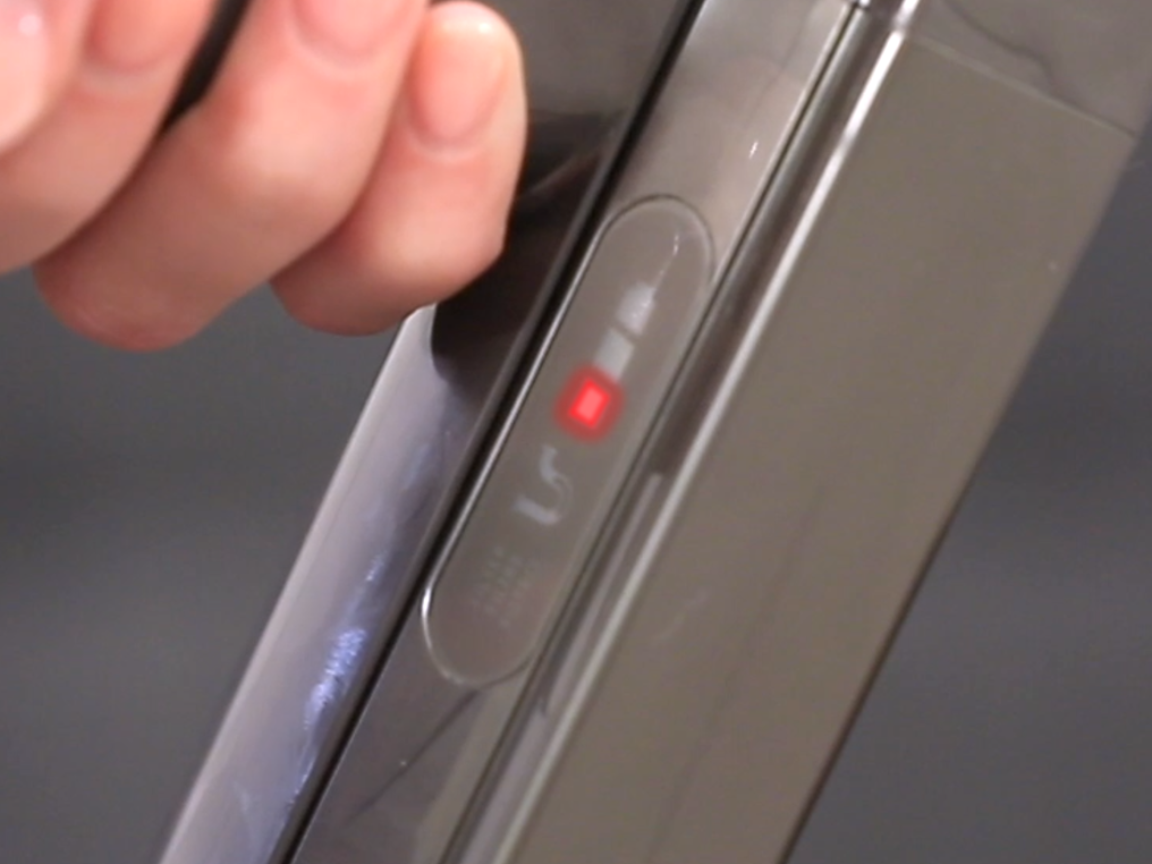
Dyson vacuums use indicator lights to communicate problems. The blinking red light is one of the most serious warnings. It usually appears on cordless models like the Dyson V6, V7, V8, V10, V11, and V15. While the exact meaning can differ between models, the blinking red light almost always signals a battery problem. Sometimes, it can also mean a general fault or overheating.
Red Light Patterns And Their Meanings
- Single Blink: Usually means a minor fault or error.
- Multiple Rapid Blinks: Often indicates a battery failure or deep internal fault.
- Continuous Blinking: Suggests the battery is not charging or has reached the end of its life.
Most Dyson manuals say that if the red light blinks more than 10 times, the battery is likely defective or needs replacement. But sometimes, a blinking red light can occur due to other issues, such as overheating or a blocked filter.
Why Is The Red Light Important?
Ignoring the blinking red light can cause bigger problems. For example, if the battery is failing, trying to use the vacuum can damage internal components. If there’s an overheating issue, you risk fire hazards or permanent damage.
Common Causes Of Dyson Vacuum Blinking Red Light
Understanding the root cause is the first step. Here are the main reasons why your Dyson vacuum might display a blinking red light:
1. Battery Failure
The most frequent cause is a faulty battery. Dyson batteries usually last 2-4 years, depending on usage. If your vacuum’s battery has reached its limit, the red light will blink to warn you.
2. Charger Problems
If the charger is damaged or not properly connected, the vacuum may not charge. This can trigger the blinking red light.
3. Overheating
Using the vacuum for long periods or in hot environments can cause overheating. The device will shut off and blink red to protect itself.
4. Blocked Filters Or Brush Bar
If filters are clogged or the brush bar is jammed, the vacuum may show a blinking red light as a warning.
5. Internal Faults
Sometimes, there may be a deeper electrical or motor issue inside the vacuum. This is less common but possible.
Non-obvious Insights
- Some users mistakenly think the blinking red light means a dirty filter, but in most cases, it’s the battery.
- If you recently replaced the battery and the red light still blinks, the issue could be with the battery contacts or internal wiring, not the battery itself.
Troubleshooting The Blinking Red Light
You don’t need to panic when you see the blinking red light. Many issues can be fixed at home. Here’s a step-by-step guide to diagnose and solve the problem.
Step 1: Check Battery Status
Remove the battery from your vacuum (if the model allows) and inspect it for signs of wear or damage. Look for cracks, swelling, or discoloration. If the battery is older than two years and shows physical damage, it likely needs replacement.
Step 2: Inspect Charger And Charging Port
Plug the charger into the wall and connect it to the vacuum. Watch for any signs of charging, like a blue or green light. If the red light blinks, try using a different outlet. Sometimes, a faulty outlet can cause charging problems.
Step 3: Clean Filters And Brush Bar
Remove and clean the vacuum filters. Most Dyson models have washable filters. Rinse them under cold water and let them dry for at least 24 hours. Check the brush bar for tangled hair or debris.
Step 4: Let The Vacuum Cool Down
If you’ve been using the vacuum for a long time, let it rest for 30 minutes. Overheating can trigger the red light. After cooling, try turning it on again.
Step 5: Test With A Different Battery
If possible, borrow a battery from a similar Dyson model. If the vacuum works, your original battery is faulty.
Step 6: Reset The Vacuum
Some Dyson vacuums allow you to reset by holding down the power button for 10 seconds. This can clear minor errors.
Step 7: Contact Dyson Support
If none of the above steps work, contact Dyson customer service. They can help diagnose deeper faults and offer repair or replacement options.
Common Mistakes
- Many users forget to let the filter dry completely. Using a wet filter can cause more faults.
- Overlooking charger issues is common. Always check both the charger and the outlet.
How To Replace The Dyson Vacuum Battery
If you’ve determined the battery is faulty, replacing it is usually simple. Here’s how to do it safely:
1. Buy The Correct Battery:
Only purchase batteries from trusted sources. Make sure the battery matches your Dyson model. Using a wrong battery can damage your vacuum.
2. Turn Off And Unplug:
Always turn off the vacuum and unplug the charger before replacing the battery.
3. Remove The Old Battery:
Most Dyson batteries are held by screws. Use a screwdriver to remove them and slide out the battery.
4. Install The New Battery:
Place the new battery in the slot and secure it with screws. Make sure it’s firmly attached.
5. Charge Fully Before Use:
Charge the new battery for at least 3 hours before first use.
Practical Tip
After replacing the battery, reset the vacuum if your model allows. This helps clear any error codes.

Differences Between Dyson Vacuum Light Indicators
Dyson vacuums use different light colors to signal problems. Understanding these can help you troubleshoot better.
| Light Color | Meaning | Action Needed |
|---|---|---|
| Red (Blinking) | Battery fault / internal error | Check battery, charger, or motor |
| Blue (Solid) | Charging normally | No action needed |
| Blue (Blinking) | Charging error | Check charger and port |
| Green (Solid) | Fully charged | Ready to use |
| Amber (Blinking) | Temporary fault (overheating) | Let vacuum cool |
Dyson Vacuum Models And Their Red Light Behavior
Different Dyson models have slightly different warning systems. Here’s how some popular models behave:
| Model | Red Light Pattern | Typical Cause |
|---|---|---|
| Dyson V6 | Blinks 10+ times | Battery failure |
| Dyson V7/V8 | Rapid blinking | Battery or charger issue |
| Dyson V10/V11 | Continuous blinking | Internal fault or overheating |
| Dyson V15 | Blinks in bursts | Battery error, sometimes software |
Battery Lifespan And Replacement Statistics
Dyson batteries are designed to last, but they don’t last forever. Here are some facts:
- Average battery lifespan: 2-4 years
- Full charge cycles: 400-500
- Cost of replacement: $40-$100 for genuine parts
According to Dyson, over 75% of repairs on cordless vacuums are due to battery faults. Many users report red light blinking after about 2 years of regular use.
How To Prevent Dyson Vacuum Red Light Issues
Prevention is better than repair. Here are ways to avoid seeing the blinking red light:
1. Charge Regularly:
Don’t let the battery drain completely every time. Regular charging keeps it healthy.
2. Clean Filters Monthly:
Wash filters every month. Clogged filters stress the motor and battery.
3. Avoid Extreme Temperatures:
Store and use your vacuum in places between 50°F and 90°F.
4. Don’t Overuse In One Session:
Using the vacuum for long periods causes overheating.
5. Check For Firmware Updates:
Some newer Dyson models can update software. Updates sometimes fix blinking red light bugs.
Non-obvious Insight
- Using third-party batteries may save money but often leads to faster blinking red light errors. Genuine Dyson batteries have safety features that prevent faults.
Comparing Genuine And Third-party Dyson Batteries
Some users try to save money by buying non-Dyson batteries. How do they compare?
| Battery Type | Price Range | Average Lifespan | Warranty | Fault Rate |
|---|---|---|---|---|
| Genuine Dyson | $40-$100 | 2-4 years | 1 year | Low |
| Third-Party | $20-$50 | 1-2 years | Varies | High |
How To Contact Dyson Support For Red Light Problems
If you’ve tried all troubleshooting steps and the red light is still blinking, it’s time to contact Dyson support.
- Visit the official Dyson website and use the live chat option.
- Call the support hotline (listed on the Dyson site).
- Have your vacuum model and serial number ready.
- Describe the red light pattern (number of blinks, if continuous, etc. ).
- Note what troubleshooting steps you’ve already tried.
Dyson support can help you determine if your vacuum is under warranty. If so, repairs or replacements may be free or discounted.

Real-life Examples: Users Who Fixed The Blinking Red Light
Many users share their experiences online. Here are two helpful stories:
Example 1: Battery Replacement Success
Maria, owner of a Dyson V8, saw her vacuum blink red rapidly after two years. She followed online advice, bought a genuine Dyson battery, and installed it herself. The problem disappeared, and her vacuum worked normally.
Example 2: Charger Fault
John’s Dyson V10 started blinking red after a power surge. He tried a new charger, and the vacuum began charging again. The blinking red light stopped without needing a new battery.
Practical Advice
- If your vacuum is out of warranty, replacing the battery is often the cheapest fix.
- Always try a different charger before buying a new battery.
Environmental Impact Of Dyson Batteries
Batteries contain chemicals that can harm the environment if not disposed of properly. Dyson recommends recycling used batteries at official centers.
- Never throw batteries in regular trash.
- Find local recycling centers for electronics.
- Some stores accept used batteries for safe disposal.
Recycling helps protect the environment and prevents chemical leaks.
When To Repair Vs. Replace Your Dyson Vacuum
Sometimes, fixing the blinking red light isn’t possible. Here’s how to decide:
- If your vacuum is over 5 years old and needs frequent repairs, replacement is better.
- If the battery is new but the red light still blinks, there may be a deeper motor issue. Repairs can cost more than buying a new vacuum.
- If the vacuum is under warranty, always try to repair first.
Professional Repairs: What To Expect
If you take your Dyson vacuum to a professional repair shop:
- Diagnosis usually costs $20-$40.
- Battery replacement: $50-$100.
- Motor or circuit repairs: $100-$200.
Always ask for a quote before agreeing to repairs. Compare costs with buying a new vacuum.
Frequently Asked Questions
What Does A Blinking Red Light On My Dyson Vacuum Mean?
A blinking red light usually signals a battery fault or internal error. It can mean the battery is failing, the charger isn’t working, or there’s an overheating problem. Check the battery and charger first.
Can I Fix The Blinking Red Light Myself?
Yes, most users can fix this issue at home. Try cleaning filters, checking the charger, and replacing the battery. If these steps don’t work, contact Dyson support.
Is It Safe To Use My Dyson Vacuum When The Red Light Is Blinking?
No, it’s best to stop using the vacuum. Continuing to use it can cause more damage or risk overheating. Fix the issue first.
How Much Does It Cost To Replace A Dyson Battery?
Genuine Dyson batteries cost $40-$100. Third-party batteries are cheaper but may cause more errors. Always check your model number before buying.
Where Can I Find Official Dyson Support?
You can find official support on the Dyson website or local Dyson service centers. For more information, visit Dyson Support.
conclusion
Seeing a blinking red light on your Dyson vacuum can be stressful, but it’s usually a fixable problem. Understanding the warning signals, checking the battery and charger, and following the right steps can save you time and money. Remember to clean filters, avoid extreme temperatures, and use genuine parts for the best results.
If you’re unsure, Dyson support is always ready to help. Taking care of your vacuum ensures long life and powerful cleaning every time.