
When your Dell Latitude laptop starts blinking its lights in a strange pattern, it can be confusing and even worrying. These blinking lights are not random—they are codes that tell you what might be wrong inside your computer. Knowing how to read and understand Dell Latitude light blinking codes can save you time, money, and stress. In this guide, we will break down what these codes mean, how to use them to troubleshoot problems, and what steps you can take to fix common issues.
What Are Dell Latitude Light Blinking Codes?
Dell Latitude laptops use LED lights near the power button, battery indicator, or keyboard to send error messages. When something goes wrong during startup or while running, your laptop may not show an error message on the screen. Instead, it flashes its lights in a pattern—long or short blinks, steady or off. These blinking codes are Dell’s way of telling you what kind of hardware problem may be happening.
For example, you may see the battery light blink amber three times, then white twice, and repeat. Each blink sequence points to a specific issue, like memory failure, bad motherboard, or battery error.
Why Do Laptops Use Blinking Codes?
Sometimes a laptop can’t display an error message on the screen because it hasn’t finished starting up, or the problem is with the display itself. Blinking codes let you “read” the error even if the screen is black. They are especially helpful for IT professionals, repair shops, and regular users who want to diagnose problems quickly.
Where To Find The Blinking Codes On Your Dell Latitude
On most Dell Latitude models, the power LED and battery status lights are used for these codes. The location depends on your model:
- On newer Latitudes (like the 5000 or 7000 series), look for the power button LED or small lights near the keyboard.
- On older models, check the front edge or the side panel.
When you power on your laptop and see a pattern of blinks, take note of:
- The color (amber, white, or blue)
- The number of blinks in each part of the pattern
- Whether the blinks are short or long
How To Read The Blinking Codes
The blinking codes usually follow a two-part sequence. For example, you might see three amber blinks, a pause, then two white blinks, repeating. This would be called a “3-2” code.
Each combination points to a different issue. Here’s a simple way to read them:
- Count the number of blinks in the first part (amber)
- Count the number of blinks in the second part (white or blue)
- Look up the combination in your Dell Latitude manual or in the tables below
If you’re not sure about the colors or the pattern, record a video or take a picture to replay and count the blinks.
Dell Latitude Blinking Code Reference Table
Here’s a helpful reference for the most common blinking codes found on Dell Latitude laptops:
| Amber Blinks | White Blinks | Indicates | Possible Causes |
|---|---|---|---|
| 2 | 1 | Processor Failure | CPU not detected, faulty CPU |
| 2 | 2 | System Board Failure | Motherboard issues, BIOS corruption |
| 2 | 3 | Memory Failure | RAM not detected, faulty RAM |
| 2 | 4 | Memory Failure | RAM error, possible wrong RAM type |
| 2 | 5 | Real-Time Clock Failure | CMOS battery dead, RTC chip issue |
| 2 | 6 | USB Controller Failure | Motherboard USB circuit fault |
| 2 | 7 | LCD Failure | Screen not detected, cable loose |
| 3 | 1 | CMOS Battery Failure | RTC coin-cell battery low |
| 3 | 2 | PCI/Video Failure | Graphics card or chipset issue |
| 3 | 3 | BIOS Recovery Needed | BIOS not found, corrupted BIOS |
Note: Not all models use exactly the same codes. Always check your specific Dell Latitude model’s support page for exact information.
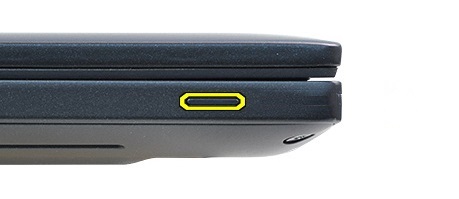
Credit: www.dell.com
Common Blinking Code Scenarios And What They Mean
Here are some common real-world examples of Dell Latitude blinking codes and how to respond:
Example 1: 2 Amber, 3 White (memory Failure)
You turn on your laptop, and the battery light blinks amber twice, pauses, then white three times. This “2-3” pattern means the system cannot detect the RAM, or the RAM is bad.
What to do:
- Power off the laptop and unplug it.
- Remove and re-seat the RAM modules.
- If you have more than one stick, try each one alone.
- Try replacing with known good RAM if possible.
Example 2: 3 Amber, 2 White (video/graphics Failure)
You see three amber blinks, then two white. This usually points to a problem with the graphics chip or display hardware.
What to do:
- Connect an external monitor to check if the graphics work.
- If the external display works, the laptop’s built-in screen or cable may be faulty.
- If not, the motherboard graphics chip might be bad.
Example 3: 2 Amber, 1 White (processor Failure)
Two amber blinks, one white. This means the CPU was not detected or has failed.
What to do:
- This is usually not fixable at home. The motherboard or CPU may need to be replaced.
Example 4: 2 Amber, 5 White (real-time Clock Failure)
The laptop blinks amber twice, then white five times, repeating. This points to a CMOS battery problem.
What to do:
- Replace the coin-cell battery on the motherboard.
- Reset the date/time in BIOS after replacement.
Step-by-step: Troubleshooting Using Blinking Codes
If your Dell Latitude is showing a blinking code, follow these steps for a systematic approach:
1. Observe The Pattern
Watch the lights closely and note the color and number of blinks in each part of the pattern.
2. Look Up The Code
Use the table above or check Dell’s official support page for your model.
- Perform Basic Checks
- Disconnect all external devices (USB, SD card, etc. ).
- Remove the battery (if possible) and power adapter.
- Hold the power button for 20 seconds to drain any residual power.
- Reconnect battery and power, then try again.
- Check Internal Components
- Open the back panel and check the RAM, hard drive, and cables.
- Re-seat the RAM and storage drives.
- Replace components if you have spares.
- Update BIOS or Firmware
If your laptop can still boot, update the BIOS from Dell’s official site. This can fix some firmware-related blinking codes.
6. Seek Professional Help
If the code points to CPU or motherboard failure, or if the steps above do not solve the issue, contact Dell support or a qualified repair shop.

Credit: www.nemolaptops.com
Comparison: Blinking Codes Vs. Beep Codes Vs. On-screen Errors
Many users wonder how blinking codes compare to other error signals like beep codes or traditional error messages. Here’s a side-by-side look:
| Signal Type | How Delivered | When Used | Common Problems Indicated |
|---|---|---|---|
| Blinking Light Codes | LEDs (power/battery lights) | No display or POST failure | Hardware faults (RAM, CPU, motherboard, battery) |
| Beep Codes | Speaker inside laptop | No display, POST error | RAM errors, motherboard failure |
| On-Screen Errors | Text on screen | System can start boot process | Hard drive not detected, BIOS errors |
Insight: On some Dell Latitude models, you may get both a beep code and a blinking code at the same time. The light code is usually more reliable if the screen stays black.
Less-known Tips For Dealing With Blinking Codes
Most guides cover the basics, but here are two things many beginners miss:
1. Environmental Factors Matter:
Sometimes, temperature or humidity can cause temporary issues that trigger blinking codes. For example, laptops left in a hot car may refuse to start and show a code until they cool down.
2. Firmware Bugs:
Rarely, a bad BIOS update or corrupt firmware causes false blinking codes. If you recently updated BIOS and started seeing a light pattern, try resetting the BIOS by removing the CMOS battery for a few minutes.
Dell Latitude Models And Their Blinking Code Differences
While the general idea is the same, not all Dell Latitude models use identical codes. Here’s a quick comparison for several popular series:
| Latitude Series | Typical Light Code Location | Unique Code Features |
|---|---|---|
| 3000 Series | Front edge, near touchpad | Uses simple amber/white patterns |
| 5000 Series | Power button, keyboard | More detailed two-color sequences |
| 7000 Series | Side LED, power button | Some codes include blue light |
| Rugged Series | Front and side, multiple LEDs | Extra codes for environmental sensors |
What To Avoid When Diagnosing With Blinking Codes
Some common mistakes can slow down your troubleshooting or even make things worse:
- Ignoring the exact pattern: Even one blink difference can point to a different problem. Don’t guess—count carefully.
- Skipping basic resets: Sometimes, removing power and holding the power button clears a temporary issue.
- Replacing parts too quickly: Always try re-seating and testing before buying new hardware.
- Overlooking documentation: Your Dell Latitude’s user manual or official support page often has model-specific codes and steps.

Credit: www.youtube.com
When Should You Call Dell Support?
If you’ve tried the steps above and your Latitude still blinks a code, it may be time to call Dell support. Here’s when you should consider professional help:
- The code points to CPU, motherboard, or embedded controller failure.
- You have tried swapping memory, battery, and storage with no change.
- The laptop is under warranty—do not open it further, as this may void support.
- You need specialized tools or skills (e.g., soldering, advanced diagnostics).
Dell support may ask you to provide the exact blink pattern, so write it down or record a video before calling.
Additional Resources
To learn more about your specific Dell Latitude’s blinking codes, check the official Dell support website or your user manual. These pages are updated regularly with the latest information, including new codes for recent models. You can also find helpful guides and troubleshooting steps on the official Dell support portal.
Frequently Asked Questions
What Should I Do If The Blinking Code Is Not Listed In My Manual?
If you see a pattern that is not covered in your manual or in this guide, check Dell’s support website for your exact model. Dell sometimes adds new codes for newer hardware. If you still can’t find it, contact Dell support with your laptop’s service tag and describe the blinking pattern.
Can Blinking Codes Be Caused By Software Problems?
Usually, blinking codes are for hardware faults. However, a failed BIOS update or corrupt firmware (which are software at a low level) can cause the laptop to show a code. In rare cases, a virus that damages BIOS may trigger a blinking code.
Do All Dell Laptops Use The Same Blinking Codes?
No, blinking codes can vary between models and generations. Even within the Latitude family, codes for a 2018 model may be different from a 2023 model. Always check your specific model’s documentation.
Will Replacing The Battery Clear All Blinking Codes?
Replacing the battery only clears codes related to battery or CMOS errors. If the code points to RAM, CPU, or motherboard issues, changing the battery will not help. Identify the code before buying any replacement parts.
Can I Ignore Blinking Codes If My Laptop Works Fine?
If your laptop is running normally, but a light is blinking in a known error pattern, it’s best to investigate. Sometimes, these codes warn you of a problem that could get worse, such as a failing battery or memory. It’s safer to check and fix the issue early.
When you learn to read Dell Latitude light blinking codes, you gain a powerful skill for diagnosing laptop problems. Instead of guessing or waiting for help, you can act quickly and sometimes fix the issue yourself. Always pay close attention to the blink patterns, consult official resources, and don’t hesitate to get professional support if you’re unsure. This approach can save you both time and money, and helps keep your laptop running smoothly.