
When you see your Dell laptop blinking orange and white, it’s easy to feel worried. Many people think their device is broken, but these blinking lights are actually a way your laptop tries to tell you what’s wrong. Understanding what these colors and patterns mean can save you time, money, and frustration. Instead of guessing or panicking, you can use the signals to fix the problem or know exactly what to tell a technician.
Dell uses a system of LED indicator codes. These codes often show on the battery LED or power button. Orange (sometimes called amber) and white flashes are not random—they show specific hardware or software issues. While some problems are easy to fix, others may need professional help. This guide explains everything you need to know about Dell laptop blinking orange and white: what causes it, how to decode the signals, steps to troubleshoot, and when to seek extra help.
Why Do Dell Laptops Use Blinking Lights?
Most Dell laptops do not have big error screens for hardware problems. Instead, they use LED signals to give clues about the issue. These signals are important for two reasons:
- Diagnosing Problems Quickly: Technicians can often guess the issue just by seeing how many times the light blinks in each color.
- User Communication: If your laptop does not start, you still get information through the blinking pattern.
Many users miss that Dell’s blinking codes are different from other brands. Dell also changes codes between models, so one pattern may mean something else on another laptop.
Where To Find The Blinking Light
Usually, the blinking orange and white light appears:
- On the power button
- Beside the charging port
- Near the keyboard
- On the front edge of the laptop
Check your Dell manual or the official support site if you’re unsure where your model shows these indicators.

Credit: www.youtube.com
What Do Orange And White Blinking Patterns Mean?
Dell’s blinking light codes combine orange and white flashes in a specific order. The number of flashes and the color tell you the error type.
Here’s a common interpretation for many Dell Inspiron, Latitude, and XPS models:
- Orange blinks: Hardware failure (battery, memory, motherboard, etc.)
- White blinks: System status or a secondary error code
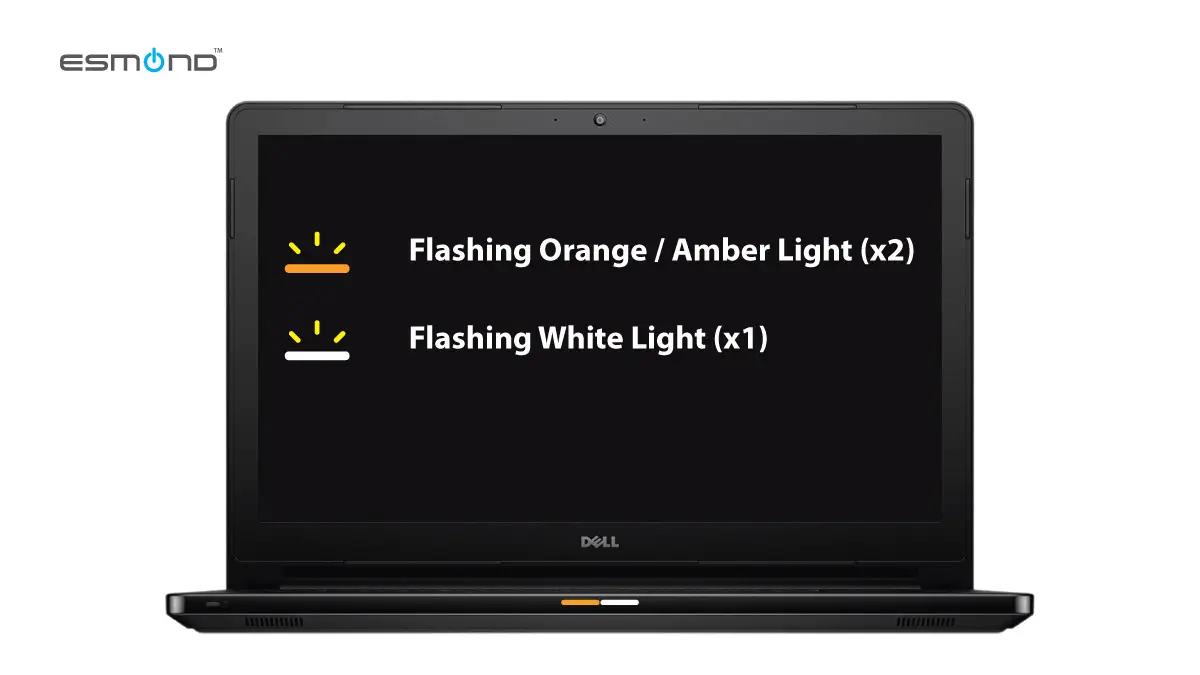
The pattern might be 2 orange and 1 white, 3 orange and 2 white, etc. Each code points to a different problem.
Example Error Code Patterns
Let’s look at a sample table of what these codes might mean for a typical Dell Inspiron:
| Pattern | Meaning | Typical Cause |
|---|---|---|
| 2 orange, 1 white | Processor failure | CPU not working or loose |
| 2 orange, 2 white | System board failure | Motherboard problem |
| 2 orange, 3 white | Memory/RAM error | RAM not detected or faulty |
| 3 orange, 1 white | Battery failure | Battery needs replacement |
| 3 orange, 2 white | BIOS recovery error | Corrupted BIOS |
Important: The codes above are for illustration. Your model’s exact meanings may differ. Always check your Dell user manual or support page for the right codes.
Common Causes Behind Orange And White Blinking
Several issues can trigger these blinking patterns:
1. Faulty Battery
A common reason is a bad battery. If your battery is old, damaged, or not properly connected, the laptop may not charge. The blinking tells you the laptop detected a battery-related issue.
2. Ram (memory) Issues
If you recently upgraded or replaced the RAM, it might not be seated properly, or the module is faulty. Dell laptops will often refuse to start and show a blinking pattern for RAM errors.
3. Motherboard Or Processor Failure
More serious is a motherboard or CPU problem. Physical damage, electrical shorts, or failed components can all trigger error codes.
4. Bios Corruption
If your BIOS update failed or became corrupted, the laptop may blink to show it cannot start normally.
5. Power Adapter Problems
If the power adapter is not delivering enough power, or is not recognized, your laptop might show a battery or charging error with orange and white blinks.
6. Loose Connections
Sometimes, a simple loose cable inside the laptop can cause the blinking. This is more common if the laptop was dropped or serviced recently.
7. Thermal Issues
If the laptop overheats, it may refuse to start and blink a warning. Check for dust buildup or fan failure.
How To Decode Your Specific Dell Laptop’s Blinking Light
Dell’s codes are not universal. Each series (Inspiron, Latitude, XPS, Vostro) can have unique patterns.
Find Your Model’s Code
- Check the Bottom Label: Your laptop’s model number is usually on a sticker underneath.
- Go to Dell’s Support Page: Search for your model and look for documentation about LED error codes.
- Download the Service Manual: Manuals often have a section about blinking codes.
- Try the Official Dell Diagnostic Tool: Dell’s website has support tools that can help if your laptop turns on.
Tip: Take a video of the blinking pattern. Sometimes it’s hard to count blinks, and a video helps you replay and count accurately.
Step-by-step Troubleshooting Guide
If your Dell laptop is blinking orange and white, try these steps before seeking professional repair.
1. Count The Blinks
Watch the pattern carefully. For example, does it blink orange twice, then white once, and repeat? Write it down.
2. Refer To Official Dell Codes
Use your model’s manual or Dell’s online resources to match your code.
3. Basic Reset
- Turn off the laptop
- Unplug all cables and devices
- Remove the battery if possible
- Press and hold the power button for 15 seconds (this drains any leftover power)
- Reconnect the battery and charger, then power on
This simple reset solves minor glitches.
4. Check Ram Modules
If your code points to memory issues:
- Remove the back cover (only if you are comfortable and the warranty allows)
- Remove and re-seat the RAM sticks
- If you have more than one, try starting the laptop with one at a time
Non-obvious insight: Many users forget to clean the RAM contacts gently with a soft eraser before reinserting. Dust or oil from fingers can cause poor contact.
5. Test The Charger And Battery
Try a different, genuine Dell charger if available. Check if the battery is swollen or damaged.
6. Try A Bios Recovery
Some Dell laptops let you force a BIOS recovery:
- Power off the laptop
- Press and hold the CTRL + ESC keys
- Plug in the power adapter
- While holding the keys, press the power button
This can trigger a BIOS recovery screen if the BIOS is corrupted.
Non-obvious insight: Many users don’t realize that a failed BIOS update can cause blinking codes even if the update seemed successful.
7. Look For Physical Damage
Check for any signs of water damage, burns, or broken parts.
8. Contact Dell Support
If you cannot solve the problem, contact Dell with your blinking code details. This saves time and ensures faster, accurate help.
What To Do If You Cannot Fix The Issue
Sometimes, the error means a hardware part must be replaced. Here’s when to seek professional help:
- Your laptop is under warranty
- The blinking code points to motherboard or CPU failure
- You see signs of physical damage
- You cannot access the battery or internal parts
Trying to repair serious issues yourself may void the warranty or cause more problems.
How The Blinking Orange And White Code Differs By Model
Dell changes their error codes over time. Here’s a quick comparison between two common Dell models:
| Model | 2 Orange, 1 White | 2 Orange, 2 White | 3 Orange, 1 White |
|---|---|---|---|
| Inspiron 15 3000 | Processor Failure | Motherboard Failure | Battery Failure |
| Latitude 5400 | Memory Failure | BIOS Failure | CMOS Error |
Always check your specific model’s documentation, as the same pattern can mean different things.
Preventing Future Blinking Light Issues
Some problems are just bad luck, but you can reduce your chances of seeing these blinking codes:
1. Use Only Genuine Dell Chargers And Batteries
Cheap or third-party adapters can damage your laptop or cause false errors.
2. Keep Vents Clean
Dust can cause overheating and motherboard failures.
3. Update Bios And Drivers Carefully
Only update when necessary and do not interrupt BIOS updates.
4. Avoid Physical Damage
Always carry and store your laptop in a padded case.
5. Shutdown Properly
Sudden power loss can corrupt BIOS or hardware.
When Blinking Lights Mean A Minor Issue
Not all blinking codes are disasters. Sometimes, the code simply means:
- The battery is almost empty and needs charging
- The laptop is in a special power mode (sleep or hibernate)
- The charger isn’t fully plugged in
Double-check all connections and battery level before assuming the worst.
Cases When The Orange And White Blinking Is Normal
Some Dell laptops use white and orange lights for normal states:
- White: Power is on, or battery is charging
- Orange: Battery is low, or the laptop is in airplane mode
If the blinking is steady and matches your laptop’s normal behavior, it’s not a problem.
How To Tell If The Problem Is Serious
Here are signs you need urgent help:
- The blinking pattern repeats every time you try to power on
- The laptop does not start at all (no logo, no fan noise)
- You tried all troubleshooting and the pattern stays
In these cases, the hardware may be damaged and needs repair.
Credit: elservicecentre.com
Data Safety: Protecting Your Files
If your laptop won’t start because of a hardware error, your data may still be safe on the drive. Here’s what you can do:
- Remove the hard drive or SSD and connect it to another computer using a USB adapter
- Back up important files regularly to the cloud or an external drive
- If you cannot access the drive, a professional data recovery service may help
Tip: Many users forget that the blinking error often points to power or system board problems, not data loss. Your files are probably safe unless the drive itself is damaged.
How Dell Support Diagnoses And Fixes These Errors
Dell technicians use special tools to confirm the problem. They will:
- Ask for your blinking code and model number
- Run a full hardware diagnostic if the laptop turns on
- Replace faulty parts (RAM, battery, motherboard, etc.)
- Reflash or recover the BIOS if needed
If you are under warranty, Dell may send a technician to your home or ask you to ship the laptop.

Credit: www.dell.com
Estimated Repair Costs For Common Blinking Light Problems
Repair costs depend on the part and warranty status. Here’s a rough estimate for out-of-warranty Dell laptops:
| Problem | Estimated Cost (USD) |
|---|---|
| Battery Replacement | $40–$120 |
| RAM Replacement | $30–$100 |
| Motherboard Repair/Replacement | $200–$500 |
| BIOS Recovery | $0–$100 |
| Power Adapter | $25–$80 |
Note: Prices vary by model and location. Always check with Dell or an authorized repair center.
Why Ignoring The Blinking Orange And White Can Be Risky
Some users keep using their laptop while ignoring the blinking light, especially if it still works. This can be risky:
- A faulty battery could swell and damage the laptop
- Power issues may harm the motherboard over time
- Memory errors can cause data corruption
Address blinking codes as soon as possible to prevent bigger problems.
Where To Get Reliable Help And Parts
Always use Dell’s official support or a trusted technician. For parts:
- Buy only from Dell or approved vendors
- Avoid used or unofficial batteries and chargers
- Ask for a repair warranty
For more details, Dell’s official support resources are reliable. For example, you can visit Dell’s official battery light code page.
Frequently Asked Questions
Why Is My Dell Laptop Blinking Orange And White But Still Working?
This may mean a minor warning, such as a low battery or a minor hardware issue. However, even if the laptop works now, you should check the blinking code and fix the problem to prevent future failure.
Can I Ignore The Blinking Light If My Laptop Charges And Works Fine?
It is not recommended. The blinking light is a warning. Even if your laptop seems fine, a small hardware problem could become worse or cause data loss later.
How Do I Reset The Blinking Light On My Dell Laptop?
Try a power reset: turn off the laptop, unplug everything, remove the battery, and hold the power button for 15 seconds. Reconnect and power on. If the cause is fixed, the blinking should stop.
Is The Blinking Code The Same For All Dell Laptops?
No. Each Dell model may use different blinking codes. Always check your model’s manual or Dell’s support site for the correct meaning.
Can A Software Update Cause The Orange And White Blinking?
Yes. A failed or interrupted BIOS update can cause a blinking pattern. Use Dell’s BIOS recovery steps or contact support if you suspect this.
Dell’s blinking orange and white codes can look scary, but they are useful clues. By understanding what your laptop is trying to say and following the right steps, you can often fix the problem yourself or know exactly what needs repair.
Acting early, using trusted sources, and not ignoring the signals will keep your Dell laptop healthy and your data safe.