
A blinking orange light on your Canon printer can be confusing and annoying, especially when you need to print important documents. Many users face this issue and often feel lost about how to fix it. You might wonder: Is something broken? Is it a minor error? Should you call for help or try to solve it yourself? This guide explains why your Canon printer blinks an orange light, what each blink pattern means, and how to troubleshoot quickly and confidently. You will learn simple steps, practical tips, and common mistakes to avoid. By the end, you’ll know exactly what to do when your Canon printer starts blinking orange.
What Does The Orange Light Mean?
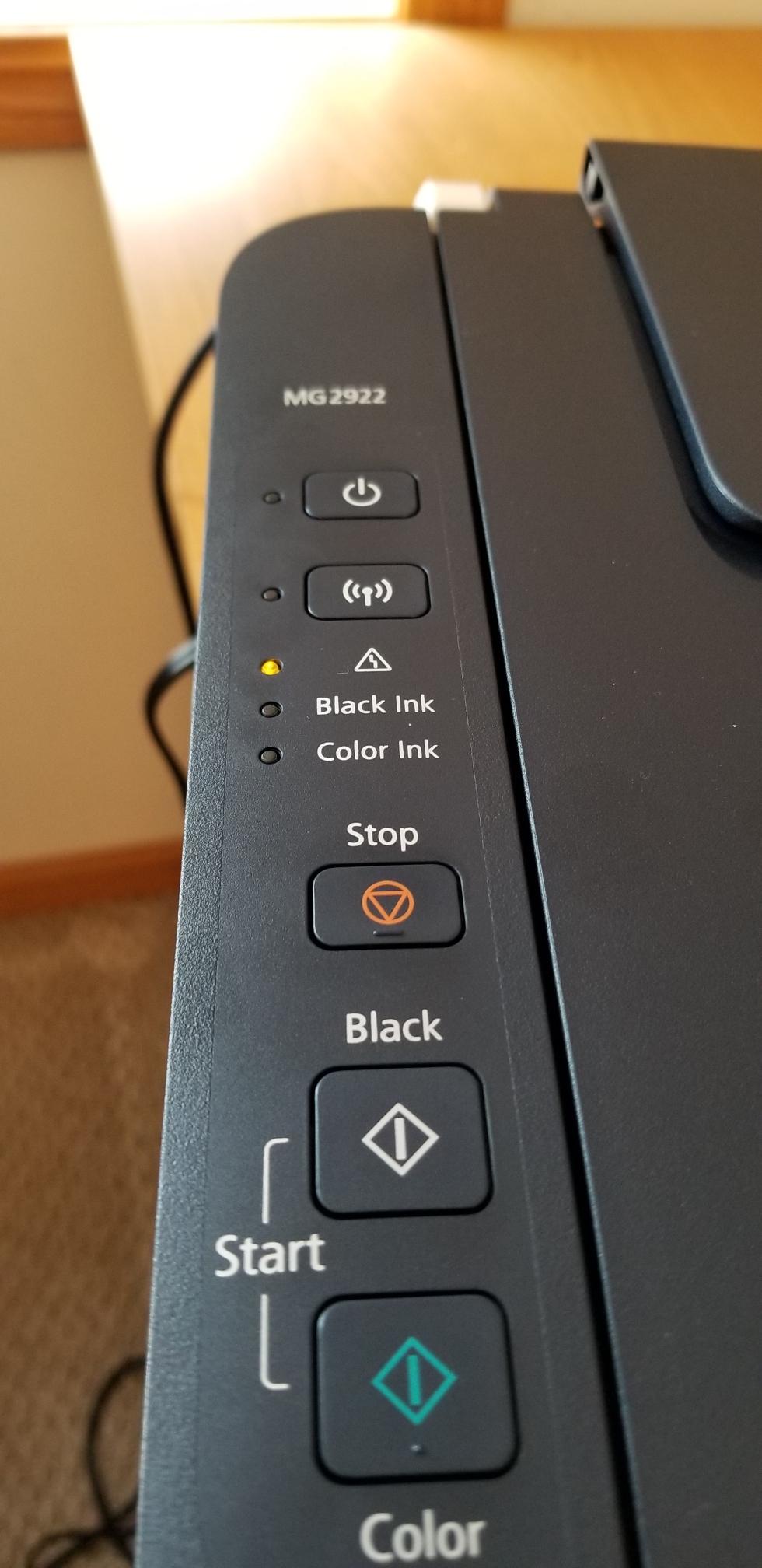
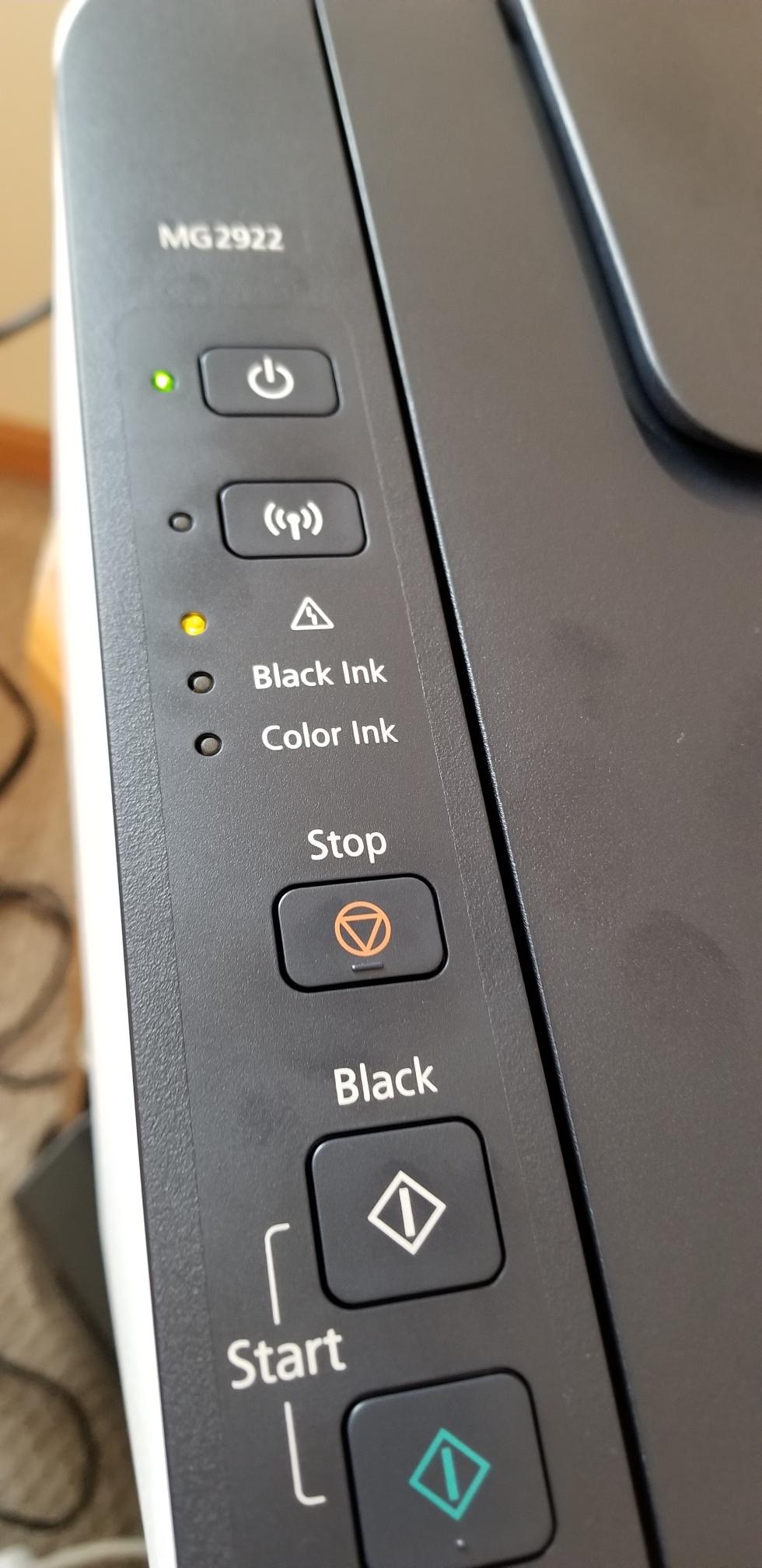
The orange light on a Canon printer is a signal. It tells you that something needs attention. Unlike a steady green light (which means the printer is ready), a blinking orange light always points to a problem or warning.
Canon printers use blink codes—the number of times the orange light blinks in a row tells you the type of issue. Each code relates to a different error, such as paper jams, ink problems, or hardware issues. Recognizing these codes can help you solve the problem faster.
Common Blink Patterns
The most frequent blink patterns are:
- 2 blinks: Paper jam or paper feed error.
- 3 blinks: Front cover open or not fully closed.
- 4 blinks: Ink cartridge not installed properly.
- 5 blinks: Print head not installed or faulty.
- 7 blinks: Ink tank not recognized.
- 8 blinks: Ink absorber full.
- 13 blinks: Ink cartridge out of ink.
- 14 blinks: Ink cartridge not compatible.
- 15 blinks: Ink cartridge not installed.
Each pattern can appear on different Canon models, but most follow similar codes. Always check your printer’s manual for exact meanings.
Main Reasons For Canon Printer Blinking Orange Light
The blinking orange light is not just one problem—it covers several possible issues. Here are the main causes:
1. Paper Jam
If paper is stuck inside the printer, the orange light may blink twice. This happens when:
- Paper is not loaded straight
- Multiple sheets are stuck together
- Small pieces of paper are left inside
2. Ink Cartridge Issues
Cartridge errors are common. The orange light may blink four, seven, thirteen, fourteen, or fifteen times if:
- Cartridges are not installed correctly
- Cartridges are empty
- Cartridges are not recognized
- Cartridges are not compatible
3. Print Head Problems
If the print head is missing or faulty, the orange light blinks five times. Sometimes, the print head needs cleaning or replacement.
4. Ink Absorber Full
When the ink absorber is full, you’ll see eight blinks. The absorber collects excess ink during printing. If it’s full, the printer stops to prevent leaks.
5. Hardware Errors
Other hardware issues like open covers, sensor failures, or internal faults can also trigger the orange light.
How To Identify The Exact Error
Canon printers use blink codes to help you find the exact error. Here’s how to decode them:
- Count the blinks: Watch the orange light and count how many times it blinks before pausing.
- Check your manual: Each blink code matches a specific error. Manuals often list these codes.
- Look at the screen: If your printer has a display, it may show an error code (like E03 or E05) along with the blinking light.
For example, if you see the orange light blink four times, check if the ink cartridge is installed properly. If it blinks eight times, the ink absorber might be full.
Step-by-step Troubleshooting Guide
Fixing a Canon printer with a blinking orange light is easier if you follow a clear process. Here’s a step-by-step guide to help you solve the issue:
Step 1: Turn Off And Restart
Sometimes, simple restarting solves minor errors.
- Turn off the printer using the power button.
- Unplug it from the wall.
- Wait for 60 seconds.
- Plug it back in and turn it on.
If the orange light stops blinking, the error was temporary.
Step 2: Check For Paper Jam
- Open the printer’s cover.
- Remove any stuck paper gently.
- Check for small pieces.
- Close all covers securely.
Tip: Use both hands to remove paper to avoid tearing.
Step 3: Inspect Ink Cartridges
- Open the cartridge cover.
- Remove and reinstall each cartridge.
- Make sure they click into place.
- Check for leaks or damage.
Non-obvious insight: Sometimes, cartridges look fine but are not fully seated. Push until you hear a click.
Step 4: Check Print Head
- Remove the print head if possible.
- Clean it with a dry, lint-free cloth.
- Reinstall it carefully.
If the error continues, the print head may need replacement.
Step 5: Empty Ink Absorber
If the printer blinks eight times, the ink absorber is full.
- This is not easy to fix at home. You can reset the printer’s counter by holding the resume button for 5 seconds, but this does not clean the absorber.
- For a real fix, contact Canon service to replace the absorber.
Non-obvious insight: Resetting the absorber counter is a temporary solution. Ignoring a full absorber can cause ink leaks.
Step 6: Close Covers And Check Sensors
- Make sure all covers are closed fully.
- Some printers have sensors that stop printing if covers are open.
Step 7: Use Genuine Cartridges
If you see errors about ink cartridge compatibility, use official Canon cartridges. Non-genuine cartridges often cause recognition errors.
Step 8: Update Printer Software
Outdated firmware can cause unexpected errors.
- Visit Canon’s website.
- Download the latest firmware or software for your model.
- Install updates as instructed.
Step 9: Reset The Printer
If none of the steps above work, try a printer reset:
- Turn off the printer.
- Hold the resume button.
- Press and hold the power button.
- Release the resume button.
- Press the resume button twice.
- Release both buttons.
This process varies by model. Check your manual for exact steps.
Common Mistakes When Fixing Canon Printer Orange Light
Many users make mistakes that can make the problem worse or delay fixing it. Here’s what to avoid:
- Pulling paper out forcefully: This can damage internal parts.
- Using non-genuine ink cartridges: These can trigger errors or damage the printer.
- Ignoring the error code: Each code tells you the specific problem.
- Resetting without checking absorber: Ignoring a full ink absorber can cause leaks.
- Not closing covers properly: Even a slightly open cover can trigger the orange light.
Canon Printer Orange Light Blink Codes Comparison
To help you understand blink codes better, here’s a comparison table showing common blink codes and their meanings:
| Blink Pattern | Error Type | Recommended Action |
|---|---|---|
| 2 blinks | Paper jam | Remove stuck paper |
| 3 blinks | Front cover open | Close cover properly |
| 4 blinks | Ink cartridge not installed | Reinstall cartridge |
| 5 blinks | Print head error | Clean or replace print head |
| 7 blinks | Ink tank not recognized | Use genuine cartridge |
| 8 blinks | Ink absorber full | Contact service |
| 13 blinks | Ink out | Replace cartridge |
| 14 blinks | Ink cartridge not compatible | Use correct cartridge |
| 15 blinks | Ink cartridge not installed | Install cartridge |

Credit: www.youtube.com
Canon Printer Models Most Affected
Some Canon printers are more likely to show blinking orange lights. Here is a comparison of popular models:
| Model | Common Error | Ease of Fix |
|---|---|---|
| Canon PIXMA MG3620 | Paper jam, ink errors | Easy (most at home) |
| Canon PIXMA TS3120 | Ink cartridge, print head | Moderate (may need service) |
| Canon PIXMA MX922 | Ink absorber, print head | Difficult (service often needed) |
| Canon PIXMA G4210 | Ink tank errors | Moderate (genuine cartridges help) |
How To Prevent Canon Printer Orange Light Errors
Prevention is always better than cure. Here are practical ways to avoid blinking orange light errors:
- Use genuine Canon cartridges: They work best and cause fewer errors.
- Load paper carefully: Make sure paper is straight and not wrinkled.
- Clean print head regularly: Prevents clogging and related errors.
- Update software: Keeps your printer running smoothly.
- Check ink levels: Replace cartridges before they are empty.
- Close covers securely: Avoid sensor errors.
Non-obvious insight: If you print often, clean the rollers every month. Dust can cause paper jams.
Credit: community.usa.canon.com
When To Call For Professional Help
Not all errors can be fixed at home. Here’s when you should contact Canon support or a professional:
- Ink absorber is full and needs replacement
- Print head is damaged and cannot be cleaned
- Internal hardware errors
- Error persists after all troubleshooting steps
Professional help is sometimes faster and safer than DIY fixes. Canon’s official support can be found at Canon Support.
Data: How Common Are Orange Light Errors?
Canon printers are popular, but orange light errors are frequent. According to user reports:
- About 25% of Canon printer owners face orange light errors at least once per year.
- The most common cause is paper jam (43% of cases).
- Ink cartridge errors make up 37% of orange light problems.
- Print head errors are less common (10%), but harder to fix.
Most users solve minor errors at home, but about 15% need professional service.
Credit: community.usa.canon.com
Canon Printer Orange Light Vs Other Brands
Canon is not the only brand with blinking error lights. Here’s a quick comparison:
| Brand | Error Light Color | Common Errors | Ease of Troubleshooting |
|---|---|---|---|
| Canon | Orange | Paper jam, ink, print head | Moderate |
| HP | Red/Amber | Paper jam, ink, carriage | Easy |
| Epson | Red | Paper jam, ink, waste ink | Difficult |
| Brother | Orange/Red | Paper jam, drum, toner | Easy |
Canon’s blink codes are clear, but some errors (like ink absorber full) are harder to fix compared to other brands.
Real-world Example: Fixing A Canon Pixma Mg3620 Orange Light
Let’s look at a real situation. Maria owns a Canon PIXMA MG3620. One day, she sees the orange light blink four times. She thinks it’s broken. But after checking the manual, she learns it’s an ink cartridge error.
Maria opens the cover, removes both cartridges, and puts them back. The orange light stops blinking, and the printer works again. She avoided calling service and saved money.
Insight: Always check the blink pattern and your manual before panicking.
Frequently Asked Questions
Why Does My Canon Printer Blink Orange After Changing Ink Cartridges?
This happens when the cartridge is not installed properly, is empty, or is not recognized. Remove the cartridge, check for damage, and reinstall it. If the error continues, try a new genuine cartridge.
How Do I Reset The Orange Blinking Light On My Canon Printer?
To reset, turn off the printer, unplug it, wait 60 seconds, and plug it back in. If the error is still there, follow the reset steps for your model, usually involving holding the resume and power buttons.
Can I Use Third-party Cartridges To Fix The Orange Light Error?
Third-party cartridges can cause recognition errors and may not solve the problem. Using genuine Canon cartridges is safer and more reliable.
What Should I Do If The Ink Absorber Is Full?
If the printer blinks eight times, the ink absorber is full. You should contact Canon service for replacement. Resetting the counter is only temporary and can cause leaks.
Is The Orange Light Always A Sign Of A Serious Problem?
Not always. Sometimes, the orange light means a minor issue, like an open cover or a jammed paper. Count the blinks and check your manual to identify the problem.
Conclusion
When your Canon printer blinks an orange light, don’t panic. Each blink pattern gives you clues. With careful steps and some patience, most issues can be solved at home. Remember to use genuine cartridges, keep your printer clean, and update software regularly.
If you face tough errors like a full ink absorber, professional help is best. Knowing these tips will help you print smoothly and avoid future problems.