
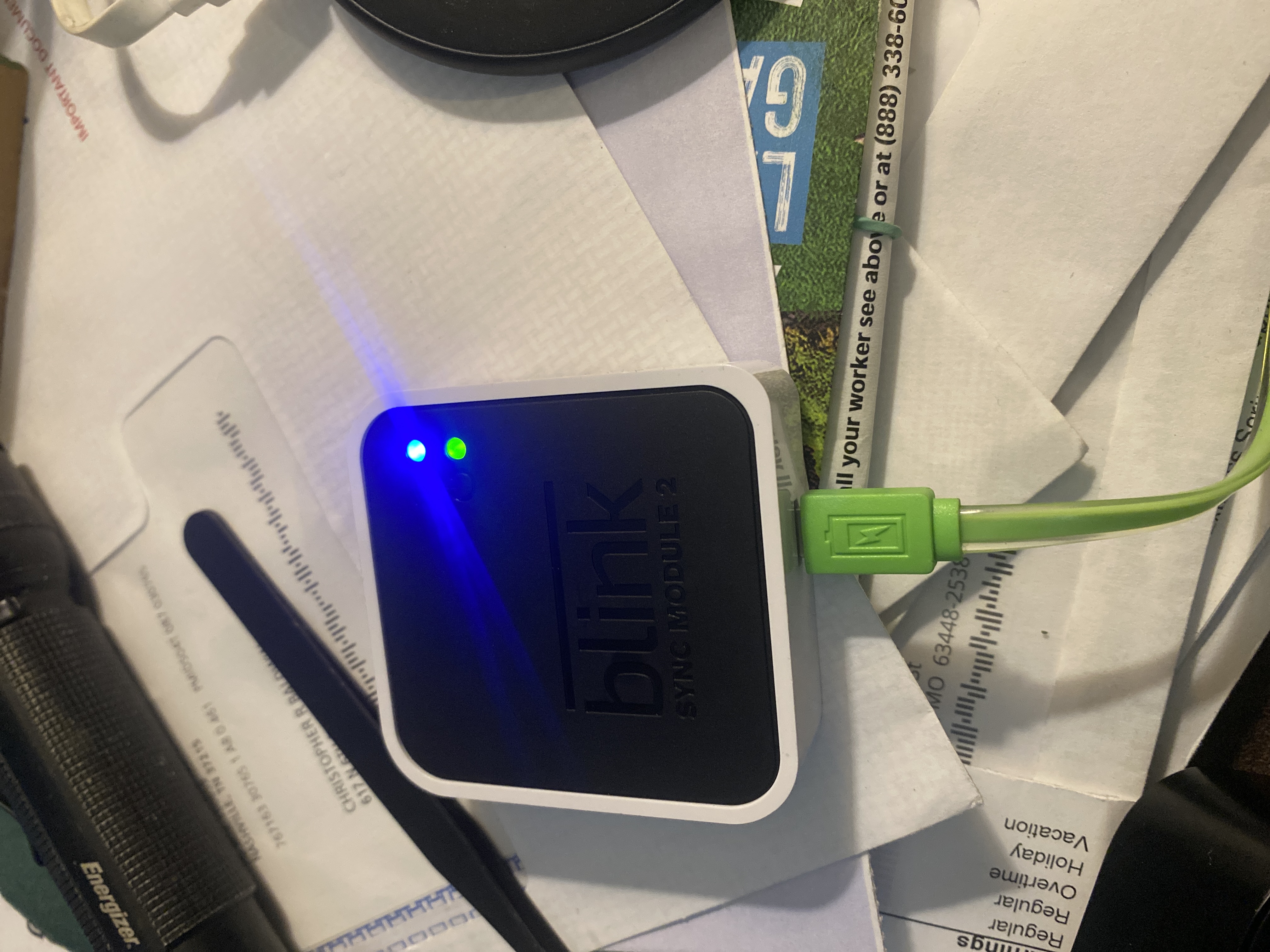
If you see your Blink Sync Module blinking green, you might feel confused or worried. This little box is the heart of your Blink smart home camera system. It connects your cameras to your Wi-Fi and the Blink app, so you can view footage, get alerts, and control everything easily. But when the sync module starts blinking green, it’s sending you a signal—something isn’t right. Understanding this signal is key to fixing your system and keeping your home safe.
Many users don’t realize that the color and pattern of the sync module lights are coded messages. A steady blue or green light usually means everything is working fine. But a blinking green light? That’s a warning. It can mean problems with your Wi-Fi, issues with your network settings, or even trouble with the module itself.
In this article, you’ll learn exactly what a blinking green light means, how to fix it step by step, and how to prevent it in the future. With clear explanations, practical advice, and real examples, you’ll get your Blink system back on track—fast.
What Is A Blink Sync Module?
The Blink Sync Module acts as a bridge. It connects your Blink cameras to your Wi-Fi network and the Blink app. Without the sync module, your cameras can’t communicate with your phone or the cloud, so you won’t get notifications or see live footage.
There are two main types: Blink Sync Module 1 and Blink Sync Module 2. The second version supports local storage with a USB drive and has better hardware. Both have a small indicator light, usually on the front. This light is your main way to understand what’s happening with the module.
You can connect up to 10 Blink devices to one sync module. The module is small and simple—just a power cable and a port for USB storage (on Sync Module 2). But its role is critical. If it stops working, your entire Blink system can go offline.
Understanding The Blink Sync Module Light Signals
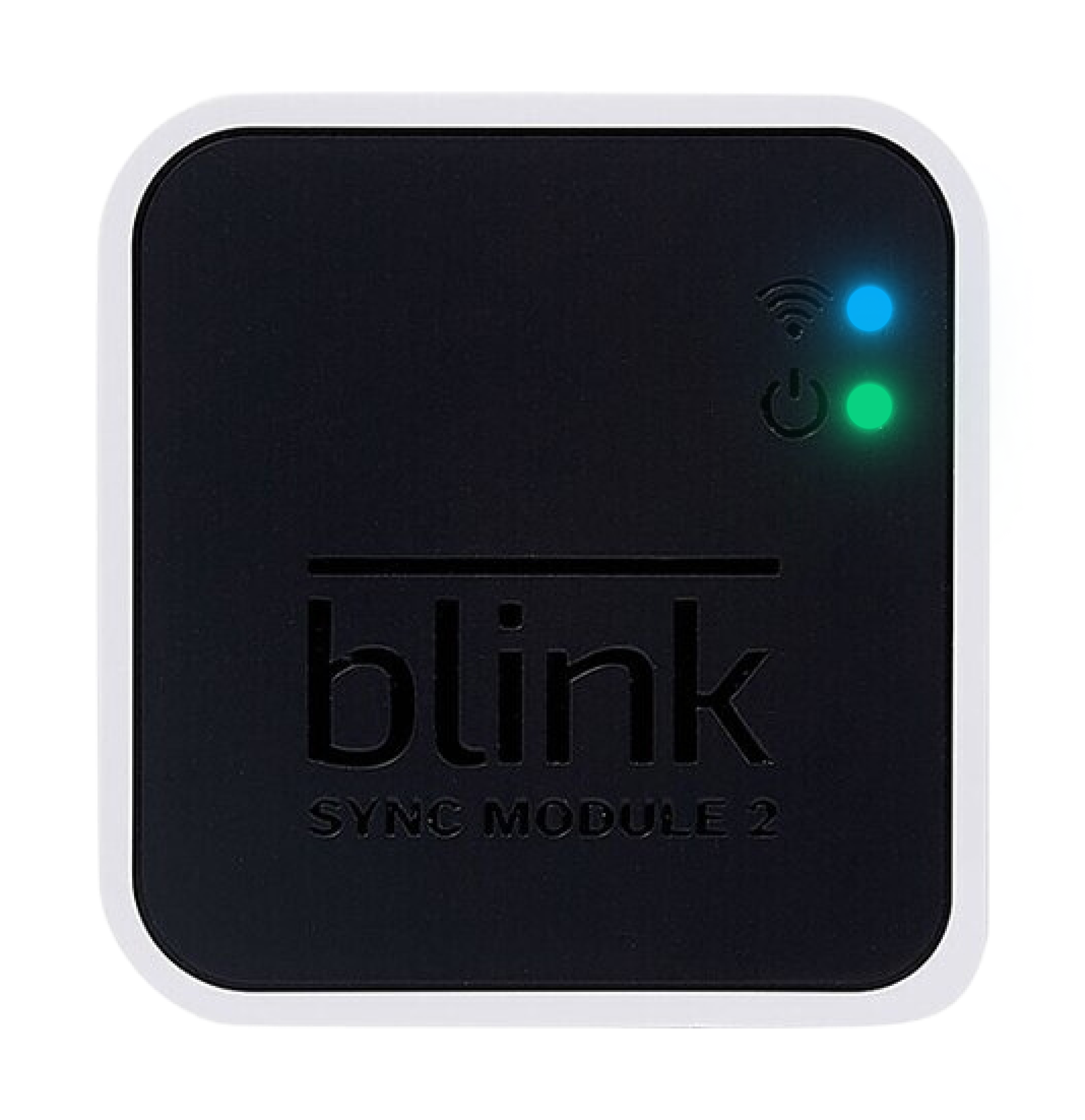
The indicator light on your sync module is not just decoration. It tells you about the module’s status. Here’s how the signals break down:
| Light Color & Pattern | Meaning | Action Needed |
|---|---|---|
| Solid Blue | Normal operation | None |
| Solid Green | Connected, ready | None |
| Blinking Green | Connection issue | Troubleshoot |
| Blinking Blue | Firmware update | Wait for update |
| No Light | Off or no power | Check power |
A blinking green light is not normal. It usually means the sync module is trying to connect to your Wi-Fi, but something is blocking it. Sometimes, the module may be stuck in a loop and needs to be reset.

Credit: support.blinkforhome.com
Common Causes Of Blinking Green Light
If your Blink Sync Module is blinking green, it’s signaling a problem. Here are the most common reasons:
- Wi-Fi connection lost: The module can’t reach your router.
- Weak Wi-Fi signal: The module is too far from the router, or something is interfering.
- Wrong Wi-Fi network: The module is connected to a different network than your cameras.
- Router settings changed: Maybe you changed your Wi-Fi password, SSID, or security settings.
- Internet outage: Your home internet is down, so the module can’t connect to the cloud.
- Firmware issue: A failed update or corrupted software can cause blinking.
- Hardware fault: Rare, but possible if the module is old or damaged.
Most users don’t realize that even small changes—like moving the module or updating your router—can cause these issues. Also, some Blink modules don’t work well with certain Wi-Fi bands (2. 4 GHz vs 5 GHz).
Troubleshooting: Step-by-step Guide
Fixing the Blink Sync Module blinking green is usually straightforward if you follow the right steps. Here’s how to do it:
1. Check Your Wi-fi Connection
Start by checking your Wi-Fi. Is your internet working? Are other devices connecting normally? If your Wi-Fi is down, your sync module can’t connect.
- Restart your router and modem.
- Make sure your Wi-Fi is 2.4 GHz (Blink does not support 5 GHz).
- Check that the Wi-Fi signal is strong near the module.
2. Move The Sync Module
Sometimes, the module is too far from your router or blocked by walls and furniture. Move the module closer to the router. Avoid placing it near microwaves, cordless phones, or thick walls, which can interfere.
3. Power Cycle The Sync Module
Unplug the module from its power source, wait 10 seconds, then plug it back in. This simple step fixes many issues. The module will restart and try to reconnect.
4. Reset The Sync Module
If power cycling doesn’t work, try a reset:
- Find the small reset button on the side or back of the module.
- Use a paperclip or similar tool to press and hold the button for 5–10 seconds.
- The light should turn off and then come back on, blinking blue and green.
Resetting clears many minor problems. However, you’ll need to re-add the module in the Blink app after a reset.
5. Update Wi-fi Settings In Blink App
If you recently changed your Wi-Fi password or network name, update this in the Blink app:
- Open the Blink app.
- Go to Sync Module settings.
- Select “Change Wi-Fi Network” and follow the prompts.
The module will reconnect using the new details.
6. Check For Firmware Updates
The Blink app sometimes prompts you to update the sync module’s firmware. Make sure your module is running the latest version. Updating can fix bugs and improve connectivity.
7. Test With Another Power Adapter
A faulty power adapter can cause connection issues. Try using the module with a different adapter or USB cable.
8. Re-add The Sync Module In Blink App
If nothing else works, remove the module from the app and add it again:
- In the Blink app, go to Sync Module settings.
- Select “Delete Sync Module.”
- Follow instructions to re-add it.
This step will often fix stubborn issues, but you’ll need to reconnect your cameras.
9. Contact Blink Support
If you’ve tried all steps and the module still blinks green, it might be a hardware problem. Contact Blink support for further help. Sometimes, they can push updates or diagnose the issue remotely.
Credit: www.amazonforum.com
Real-world Examples And Statistics
Many Blink users face the blinking green light at some point. According to community forums, about 20% of Blink owners report this issue within the first year. Most cases are due to Wi-Fi problems, not hardware faults.
Example: Sarah, from Texas, moved her router to a new room. Her Blink Sync Module started blinking green. She didn’t realize that the signal had become weak. After moving the module closer, the problem stopped.
Another example: Mike, in New York, changed his Wi-Fi password. The module blinked green, and his cameras went offline. He updated the network info in the Blink app, and everything worked again.
Non-obvious insight: Some users experience blinking green after a power outage. The module tries to reconnect, but the router may still be rebooting. Waiting a few minutes or restarting both devices can solve this.
Comparing Blink Sync Module Problems Vs Other Smart Home Devices
Smart home devices often signal trouble with blinking lights. How does Blink compare with other brands?
| Device | Common Light Signal | Main Cause | Fix Difficulty |
|---|---|---|---|
| Blink Sync Module | Blinking green | Wi-Fi or setup issue | Easy to moderate |
| Ring Bridge | Blinking red/blue | Firmware, Wi-Fi | Moderate |
| Wyze Hub | Blinking yellow | Network loss | Easy |
| Arlo Base Station | Blinking orange | Internet failure | Moderate |
Blink’s system is usually easier to fix than some competitors. Most issues are Wi-Fi related and can be solved without expert help.
Credit: support.blinkforhome.com
Preventing Future Blinking Green Issues
You can avoid the blinking green problem with some simple habits:
- Place the module near your router: This ensures a strong signal.
- Use the correct Wi-Fi band: Blink only works with 2.4 GHz, not 5 GHz.
- Keep your network stable: Avoid frequent changes to your Wi-Fi settings.
- Check for firmware updates: The Blink app will notify you.
- Avoid interference: Keep the module away from devices like microwaves, cordless phones, and thick walls.
- Power cycle after outages: Restart the module and router after a blackout.
- Test your adapter: Use a reliable power supply.
Non-obvious insight: If your router has “band steering” (automatically switches between 2.4 GHz and 5 GHz), turn it off for Blink. The module can get confused and fail to connect.
Advanced Troubleshooting: When Basic Steps Fail
Sometimes, basic troubleshooting does not fix the blinking green light. Advanced steps may help:
Static Ip Address
Assigning a static IP address to the sync module in your router settings can improve reliability. This prevents the module from losing its connection when your router reassigns addresses.
Resetting The Router
A full factory reset of your router can clear hidden problems. However, this will erase your settings, so only try it if you know how to set up your network again.
Checking Firewall And Security Settings
Some routers block new devices or use strict firewall rules. Make sure your router allows new connections and does not block Blink devices.
Firmware Rollback
Very rarely, a recent firmware update causes problems. Blink support may help you roll back to an earlier version if needed.
Using A Wi-fi Extender
If your module is far from the router, a Wi-Fi extender can help. This device boosts the signal, making it easier for the sync module to connect.
Blink Sync Module 1 Vs Sync Module 2: Key Differences
If you’re thinking about upgrading, here’s a comparison:
| Feature | Sync Module 1 | Sync Module 2 |
|---|---|---|
| USB Local Storage | No | Yes |
| Max Device Support | 10 | 10 |
| Firmware Updates | Standard | More frequent |
| Wi-Fi Compatibility | 2.4 GHz only | 2.4 GHz only |
| Hardware Reliability | Good | Better |
Sync Module 2 offers better reliability and local storage. If you have frequent blinking green issues, upgrading may help.
When To Replace Your Blink Sync Module
Sometimes, the module just wears out. If you notice:
- Frequent blinking green even after troubleshooting
- Module gets hot or smells burnt
- Cameras disconnect often
- Firmware updates fail repeatedly
It may be time to replace your module. Most Blink modules last 2–5 years with normal use. If yours is older, consider buying a new one.
Protecting Your Blink System: Practical Tips
Keeping your Blink system reliable is easy with a few habits:
- Update the app and firmware regularly.
- Place the module in a central spot.
- Use a surge protector to avoid damage from power spikes.
- Keep your Wi-Fi router firmware updated.
- Avoid connecting too many devices to one module.
These steps will keep your cameras online and prevent blinking green issues.
Blink Sync Module Blinking Green: Myths And Misunderstandings
Many users believe the blinking green light always means the module is broken. This is not true. Most of the time, the issue is with Wi-Fi or settings—not hardware.
Some also think the module must be replaced right away. In fact, simple troubleshooting can fix the problem in most cases.
Another myth: “Blink works better on 5 GHz Wi-Fi.” Actually, the module only supports 2.4 GHz. Trying to connect on 5 GHz will cause blinking green and failed connections.
Reliable Sources For Further Help
If you need more info, the official Blink support site has troubleshooting guides and FAQs. For technical details, visit Blink Support. Community forums can also help, but rely on official advice for complex issues.
Frequently Asked Questions
Why Is My Blink Sync Module Blinking Green?
A blinking green light signals a problem with the Wi-Fi connection or network settings. Check your internet, router, and module placement. Most issues are caused by weak signal or incorrect Wi-Fi details.
Can I Use The Blink Sync Module With 5 Ghz Wi-fi?
No. The module supports 2.4 GHz Wi-Fi only. If your router uses 5 GHz or “band steering,” the module will fail to connect and blink green. Switch to 2.4 GHz for reliable performance.
How Do I Reset The Blink Sync Module?
Find the reset button on the module, press and hold for 5–10 seconds with a paperclip or pin. The light will turn off, then blink blue and green. After resetting, re-add the module in the Blink app.
What Should I Do If The Blinking Green Light Doesn’t Stop?
Try all basic troubleshooting steps: check Wi-Fi, move the module, power cycle, reset, update settings, and test the adapter. If the problem persists, contact Blink support or consider replacing the module.
How Long Does A Blink Sync Module Usually Last?
Most modules last 2–5 years with normal use. If you see frequent blinking green lights, failed updates, or overheating, it may be time for a replacement.
Keeping your Blink Sync Module working is essential for a secure home. With these practical steps and tips, you can fix blinking green issues quickly and prevent them in the future. Remember, most problems are simple and can be solved without expert help.
If you ever need more guidance, the official Blink support site is your best resource.