
When you notice the battery light on your Dell laptop blinking orange, it can feel worrying, especially if you rely on your laptop for work or study. This blinking light is not just a random signal—it usually means your laptop is trying to tell you something important about its battery or power system. Understanding why this happens and what to do next can save you money, time, and frustration. In this article, you’ll learn what the blinking orange battery light means, how to fix it, and what steps to take if your laptop won’t charge or turn on. Whether you are a beginner or someone with some tech experience, you’ll find clear solutions, practical tips, and expert advice to keep your Dell laptop running smoothly.
What Does The Blinking Orange Battery Light Mean?
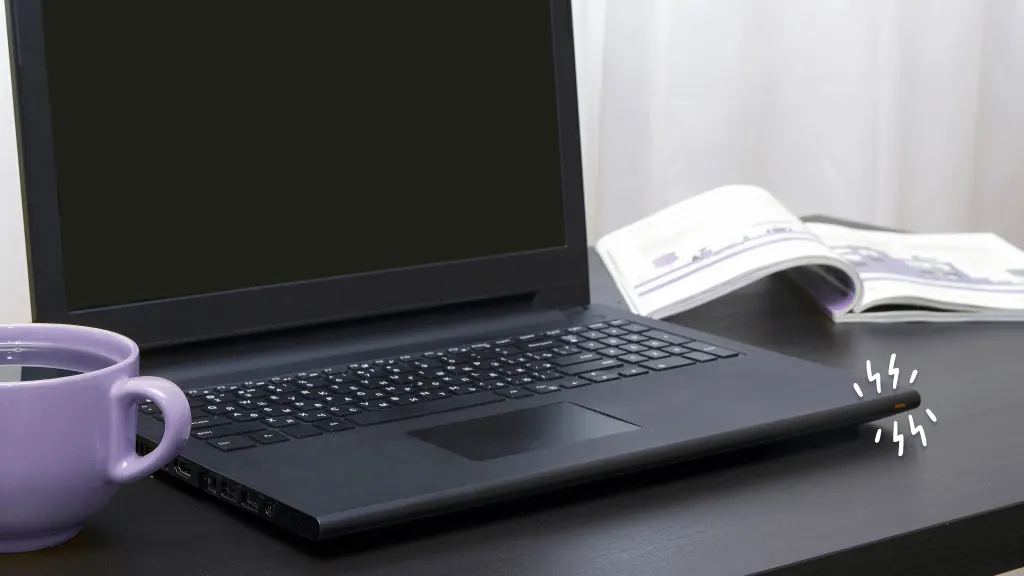
The blinking orange battery light on a Dell laptop is a warning signal. Dell uses colored lights to communicate different problems. When the battery light turns orange and starts blinking, it usually points to one of these issues:
- Low battery charge
- Battery failure or malfunction
- Charging problem
- Overheating
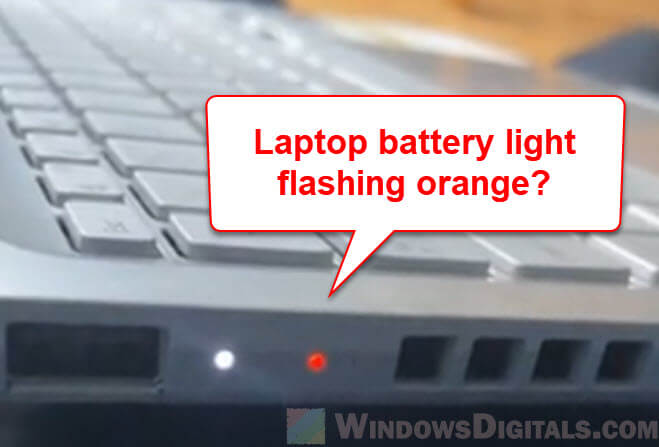
Most Dell laptops use a small LED near the keyboard or on the side. If it blinks orange (sometimes combined with white), it means the battery is not working as expected. The blinking pattern can also tell you more. For example, a fast blink might mean a critical battery error, while a slow blink could mean a low charge.
Common Patterns And Their Meanings
Here’s a quick guide to what different blinking patterns might mean:
- Solid orange: Battery is almost empty.
- Blinking orange: Battery problem (could be serious).
- Orange and white blinking: Battery not detected or charging error.
Manufacturers sometimes change these signals, so always check your laptop’s manual or Dell’s support site for model-specific details.
Main Reasons Why The Battery Light Blinks Orange
Understanding the cause is the first step to fixing the problem. Here are the most common reasons:
1. Battery Is Low Or Not Charging
If your laptop’s battery is very low and not charging, the orange light may blink. This can happen if:
- The charger is not plugged in properly
- The power outlet is faulty
- The charger is damaged
2. Battery Is Faulty Or Old
Laptop batteries lose power over time. If your battery is more than 2-3 years old, it might not hold a charge well. Dell laptops can detect this and warn you with a blinking orange light.
3. Charging Circuit Issues
Sometimes, the problem is not the battery but the charging circuit inside the laptop. Faulty circuits can prevent the battery from charging or cause errors.
4. Overheating
If your laptop is too hot, the battery light may blink orange as a warning. Overheating can damage the battery and other parts.
5. Battery Not Detected
If the laptop can’t detect the battery, it may blink orange and white. This could be caused by a loose battery connection or a software error.
How To Fix The Blinking Orange Battery Light
You don’t have to be a tech expert to try these solutions. Follow these steps to diagnose and fix the issue.
Step 1: Check The Charger And Power Outlet
First, make sure your charger is working:
- Plug the charger into a different outlet
- Try another charger if you have one
- Check the charger cable for damage
If the charger is faulty, replacing it is often the simplest fix.
Step 2: Remove And Reinsert The Battery
If your Dell laptop has a removable battery, do this:
- Shut down the laptop
- Unplug the charger
- Remove the battery
- Wait for 30 seconds
- Reinsert the battery
- Plug in the charger and turn on the laptop
This can reset the battery connection.
Step 3: Clean The Battery Contacts
Dust or dirt on the battery contacts can cause connection issues. Use a dry, soft cloth to gently clean the contacts. Avoid using water or chemicals.
Step 4: Check Battery Health In Bios
Dell laptops have a built-in tool to check battery health:
- Restart your laptop
- Press F2 repeatedly as it starts to open BIOS
- Look for “Battery Information” or “Battery Health”
- Check if the battery status says “Normal,” “Warning,” or “Failure”
If you see a warning or failure, the battery may need replacing.
Step 5: Update Drivers And Bios
Sometimes, software issues cause battery errors. Update your battery drivers and BIOS:
- Go to Dell’s official website
- Download the latest drivers and BIOS for your model
- Install updates carefully
Up-to-date software can fix many charging problems.
Step 6: Test With Another Battery
If possible, try a different battery. If the orange light stops blinking, your original battery is faulty.
Step 7: Let The Laptop Cool Down
If your laptop feels hot, turn it off and let it cool for at least 30 minutes. Overheating can cause battery errors and blinking lights.
Step 8: Contact Dell Support
If none of these steps work, contact Dell support. They can diagnose hardware issues and help with repairs.
Comparing Dell Battery Light Signals
Different Dell models may use different light signals. Here’s a comparison to help you understand what your laptop is telling you:
| Light Pattern | Possible Cause | Recommended Action |
|---|---|---|
| Solid Orange | Low battery | Plug in charger |
| Blinking Orange | Battery error | Check battery health |
| Blinking Orange and White | Battery not detected | Reinsert or replace battery |
| No Light | Battery fully charged or not installed | No action needed |
Credit: www.asurion.com
How To Replace Your Dell Laptop Battery
If your battery is faulty or very old, replacing it can solve the blinking orange light problem. Here’s how to do it safely:
Find The Right Battery
Check your laptop’s model number (usually under the laptop or in BIOS). Search for the correct battery on Dell’s website or a trusted store.
Steps To Replace
- Shut down your laptop and unplug it
- Remove the back cover (some laptops need a screwdriver)
- Take out the old battery
- Insert the new battery securely
- Replace the cover and turn on your laptop
Safety Tips
- Only use genuine Dell batteries
- Avoid cheap, generic batteries—they may not last long or could be unsafe
- Dispose of old batteries properly (don’t throw them in the trash)
Average Battery Life
A typical Dell laptop battery lasts about 300 to 500 charge cycles or 2–3 years. If your battery is within this range and the orange light blinks, replacement is likely needed.
Battery Life And Performance Tips
Keeping your battery healthy is important for your laptop’s performance. Here are some proven tips:
- Avoid letting the battery drain completely. Try to recharge when it drops below 20%.
- Keep your laptop cool. Heat can damage the battery.
- Use the correct charger. Using a non-Dell charger can cause charging problems.
- Update your software. New BIOS and drivers help manage battery health.
- Remove the battery if using AC power for a long time (for laptops with removable batteries).
Real-world Examples
To make this clearer, let’s look at a few real situations:
- Student’s laptop: Maria noticed her Dell Inspiron’s battery light blinking orange after 2 years. She checked the battery health in BIOS—it said “Failure.” After replacing the battery, the problem disappeared.
- Office laptop: John’s Dell Latitude started blinking orange and white. He tried a different charger, but the issue continued. Dell support found a loose battery connection. After fixing it, the laptop worked fine.
- Home use: Lisa’s Dell XPS showed a blinking orange light during a heatwave. She turned off the laptop, let it cool, and the blinking stopped.
These examples show that the blinking orange light can have different causes. Checking battery health and connections helps find the right solution.
How Dell Battery Light Signals Compare To Other Brands
Dell isn’t the only company to use battery light signals. Here’s a quick comparison with other popular laptop brands:
| Brand | Battery Light Color | Common Meaning |
|---|---|---|
| Dell | Orange/White | Battery error, low charge, not detected |
| HP | Amber/White | Charging error, low battery |
| Lenovo | Orange/Red | Battery needs charging, battery error |
| Apple | No dedicated battery light | Battery status shown on screen |
Dell’s orange light is similar to HP and Lenovo’s signals. Apple uses software to show battery status instead of lights.
Important Data And Statistics
Understanding battery performance helps you spot problems early. Here are some useful statistics:
- A laptop battery’s capacity drops by about 20% after 1 year of regular use.
- Most laptop batteries last 2–3 years before needing replacement.
- Dell laptops have a battery failure rate of about 4% in the first year (based on industry reports).
- Overheating is a top cause of battery errors—about 30% of battery issues relate to heat.
These numbers show why battery health checks and cooling are important.
Common Mistakes When Fixing Battery Problems
Many beginners make simple mistakes when dealing with battery errors. Avoid these to save time and money:
- Ignoring blinking lights: Waiting too long can damage your laptop.
- Using cheap replacement batteries: These can cause new problems.
- Updating BIOS incorrectly: Always follow Dell’s instructions, or you might harm your laptop.
- Not cleaning battery contacts: Dust can cause connection errors.
- Replacing the charger without testing: Sometimes the outlet is the problem, not the charger.
Checking each step carefully helps you solve the issue faster.
How To Check Battery Health On Dell Laptops
Dell makes it easy to check battery health with built-in tools. Here’s how you can do it:
- Dell Power Manager: This app shows battery health, charge cycles, and performance.
- BIOS Battery Health: Restart and press F2 to access BIOS, then check battery status.
- Windows Battery Report: Open Command Prompt and type `powercfg /batteryreport` to see detailed battery info.
Example Battery Health Report
A typical battery health report might show:
- Design capacity: 60,000 mWh
- Full charge capacity: 48,000 mWh
- Cycle count: 350
- Battery status: Warning
If your full charge capacity is much lower than design capacity, the battery is aging.
When To Seek Professional Help
Some problems need expert attention. If you see these signs, contact Dell support or a qualified repair shop:
- Orange light keeps blinking after all fixes
- Battery gets very hot
- Battery is swollen or leaking
- Laptop won’t turn on, even with a new battery
Dell offers support online and in stores. You can find more help at their official site: Dell Support.
Credit: www.windowsdigitals.com
How To Prevent Battery Problems In The Future
Prevention is better than cure. Here are easy ways to avoid battery trouble:
- Keep your laptop cool and clean
- Update BIOS and drivers regularly
- Use genuine Dell chargers and batteries
- Don’t ignore blinking lights—act quickly
- Check battery health every few months
These steps help your laptop battery last longer and work better.
Quick Troubleshooting Checklist
If your battery light is blinking orange, try these steps in order:
- Check charger and power outlet
- Reinsert or clean battery
- Check battery health in BIOS
- Update drivers and BIOS
- Let laptop cool down
- Try another battery if possible
- Contact Dell if needed
Following this checklist can solve most battery problems.

Credit: www.youtube.com
Frequently Asked Questions
Why Does My Dell Laptop’s Battery Light Blink Orange And White?
This usually means the battery is not detected or there is a charging error. Try removing and reinserting the battery. If the problem continues, check battery health in BIOS or contact Dell support.
Can A Blinking Orange Battery Light Damage My Laptop?
The blinking light itself won’t harm your laptop, but the cause (like battery failure or overheating) can. It’s important to fix the problem quickly to avoid damage.
How Long Does A Dell Laptop Battery Last?
Most Dell batteries last 2–3 years or 300–500 charge cycles. After this, the battery will lose capacity and may cause blinking orange lights.
Is It Safe To Use A Third-party Replacement Battery?
Using non-Dell batteries can be risky. They may not fit well or could cause errors. Always use genuine Dell batteries for safety and reliability.
What Should I Do If My Laptop Won’t Turn On And The Battery Light Is Blinking Orange?
First, check the charger and battery. Try removing and reinserting the battery. If your laptop still won’t turn on, seek help from Dell support or a trusted repair shop.
The blinking orange battery light on your Dell laptop is a useful warning. While it may feel stressful, most issues can be fixed with careful steps. By checking your charger, battery health, and software, you can solve the problem quickly.
If your battery is old or faulty, replacing it is often the best choice. Remember to use genuine parts and keep your laptop cool for the best battery life. If you need more help, Dell support is always available. Taking action early will keep your laptop running smoothly and help you avoid bigger problems later.