
A blinking orange battery light on a Dell laptop can feel alarming, especially if you rely on your device for work, study, or personal use. You might wonder, “Is my battery failing?” or “Will my laptop suddenly shut down?” The good news is that this blinking light is your laptop’s way of communicating a problem—and most of the time, you can fix it yourself without expensive repairs.
This article breaks down everything you need to know about the battery light blinking orange on Dell laptops. You’ll learn what it means, the most common reasons, step-by-step solutions, and how to prevent battery issues in the future. Whether you’re a student, professional, or a tech beginner, this guide will give you practical tools and confidence to handle this situation.
What Does The Blinking Orange Battery Light Mean?
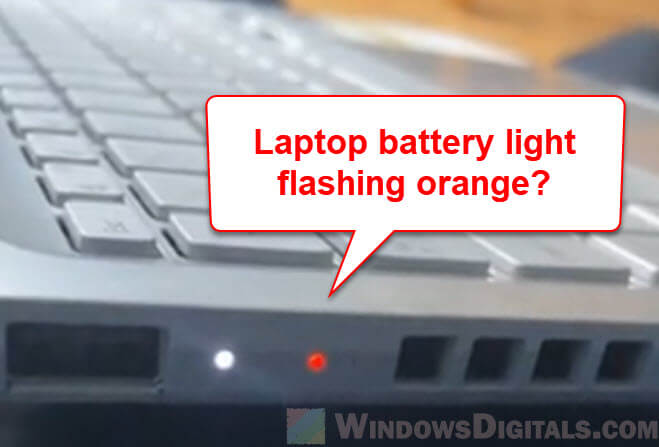
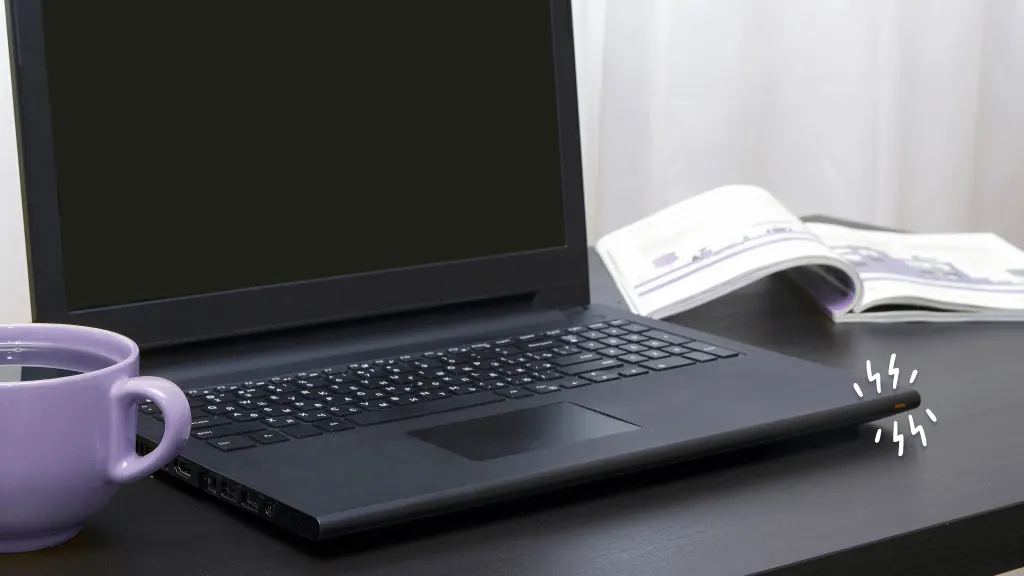
When your Dell laptop’s battery light blinks orange, it’s not a random event. Dell built this indicator to alert you to battery-related problems or power supply issues. However, the exact meaning can change based on the laptop model and the blinking pattern.
The most common reasons for a blinking orange light include:
- Low battery charge
- Battery not detected
- Battery malfunction
- Power adapter issues
- Motherboard or charging circuit faults
Dell uses different blink codes for different errors. Some laptops use a steady orange blink, while others might blink orange and white, or orange and off. Always check your model’s manual for the exact code, but this guide covers the most frequent causes and solutions.
Common Blink Patterns (typical For Dell Laptops)
| Blink Pattern | Possible Meaning | Urgency Level |
|---|---|---|
| Steady orange blink | Battery error or not charging | Medium-High |
| Orange and white alternate | Battery not detected or hardware fault | High |
| Fast orange blink | Critical battery or overheating | High |
| Slow orange blink | Low battery (not charging) | Medium |
Why Your Dell Laptop Battery Light Is Blinking Orange
Understanding the cause of the blinking orange light is key to fixing it. Here are the main reasons this happens:
1. Low Or Critically Low Battery
If you see a slow orange blink, your battery may be almost empty and not charging. This could be due to:
- A loose power adapter connection
- Faulty power outlet
- Damaged charging cable
2. Battery Not Detected
Sometimes, the battery is not recognized by the laptop. You might see an alternating orange and white blink. Causes include:
- Battery not seated properly
- Faulty battery contacts
- Outdated BIOS or drivers
3. Battery Hardware Failure
If the battery itself is failing, the light may blink orange rapidly or stay solid. This can happen if the battery is:
- Very old (over 2-3 years)
- Swollen or physically damaged
- Exposed to extreme heat or cold
4. Adapter Or Power Supply Problems
A damaged or non-original power adapter can trigger the orange blinking light. Dell laptops often require genuine Dell adapters for proper charging.
5. Motherboard Or Charging Circuit Fault
Less commonly, the charging circuit on the motherboard is at fault. This is typically serious and may require professional repair.
6. Bios Or Firmware Issues
Outdated or corrupt BIOS can cause communication errors between the battery and laptop, leading to a blinking orange light.
7. Overheating
If the battery or laptop is overheating, the charging system may shut down for safety, and the battery light may blink orange.
Credit: www.windowsdigitals.com
How To Fix A Blinking Orange Battery Light On Dell Laptops
Before you panic or replace your battery, try these step-by-step solutions. Many users solve the problem with simple checks.
Step 1: Check The Power Adapter And Cable
- Unplug the adapter from the wall and laptop.
- Inspect the cable for damage, bends, or exposed wires.
- Plug into a different wall outlet.
- Reconnect to the laptop and see if the light changes.
Tip: Always use an original Dell charger. Aftermarket adapters often don’t provide the right voltage.
Step 2: Hard Reset Your Laptop
Sometimes, a simple reset clears errors:
- Turn off your laptop.
- Unplug the charger and remove the battery (if removable).
- Hold the power button for 15-20 seconds.
- Reinsert the battery and charger.
- Turn on the laptop.
This process helps discharge any residual electricity and resets the charging logic.
Step 3: Reseat Or Reconnect The Battery
If your model allows, remove and reinstall the battery:
- Turn off the laptop and disconnect power.
- Remove the battery carefully.
- Clean the contacts with a dry cloth.
- Reinsert and lock the battery in place.
- Reconnect the charger and turn on.
Step 4: Update Bios And Drivers
A surprising number of battery errors are fixed by updating the BIOS and power management drivers.
- Go to the Dell Support website.
- Enter your laptop’s Service Tag or model.
- Download the latest BIOS and chipset drivers.
- Install following Dell’s instructions.
- Restart your laptop.
Caution: Keep your laptop plugged in during a BIOS update to prevent shutdowns.
Step 5: Run Dell Diagnostics
Dell laptops have built-in tools to check hardware:
- Turn off your laptop.
- Press and hold the F12 key, then turn on the laptop.
- When the boot menu appears, choose Diagnostics.
- Let the test run and note any error messages.
This test will tell you if the battery or another component is faulty.
Step 6: Try A Different Battery Or Adapter
If possible, borrow a battery or adapter from a similar Dell model. If the light behaves normally, you’ve found the faulty part.
Step 7: Look For Physical Damage Or Swelling
Remove the battery (if possible) and inspect it:
- Is it swollen or deformed?
- Does it smell burnt?
- Are there signs of water damage?
Never use a swollen or leaking battery—replace it immediately.
Step 8: Reset The Embedded Controller (for Some Models)
Some Dell laptops have an embedded controller that can be reset:
- Turn off the laptop.
- Unplug power.
- Press and hold Ctrl + Esc while inserting the charger.
- Keep holding until you see the BIOS recovery screen.
This can clear charging glitches.
Step 9: Replace The Battery (if Confirmed Faulty)
If diagnostics confirm battery failure, order a genuine Dell replacement. Avoid cheap third-party batteries, as they often cause more problems.
Step 10: Seek Professional Repair (motherboard/charging Circuit)
If all else fails and diagnostics show a motherboard error, visit an authorized Dell service center.
Comparing Possible Causes And Solutions
To help you quickly identify your problem, here’s a comparison of common causes and their best solutions:
| Cause | How to Check | Solution |
|---|---|---|
| Low battery/charger issue | Try another outlet/adapter | Replace adapter or fix outlet |
| Battery not detected | Check BIOS/battery seating | Reseat battery, update BIOS |
| Battery failure | Dell diagnostics, swelling | Replace battery |
| Motherboard fault | Diagnostics, other batteries fail | Professional repair |
| Firmware/driver error | Outdated BIOS, recent update issue | Update BIOS/drivers |

Credit: www.youtube.com
Real-world Examples
Let’s look at a few scenarios that Dell users have faced:
- Scenario 1: A student noticed the orange blinking light after spilling water on her laptop. After removing the battery and letting it dry, the problem was gone. Insight: Moisture can cause temporary battery errors—always dry thoroughly.
- Scenario 2: A user’s battery light blinked orange and white after a Windows update. Updating the BIOS from Dell’s website fixed it. Insight: System updates can sometimes disrupt battery communication.
- Scenario 3: A laptop worked fine with AC power but the light blinked orange when unplugged. Diagnostics showed battery “not detected.” Replacing the battery solved the issue.
When To Replace Your Dell Laptop Battery
Not every orange light means your battery is dead, but some signs show it’s time to replace:
- Battery is over 2-3 years old and doesn’t hold charge
- Battery is swollen, hot, or damaged
- Diagnostics say “battery failure”
- Laptop shuts off instantly when unplugged
Genuine Dell batteries usually last 300-500 full charge cycles. If you use your laptop daily, that’s about 2-3 years.
How To Replace A Dell Laptop Battery
- Buy an official battery from Dell or a trusted vendor.
- Shut down and unplug your laptop.
- Remove the old battery (check your manual for instructions).
- Insert the new battery and click it into place.
- Charge fully before first use.
Tip: Record your laptop’s Service Tag to ensure you order the correct battery model.
Tips To Prevent Future Battery And Charging Issues
Caring for your battery can extend its life and reduce the chance of seeing a blinking orange light.
- Avoid letting the battery drop below 10% regularly.
- Don’t keep the laptop plugged in 24/7; unplug sometimes.
- Keep your laptop away from extreme heat and cold.
- Clean the charging port and contacts every few months.
- Always use original Dell adapters and batteries.
- Update BIOS and drivers regularly.
Common Mistakes When Dealing With Battery Light Issues
Many users waste time or money by making these mistakes:
- Ignoring the blinking light for weeks—small problems can become big ones.
- Buying cheap third-party batteries—these often fail quickly or cause safety risks.
- Not updating BIOS—many charging issues are fixed with free updates.
- Forcing a swollen battery back into place—this is dangerous and can damage your laptop.
- Continuing to use a damaged adapter—this can harm both battery and motherboard.
Credit: www.asurion.com
Battery Light Color Codes On Dell Laptops: An Overview
Not every Dell laptop uses the same light codes. Here’s a quick overview of what different colors mean:
| Light Color | Meaning |
|---|---|
| Solid white | Battery fully charged or charging normally |
| Blinking white | Battery charging slowly or low charge |
| Blinking orange | Battery error or not charging |
| Orange and white alternate | Hardware or battery not detected |
| No light | No battery installed or laptop off |
Note: Always check your specific model’s manual, as there can be differences.
When To Contact Dell Support
If you’ve tried all the steps above and the orange blinking light remains, it may be time to contact Dell Support. Here are signs you need professional help:
- Diagnostics show motherboard or charging circuit errors.
- Your laptop won’t power on at all, even with a working adapter.
- The battery is hot, swollen, or leaking.
- BIOS or firmware updates fail to install.
You can reach Dell Support on their official website, by phone, or through authorized service centers. Remember, if your laptop is under warranty, repairs may be free.
Frequently Asked Questions
What Does It Mean If My Dell Laptop Battery Light Blinks Orange And White?
A blinking orange and white battery light usually means a hardware error or the battery is not detected. This can be caused by a loose battery, outdated BIOS, or a faulty battery. Try reseating the battery and updating your BIOS. If the problem stays, run Dell Diagnostics to check for errors.
Is It Safe To Use My Dell Laptop With A Blinking Orange Battery Light?
It depends on the cause. If the laptop works normally but the light blinks, you can use it for light tasks. However, if the battery is swollen, leaking, or very hot, stop using it and replace the battery right away. Using a faulty battery can damage your laptop or cause safety risks.
How Long Do Dell Laptop Batteries Usually Last?
Most Dell batteries last about 2 to 3 years (300-500 charge cycles) with normal use. After this, you may see reduced battery life or charging problems. Using official Dell batteries and adapters helps ensure the longest lifespan.
Can A Bios Update Fix A Blinking Orange Battery Light?
Yes, sometimes a BIOS update fixes battery detection or charging errors. Dell often releases updates to solve hardware communication issues. Download the latest BIOS from Dell’s support website and follow the instructions carefully. Always keep your laptop plugged in during the update.
Where Can I Find More Information About Dell Laptop Battery Issues?
For official troubleshooting guides and support, visit the Dell Support website. They have manuals, diagnostics, and live chat with experts.
A blinking orange battery light on your Dell laptop doesn’t have to ruin your day. With the right steps, you can often solve the problem yourself—saving time and money. Stay calm, follow the solutions in this guide, and keep your laptop running smoothly.
If you ever feel unsure, reach out to Dell support for peace of mind.