
When your AT&T modem starts blinking red, it can feel stressful and confusing. You might lose your internet connection, see error messages, or notice slow speeds. For many people, a red light means something is wrong, but they don’t know what or how to fix it. This guide will help you understand why your AT&T modem blinks red, what it means, and how to solve the problem. Whether you use the internet for work, school, or fun, knowing how to fix modem issues can save time and frustration.
What Does A Blinking Red Light Mean On An At&t Modem?
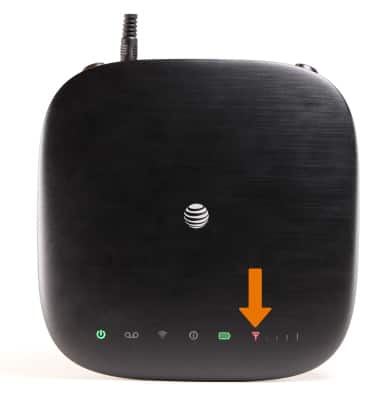
A blinking red light on your AT&T modem is usually a warning sign. It means your modem is not connecting to the internet or facing a problem with its signal. Sometimes, it also shows that the device is struggling to communicate with AT&T’s network. The red light can blink for several reasons:
- No internet connection: The most common cause is your modem cannot reach the internet. This can happen because of network outages, loose cables, or service disruptions.
- Hardware issues: Problems inside the modem, such as failed parts or overheating, can trigger the red light.
- Configuration errors: Incorrect settings or failed updates may stop the modem from working properly.
- Service interruptions: AT&T might be doing maintenance, or there could be a problem in your area.
- Damaged cables: Broken or unplugged cables between your modem and wall jack can lead to connection loss.
Understanding the blinking red light is the first step. The next step is to find out what’s causing it and how to fix it.
Types Of At&t Modem Lights And What They Mean
Your AT&T modem has several lights, each showing a different status. Here’s what the most common colors mean:
| Light Color | Status | What It Means |
|---|---|---|
| Green (Solid) | Connected | Everything is working. Internet is active. |
| Green (Blinking) | Connecting | Trying to connect to the network. |
| Amber/Yellow | Intermediate | Possible signal issue or starting up. |
| Red (Blinking) | Error | Cannot connect to the internet. There is a problem. |
| Red (Solid) | Critical Error | Device failure or severe connection issue. |
AT&T modems use different light colors to help users diagnose problems. A blinking red light is the one you should pay attention to, as it points to an active issue.
Credit: www.att.com
Common Causes Of At&t Modem Blinking Red
Several problems can trigger the red blinking light. Knowing these causes can help you find solutions faster.
Network Outage
If AT&T’s service is down in your area, your modem cannot connect. This is one of the most frequent reasons. You can check for outages by visiting AT&T’s official website or calling customer support.
Loose Or Damaged Cables
Sometimes, the cables connecting your modem to the wall or router are not plugged in tightly. Physical damage or wear can also cause signal loss. Always check your Ethernet cables, power cords, and phone lines.
Hardware Failure
Modems are electronic devices, so they can stop working after a few years. Overheating, electrical surges, or old age can cause internal parts to fail, leading to a blinking red light.
Incorrect Settings
If your modem’s settings are wrong, it may not connect to the network. Examples include wrong Wi-Fi password, failed firmware updates, or incorrect IP configuration.
Service Activation Problems
When you first set up a new AT&T modem, it may blink red if your service has not been activated or if activation failed. This often happens with new installations.
Environmental Issues
Dust, heat, or moisture can affect your modem’s performance. Make sure your modem is placed in a clean, dry, and cool spot.
How To Fix At&t Modem Blinking Red Step By Step
Fixing a blinking red light on your AT&T modem is possible, even for beginners. Here’s a step-by-step guide:
1. Check For At&t Service Outages
Before touching your modem, check if AT&T is experiencing a service outage. Visit AT&T’s website or use their app to see if your area is affected. If there’s an outage, wait for AT&T to fix it. There’s nothing you can do except wait.
2. Inspect All Cables And Connections
Look at your modem’s cables:
- Make sure all cables are plugged in securely.
- Inspect for any visible damage, such as cuts or bends.
- If possible, replace old or damaged cables with new ones.
Loose or broken cables are a simple fix but often overlooked.
3. Restart Your Modem
Restarting is the easiest solution and works for many people:
- Unplug the modem from the power outlet.
- Wait at least 30 seconds.
- Plug it back in.
- Wait for the lights to stabilize.
A restart can clear temporary errors and refresh the connection.
4. Check Modem Placement
Move your modem away from heat sources, metal objects, or other electronics. Poor placement can cause overheating or signal interference.
5. Review Modem Settings
If you know how to log into your modem’s web interface, check for:
- Wi-Fi settings
- Network status
- Firmware updates
Incorrect settings or outdated firmware can cause problems. Update your modem if an update is available.
6. Factory Reset (only If Necessary)
If other steps fail, try a factory reset:
- Find the reset button on your modem (usually a small hole).
- Use a paperclip to press it for 10 seconds.
- The modem will restart and return to default settings.
Warning: This deletes all custom settings. Only use this step if you have tried everything else.
7. Contact At&t Support
If none of the above steps work, call AT&T support. They can check your account, run remote tests, or send a technician.
Credit: www.pcguide.com
At&t Modem Models And Their Red Light Behavior
Different AT&T modem models may show red lights in slightly different ways. Here’s a comparison of popular models:
| Modem Model | Red Light Location | Typical Cause |
|---|---|---|
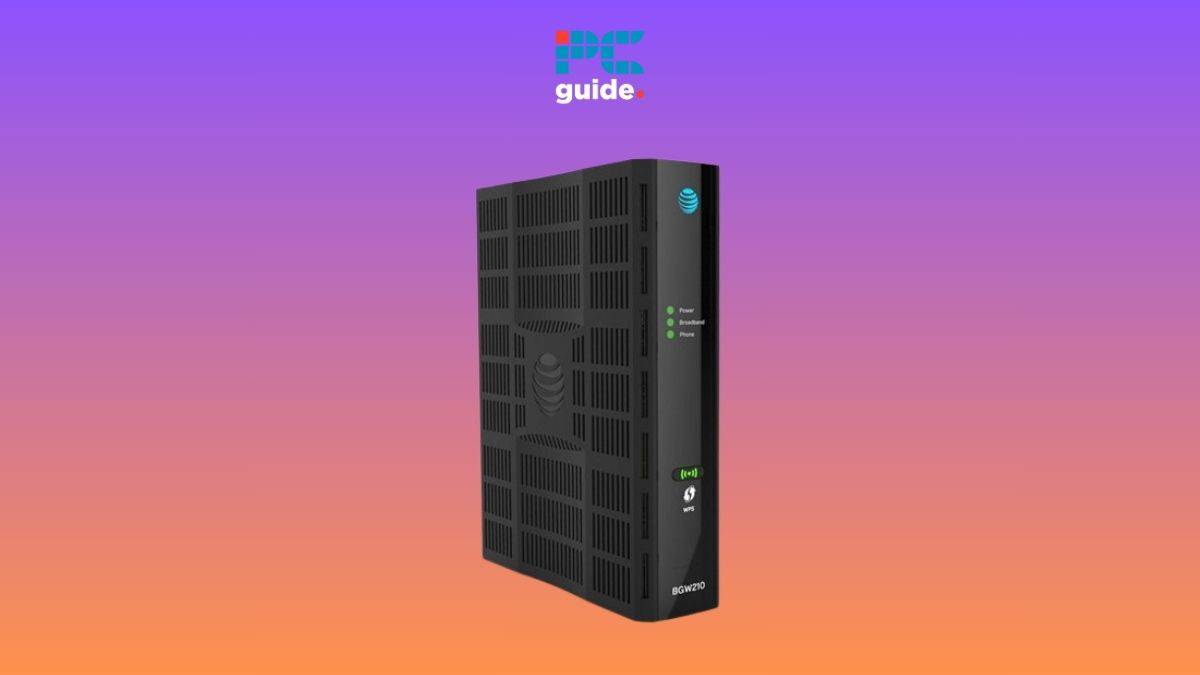
| BGW210 | Power/Internet LED | Connection loss or hardware error |
| NVG589 | Broadband LED | Signal issue or line fault |
| 5268AC | Service LED | Service activation or cable issue |
| PACE 4111 | Ethernet LED | Network configuration or cable problem |
Each model uses its lights in unique ways. Always check your modem’s manual for details.
What To Avoid When Fixing A Blinking Red Light
Many people make mistakes when trying to fix their modem. Avoid these common errors:
- Ignoring cable checks: Cables are often the problem, but people skip checking them.
- Restarting without waiting: If you unplug your modem, wait at least 30 seconds before plugging it back in.
- Factory reset too early: Resetting deletes your settings and can cause more issues if you don’t have backups.
- Placing modem in bad spots: Near windows, kitchens, or crowded shelves can cause overheating.
- Using old firmware: Not updating your modem’s software can lead to connection problems.
Advanced Troubleshooting For At&t Modem Red Light
For users comfortable with technology, deeper troubleshooting can help. Here’s how:
Use At&t Smart Home Manager
AT&T offers a tool called Smart Home Manager. It lets you check your modem’s status, diagnose problems, and even restart the device from your smartphone.
Check Dsl Or Fiber Line
If you use DSL or fiber, check the wall jack for dust or damage. Sometimes, the jack itself is the problem. Try plugging your modem into a different jack if possible.
Run Line Tests
AT&T’s support can run remote line tests. They will check for signal strength, noise, or interruptions. This helps find problems outside your home.
Update Modem Firmware
Sometimes, a blinking red light is caused by old firmware. Log into your modem’s web interface and check for updates. Updating can fix bugs and improve performance.
Replace Modem
If your modem is more than five years old, consider replacing it. Older modems can fail more often and may not support newer internet speeds.
How Long Should A Red Light Last?
A blinking red light should not last long. If it blinks for more than 10 minutes, there’s likely a problem. Here’s a general guide:
| Duration | Possible Cause | Action |
|---|---|---|
| Less than 5 minutes | Startup or minor error | Wait and monitor |
| 5-10 minutes | Temporary connection loss | Restart modem |
| Over 10 minutes | Ongoing issue | Check cables, settings, or call support |
If your modem blinks red for more than 10 minutes, take action.

Credit: www.reddit.com
When To Call At&t For Help
Sometimes, the problem is bigger than you can fix alone. Call AT&T if:
- The red light is blinking for more than 15 minutes.
- You have tried all basic fixes with no success.
- You see other error messages or warning lights.
- Your modem is old or recently replaced.
- There’s physical damage to your modem or cables.
AT&T can send a technician, check your account, or replace faulty equipment.
At&t Modem Red Light Vs. Other Isp Modems
AT&T modems use a blinking red light for error status, but other ISPs use different indicators. Here’s a quick comparison:
| ISP | Modem Light Color | Error Indicator |
|---|---|---|
| AT&T | Blinking Red | Connection or hardware issue |
| Xfinity | Blinking Amber | Connection issue |
| Verizon Fios | Blinking Blue/Red | Service or hardware issue |
| Spectrum | Blinking Red/Blue | Connection or signal issue |
If you switch ISPs, check their manuals for light meanings. The colors and blinking patterns can differ.
Real-world Examples And Statistics
Many AT&T users face blinking red lights. According to AT&T’s support forums, about 20% of modem issues reported are due to cable faults, while 15% are caused by service outages. Hardware failures account for 10%, and the rest are due to user errors or incorrect settings.
For example, a user in Dallas saw a blinking red light after a storm. The problem was a damaged cable, fixed by replacing it. Another user in Atlanta had a blinking red light due to a service outage, which was resolved after three hours.
These examples show that the problem is common but often fixable.
Non-obvious Insights Most Beginners Miss
- Modem placement matters more than people think. Keeping your modem in a cool, dry place can prevent overheating and signal loss. Avoid crowded or dusty spots.
- Cable quality impacts performance. Using high-quality cables reduces signal loss and prevents frequent errors. Many people use old cables without knowing they are the root cause.
- Firmware updates can solve silent issues. Modems sometimes have bugs fixed by updates. Regularly check for updates even if everything seems fine.
Tips For Preventing At&t Modem Issues
- Check cables every few months to make sure they are secure and undamaged.
- Update modem firmware regularly to avoid software glitches.
- Restart your modem once a month to clear minor errors.
- Keep your modem clean and cool. Dust and heat are silent killers.
- Avoid power surges by using a surge protector.
Frequently Asked Questions
Why Does My At&t Modem Blink Red After A Storm?
Storms can cause power surges or damage cables. This can lead to a blinking red light. Check all cables for damage and restart your modem. If the issue continues, contact AT&T.
Can A Blinking Red Light Mean My Internet Is Down In My Area?
Yes, a blinking red light often means a network outage. Check AT&T’s outage map online or call support. If your area is affected, wait until AT&T restores service.
How Do I Perform A Factory Reset On My At&t Modem?
Find the reset button (usually a small hole) on your modem. Use a paperclip to press and hold it for 10 seconds. The modem will restart and return to default settings. Note: this erases all custom settings.
What Should I Do If Replacing Cables Doesn’t Fix The Red Light?
If new cables don’t solve the problem, try restarting your modem, checking for firmware updates, and reviewing settings. If the red light remains, contact AT&T support for advanced help.
Is It Safe To Use The Modem If The Red Light Is Blinking But My Internet Works?
If your internet works but the red light blinks, there may be a minor error or a warning. It’s best to check settings and cables. If everything works, monitor the modem. If problems appear, act quickly.
Final Thoughts
A blinking red light on your AT&T modem signals trouble, but most issues can be fixed at home. Start by checking for outages, inspecting cables, and restarting your modem. Avoid rushing to factory reset or ignoring cable quality. If the light stays red, don’t hesitate to call AT&T support. With proper care and regular maintenance, your modem will stay reliable, keeping you connected when it matters most. For more detailed modem troubleshooting, you can visit AT&T’s official support page. Remember, small steps make a big difference in keeping your internet running smoothly.