
If you see a blinking red light on your AT&T modem or gateway, it usually means something is wrong. Maybe your internet is down, or the device is having trouble connecting. For many people, this light causes worry and confusion. But don’t panic—most of the time, you can fix the problem yourself with a few simple steps.
This guide explains what the AT&T blinking red light means, why it happens, and how to solve it. You’ll learn what the different colors and patterns mean, how to check your cables, what to do if resetting doesn’t work, and when to call for help. We’ll also clear up some common myths and mistakes. Even if you’re not a tech expert, you’ll find step-by-step advice that’s easy to follow.
What Does The At&t Blinking Red Light Mean?
The blinking red light on your AT&T device is not random. It’s a warning sign. Here’s what it usually means:
- Internet connection lost: The most common reason is that your modem or gateway cannot connect to the internet.
- Hardware issue: Sometimes, the device itself has a problem, like a faulty part or internal error.
- Service outage: There might be a problem with AT&T’s network in your area.
- Configuration problem: The device may not be set up correctly.
Different Devices, Different Lights
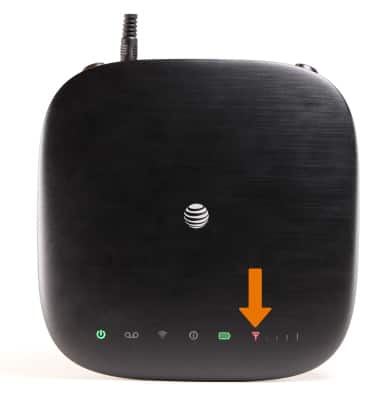
AT&T uses several models for home internet, such as the BGW210, Pace 5268AC, and NVG589. While each model may have a slightly different light pattern, a blinking red light almost always means trouble. Here are some common lights you might see:
- Power light: Should be solid green. If it’s red, there’s a power problem.
- Broadband/Service light: Blinking red means it’s trying to connect, but can’t.
- Wi-Fi light: Shows wireless activity. Usually green or blue; red is rare.
Example: Bgw210 Gateway
On the BGW210, the Broadband light blinking red means it’s not detecting a signal from AT&T’s network. The Service light blinking red means a more serious error—possibly a hardware failure.
Main Causes Of The At&t Blinking Red Light
Understanding the root causes helps you fix the problem faster. These are the most common reasons for the blinking red light:
- Loose or damaged cables
- Service outage in your area
- Device overheating
- Firmware or software errors
- Incorrect setup or configuration
- Faulty hardware
Let’s look at each cause in detail.
1. Loose Or Damaged Cables
Many blinking red light issues come from simple connection problems. If a cable is not fully plugged in, or if it’s damaged, your AT&T modem will have trouble connecting.
2. Service Outage
Sometimes, the problem is not in your home. AT&T’s network may be down for maintenance or due to bad weather. In this case, everyone in your area will have similar issues.
3. Device Overheating
Your modem or gateway needs to stay cool. If it gets too hot, it may stop working properly, leading to the blinking red light.
4. Firmware Or Software Errors
Like a smartphone, your AT&T device runs on software. If there’s a bug or failed update, it might not connect to the internet.
5. Incorrect Setup
If you just installed your device, a wrong cable connection or missed step can trigger the blinking red light.
6. Faulty Hardware
In rare cases, the device itself is broken and needs replacement.
At&t Modem And Gateway Light Patterns Explained
Understanding the lights helps you know what’s happening inside your device. Here’s a quick comparison of common AT&T modem/gateway light patterns:
| Light Color | Pattern | Meaning |
|---|---|---|
| Green (Solid) | On | Normal operation |
| Green (Blinking) | Blinking | Starting up or updating |
| Red (Solid) | On | Hardware failure |
| Red (Blinking) | Blinking | Lost connection or serious error |
| Amber/Orange | On or Blinking | Software update or temporary problem |
Tip: Don’t confuse the blinking red light with a solid red light. Solid red almost always means a hardware problem.
Step-by-step: How To Fix The At&t Blinking Red Light
You don’t need to be a tech expert to solve most blinking red light problems. Follow these steps, in order, for the best chance of fixing it yourself.
1. Check All Cables And Connections
Start with the basics. Make sure all cables are plugged in tightly and not damaged.
- Power cord: Ensure it’s connected to both the device and the wall.
- Ethernet cable: Check both ends—modem/gateway and your computer or router.
- Phone/DSL cable: Make sure it’s in the right port.
Pro tip: If you see any frayed wires or bent pins, replace the cable.
2. Restart Your Modem Or Gateway
A simple restart can fix many problems.
- Unplug the power cord from the device.
- Wait for at least 30 seconds.
- Plug it back in.
- Wait for the lights to stabilize (this may take up to 5 minutes).
Most of the time, the blinking red light will turn green after a restart.
3. Check For Service Outages
If restarting didn’t work, the problem may be outside your home. Use your smartphone’s data or a neighbor’s connection to check AT&T’s outage map on their official site. If there’s an outage, all you can do is wait.
4. Check For Overheating
Touch your device. If it feels very hot, it may have overheated. Move it to a cooler, open area. Make sure it’s not covered or near other hot devices.
5. Reset To Factory Settings
If nothing else works, try a full reset. This restores the device to its original settings.
- Find the reset button (usually a small hole).
- Use a paperclip to press and hold the button for 10 seconds.
- Wait for the device to restart and the lights to change.
Warning: This will erase any custom settings (like Wi-Fi name and password).
6. Check Device Placement
Where you put your AT&T device matters. Keep it off the floor, away from walls, and in a central spot. Avoid stacking other electronics on top.
7. Try A Different Power Outlet
Sometimes, the outlet is the problem. Plug the device into another outlet to see if the blinking red light goes away.
8. Inspect For Firmware Updates
Some AT&T devices update automatically. If you can log in to the device’s settings (using a web browser), check for any pending updates. Updating can fix bugs causing the red light.
9. Contact At&t Support
If you’ve tried everything and the blinking red light is still there, call AT&T support. Have your account number and device model ready. Sometimes, they can run remote tests or send a replacement.
Non-obvious insight: Many people skip checking the cables at the wall outlet or splitter. If you use a phone line splitter, try removing it and connecting the modem directly.

Credit: www.youtube.com
At&t Blinking Red Light: Model-by-model Troubleshooting
Let’s look at how the blinking red light appears on some popular AT&T gateway models, and any special steps for each.
| Model | Red Light Location | Special Troubleshooting Step |
|---|---|---|
| BGW210 | Broadband/Service Light | Check for fiber connection if used |
| Pace 5268AC | Service Light | Check for splitters or filters on phone line |
| NVG589 | Broadband Light | Try direct wall connection, bypass surge protectors |
| Arris BGW320 | Broadband/Status Light | Check for ONT (fiber) box issues |
Pro tip: If you have fiber internet, check the ONT (Optical Network Terminal) box. A red or blinking light here can mean the fiber line is damaged or disconnected.
Common Mistakes When Fixing The Blinking Red Light
Even experienced users make some simple mistakes. Here’s what to watch out for:
- Skipping the wall outlet: Many users only check device-side cables, not the wall connection.
- Resetting too soon: Give the device at least 5 minutes to reconnect after restarting or resetting.
- Ignoring splitters and filters: These can cause problems, especially with DSL connections.
- Covering the device: Don’t put papers or boxes on top of your modem—it needs airflow.
- Using old or damaged cables: Replace any cable that looks worn out.
Non-obvious insight: Sometimes, a power strip or surge protector can cause voltage drops that confuse the device. Try plugging directly into the wall.
When To Call At&t For Help
If you’ve tried all the steps above, it may be time to get professional help. Here’s when to call AT&T:
- The red light blinks for more than 30 minutes, even after reset.
- You see physical damage to the modem, like cracks or burn marks.
- Other devices in your area (neighbors, friends) have the same problem.
- The lights don’t turn on at all (could be a power supply issue).
AT&T may need to send a technician or replace your device.
How To Prevent The Blinking Red Light In The Future
Some simple habits can help you avoid this problem:
- Check cables every few months.
- Keep the device cool and well-ventilated.
- Don’t overload power strips with too many devices.
- Update software if your device allows manual updates.
- Use surge protectors to prevent damage from power spikes.
Real-world Example
Maria, an AT&T customer in Dallas, noticed her modem’s red light blinking after a thunderstorm. She checked all cables, restarted the modem, and even tried a different power outlet—but the light stayed red. Maria checked AT&T’s website on her phone and saw a service outage alert in her area. The next day, the light turned green by itself, and her internet was back.
Lesson: Sometimes the problem is outside your home, and patience is the best solution.
At&t Blinking Red Light Vs. Other Light Issues
Not every modem problem is a blinking red light. Here’s how the blinking red compares to other common lights:
| Light | Color | Pattern | Possible Problem |
|---|---|---|---|
| Power | Red (solid) | On | Internal device failure |
| Broadband | Red (blinking) | Blinking | Lost internet signal |
| Wi-Fi | Amber | Blinking | Wireless issue only |
| Service | Green (blinking) | Blinking | Connecting (normal on startup) |
If you see a light that is not blinking red, use the pattern and color to figure out the issue. The device manual or AT&T’s support page can help.
Credit: www.att.com
At&t Gateway Placement: Why It Matters
Many people don’t realize that where you put your gateway affects performance and can even trigger the blinking red light. Here are some tips:
- Central location: Place the device in the middle of your home for the best signal.
- Off the floor: Avoid placing it directly on carpet or the ground—heat can build up.
- Away from electronics: Keep it away from microwaves, cordless phones, and TVs, which can cause interference.
Upgrading Your Equipment
If your AT&T device is more than five years old, it might be time for an upgrade. Newer models handle connections better and recover from outages faster. Contact AT&T to see if you qualify for a free or discounted replacement.
When The Red Light Is Normal
There are a few situations where a blinking red light is expected:
- During firmware updates: Don’t unplug the device during this time.
- Right after a restart: It may blink for a few minutes while reconnecting.
- After a power outage: The device needs time to re-sync.
If the light stays red for more than 10 minutes, start troubleshooting.
Additional Resources
For official troubleshooting steps and the latest outage information, visit the AT&T Internet Support page.

Credit: www.youtube.com
Frequently Asked Questions
Why Is My At&t Modem Blinking Red Even After A Reset?
If the blinking red light stays on after a reset, it could mean a service outage, hardware failure, or a serious setup issue. Check for outages in your area first. If there is no outage, contact AT&T support because the device may need replacing.
How Long Should I Wait For The Blinking Red Light To Stop?
Usually, after restarting or resetting, your modem should reconnect within 5 to 10 minutes. If the red light keeps blinking for over 30 minutes, it’s likely a sign of a bigger problem.
Can I Use My Own Modem With At&t If The Red Light Won’t Go Away?
AT&T requires most customers to use their own approved devices. Using an unsupported modem can cause connection problems and blinking lights. Check AT&T’s list of approved models before trying a replacement.
Does A Blinking Red Light Mean My Wi-fi Is Down Too?
Yes. If the modem can’t connect to the internet, your Wi-Fi won’t have access either. Devices may still connect to the Wi-Fi network, but there will be no internet access until the red light issue is fixed.
Is The Blinking Red Light Dangerous For The Modem?
The blinking red light itself isn’t dangerous, but it’s a warning sign. Ignoring it can lead to longer outages or missed chances to fix simple problems early.
A blinking red light on your AT&T modem or gateway is never fun, but it’s rarely the end of the world. Most issues are easy to fix if you stay calm and follow the steps above. Remember, always start with the basics—check your cables, restart the device, and look for service outages.
Don’t skip the small details, like checking wall outlets and splitters. If you need help, AT&T support is there for you. With a little patience and troubleshooting, you’ll have your internet back up and running soon.