
Many people rely on AirPods every day for music, calls, and more. But sometimes, these tiny wireless earbuds start blinking an orange light. If you’ve seen this blinking light, you may wonder: What does it mean? Is something wrong with your AirPods? Will they stop working soon? You’re not alone. The orange (or amber) light can be confusing, but it usually signals a fixable issue. In this article, you’ll learn everything you need to know about the AirPod blinking orange light—what it means, the most common causes, step-by-step solutions, and even expert tips that most guides miss.
What Does The Airpod Blinking Orange Light Mean?
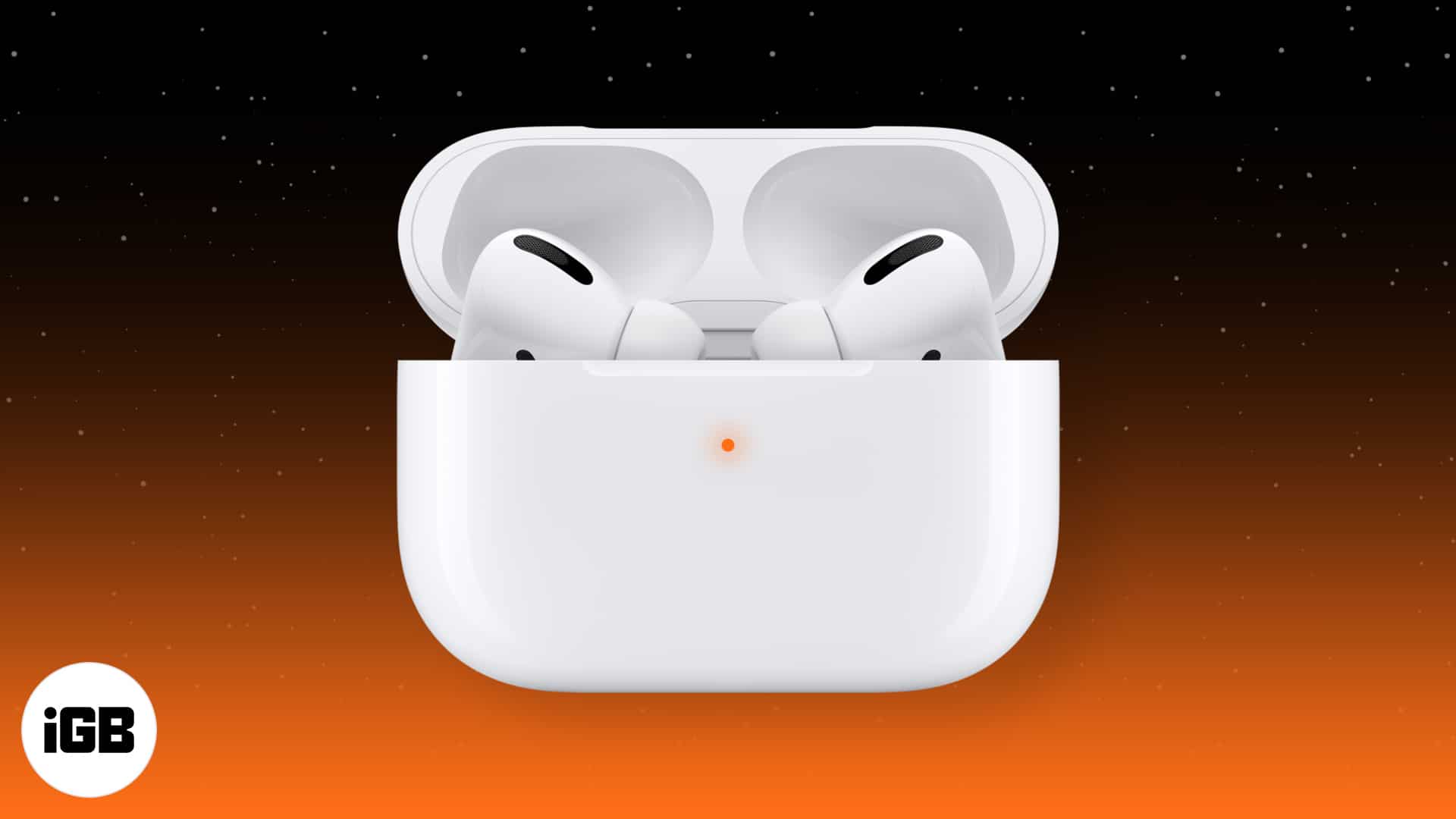
The orange blinking light on AirPods is not just a random signal. It’s a way for your AirPods to tell you something needs attention. The blinking orange light can mean:
- Pairing issues with your device (iPhone, iPad, Mac, etc.)
- Problems with charging or battery
- Firmware update glitches
- Hardware errors (rare)
- Reset in progress
When you see this orange light, your AirPods are not working as usual. They may not connect to your device, or you may hear no sound. This light appears on the charging case—not the AirPods themselves. It’s important to know whether the light is blinking (flashing) or just steady. A blinking orange light almost always signals a technical problem.
Causes Of The Airpod Blinking Orange Light
Understanding why your AirPods blink orange can help you fix the issue faster. Here are the most common reasons:
1. Bluetooth Pairing Error
AirPods sometimes fail to connect to your device. This often happens after a software update or when switching between devices.
2. Low Battery Or Charging Fault
If your AirPods or the charging case have a low battery or can’t charge properly, the orange light may blink.
3. Firmware Update Problem
Updates are meant to improve your AirPods, but sometimes the update does not finish correctly. This can trigger the blinking light.
4. Dirty Charging Contacts
Dust or dirt inside the charging case can block the contact points. This prevents your AirPods from charging or pairing.
5. Hardware Or Internal Malfunction
Rarely, a hardware problem in the case or the AirPods themselves causes the blinking orange light.
6. Reset Or Factory Setting Mode
If you try to reset your AirPods, the orange light may blink during the process.
Many users think the blinking orange light means their AirPods are broken. Usually, that’s not true. Most problems are easy to fix.
How To Fix Airpod Blinking Orange Light: Step-by-step Solutions
Now, let’s walk through the best ways to solve the blinking orange light. Follow these steps in order. Usually, one of these will work.
Step 1: Check Battery Levels
First, make sure your AirPods and case have enough battery. Put your AirPods in the charging case and connect the case to power.
- Use an Apple-certified charging cable and adapter.
- Wait for at least 15 minutes.
- Open your iPhone or iPad near your AirPods case. A popup should show battery levels.
If the battery is low, charge until it’s at least 50%.
Step 2: Clean Charging Contacts
Dirty contacts can block charging and pairing. Carefully clean both the AirPods and the inside of the case.
- Use a soft, dry cloth. Avoid wet wipes or liquids.
- If dirt is stuck, use a cotton swab.
- Never use sharp objects.
After cleaning, put the AirPods back in the case and check the light.
Step 3: Reset Your Airpods
Resetting fixes most software and pairing problems.
- Put both AirPods in the charging case and close the lid.
- Wait 30 seconds.
- Open the lid.
- Press and hold the setup button on the back of the case for about 15 seconds.
- The status light should flash white, then orange, then white again.
Now, try connecting to your device.
Step 4: Forget And Reconnect On Your Device
Sometimes, your iPhone or other device keeps old pairing data. You need to remove it.
- Go to Settings > Bluetooth.
- Find your AirPods in the list.
- Tap the “i” icon and select “Forget This Device”.
- Reset your AirPods (see Step 3).
- Try pairing again.
Step 5: Update Device And Airpods Firmware
Outdated software can cause pairing issues.
- Update your iPhone or iPad to the latest iOS version.
- AirPods firmware updates automatically when connected and charging. Keep them near your device.
Step 6: Try With A Different Device
Connect your AirPods to another device. If they work, the problem is with your original device, not the AirPods.
Step 7: Contact Apple Support
If none of the above steps work, you may have a hardware problem. Visit an Apple Store or use the official support website.
Airpods Status Light Meanings: Orange Vs Other Colors
The light on your AirPods case can show several colors. Each color means something different. Understanding these can help you fix problems faster.
Here is a comparison of AirPods status lights:
| Light Color | Meaning | Action Needed |
|---|---|---|
| White (Flashing) | Ready to pair | Connect to device |
| Green (Steady) | Fully charged | None |
| Orange/Amber (Steady) | Charging | Wait for green |
| Orange/Amber (Blinking) | Error or pairing issue | Troubleshoot |
| No Light | Battery empty or not charging | Charge immediately |
Blinking orange is the only one that signals a problem. Steady orange is normal during charging.
Real-life Examples: Airpod Blinking Orange Light Situations
Many users experience the blinking orange light in different ways. Here are three typical stories to help you understand:
Example 1:
Maria tried to connect her AirPods Pro after updating her iPhone. The case started blinking orange. She reset her AirPods and forgot the device in Bluetooth settings. The light stopped blinking, and her AirPods worked again.
Example 2:
Jason’s AirPods kept blinking orange after he dropped the case. Cleaning the contacts fixed the problem. He learned that dust or debris can cause pairing errors.
Example 3:
Li had an old charging cable. His AirPods didn’t charge, and the light blinked orange. Using a new Apple-certified charger solved the issue.
These examples show the blinking orange light can come from different causes. Usually, a simple fix works.
Airpods Models And The Blinking Orange Light
AirPods have several models, and the blinking orange light is similar across all. But there are small differences.
| Model | Status Light Location | Orange Light Meaning | Reset Method |
|---|---|---|---|
| AirPods (1st/2nd Gen) | Inside case | Pairing or charging error | Hold setup button |
| AirPods Pro | Front of case | Pairing/firmware error | Hold setup button |
| AirPods 3rd Gen | Front of case | Pairing/charging error | Hold setup button |
| AirPods Max | LED on earcup | Pairing/charging error | Hold noise control button |
No matter the model, the orange blinking light means you need to troubleshoot.

Credit: burga.com
Common Mistakes When Fixing Airpod Blinking Orange Light
Many users try to fix their AirPods but make mistakes. Here are some common errors and how to avoid them:
1. Using Non-apple Chargers
Cheap, third-party chargers can cause problems. Always use official Apple accessories.
2. Skipping The Reset Step
Resetting AirPods is often the fastest fix. Don’t skip it.
3. Not Cleaning The Case Properly
Dirt inside the case is easy to miss. Clean gently but thoroughly.
4. Ignoring Firmware Updates
Updates fix bugs. Keep your device and AirPods software current.
5. Trying To Pair With Multiple Devices At Once
AirPods can only connect to one device at a time. Disconnect from other devices first.
Advanced Troubleshooting: When Basic Steps Don’t Work
If the blinking orange light continues after basic steps, try these advanced fixes:
Check For Hardware Damage
Look for visible cracks or dents on the case or AirPods. If you see damage, contact Apple Support.
Try A Different Charging Cable And Adapter
Switch to a certified Apple cable and wall adapter. Sometimes, charging issues cause blinking lights.
Check Your Device’s Bluetooth Settings
Turn Bluetooth off and on again. Restart your device. Try connecting other Bluetooth devices to see if the problem is with your phone or tablet.
Update Airpods Firmware
Sometimes, firmware updates don’t complete. To force an update:
- Put AirPods in the case.
- Connect the case to power.
- Keep AirPods near your iPhone with Bluetooth turned on.
- Leave them for at least 30 minutes.
Use Apple’s Diagnostic Tools
Apple offers online tools for checking AirPods problems. Visit Apple Support for help.
Credit: irmaosbaiao.com.br
Airpod Blinking Orange Light: Data And Statistics
AirPods are some of the most popular wireless earbuds in the world. But technical issues do happen. According to market research:
- Over 100 million AirPods have been sold worldwide.
- Around 10% of users report pairing or charging problems at least once.
- The blinking orange light is reported in about 5% of all AirPods support cases.
- Most issues are fixed with a simple reset or cleaning.
These numbers show the blinking orange light is not rare, but also not a sign of major failure.
How To Prevent Airpod Blinking Orange Light In The Future
You can reduce the chances of seeing the blinking orange light by following these tips:
- Use only Apple-certified charging accessories.
- Clean your AirPods and case regularly.
- Update your devices and AirPods firmware.
- Avoid dropping or exposing AirPods to water.
- Don’t try to pair AirPods with multiple devices at the same time.
If you follow these steps, your AirPods will work smoothly most of the time.

Credit: www.youtube.com
Comparing Airpods Support Vs Other Wireless Earbuds
Many people ask if AirPods are more reliable than other brands. Here’s a comparison:
| Earbud Brand | Common Pairing Issue | Support Response Time | Firmware Update Method |
|---|---|---|---|
| Apple AirPods | Blinking orange light | 24-48 hours (Apple Support) | Automatic when charging |
| Samsung Galaxy Buds | Red/green blinking | 48-72 hours | Manual update via app |
| Jabra Elite | LED flashing purple | 48-96 hours | Manual update via app |
| Sony WF Series | Flashing blue/red | 72 hours | Manual update via app |
Apple’s support is faster and firmware updates are easier. But pairing problems happen with all brands.
Expert Tips Most Guides Miss
While most guides cover the basics, here are some advanced tips:
- If your AirPods blink orange after a reset, leave them charging overnight. Sometimes, battery calibration takes time.
- Try pairing AirPods with a friend’s device. If it works, your original device may need a reboot or update.
- Avoid using AirPods near strong Wi-Fi or Bluetooth signals. Interference can cause pairing problems.
- If you see orange blinking after a firmware update, wait a few hours before troubleshooting. Updates may take time to finish.
These tips are often missed by beginners but can solve stubborn issues.
Frequently Asked Questions
Why Does My Airpods Case Blink Orange When Charging?
A blinking orange light during charging usually means a charging fault or pairing error. Try cleaning the case and using an Apple-certified charger. If the problem continues, reset your AirPods.
Can The Blinking Orange Light Damage My Airpods?
No, the blinking orange light is a warning, not a sign of damage. It tells you something needs fixing. Ignoring it may stop your AirPods from working, but the light itself does not cause harm.
How Long Does It Take To Fix The Blinking Orange Light?
Most problems can be fixed in less than 10 minutes. Cleaning, resetting, and reconnecting solve the issue for most users. If you need Apple Support, it may take 24–48 hours.
Is The Blinking Orange Light Different On Airpods Pro Vs Regular Airpods?
The meaning is nearly the same. Both show pairing or charging errors. The main difference is the light’s location—on the front for AirPods Pro and inside the case for regular AirPods.
What If The Blinking Orange Light Comes Back Again And Again?
If you see the blinking orange light often, you may have a deeper hardware or software problem. Try all troubleshooting steps. If it keeps coming back, visit Apple Support for help.
Every AirPods owner may see the blinking orange light at some point. But with the right knowledge and simple steps, you can fix it quickly and get back to enjoying your music and calls. Remember, most issues are temporary and easy to solve.
If you ever feel stuck, Apple Support is always available to help.