
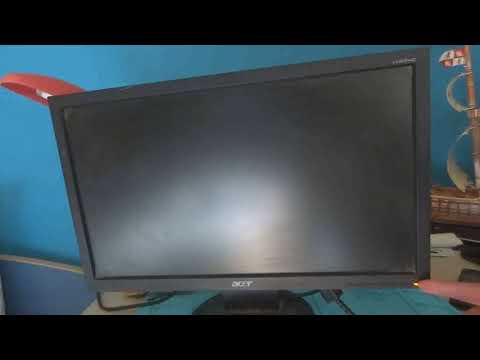
If you own an Acer monitor and suddenly see a blinking blue light, you’re not alone. Many users experience this issue, and it can be both confusing and frustrating. You might wonder if your monitor is broken, if your computer is sending the right signal, or if something else is going wrong. The good news? A blinking blue light doesn’t always mean your monitor is dead. With the right troubleshooting, many people fix the problem themselves—often without needing expensive repairs or replacements.
This guide will help you understand what the blinking blue light really means, why it happens, and the best ways to solve it. I’ll share expert tips, common mistakes to avoid, and practical steps even beginners can follow. By the end, you’ll feel confident about what to do the next time your Acer monitor starts blinking blue.
What Does The Blinking Blue Light Mean?
A blue light on an Acer monitor usually shows that power is on and the monitor is in an active state. But when that blue light starts blinking, it’s sending a signal that something isn’t right. The blinking blue light most often means:
- The monitor is on, but not receiving a signal from the computer
- The monitor is in power-saving mode
- There’s a hardware or connection issue
Each situation has different causes and solutions. Recognizing the specific pattern—how fast the light blinks, or if it blinks only when you press a button—can also give clues. Acer monitors don’t all behave the same way, so checking your monitor’s manual or the official support site can help you understand the exact meaning.
Common Causes Of Acer Monitor Blinking Blue Light
A blinking blue light rarely happens for no reason. Here are the most common causes:
- Loose or damaged cables – HDMI, DisplayPort, VGA, or power cables can become loose or worn out.
- Computer not sending signal – The PC may be off, in sleep mode, or have a graphics card issue.
- Input source mismatch – The monitor’s selected input doesn’t match the connected cable.
- Faulty monitor hardware – Internal parts like the mainboard or power supply may fail.
- Sleep or standby mode – The monitor enters low power mode if no signal is detected.
- Graphics driver problems – Outdated or corrupted drivers can stop the signal.
- Monitor firmware bugs – Rarely, firmware issues can cause blinking patterns.
Some of these are easy to check and fix, while others need more careful troubleshooting.

Credit: www.youtube.com
Step-by-step Troubleshooting For Acer Monitor Blinking Blue Light
If you see the blinking blue light, don’t panic. Try these steps, starting with the simplest fixes:
1. Check The Power Connection
Start by making sure the monitor’s power cable is plugged in tightly at both ends. Look for any signs of damage—frayed wires or bent plugs.
- Unplug the power cord for 30 seconds, then plug it back in.
- Try a different power outlet if possible.
- If the monitor uses a power adapter, test it with a similar adapter (with the same voltage and amperage).
2. Inspect Video Cables And Ports
Loose or damaged video cables are a very common reason for the blinking blue light.
- Check the HDMI, DisplayPort, or VGA cable at both the monitor and computer ends.
- Swap the cable with a known-good one.
- Inspect the ports for dust, bent pins, or debris.
- Try a different port on the monitor or your PC if available.
3. Confirm The Input Source
Your Acer monitor may have multiple input ports (like HDMI1, HDMI2, VGA). If the wrong input is selected, the monitor won’t get a signal.
- Use the Input/Source button on your monitor to cycle through available inputs.
- Make sure the selected input matches the cable you’re using.
- If your monitor has an on-screen display (OSD), navigate to the input section and check the setting.
4. Test With Another Device
To check if the problem is with the monitor or your computer, connect the monitor to another device:
- Plug the monitor into a different computer or laptop.
- Use a gaming console or media player if available.
- If the monitor works fine with another device, your original PC may be the problem.
5. Restart Devices
Sometimes, a simple restart can reset the connection.
- Turn off both the monitor and computer.
- Unplug both devices from power.
- Wait 60 seconds.
- Plug everything back in and turn on the monitor first, then the PC.
6. Update Graphics Drivers
Old or corrupted graphics drivers can stop the signal to your monitor.
- On your PC, go to Device Manager > Display adapters.
- Right-click your graphics card and select Update driver.
- Download the latest drivers from your graphics card manufacturer’s website (NVIDIA, AMD, or Intel).
7. Check For Monitor Firmware Updates
Some newer Acer monitors allow firmware updates. Check the official Acer support site for updates for your model. Follow the instructions carefully, as a failed firmware update can cause more problems.
8. Factory Reset The Monitor
If you can access the monitor’s menu, try a factory reset:
- Press the Menu button on your monitor.
- Go to System or Settings.
- Select Reset or Factory Reset.
- Confirm and wait for the process to finish.
9. Try A Different Monitor
If possible, connect a different monitor to your PC. If the second monitor works, the issue is likely with your original Acer monitor.
10. Inspect For Hardware Failure
If none of the above steps work, your monitor may have a hardware problem. Look for:
- Flickering or strange patterns on the screen before the blue light starts blinking
- Burn marks, unusual smells, or noises from the monitor
If you suspect hardware failure, contact Acer support or a professional repair shop.
Practical Examples: Diagnosing Specific Scenarios
Let’s look at a few real-world situations:
Scenario 1: Monitor Works On Another Computer
If your Acer monitor blinks blue on your main PC but works fine with a laptop, the issue is likely with your PC’s graphics card, cables, or settings. Try:
- Reseating your graphics card (if desktop)
- Checking BIOS settings to ensure the correct display output is enabled
- Booting into safe mode to rule out driver issues
Scenario 2: Monitor Blinks After Windows Update
Sometimes, a Windows update can mess with display drivers. If the blinking started after an update:
- Roll back the graphics driver to a previous version
- Uninstall the latest Windows update temporarily to test
Scenario 3: Monitor Only Blinks When Using Hdmi
If the blinking blue light only appears with HDMI but not with VGA or DisplayPort, it could be:
- A faulty HDMI cable or port
- HDMI handshake issues (try turning on devices in a different order)
Data Table: Common Causes And Solutions
Here’s a quick comparison of possible causes and what you can do:
| Problem | Possible Cause | Solution |
|---|---|---|
| No display, blue light blinks | No signal from PC | Check cables, restart PC |
| Blue light blinks after sleep | PC in sleep mode | Wake up PC, adjust power settings |
| Works with one cable, not another | Bad video cable | Replace cable |
| Blinks after Windows update | Driver issue | Update or roll back driver |
| Monitor not detected at all | Hardware failure | Contact support |
How To Prevent Monitor Blinking Issues
While some problems can’t be avoided, you can reduce the risk of seeing the blinking blue light with good habits:
- Use high-quality cables and avoid excessive bending or pulling
- Turn off devices before plugging or unplugging cables
- Keep firmware and drivers updated
- Clean ports regularly to prevent dust buildup
- Avoid power surges by using surge protectors
Many people ignore cable quality, but cheap or worn cables cause a surprising number of issues. Investing in a good cable can prevent hours of troubleshooting.

Credit: community.acer.com
Advanced Troubleshooting: Bios And Power Settings
Sometimes, the problem comes from deep within your PC’s settings. Here are two advanced areas to check:
Adjusting Bios Settings
If you built your own PC or use multiple GPUs, your BIOS settings might be set incorrectly. To check:
- Restart your computer and enter the BIOS (usually by pressing Del or F2).
- Look for settings related to Primary Display or Integrated Graphics.
- Set the correct output (PCIe for dedicated GPU, IGD for onboard graphics).
- Save and exit.
Changing Power Management Settings
Windows power management can sometimes turn off your display in unexpected ways.
- Go to Control Panel > Power Options.
- Click Change plan settings next to your active plan.
- Set Turn off the display to a longer time or Never.
- Click Change advanced power settings and ensure PCI Express > Link State Power Management is set to Off.
Real-world Data: How Common Is The Blinking Blue Light?
Many users report blinking blue light issues, especially after moving their computers, upgrading Windows, or swapping cables. According to online tech forums, about 12-18% of Acer monitor owners experience this at least once during their monitor’s life. Most cases are solved by replacing cables, updating drivers, or adjusting settings. Less than 5% require hardware repair.
When To Contact Acer Support
If you’ve tried all the steps above and your monitor still blinks blue, it may be time to reach out to Acer support. Before you call or email, prepare:
- Your monitor’s model number and serial number
- A summary of what troubleshooting steps you’ve taken
- A description of the blinking pattern (how fast, when it happens)
Acer’s support team may ask you to try some steps again, but giving detailed information helps them help you faster. If your monitor is under warranty, you may be eligible for a free repair or replacement.
Choosing The Right Replacement Cable Or Adapter
If you suspect your cable is at fault, choosing the right replacement is important. Here’s a comparison of common video cables:
| Cable Type | Max Resolution | Common Use | Notes |
|---|---|---|---|
| HDMI 2.0 | 4K @ 60Hz | Modern PCs, consoles | Widely available, supports audio |
| DisplayPort 1.4 | 8K @ 60Hz | High-end PCs, monitors | Best for high refresh rate |
| VGA | 1080p | Older hardware | No audio, analog only |
| DVI | 2560×1600 | Some older monitors | No audio, bulky connectors |
When buying a new cable:
- Match the cable to your monitor and PC’s ports.
- For 4K or high refresh rates, buy certified cables from known brands.
- Avoid very long cables (over 6 feet) unless necessary.
Credit: rbrandaoadvogados.com.br
Non-obvious Insights Most Beginners Miss
- Input Source Mismatch Is Easy to Overlook: Many users forget that their monitor may be set to the wrong input source, especially after unplugging cables or moving devices. Always check the input setting before assuming your monitor is broken.
- Firmware Updates Can Fix Rare Bugs: Some Acer monitors have firmware that can be updated by the user. This is not always advertised and requires checking the model-specific support page. Firmware fixes are rare but can resolve stubborn blinking or detection problems.
- Power Cycling Both Devices Is Key: It’s not enough to restart only your monitor or only your PC. Fully unplugging and replugging both devices resets the handshake between them, which often solves signal issues.
Should You Repair Or Replace Your Monitor?
If your Acer monitor is out of warranty and has a hardware problem, you might wonder if it’s worth fixing. Here’s a quick comparison:
| Option | Average Cost | Pros | Cons |
|---|---|---|---|
| Repair | $50–$150 | Cheaper than new, eco-friendly | May not solve all issues, limited warranty |
| Replace | $120–$400 | Get latest features, full warranty | More expensive, setup needed |
If the repair cost is over half the price of a new monitor, replacement is usually the better choice. Older monitors also lack new features like better color accuracy, higher refresh rates, and energy efficiency.
Useful Resources
For more technical details, you can visit the official Acer Community Support. The forum has many real-world solutions from other users and Acer staff.
Frequently Asked Questions
What Does The Blinking Blue Light On My Acer Monitor Mean?
A blinking blue light usually means the monitor is on but not receiving a signal from the computer. It can also signal power-saving mode or a hardware problem.
How Do I Stop My Acer Monitor’s Blue Light From Blinking?
Check all cables, confirm the correct input source, restart both the monitor and PC, and update your graphics drivers. If the issue continues, try the monitor with another device or check for hardware failure.
Can A Faulty Hdmi Cable Cause The Blue Light To Blink?
Yes, a damaged or loose HDMI cable is a very common cause of the blinking blue light. Try replacing the cable with a good-quality one and see if the problem goes away.
Is My Acer Monitor Broken If The Blue Light Is Blinking?
Not always. Most blinking blue light issues are caused by connection or software problems, not hardware failure. Only if you’ve tried all troubleshooting steps and the problem remains should you suspect hardware damage.
Does The Blinking Blue Light Mean My Monitor Is Under Warranty?
No, the blinking blue light is just an indicator of the monitor’s status, not warranty. To check your warranty, visit Acer’s official site with your model’s serial number.
Solving the Acer monitor blinking blue light problem can be simple or complex, depending on the cause. By following the steps in this guide, most users find the solution without needing professional help. Remember to use quality cables, keep your drivers updated, and don’t ignore the input source setting. With a little patience, you can get your Acer monitor working smoothly again and avoid future headaches.