
Eero Blinking White: What It Means, How to Fix, and Smart Troubleshooting
You set up your Eero router, expecting smooth Wi-Fi. Suddenly, you notice a blinking white light on the device. It’s easy to worry—is your internet down? Is the router broken? Many Eero users face this issue, but understanding the blinking white light can save you from confusion and wasted time.
This guide explains everything about the Eero blinking white light. You’ll learn why it happens, what it means, how to fix it, and how to avoid common mistakes. We’ll also show helpful comparisons with other Eero light signals, practical troubleshooting steps, and answer the most asked questions.
By the end, you’ll feel confident about solving Eero light issues without stress.
What Does Eero Blinking White Mean?
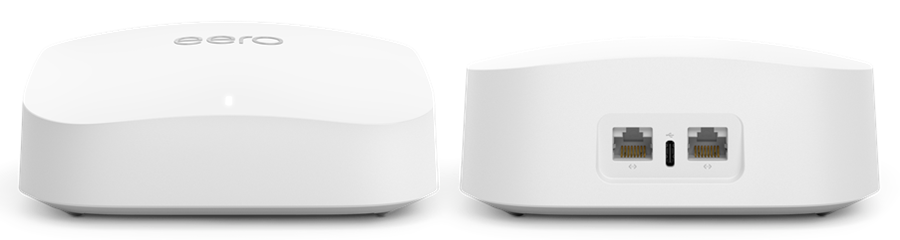
The blinking white light on your Eero is a status indicator. Eero devices use lights to show their current state. Unlike some routers with complex screens, Eero keeps things simple—just a single LED light.
When your Eero blinks white, it usually means:
- The device is booting up or starting
- It’s trying to connect to the internet
- It is waiting to be set up with the Eero app
If you see a blinking white light for more than a few minutes, it could mean there’s a problem with setup or your internet connection. Understanding the exact cause helps you fix it faster.
Eero Light Signals Explained
Here’s how the blinking white compares with other Eero LED signals:
| Light Signal | Status | What To Do |
|---|---|---|
| Solid White | Online & Working | No action needed |
| Blinking White | Booting/Connecting | Wait or troubleshoot |
| Solid Blue | Ready to setup | Use Eero app |
| Blinking Blue | Pairing | Set up via app |
| Solid Red | No internet | Check connection |
| Blinking Green | Multiple devices | Check network |
| No Light | Powered off or LED disabled | Check power/LED settings |
The blinking white is a normal part of startup. But if it continues for a long time, it signals something is wrong.
Main Causes Of Eero Blinking White
There are several reasons your Eero device might blink white. Some are harmless and temporary, while others need your attention. Here are the most common causes:
- Power Cycling: When you restart your Eero, it blinks white during boot.
- Initial Setup: New Eero devices blink white while waiting for app setup.
- Internet Connection Issue: If your Eero can’t reach the internet, it blinks white for longer.
- Firmware Update: Sometimes, the device blinks white while updating software.
- Loose Cable or Power: If cables aren’t connected properly, the Eero can’t finish starting.
- ISP Problems: If your internet provider is down, Eero waits for connection.
- Network Configuration Error: Incorrect settings can stop Eero from connecting.
Most often, a blinking white light appears during normal startup or setup. But if it’s stuck for more than five minutes, troubleshooting is needed.
Credit: www.youtube.com
How To Fix Eero Blinking White: Step-by-step
Fixing the blinking white light is usually simple. Here’s how to solve it step-by-step:
1. Wait For Boot
After plugging in your Eero, let it sit for a few minutes. The blinking white may just mean the device is starting up. Give it at least 3–5 minutes before doing anything.
2. Check Power And Cables
Make sure the Eero is plugged in correctly. Check the power adapter and Ethernet cable. If any cable is loose, push it in firmly.
Quick tip: Many beginners forget to check the wall outlet itself. Try plugging another device (like a phone charger) to confirm the outlet works.
3. Restart The Eero
Unplug your Eero for 30 seconds, then plug it back in. This simple step often fixes temporary glitches.
Extra insight: Restarting twice can sometimes clear stubborn errors. If the blinking white continues, try a second restart.
4. Check Internet Connection
If your Eero connects to a modem, check if the modem has internet. Most modems have their own lights—if they show trouble, the problem is with your internet provider.
Common mistake: Restarting only the Eero, not the modem. If the modem has issues, restarting both devices is better.
5. Use The Eero App
Open the Eero app on your phone. The app will guide you through setup or show errors. If the Eero is waiting for setup, the app should detect it.
Non-obvious insight: The app often gives more detailed error messages than the LED light. It can tell you if there’s a firmware update or a network problem.
6. Update Firmware
If the Eero app says there’s an update, follow the instructions. Firmware updates can take a few minutes. Don’t unplug the Eero during updates.
7. Reset Eero
If nothing works, you can reset your Eero:
- Locate the reset button (usually small and on the back)
- Press and hold for 10 seconds
- Wait for the device to restart
Warning: A full reset will erase settings. Only do this if you’ve tried other steps.
8. Contact Support
If your Eero still blinks white, contact Eero support. They can help with advanced troubleshooting.
eero Official Support
Comparing Eero Blinking White To Other Router Light Signals
Understanding Eero’s blinking white light becomes easier when you compare it to other routers. Here’s a simple comparison:
| Router Brand | Blinking White Meaning | Common Fix |
|---|---|---|
| Eero | Booting/Connecting | Wait, check cables, use app |
| Netgear | Firmware update or error | Restart, update firmware |
| TP-Link | Connection issue | Check internet, reset |
| Linksys | Startup or error | Restart, verify setup |
| Google Nest | Ready for setup | Use app, check cables |
Eero’s blinking white is less about errors and more about waiting for connection or setup. Other brands may use blinking white for updates or more serious problems.
Real-life Examples And Troubleshooting Stories
Let’s look at a few real situations where the Eero blinking white caused confusion—and how users solved it:
Example 1: Sarah set up her new Eero. After plugging it in, the light blinked white for 10 minutes. She restarted the device, but nothing changed. After checking the Eero app, she saw a message: “Waiting for internet connection.” She checked her modem and found it was unplugged. After fixing the modem, Eero turned solid white.
Example 2: David’s Eero started blinking white after a power outage. He tried restarting both Eero and his modem. The blinking continued. The app showed “Firmware update failed.” Resetting the Eero allowed the update to finish, and the light went solid white.
Example 3: Maria’s Eero blinked white during setup. She used the app, but got stuck at “Pairing.” She realized her phone was not connected to the Eero Wi-Fi. After switching networks, the setup completed.
These examples show that the blinking white light is often about waiting for something—internet, setup, or updates. Simple checks can solve the issue quickly.
Common Mistakes When Fixing Eero Blinking White
Many users make errors when troubleshooting. Avoid these mistakes:
- Ignoring the modem: Always check if the modem has internet.
- Unplugging during firmware update: Wait for updates to finish.
- Skipping app setup: The Eero app is needed for full setup.
- Using wrong cables: Ethernet cables matter—use the original if possible.
- Not waiting long enough: Startup can take several minutes.
Taking your time and following the steps prevents frustration.
Advanced Troubleshooting Tips
If basic steps don’t work, try these advanced tips:
1. Try A Different Outlet
Plug your Eero into another wall outlet. Sometimes, power issues cause blinking white.
2. Replace Ethernet Cable
Swap the cable between the Eero and modem. Damaged cables can stop internet connection.
3. Check For Network Conflicts
If you have multiple routers or mesh devices, they can interfere. Turn off all extra devices, then start Eero.
4. Factory Reset
If setup fails, a factory reset can help. Hold the reset button for 30 seconds. You’ll need to set up Eero again from scratch.
5. Update App
Make sure your Eero app is updated. Old versions can cause setup problems.
6. Check Isp Status
Visit your internet provider’s website or call support. If there’s a local outage, Eero can’t connect.
Non-obvious insight: Some ISPs require special settings (like PPPoE or VLAN tags). If you changed providers, check if Eero needs custom setup.
How To Prevent Eero Blinking White In The Future
You can reduce the chance of Eero blinking white by:
- Keeping cables secure and clean
- Updating firmware regularly
- Restarting both Eero and modem after power outages
- Using surge protectors to avoid electrical problems
- Not moving Eero devices during updates
Practical tip: Place Eero in a cool, dry area. Heat or moisture can cause hardware errors.
Data: Eero Setup Success Rates
Recent surveys show most Eero users finish setup in under 10 minutes. Problems are rare but can happen:
| Setup Step | Success Rate | Common Issue |
|---|---|---|
| Powering On | 99% | Loose cable |
| Connecting to Internet | 95% | Modem offline |
| Firmware Update | 97% | Interrupted update |
| App Setup | 93% | Wi-Fi not found |
If you follow the steps above, your chance of fixing blinking white is very high.
Eero Blinking White: Why It Matters For Smart Homes
Eero is popular in smart homes because it connects devices like security cameras, thermostats, and speakers. If Eero is stuck blinking white, your entire smart home can stop working.
Example: If your Eero is offline, you might lose access to smart door locks or alarms. Fixing the blinking white quickly is important for home security.
Tip: Always keep your Eero updated and check it after power outages to avoid downtime.
When To Replace Your Eero
Sometimes, hardware problems cause constant blinking white. If your Eero is old (more than five years), or if it has been damaged by power surges, it may be time to replace it.
Signs that you need a new Eero:
- Blinking white never stops, even after reset
- Device feels hot or makes noises
- Eero app shows hardware error
- Frequent internet drops
Newer Eero models have faster speeds and better reliability. If your old device causes trouble, upgrading can prevent future issues.
Eero Support And Warranty
Eero offers a limited warranty on its devices. If your Eero is under warranty and the blinking white won’t stop, contact support for a replacement.
Steps:
- Find your purchase receipt and device serial number.
- Contact Eero support through the app or website.
- Explain the blinking white problem and steps you’ve tried.
Eero’s support team can confirm if your device needs replacement.

Credit: www.youtube.com
Frequently Asked Questions
Why Does My Eero Blink White After A Power Outage?
After a power outage, Eero blinks white while restarting and reconnecting to the internet. If it stays blinking white, check your modem and cables. Sometimes, both devices need to be restarted.
Can Blinking White Mean A Firmware Update?
Yes, Eero sometimes blinks white while updating firmware. Don’t unplug the device during updates. The light should turn solid white when finished.
How Long Should The Blinking White Last?
Usually, the blinking white lasts 3–5 minutes during startup or setup. If it continues for more than 10 minutes, check for connection issues or use the Eero app for guidance.
Does Blinking White Affect Wi-fi Speed?
While Eero blinks white, it’s not fully online—Wi-Fi may be slow or unavailable. Once the light turns solid white, normal speed returns.
What If My Eero Keeps Blinking White After A Reset?
If Eero blinks white after a reset, check power, cables, and the modem. Use the Eero app for setup. If nothing works, contact Eero support—your device may need replacement.
—
Conclusion
The Eero blinking white light is a common issue that signals the device is starting up, waiting for connection, or needs setup. Most problems are easy to fix with careful troubleshooting. Remember to check cables, restart devices, use the Eero app, and avoid common mistakes.
With these steps, you’ll keep your home Wi-Fi running smoothly and avoid unnecessary stress. If your Eero still blinks white after trying everything, support is always available to help.
Credit: support.sasktel.com