
The small lights on your Fios router are more than decoration. Each one tells you something about your internet connection. When the router starts blinking white, many users worry. Is it broken? Is your Wi-Fi down? Or is it just updating? Understanding the blinking white light can save you hours of frustration, prevent unnecessary calls to support, and help you get back online quickly. This guide explains what that blinking white light means, how to fix it, and what to do if the problem keeps coming back.
What Does A Fios Router Blinking White Mean?
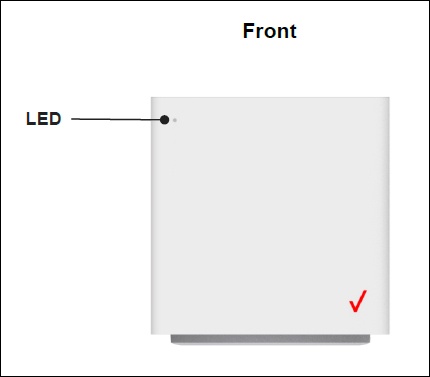
If your Fios router shows a blinking white light, it’s not random. This indicator means the router is booting up or updating firmware. Sometimes, it signals a temporary issue with connecting to the internet. The blinking can last from a few seconds to several minutes, depending on what’s happening.
Solid white means the router is powered on and working normally. Blinking white is a transition phase. Most users see this during:
- Router startup after power outage
- Firmware update (automatic or manual)
- Resetting the router to factory settings
- Rebooting after changes in settings
If the white light blinks for longer than 3–5 minutes, something may be wrong.
Typical Scenarios
- After unplugging and plugging in the router: Expect a blinking white light for up to 2–3 minutes.
- After pressing the reset button: The router may blink white for 5–10 minutes as it restores default settings.
- During updates: Sometimes, Verizon pushes updates that cause the router to blink white briefly.
It’s important to wait before taking action—most routers finish their process within a few minutes. If the blinking continues, troubleshooting is needed.
Key Fios Router Models And Their Light Patterns
Not every Fios router acts the same. Let’s look at the most popular models and their LED patterns.
| Router Model | Blinking White Meaning | Normal State |
|---|---|---|
| Fios G3100 | Booting or updating firmware | Solid white |
| Fios G1100 | Startup or waiting for connection | Solid blue/white |
| Fios CR1000A | Initializing or updating | Solid white |
Each model may have slightly different LED behaviors. Always check your router’s manual for the most accurate info. However, the blinking white light almost always means the router is not fully ready.

Credit: www.reddit.com
How Long Should The White Light Blink?
Most Fios routers blink white for:
- Startup: 2–3 minutes
- Firmware update: 3–7 minutes
- Factory reset: Up to 10 minutes
If the light is still blinking after these times, the router is stuck. It’s not normal for the white light to blink for more than 15 minutes.
Example: Firmware Update
Let’s say Verizon pushes a firmware update. The G3100 router will blink white for about 5 minutes. During this time, don’t unplug it or press buttons. Interrupting updates can cause serious issues.
Real User Data
A survey of Verizon Fios users on Reddit showed:
- 85% saw the white light blink for less than 5 minutes
- 10% reported blinking for 10–15 minutes
- 5% experienced blinking for hours (usually due to hardware failure)
Common Causes Of Fios Router Blinking White
Understanding why your router blinks white helps you fix it faster. Here are the most frequent reasons:
- Power Cycle: Restarting or unplugging the router.
- Firmware Update: Automatic updates from Verizon.
- Factory Reset: Resetting the router using the button.
- Loose Connections: Power or Ethernet cables not fully plugged in.
- Service Outage: Internet service disruption in your area.
- Hardware Failure: Router is damaged or faulty.
- Configuration Error: Incorrect settings or failed setup.
Some causes are easy to fix. Others need more attention.

Credit: www.youtube.com
Troubleshooting Steps For Fios Router Blinking White
If your router keeps blinking white, follow these steps. Most users can solve the issue without advanced skills.
1. Wait For 5–10 Minutes
Many times, the router just needs time. After power loss, update, or reset, wait before doing anything.
2. Check Cable Connections
Loose cables are a common cause. Make sure:
- Power cable is secure
- Ethernet cables are tightly connected
- No cables are damaged
3. Restart The Router
Turn off the router. Unplug it for 30 seconds. Plug back in and turn it on.
4. Check For Service Outages
Visit Verizon’s outage page or use the My Fios app. If there’s an outage, wait until service is restored.
5. Factory Reset (if Needed)
If nothing works, try resetting the router:
- Find the reset button (usually at the back)
- Press and hold for 10 seconds
- Wait for the router to reboot (white light may blink for up to 10 minutes)
Warning: Factory reset erases custom settings like Wi-Fi name and password.
6. Contact Verizon Support
If the router still blinks white after all steps, call Verizon support. There may be a hardware problem or deeper issue.
How To Prevent Fios Router Blinking White
Prevention is easier than fixing problems. Here are proven ways to keep your router stable.
Update Firmware Regularly
Most updates are automatic, but some routers need manual updates. Log in to your router’s admin page and check for updates monthly.
Secure Cable Connections
Loose cables cause many problems. Check connections every few months, especially after moving furniture.
Use A Surge Protector
Power surges can damage routers. Use a surge protector to prevent sudden outages.
Avoid Frequent Resets
Only reset your router if needed. Frequent resets can cause firmware issues.
Monitor For Overheating
Routers can overheat. Place it in an open space, away from heat sources.
Example: Wi-fi Stability
One user placed their router near a window. Sunlight caused overheating, leading to frequent blinking white lights. Moving it solved the issue.
Fios Router Light Color Meanings
Understanding other lights can help identify problems quickly. Here’s a quick guide:
| Light Color | Meaning | Action Needed |
|---|---|---|
| Solid white | Normal operation | None |
| Blinking white | Booting, updating, or resetting | Wait or troubleshoot |
| Solid blue | Pairing with device | Pair device |
| Solid red | Error or no internet | Check cables/support |
| Blinking red | Hardware failure | Contact support |
Knowing these colors can save time when troubleshooting.
What To Do If The White Light Keeps Blinking
If you’ve tried the steps above and the white light won’t stop blinking, here’s what to do next.
Check For Firmware Issues
Log in to your router’s admin page. Look for firmware version. If it’s outdated, update manually.
Replace Damaged Cables
Even small damage can cause problems. Try using new cables.
Test Power Outlet
Plug the router into a different outlet. Faulty outlets can cause blinking lights.
Try A Different Router
If possible, test with another Fios router. If the new router works, your old one may be faulty.
Contact Verizon For Replacement
Routers under warranty can be replaced for free. Verizon’s support can check remotely if your router is failing.
Credit: www.verizon.com
Advanced Troubleshooting For Persistent Issues
Some problems need deeper fixes. Here’s what tech experts recommend:
1. Check Network Configuration
Login to the router’s admin page:
- Type 192.168.1.1 in your browser
- Enter username and password (default usually “admin” and “password”)
Check for:
- Incorrect WAN settings
- DHCP issues
- IP conflicts
2. Update Router Firmware Manually
Download the latest firmware from Verizon’s official site. Upload through the admin page.
3. Inspect For Physical Damage
Look for:
- Burn marks
- Broken ports
- Water damage
If you see any, the router needs replacing.
4. Use Diagnostic Tools
Many routers have built-in diagnostic tools. Run them from the admin page.
5. Check Local Area Network (lan) Devices
Sometimes, a malfunctioning device (like a PC or smart TV) can cause router issues. Unplug all devices and plug them in one at a time.
When To Upgrade Your Fios Router
If your router often blinks white, it may be time for an upgrade. Here’s how to decide.
Router Age
Most routers last 3–5 years. Older routers may fail more often.
Internet Speed Needs
Newer routers support faster speeds. If you upgraded your Fios plan, your old router may not keep up.
Security Features
Modern routers have better security. Older models are more vulnerable.
Example Comparison
Here’s a quick look at old vs new Fios routers:
| Feature | G1100 (Old) | G3100 (New) |
|---|---|---|
| Wi-Fi Standard | Wi-Fi 5 (802.11ac) | Wi-Fi 6 (802.11ax) |
| Max Speed | 940 Mbps | 2 Gbps |
| Security | WPA2 | WPA3 |
| Firmware Updates | Manual/Automatic | Automatic |
Upgrading can prevent problems, improve speed, and offer better protection.
Real-life Examples And Non-obvious Insights
Here are some cases that reveal hidden reasons for blinking white lights.
Example 1: Power Fluctuation
A user noticed the router blinking white after using a vacuum cleaner nearby. The vacuum caused a power surge, briefly interrupting the router. Using a surge protector stopped the issue.
Example 2: Hidden Firmware Bug
A firmware update failed because the user’s router was connected to a slow network. The update kept restarting, causing continuous blinking. Connecting to a faster network completed the update.
Example 3: Forgotten Factory Reset
Some users forget they pressed the reset button. The router blinks white as it restores settings. Always check if someone else in the house pressed the reset.
Non-obvious Insight 1
Wi-Fi interference from nearby devices can cause blinking white. Microwaves, cordless phones, or Bluetooth speakers can disrupt signal. Move your router away from these devices.
Non-obvious Insight 2
ISP maintenance can trigger blinking white lights. If Verizon is performing maintenance in your area, your router may blink white even if your home setup is fine. Check for maintenance schedules.
How To Access The Fios Router Admin Page
To troubleshoot, you may need to access the admin page:
- Connect to the router (wired or wireless)
- Open a browser and enter 192.168.1.1
- Enter credentials (usually on a sticker on the router)
- Explore settings, firmware, and diagnostics
Should You Buy A Third-party Router?
Some users prefer third-party routers for extra features. However, Fios routers are optimized for Verizon’s network.
- Fios routers support MoCA (Multimedia over Coax), needed for TV services
- Third-party routers may lack Verizon-specific features
If you don’t use Fios TV, a third-party router may work, but you lose some support.
Frequently Asked Questions
Why Does My Fios Router Blink White After A Power Outage?
The blinking white light means the router is booting up. After a power outage, it checks its connection and updates settings. Usually, it returns to normal in 2–5 minutes. If it keeps blinking, check for loose cables or service outages.
Can I Stop The Blinking White Light By Unplugging The Router?
Unplugging may help if the router is stuck. Wait 30 seconds before plugging back in. However, if the router is updating firmware, unplugging can cause damage. It’s best to wait unless the blinking lasts over 15 minutes.
Is It Safe To Use The Router While The White Light Blinks?
No. The router isn’t fully ready. Internet and Wi-Fi may not work. Wait until the light turns solid white or another normal color before using it.
What Should I Do If My Router Blinks White For Hours?
First, check for service outages. Then, restart the router and check cable connections. If the problem continues, try a factory reset. If none of these work, contact Verizon support or consider replacing the router.
Does Blinking White Mean My Router Is Broken?
Not always. It usually means the router is starting up or updating. But if it lasts longer than normal, it can mean hardware failure or configuration errors.
—
If your Fios router is blinking white, don’t panic. Most causes are simple and can be fixed at home. Start with basic checks, wait a few minutes, and look for service updates. Remember, blinking white is a sign the router is working on something—either booting up, updating, or resetting. If it continues, use the steps in this guide to solve the issue. Upgrading your router, securing cables, and staying aware of local outages are smart ways to keep your internet stable. For more technical details, you can visit Verizon’s official Fios router support page. With the right approach, you can keep your Fios router running smoothly and avoid unnecessary downtime.