
If you use a Gigaspire Blast router and notice a blinking red light, it’s easy to feel worried or confused. A blinking red indicator usually means something is wrong, but the exact reason can be hard to pinpoint. This guide will help you understand what a Gigaspire Blast blinking red means, what causes it, and how to fix the issue. We’ll break down the technical explanations, offer practical advice, and highlight mistakes people often make. Whether you’re a homeowner, a small business owner, or a tech enthusiast, you’ll find clear solutions here.
What Is A Gigaspire Blast?
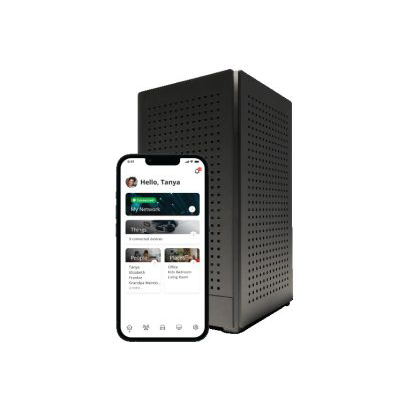
The Gigaspire Blast is a modern router, often used for high-speed home internet. It’s designed for fast Wi-Fi, easy setup, and strong security. Many internet providers offer this device because it supports smart homes and streaming. It also comes with advanced features like parental controls and device management.
Most Gigaspire Blast routers have several LED lights. These lights show the device’s status, signal strength, and connection quality. Normally, the lights are green or blue when things work well. But a blinking red light means something needs attention.
Understanding The Blinking Red Light
A blinking red light on your Gigaspire Blast isn’t just a random signal. It’s a warning. The router uses this light to tell you a problem exists. But the exact meaning can depend on the pattern and location:
- Power LED blinking red: Often signals a startup issue or firmware error.
- Internet LED blinking red: Usually means the device can’t connect to your service provider.
- Wi-Fi LED blinking red: Indicates trouble with wireless connections.
It’s important to check which light is blinking. The Gigaspire Blast user manual includes diagrams, but most users skip this step. Knowing the light’s position can help you diagnose the problem faster.
Common Causes Of Gigaspire Blast Blinking Red
Many things can trigger a blinking red light. Here are the most common causes:
- Internet Service Outage: If your internet provider is down, the router can’t connect.
- Loose or Damaged Cables: Faulty Ethernet or power cables prevent proper connection.
- Firmware Update Failure: If an update doesn’t install correctly, the router may blink red.
- Configuration Error: Incorrect settings can block connections.
- Hardware Defect: Internal parts may fail, leading to blinking red.
- Overheating: If the router gets too hot, it may shut down for safety.
- ISP Authentication Problem: Your account might not be recognized by the provider.
- Power Supply Issue: If the power is unstable, the router can’t start correctly.
Two less-known triggers are electrical interference (from nearby appliances) and incorrect VLAN tagging (for advanced users). These are often missed by beginners.
How To Troubleshoot Gigaspire Blast Blinking Red
Fixing a blinking red light doesn’t always require a technician. Here are step-by-step actions you can try:
Step 1: Check Your Internet Service Status
Visit your provider’s website or call customer support. Many times, the issue is a local outage. Waiting for service restoration is the only solution in such cases.
Step 2: Inspect Cables And Connections
- Unplug and replug all cables.
- Look for frayed or broken connectors.
- Swap out cables if you have spares.
A surprising number of problems are caused by loose cables. Make sure every connection clicks firmly.
Step 3: Restart The Router
- Unplug the power cable.
- Wait 30 seconds.
- Plug it back in.
This simple reset solves many issues. It’s often overlooked, but it helps clear temporary glitches.
Step 4: Check For Firmware Updates
- Log in to your router’s web interface (often at http: //192.168.1.1).
- Go to “System” or “Firmware” section.
- Install any available updates.
If the firmware update fails, you might need to manually download the firmware from the manufacturer’s site.
Step 5: Review Configuration Settings
- Ensure your username and password are correct.
- Check for any custom settings that might block connections.
If you changed settings recently, revert to defaults and see if the light stops blinking.
Step 6: Test For Overheating
- Touch the router; if it’s hot, unplug it and let it cool.
- Move it to a well-ventilated spot.
High temperatures can cause red blinking, but people rarely check for this.
Step 7: Contact Your Isp
If none of the above steps work, reach out to your provider. They can run remote tests or send a technician if needed.

Credit: www.youtube.com
Comparison: Gigaspire Blast Led Status Vs Other Routers
To understand how the Gigaspire Blast’s blinking red compares to other routers, see this comparison:
| Router Model | Normal LED Color | Blinking Red Meaning | Common Fix |
|---|---|---|---|
| Gigaspire Blast | Green/Blue | Connection or Firmware Issue | Restart, Cable Check, Update |
| Netgear Nighthawk | White | Internet Down or Hardware Fault | Reset, Contact ISP |
| TP-Link Archer | Green | WAN Disconnected | Cable Inspection |
| Linksys Velop | Blue/Purple | Firmware Failure | Manual Update |
Gigaspire Blast’s blinking red is similar to other routers, but it often points to a broader range of issues, not just internet outages.
Advanced Troubleshooting For Gigaspire Blast Blinking Red
If you’re comfortable with technology, try these advanced steps:
Firmware Recovery
Sometimes, the router’s firmware becomes corrupted. This can happen during updates or power loss. You can recover it by:
- Downloading the official firmware file.
- Accessing the router’s recovery mode (check the manual for button combinations).
- Uploading the firmware via the web interface.
Factory Reset
A factory reset restores the router to its original settings:
- Locate the reset button (usually a small hole).
- Press and hold for 10 seconds using a paperclip.
- Wait for the router to reboot.
Remember, this erases all custom settings, including Wi-Fi passwords and parental controls.
Vlan And Advanced Settings
If your ISP uses VLAN tagging, improper configuration can cause blinking red. Check with your provider for correct settings. This is a common mistake with fiber connections.
Log Analysis
You can view logs in the router’s interface. Look for error messages like:
- “WAN authentication failed”
- “Firmware update error”
- “Overheating detected”
These messages help pinpoint the cause. Most beginners skip log analysis, but it’s very useful.
Credit: www.myfmtc.com
When To Replace Your Gigaspire Blast
Sometimes, the blinking red light means your router is failing. Here’s how to know:
- The light stays red after all troubleshooting.
- The router feels hot or smells burnt.
- You see physical damage (cracks, melted plastic).
- Firmware recovery and factory reset don’t work.
In these cases, replacing the device is the safest option. Gigaspire Blast routers usually last 3–5 years. If yours is older, consider an upgrade.
| Router Age | Common Issues | Recommended Action |
|---|---|---|
| 0–2 years | Minor glitches | Restart, Update |
| 2–4 years | Frequent disconnects | Factory Reset |
| 4+ years | Hardware failure | Replace Router |
Tips For Preventing Gigaspire Blast Blinking Red
You can avoid many blinking red problems by following these tips:
- Keep Firmware Updated: Regular updates fix bugs and improve security.
- Place Router in Open Area: Avoid closets or cabinets; airflow prevents overheating.
- Use Quality Cables: Cheap cables break easily and cause issues.
- Avoid Electrical Interference: Keep the router away from microwaves and cordless phones.
- Check ISP Account Status: Make sure your subscription is active.
- Backup Settings: Save your configuration before making changes.
A less obvious tip: set up automatic firmware updates if your router supports it. Most users don’t enable this, but it saves time and prevents errors.

Credit: manuals.plus
Real-world Examples: Gigaspire Blast Blinking Red
Let’s look at some real situations:
- Case 1: A family in Houston lost internet during a storm. The Gigaspire Blast blinked red. The issue was an ISP outage; service returned in two hours.
- Case 2: A small business owner changed Wi-Fi settings and saw a blinking red light. Reverting to default settings fixed the issue.
- Case 3: A student noticed the router was hot and blinking red. Moving it away from a heater solved the problem.
- Case 4: An update failed during a power surge, causing blinking red. Firmware recovery brought the router back.
These examples show that most problems are fixable without professional help.
Gigaspire Blast Vs. Competitors: Reliability And Support
How does the Gigaspire Blast stack up against other routers? Here’s a comparison:
| Router | Customer Support | Average Lifespan | Firmware Update Process |
|---|---|---|---|
| Gigaspire Blast | ISP/Manufacturer | 3–5 years | Automatic & Manual |
| Netgear Nighthawk | Manufacturer | 4–6 years | Manual Only |
| TP-Link Archer | Manufacturer | 3–4 years | Manual Only |
| Linksys Velop | Manufacturer | 4–6 years | Automatic & Manual |
Gigaspire Blast routers are reliable, but depend heavily on ISP support. Netgear and Linksys offer longer lifespans, but updates are less automatic.
The Importance Of Understanding Router Indicators
Many people ignore router lights until something goes wrong. Learning what the blinking red light means can save time and frustration. It also helps you avoid unnecessary technician visits. Understanding the indicator patterns makes troubleshooting faster.
Non-native English speakers often misunderstand technical terms. Terms like “firmware,” “WAN,” and “authentication” can be confusing. If you’re unsure, look up definitions or ask your ISP for plain explanations.
Common Mistakes In Fixing Gigaspire Blast Blinking Red
People often make these mistakes:
- Ignoring the light pattern (not checking which LED is blinking)
- Forgetting to check cable connections
- Overlooking overheating as a cause
- Resetting the router before checking ISP status
- Failing to backup settings before factory reset
Avoid these errors to make troubleshooting smoother. The most overlooked mistake is skipping firmware updates. Many users don’t realize updates are essential for stability.
When To Call A Technician
You should call a technician if:
- The blinking red light persists after all troubleshooting steps
- You see physical damage to the router
- You’re uncomfortable with advanced settings
- Your internet service is active, but the router won’t connect
Technicians can run deeper diagnostics and replace faulty hardware. However, most blinking red issues are solvable without professional help.
Additional Resources
For more details, you can check the manufacturer’s support page or your ISP’s help section. They offer guides, videos, and community forums. If you want technical specifications, visit Calix Support.
Frequently Asked Questions
What Does A Blinking Red Light On Gigaspire Blast Mean?
A blinking red light usually signals a problem with connection, firmware, or hardware. It’s a warning sign that something needs fixing. Check which light is blinking to understand the exact issue.
How Do I Fix Gigaspire Blast Blinking Red?
Start by checking cables, restarting the router, and updating firmware. If these steps don’t work, contact your ISP or try a factory reset. Make sure your account is active and your device isn’t overheating.
Can A Blinking Red Light Mean My Router Is Broken?
Sometimes, yes. If the light stays red after all troubleshooting, and the router shows physical damage or doesn’t respond to resets, it may need replacement.
Is It Safe To Use The Router When It’s Blinking Red?
It’s not recommended. The blinking red means there’s a problem. Using the router while it blinks red can cause unstable internet or security risks.
Does Every Router Use A Blinking Red Light For Errors?
No. Different routers use different colors and patterns to show errors. Gigaspire Blast uses blinking red for several issues, while others may use white, green, or blue.
—
A blinking red light on your Gigaspire Blast router is a clear sign that something needs attention. While the problem can seem complex, most issues are easy to fix with careful troubleshooting. Remember to check cables, restart the device, and keep firmware updated. Avoid common mistakes, and don’t hesitate to call your ISP if needed. Learning to read your router’s signals will keep your internet running smoothly and save you time in the future.