
When you see your Lenovo laptop displaying an orange (amber) light blinking three times, it can feel worrying, especially if you rely on your device for work or study. This pattern is more than just a random alert—it’s your laptop’s way of telling you something is wrong. Many users see the blinking and wonder: Is the battery dead? Is the motherboard faulty? Did I break something? The good news is that this signal is not as mysterious as it seems. If you understand what each blink means, you can quickly find the right solution. This article explains the three-blink orange light on Lenovo laptops, how to troubleshoot it, and why it happens. You’ll also learn some practical tips to prevent it in the future.
What Does The Lenovo Orange Light Blinking 3 Times Mean?
Every modern Lenovo laptop has an LED indicator that uses colors and patterns to tell you about the device’s status. A blinking orange light—especially one that repeats three times—points to a specific problem. But not all Lenovo models use the exact same codes, and sometimes, the meaning can change depending on the model and the situation.
In most cases, the three orange blinks signal a battery or power-related issue. Lenovo designed this alert so you can quickly notice a problem without opening your laptop or using complex tools. However, the details can differ:
- On many ThinkPad laptops, three short orange blinks mean the battery is not detected or cannot be charged.
- Some IdeaPad and other models use a similar code for motherboard or charging circuit issues.
To find the real cause, you need to look at the three main reasons behind this signal. Let’s break down each one, so you know how to fix it.
1. Battery Not Detected Or Faulty
The most common reason for the Lenovo orange light blinking three times is a battery problem. Your laptop’s firmware is trying to charge the battery, but it can’t find it, or it detects something is wrong. This can happen for several reasons.
Why The Battery Might Not Be Detected
- The battery is loose or disconnected internally.
- The battery has reached the end of its life (usually after 2-4 years).
- Sudden physical shock (like dropping the laptop) dislodged the battery.
- The battery’s built-in safety circuit has tripped due to overheating or overcharging.
Signs Your Battery Is The Problem
- Your laptop only works when plugged into the charger.
- The battery percentage never changes or shows “0% available (plugged in, not charging).”
- The battery health status in Lenovo Vantage or BIOS says “No Battery Detected.”
How To Fix A Battery Issue
- Power Reset: Turn off your laptop. Unplug the charger. Hold the power button for 30 seconds. This drains any leftover charge and can reset the battery circuit.
- Check the Battery Connection: If your laptop has a removable battery, power off, remove the battery, and then reseat it carefully. For non-removable batteries, you may need to open the back cover (only if you feel comfortable).
- Update Battery Drivers: Open Device Manager, find “Batteries,” right-click “Microsoft ACPI-Compliant Control Method Battery,” and choose “Update driver.”
- Try a Different Charger: Sometimes, the charger is the real culprit. Test with a known-good Lenovo charger.
- Battery Replacement: If none of the above work, and your battery is old, consider replacing it with a genuine Lenovo battery.
Data: Battery Lifespan Vs. Failure Signs
Here’s a quick comparison to help you understand when a battery might fail:
| Battery Age | Expected Health | Common Failure Signs |
|---|---|---|
| 0-1 year | 95-100% | Almost none |
| 1-2 years | 80-95% | Shorter battery life |
| 2-3 years | 60-80% | Rapid drop, charging issues |
| 3+ years | <60% | Not detected, frequent errors |
Insight: Many users think batteries only fail when they are very old. In reality, extreme heat, overcharging, or sudden shocks can damage batteries much faster.

Credit: www.reddit.com
2. Power Adapter Or Charging Circuit Issue
Another reason for the three-blink pattern is a problem with the charging system. Even if your battery is fine, if the charger or the charging circuitry on your laptop fails, the battery cannot charge, and the laptop sends you an alert.
How To Recognize Charging Circuit Problems
- The orange light blinks three times when you plug in the charger.
- The laptop will not turn on, even if you try a different battery.
- The charging port feels loose or damaged.
- You notice a burning smell or warmth near the charging port.
How To Fix Charging Circuit Issues
- Inspect the Charger: Look for frayed wires, bent tips, or unusual heat. Faulty chargers often cause blinking lights.
- Test with Another Charger: Use a charger with the correct voltage and amperage (check the label on your laptop). Mixing chargers can harm your device.
- Check the Charging Port: Shine a flashlight inside; look for dust, bent pins, or corrosion. You can gently clean dust with compressed air.
- Motherboard Check: If the laptop still does not charge, the charging circuit on the motherboard may be damaged. This requires professional repair.
- BIOS/UEFI Update: Rarely, a firmware update can fix charging bugs. Download the latest BIOS update from Lenovo’s official site.
Data: Charger Specifications For Popular Lenovo Models
Compare your charger to the specs below to see if you’re using the right one:
| Model | Voltage | Amperage | Connector Type |
|---|---|---|---|
| ThinkPad X1 Carbon | 20V | 2.25A / 3.25A | USB-C |
| IdeaPad 3 | 20V | 2.25A | Round Tip |
| Yoga 7i | 20V | 3.25A | USB-C |
Insight: Many users try to use phone chargers or universal adapters. These often do not provide enough power, causing blinking errors and even damaging the charging circuit.
When To Seek Professional Help
If you have tried a new charger and checked the port, but the three orange blinks continue, don’t attempt to fix the motherboard yourself unless you have advanced skills. Modern laptops use tiny, complex parts, and a mistake can make the problem worse.
It’s best to visit a Lenovo service center or a trusted repair technician.
3. Motherboard Or Hardware Failure
The third main cause for the Lenovo orange light blinking three times is a deeper hardware failure—often on the motherboard. This is the most serious issue, and it can affect many parts of your laptop. Sometimes, a failed power circuit, BIOS chip, or even a faulty RAM module can trigger the three-blink code.
Symptoms Of Motherboard Failure
- The laptop shows the three orange blinks even with a working charger and battery.
- No display appears (black screen), and you hear no startup sounds.
- The fan may spin, but nothing else happens.
- The laptop turns off suddenly, even when plugged in.
Steps To Diagnose Motherboard Problems
- Remove All Peripherals: Disconnect everything—USB drives, SD cards, external monitors. Peripherals can sometimes cause boot errors.
- Try a Hard Reset: With the charger unplugged, hold the power button for 60 seconds. Then try to start the laptop.
- Test with Minimal Hardware: If you can open the back, remove one RAM stick at a time, or disconnect the SSD. Faulty RAM or storage can mimic motherboard failure.
- Check for Physical Damage: Look for burnt marks, corrosion, or broken components on the motherboard.
- Listen for Beep Codes: Some Lenovo laptops use beep codes along with the light. Note any pattern and check the user manual.
Data: Common Motherboard Failure Rates
Studies show that laptop motherboard failures are rare in the first year, but increase with age and use.
| Laptop Age | Motherboard Failure Rate | Typical Causes |
|---|---|---|
| 0-1 year | 0.2% | Factory defect |
| 1-3 years | 1.1% | Power surges, overheating |
| 3-5 years | 2.8% | Wear, liquid spills |
Insight: Some users blame the battery or charger when the real problem is a failed motherboard. Always rule out battery and charging circuit issues first.
Repair Or Replace?
Motherboard repairs can be expensive—sometimes half the price of a new laptop. If your device is under warranty, contact Lenovo support. If not, get a repair estimate and compare it to the cost of a new laptop. For older devices, replacement may be more cost-effective.
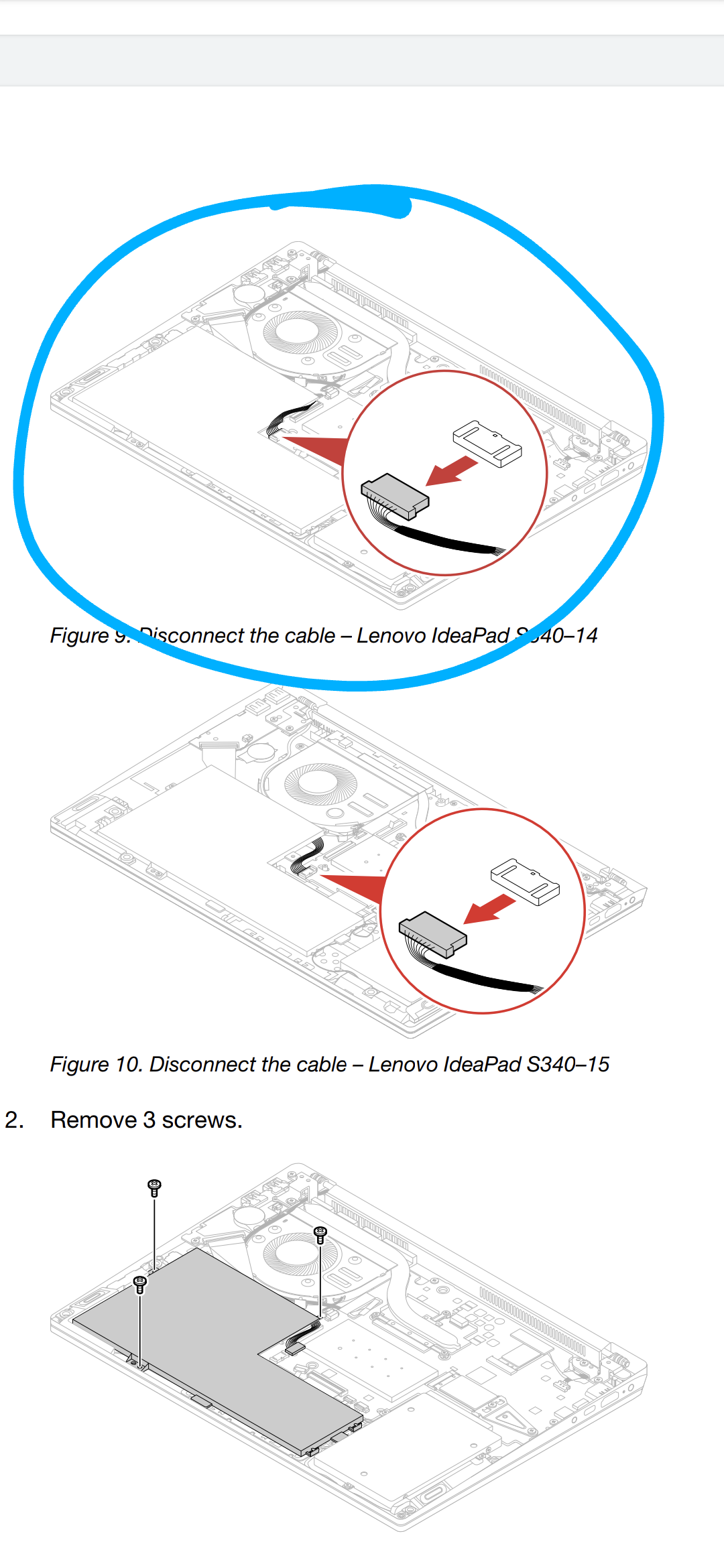
Credit: forums.lenovo.com
How To Prevent The Orange Light Blinking Issue
Prevention is always easier than repair. Here are proven ways to avoid seeing the three-blink orange light on your Lenovo laptop:
- Use Only Genuine Chargers and Batteries: Third-party accessories can damage internal circuits.
- Avoid Overheating: Use your laptop on hard surfaces, keep vents clear, and clean dust from fans every few months.
- Unplug During Power Surges: Use a surge protector to avoid damage from unstable power sources.
- Handle With Care: Drops and strong impacts can loosen internal parts or crack the motherboard.
- Update BIOS and Firmware Regularly: Manufacturers often fix hardware bugs with updates.
Non-obvious tip: Never leave your laptop plugged in for weeks without using it. Batteries degrade faster if they stay at 100% charge all the time.
Advanced Troubleshooting Steps
If basic troubleshooting does not solve the three-blink orange light, you can try these advanced steps. These require some technical skill, so proceed only if you’re comfortable:
Reset The Embedded Controller (ec)
The EC manages power and battery communication. Resetting it can sometimes clear errors.
- For most Lenovo laptops: With the charger unplugged, hold the power button for 60 seconds, then plug in and try again.
- On some ThinkPads, there is a small “reset” pinhole near the bottom. Use a paperclip to press it for 10 seconds.
Boot Into Bios Diagnostics
- Turn off your laptop.
- Hold the F2 or Enter key, then press the power button.
- If you get into BIOS, look for “Diagnostics” or “Battery Information.” This can reveal battery or motherboard errors.
Check For Diagnostic Leds
Some Lenovo models have extra LED lights under the bottom cover. If you open the laptop, see if any of these LEDs are lit or blinking. Note their pattern—they can help a repair technician pinpoint the failure.
Important: Always disconnect the battery and charger before opening your laptop to avoid electric shock.

Credit: www.youtube.com
When To Contact Lenovo Support
If you cannot fix the orange light blinking three times with the above steps, it’s time to contact Lenovo support. Provide them with:
- Your laptop model and serial number
- A description of the blinking pattern
- Steps you have already tried
You can find Lenovo’s official support at Lenovo Support. They may ask you to run online diagnostics or send the device in for repair.
Common mistake: Many users delay getting help, hoping the error will go away. Hardware problems usually get worse with time. If you depend on your laptop, act quickly.
Real-world Example: User Experiences
To make things clearer, here are two real-world stories from Lenovo users who faced the three-blink orange light:
- Student with a ThinkPad: After seeing the blinking light, she checked the charger (it was fine) and tried a power reset. The error remained. She noticed her battery was over four years old and always kept her laptop plugged in. Replacing the battery solved the problem.
- Freelancer with an IdeaPad: His laptop started blinking orange after a power surge. He tried a new charger—no change. At a repair shop, the technician found a burnt charging circuit on the motherboard. The repair cost was high, so he chose to buy a new device.
These examples show that the same signal can have different causes—and solutions.
Frequently Asked Questions
Why Does My Lenovo Laptop Blink Orange Three Times When Charging?
This usually signals a battery not detected, a faulty battery, or a charging circuit issue. It’s your laptop’s way of warning you that it cannot charge normally. Check your charger, battery, and try a power reset.
Can I Use A Non-lenovo Charger To Solve The Blinking Light Problem?
It is not recommended. Non-genuine chargers may not provide the correct voltage or current, causing more damage. Always use a Lenovo-approved charger for your model.
Is The Three-blink Orange Light Always A Battery Problem?
No. While battery issues are common, a faulty motherboard or charging circuit can also cause this signal. If changing the battery and charger does not help, the problem is likely deeper.
How Much Does It Cost To Fix The Three-blink Orange Light Issue?
The cost depends on the cause:
- New battery: $50–$150
- New charger: $30–$60
- Motherboard repair: $150–$400 (sometimes more)
Get a professional diagnosis before spending money on parts.
Where Can I Find The Official Lenovo Error Code Definitions?
You can find official documentation and error codes on the Lenovo Support website. They offer manuals, diagrams, and support tools for most models.
Conclusion
Seeing your Lenovo laptop’s orange light blinking three times is never pleasant. But with the right information, you can find the cause and fix it quickly. Whether it’s the battery, charger, or motherboard, acting early gives you the best chance of saving your laptop and avoiding data loss. Remember—understanding your device’s signals helps you stay ahead of bigger problems. If in doubt, don’t hesitate to seek professional help. Your laptop’s health—and your peace of mind—are worth it.