
When your HP laptop refuses to start and the Caps Lock key blinks in a pattern—5 long blinks followed by 3 short ones—it’s easy to feel lost or frustrated. This blinking code is not random; it’s your laptop’s way of telling you exactly what’s wrong. But unless you know how to read the message, you’ll waste time searching for solutions that don’t fit. Understanding this code, knowing what causes it, and learning how to fix it can save you time, money, and stress.
If you’ve seen the HP Caps Lock blinking 5 long 3 short code, you’re not alone. Many HP users run into this issue, especially after sudden shutdowns, failed updates, or hardware changes. This article will explain what this code means, why it happens, and the practical steps you can take to solve it. We’ll also compare different troubleshooting methods, explain common mistakes, and answer the most important questions about this error. By the end, you’ll know exactly what to do if your HP laptop starts blinking 5 long and 3 short.
What Does Hp Caps Lock Blinking 5 Long 3 Short Mean?
HP laptops use a system of blink codes to indicate specific hardware or firmware problems. When your Caps Lock light blinks 5 times long and 3 times short, it’s signaling a particular error related to the embedded controller (EC) firmware. This controller manages communication between your laptop’s hardware and the main processor.
Specifically, the 5 long and 3 short blink code usually means:
- Embedded controller policy error
- The system BIOS (Basic Input/Output System) or EC firmware is corrupted, missing, or not communicating properly
- The laptop cannot initialize due to this firmware issue
This is not just a random error; it’s one of the most serious codes HP laptops display, and it almost always points to a deep firmware or motherboard-level problem. Fixing it often requires more than just a simple restart.
Why Do Hp Laptops Use Blink Codes?
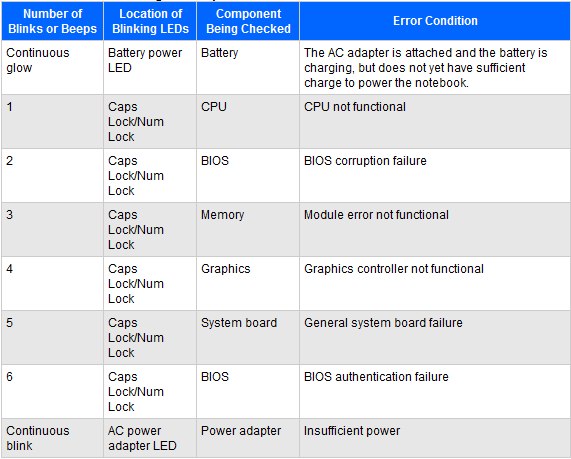
HP laptops can’t always show error messages on the screen if there’s a hardware or firmware problem. Instead, they use LED blink codes—patterns of lights from the Caps Lock or Num Lock key—to communicate issues during the Power-On Self-Test (POST) process. Each pattern points to a specific component or error.
Here’s why blink codes are important:
- No screen required: If your laptop can’t display anything, you can still get a diagnosis.
- Quick troubleshooting: Blink codes help you and technicians quickly identify the cause.
- Avoids guessing: Instead of trying random fixes, you can target the real problem.
HP’s official documentation explains all blink codes, but the 5 long, 3 short pattern is one of the rarer and more critical ones.

Credit: www.reddit.com
The 5 Key Causes Of Hp Caps Lock Blinking 5 Long 3 Short
To solve this error, it’s crucial to understand what triggers it. There are five main causes behind the HP Caps Lock blinking 5 long and 3 short pattern. Let’s look at each one in detail.
1. Embedded Controller (ec) Firmware Corruption
The most common reason for the 5 long, 3 short blink code is corrupted EC firmware. The EC manages power, keyboard, and other basic functions. If its firmware becomes damaged—due to a failed update, sudden power loss, or malware—the laptop won’t boot.
Example: If you lose power during a BIOS update, the EC firmware may become incomplete or corrupted. When you turn your laptop on, it can’t communicate with the processor, and the blink code appears.
Key insight: Many users believe a hard drive replacement or RAM issue causes this code, but it’s almost always firmware-level. Trying to replace memory or storage is unlikely to help.
2. Bios Update Failure
A failed or interrupted BIOS update can also trigger this blink code. The BIOS is responsible for initializing hardware at startup. If the update process is interrupted—by a power cut, accidental shutdown, or a faulty BIOS file—the laptop cannot complete POST.
Example: If you try to update BIOS while running on battery and the battery dies, the BIOS installation will be incomplete. The laptop won’t boot, and you see the 5 long, 3 short blinks.
Non-obvious tip: HP laptops often have a BIOS recovery feature. Some users miss this and assume the motherboard is dead when, in fact, a recovery USB can restore function.
3. Motherboard Or Ec Chip Failure
The embedded controller chip itself can fail due to age, overheating, or manufacturing defects. In rare cases, the entire motherboard may develop a fault in the power delivery circuit or EC communication lines.
Example: Laptops used in hot environments, or those that have suffered liquid spills, are more likely to have EC chip damage. This is a hardware-level failure and may require motherboard replacement.
Practical note: Many users overlook the role of overheating. Running your laptop on soft surfaces or blocking vents can raise temperatures and damage the EC over time.
4. Power Surge Or Electrostatic Discharge (esd)
A sudden power surge—for example, from a faulty power adapter or lightning strike—can damage the EC or corrupt its firmware. Similarly, electrostatic discharge (static electricity) during repairs or upgrades can harm sensitive chips.
Example: If you unplug your laptop during a thunderstorm and plug it back in, a surge may pass through the adapter and damage the EC.
Preventive advice: Always use a surge protector and ground yourself before opening your laptop. Skipping this simple step is a common beginner mistake.
5. Incompatible Or Faulty Internal Hardware Changes
Installing unsupported or faulty hardware, such as RAM, SSD, or Wi-Fi cards, can sometimes confuse the EC firmware. If the EC detects a critical mismatch or short circuit, it may halt the boot process and trigger the blink code.
Example: Inserting a non-HP supported Wi-Fi card or incompatible RAM module can cause the EC to refuse startup.
Non-obvious insight: Even if the hardware seems to fit, HP laptops often use a “whitelist” in BIOS to only allow approved parts. Ignoring this can trigger unexpected errors.
Troubleshooting Steps For Hp Caps Lock Blinking 5 Long 3 Short
Now that you know the causes, let’s focus on how to fix the issue. It’s important to proceed step by step, from simple to more advanced solutions.
Step 1: Perform A Hard Reset
A hard reset (or power reset) can clear temporary glitches and force the EC to reinitialize.
- Disconnect all external devices (USB drives, printers, etc. ).
- Unplug the power adapter.
- If your laptop has a removable battery, take it out.
- Press and hold the power button for at least 15 seconds.
- Reconnect the battery and adapter, then try to power on.
Why it works: This removes any residual charge and can reset the embedded controller if the issue is minor.
Step 2: Try Bios Recovery
HP laptops offer a BIOS recovery mode. This can restore a corrupted BIOS or EC firmware.
- With the laptop off, press and hold the Windows + B keys.
- While holding, press and hold the power button for 2–3 seconds, then release it (keep holding Windows + B).
- Wait for the BIOS recovery screen or audio beeps.
- Follow the on-screen instructions to restore the BIOS.
Extra tip: If nothing appears, try the process with Windows + V instead of Windows + B. Some HP models use a different key combination.
Step 3: Create A Bios Recovery Usb
If the built-in recovery fails, you’ll need to create a BIOS recovery USB using another computer.
- Visit the official HP support site and download the BIOS update for your model.
- Run the installer and select “Create Recovery USB.”
- Insert the USB drive into your HP laptop.
- Use the Windows + B (or V) method to start recovery.
Note: Not all HP models support this. Check your model’s documentation for compatibility.
Step 4: Remove Or Replace Recent Hardware Changes
If you recently installed new RAM, SSD, or other parts, remove them and return to the original configuration. Then try to boot again.
Why: This tests if an incompatible component is confusing the EC.
Step 5: Motherboard Or Ec Chip Repair
If none of the above steps work, the most likely cause is a failed EC chip or motherboard. At this point, professional repair or motherboard replacement is required.
Warning: Attempting to reflash the EC chip with special tools is an advanced procedure. Only trained technicians should attempt this.
Troubleshooting Comparison Table
Here’s a quick comparison of the troubleshooting steps and their success rates (based on user reports and HP support data):
| Step | Difficulty | Success Rate | Tools Needed |
|---|---|---|---|
| Hard Reset | Very Easy | 10-20% | None |
| BIOS Recovery (Keys) | Easy | 20-40% | None |
| BIOS Recovery USB | Medium | 30-50% | USB Drive |
| Remove Hardware | Easy | 5-10% | None |
| Motherboard/EC Repair | Hard | 50-90% (if chip is replaced) | Professional Tools |
Key takeaway: Most users can solve the issue with BIOS recovery steps, but if hardware is damaged, only professional repair will work.
Credit: h30434.www3.hp.com
Mistakes To Avoid When Fixing This Error
Many HP users waste time and risk more damage by making common mistakes. Here’s what to watch out for:
- Replacing random parts: Swapping RAM, hard drives, or batteries rarely fixes EC firmware errors.
- Ignoring static electricity: Not grounding yourself can cause further ESD damage.
- Skipping BIOS recovery: Giving up before trying both Windows + B and Windows + V key combinations.
- Using wrong BIOS files: Installing a BIOS meant for another model can make things worse.
- Delaying professional help: Continuing to force boot or open the laptop when a motherboard repair is needed can cause permanent damage.
Prevention: How To Avoid Hp Caps Lock Blinking 5 Long 3 Short
While not every failure is avoidable, these steps will reduce your risk:
- Always update BIOS and firmware with a fully charged battery and connected power adapter.
- Use a surge protector to avoid power surges.
- Avoid third-party or incompatible internal hardware.
- Keep vents clean to prevent overheating.
- Handle internal components with care, using an antistatic wrist strap if possible.
Insider tip: Many users ignore BIOS update warnings. Always read them carefully and follow HP’s official process to avoid incomplete updates.
Data Table: Hp Blink Code Meanings
To help you diagnose other HP laptop errors, here is a comparison of common blink codes:
| Blink Pattern | Meaning | Primary Cause |
|---|---|---|
| 1 long, 2 short | CPU failure | Processor damaged or not detected |
| 2 long, 3 short | Memory/RAM failure | Bad or missing RAM |
| 3 long, 3 short | Graphics failure | GPU problem |
| 5 long, 3 short | Embedded Controller Policy Error | BIOS/EC firmware corrupted |
| 4 long, 4 short | Thermal/Overheating | Fan or heat issue |
Tip: Always count both long and short blinks to identify the correct error.
Hp Support And When To Seek Professional Help
If your troubleshooting steps don’t work, or if you’re uncomfortable opening your laptop, it’s time to contact HP customer support or a certified repair shop. Some issues, especially motherboard or EC chip failures, require specialized tools and skills.
You can find official support resources on the HP Support website. Be ready to provide your laptop’s serial number, model, and a description of the blink pattern.
Bonus tip: If your laptop is under warranty, don’t attempt to repair it yourself. Unauthorized repairs can void the warranty.

Credit: www.youtube.com
Frequently Asked Questions
What Is The First Thing I Should Do When I See The Hp Caps Lock Blinking 5 Long 3 Short?
Start with a hard reset: unplug everything, remove the battery, and hold the power button for 15 seconds. If the error remains, try the BIOS recovery method using Windows + B (or V).
Can I Fix The Embedded Controller Policy Error Myself?
You can try BIOS recovery steps and creating a recovery USB. If these don’t work, the issue is likely hardware-level, and you’ll need professional help.
Is It Possible To Recover Data From My Laptop If It Won’t Boot?
Yes. Remove the hard drive or SSD and connect it to another computer using a USB adapter. Your files should be accessible unless the drive itself is damaged.
How Can I Prevent This Error In The Future?
- Update BIOS only with a full battery and AC power
- Use a surge protector
- Avoid unsupported hardware upgrades
- Keep your laptop cool and dust-free
Does The 5 Long 3 Short Blink Code Mean My Motherboard Is Dead?
Not always. It usually points to EC firmware issues, which can sometimes be fixed with recovery steps. If those fail, it may indicate a deeper motherboard problem.
HP’s blink codes can be confusing, but with the right knowledge, you can diagnose and fix many issues yourself. The 5 long, 3 short pattern is serious, but not always fatal. Start with BIOS recovery, stay patient, and don’t hesitate to seek expert help if needed.
With careful troubleshooting and prevention, you can keep your HP laptop running strong for years to come.