
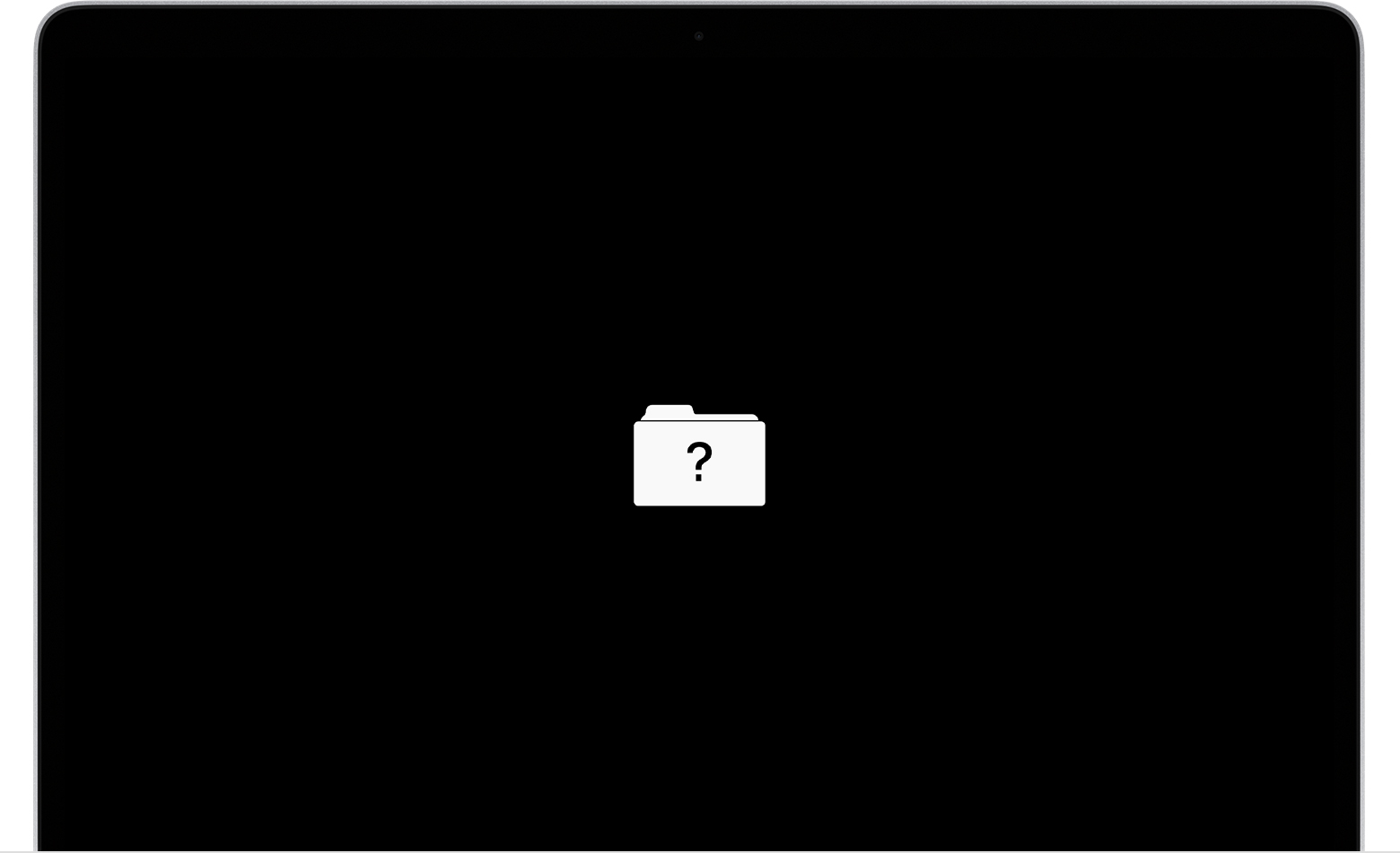
When you turn on your iMac and see a blinking folder with a question mark, it can feel alarming. This symbol means your computer cannot find its startup disk, or it cannot access the files needed to boot up. The blinking folder is a warning, not an error you can ignore. Many people panic, but you do not need to. Understanding why this happens and what you can do next is the first step to fixing your iMac and getting back to work.
This guide will help you understand the causes behind the blinking folder, practical steps to solve it, and how to prevent it in the future. Whether you are a student, a professional, or just someone who uses a Mac for daily tasks, you will find clear advice and examples here.
Let’s get started.
What Does The Blinking Folder With Question Mark Mean?
The blinking folder with a question mark shows up when your iMac cannot locate a valid startup disk. In simple words, your computer is searching for the operating system (macOS), but it cannot find it. This can happen for several reasons:
- The startup disk has failed.
- The operating system is missing or damaged.
- There is a connection problem between the disk and the computer.
- The disk is not set as the startup disk.
Apple designed this symbol so users know there is a boot problem. It appears during startup, before macOS loads. You may see the blinking folder for a few seconds or until you turn off the iMac.
Main Causes Of The Blinking Folder Issue
Understanding why your iMac shows the blinking folder is key to fixing it. Here are the most common causes:
1. Hard Drive Failure
If the internal hard drive or SSD is damaged, your iMac cannot read the needed files.
2. Corrupted Macos
System files may have been deleted or damaged during an update, power loss, or malware.
3. Incorrect Startup Disk Selection
Sometimes, the startup disk is not set correctly, especially after installing multiple operating systems.
4. Loose Or Damaged Disk Connection
Physical problems, such as a loose cable, can make the disk invisible to the computer.
5. Disk Format Issues
The disk may be formatted in a way that the iMac cannot read.
6. Failed Macos Update
If an update process was interrupted, system files may be incomplete.
7. External Drive Boot Confusion
Using an external drive to boot macOS, then removing it, can confuse the system.
These causes are not always obvious to beginners. For example, many people do not realize that a failed update or a wrong disk format can trigger this problem, not just physical disk damage.
How To Fix The Blinking Folder On An Imac
Now that you know why the blinking folder appears, let’s focus on solutions. Here are step-by-step instructions to help you fix your iMac.
Step 1: Restart The Imac
Sometimes, a simple restart solves the issue. Hold down the power button until the computer turns off, then turn it back on. If the blinking folder still appears, move to the next step.
Step 2: Check Startup Disk Settings
Your iMac may be looking for the wrong disk. To check and fix this:
- Turn off your iMac.
- Press the power button and immediately hold Option (Alt).
- Wait for the Startup Manager to appear.
- Select your internal disk (usually called Macintosh HD).
- Press Return to boot.
If the disk is not listed, it means your iMac cannot detect it.
Step 3: Use Macos Recovery
MacOS Recovery is a built-in tool. It lets you repair disks, reinstall macOS, and restore from backups.
- Turn off the iMac.
- Hold down Command + R while turning it on.
- When the Apple logo appears, release the keys.
Once in Recovery, choose Disk Utility to check the disk.
Using Disk Utility
- Select your startup disk.
- Click First Aid.
- Wait for Disk Utility to check and repair errors.
If Disk Utility finds problems, it will try to fix them. If it cannot repair the disk, you may need to erase it and reinstall macOS.
Step 4: Reinstall Macos
If your disk is healthy but the system files are missing or damaged, you must reinstall macOS.
- In macOS Recovery, choose Reinstall macOS.
- Follow the instructions.
- Wait for the process to finish.
This step may delete your files if you erase the disk. Always back up important data if possible.
Step 5: Try An External Boot
If your internal disk is not working, you can use an external drive:
- Create a bootable macOS installer on a USB drive.
- Plug it into your iMac.
- Hold Option during startup.
- Choose the external drive.
This can help you recover files or access the system.
Step 6: Check For Physical Damage
Physical issues are harder for most users to fix. If you hear strange noises from the iMac, or Disk Utility cannot detect the disk, the drive may be broken. In this case, you need professional help.
Step 7: Restore From Backup
If you use Time Machine, you can restore your iMac:
- In macOS Recovery, choose Restore From Time Machine Backup.
- Follow the prompts.
This will return your iMac to a working state, but you will lose changes made after the backup.
Step 8: Seek Professional Repair
If none of these steps solve the problem, visit an Apple Store or authorized service provider. Physical repairs, disk replacements, and data recovery require special tools.
Data Recovery: Saving Your Files
One big worry with the blinking folder is losing personal data. If the disk is damaged, files may be lost. Here are some ways to recover data:
- Use Disk Utility to repair the disk.
- Boot from an external drive and try to copy files.
- Use data recovery software (like Disk Drill or EaseUS).
- Contact a professional data recovery service.
Not all solutions work for every case. Sometimes, files are permanently lost if the disk is badly damaged. Always back up important files to avoid this risk.
Credit: www.reddit.com
Real-life Example: Fixing A Student’s Imac
Let’s look at a real example. Anna, a university student, turned on her iMac and saw the blinking folder. She tried restarting, but nothing worked. Anna followed these steps:
- Used macOS Recovery to access Disk Utility.
- Disk Utility showed her disk, but First Aid found errors.
- She erased the disk and reinstalled macOS.
- Anna restored her files from a recent Time Machine backup.
Anna’s iMac worked again. The key point: she had a backup. Without it, her files would have been lost.
How To Prevent The Blinking Folder Problem
Prevention is better than cure. Here are ways to avoid seeing the blinking folder:
1. Back Up Regularly
Use Time Machine or another backup tool. Back up at least weekly.
2. Keep Macos Updated
Updates fix bugs and improve security. Install them when available.
3. Avoid Sudden Power Loss
Use a surge protector to protect your iMac from power cuts.
4. Check Disk Health
Run Disk Utility’s First Aid every few months.
5. Don’t Remove External Drives During Boot
Wait until the iMac has fully started before unplugging drives.
6. Watch For Strange Noises
Clicking or grinding sounds from the iMac may signal a failing disk.
7. Use Reliable Software
Avoid downloading unknown apps that can damage system files.
These steps are simple, but many people ignore them. Regular backups and disk checks are the most important.
Comparing Disk Issues: Blinking Folder Vs. Other Disk Errors
The blinking folder is not the only disk error on an iMac. Let’s compare it to other common disk problems.
| Disk Issue | Symptoms | Possible Causes | Solution |
|---|---|---|---|
| Blinking Folder | Cannot find startup disk, question mark symbol | Disk failure, missing OS, wrong startup disk | Check disk, reinstall macOS, repair or replace disk |
| Disk Not Ejecting | External disk won’t eject, error messages | Software lock, disk busy | Force eject, quit apps using disk |
| Disk Full | Warnings about low storage | Too many files, big apps | Delete files, clean up disk |
| Disk Utility Cannot Repair | Repair fails, disk not usable | Severe disk damage | Erase disk, restore from backup, replace disk |
This comparison shows that the blinking folder is unique because it prevents the iMac from starting up. Other disk problems may allow you to use the computer, but with limited functions.
Choosing The Right Solution: Factors To Consider
Not every solution fits all situations. Here’s how to decide what to do based on your case:
| Situation | Best Solution | Risk Level |
|---|---|---|
| Disk still visible in Disk Utility | Try First Aid, reinstall macOS | Low |
| Disk not visible, strange noises | Seek professional repair | High |
| Have a backup | Erase disk, restore backup | Low |
| No backup, disk damaged | Try data recovery software, contact expert | High |
| External boot works | Copy files, reinstall internal disk | Medium |
This table helps you choose wisely. Do not risk losing your files if your disk is making noises or not showing up.
Common Mistakes When Fixing The Blinking Folder
Many beginners make mistakes that make the problem worse. Here are some things to avoid:
1. Ignoring Backup
Trying to fix the iMac without backing up files can lead to permanent data loss.
2. Erasing Disk Without Checking
Some users erase the disk before trying Disk Utility’s repair. Always check first.
3. Using Untrusted Recovery Tools
Downloading random data recovery apps can install malware.
4. Restarting Repeatedly
Constantly restarting the iMac will not solve the problem if the disk is physically damaged.
5. Opening The Imac Without Experience
IMacs are difficult to open and repair. Trying to fix hardware yourself can break the computer.
Avoid these mistakes to protect your iMac and your data.
Advanced Troubleshooting: Terminal Commands
For experienced users, macOS Recovery includes Terminal. You can check disk status using commands.
- Diskutil list
Shows all connected disks.
- Diskutil repairDisk diskX
Repairs a disk, replace X with the disk number.
Use these commands with caution. Mistakes can erase disks or damage files. Beginners should stick to Disk Utility.
When To Replace Your Imac’s Disk
If your iMac’s disk is old or failing, replacement may be the best option. Most iMacs use SSDs or HDDs. Here are signs you need a new disk:
- Frequent blinking folder errors
- Slow performance
- Disk Utility cannot repair disk
- Strange noises
- Disk disappears from Disk Utility
Modern SSDs are faster and more reliable than old HDDs. Upgrading can make your iMac last longer.
Imac Models Most Affected
The blinking folder problem affects all iMac models, but older machines are more likely to have disk failures.
| iMac Model | Disk Type | Common Issue | Chance of Blinking Folder |
|---|---|---|---|
| iMac (2012–2015) | HDD/SSD | HDD failure, cable issues | High |
| iMac (2017–2020) | SSD | macOS corruption | Medium |
| iMac (M1, 2021+) | SSD | Rare disk issues | Low |
Older iMacs with spinning hard drives (HDD) are most at risk. Newer SSDs are less likely to fail, but software problems can still cause the blinking folder.
Credit: www.salvagedata.com
Costs And Time For Repair
Repairing the blinking folder issue can cost from zero to hundreds of dollars. Here’s what to expect:
- DIY Software Fix: Free, takes 1-2 hours
- Professional Repair: $100–$300, takes 1–3 days
- Disk Replacement: $150–$400, plus labor, takes 1–2 days
- Data Recovery Service: $300–$1000+, takes several days
If you have a backup, your costs are lower. Without one, data recovery is expensive and not always successful.
Useful Resources
For more details, visit the official Apple support page:
apple Support
This resource gives step-by-step instructions and troubleshooting tips for the blinking folder and other disk problems.

Credit: www.yellowbrickdatarecovery.com
Frequently Asked Questions
Why Does My Imac Show A Blinking Folder With A Question Mark?
The blinking folder means your iMac cannot find the startup disk or the operating system. This happens due to disk failure, missing system files, or wrong disk settings.
Can I Fix The Blinking Folder Problem Myself?
Yes, you can try restarting, checking startup disk settings, using Disk Utility, and reinstalling macOS. If the disk is physically damaged, professional repair is needed.
Will I Lose My Files If I See The Blinking Folder?
You may lose files if the disk is damaged or you erase it. If you have a backup, you can restore files after reinstalling macOS. Always try to back up before making major changes.
How Do I Create A Bootable Macos Installer?
Download macOS from the App Store, use the createinstallmedia command in Terminal, and copy files to a USB drive. Boot your iMac holding Option and select the USB drive.
What Is The Best Way To Prevent The Blinking Folder?
Back up regularly, keep macOS updated, check disk health, and avoid sudden power cuts. These steps help prevent startup disk problems.
Conclusion
When your iMac shows a blinking folder with a question mark, it is not the end of your computer. With calm, step-by-step actions, you can fix most causes and save your files. Remember, backups are your best defense. Take care of your iMac, and you will avoid this problem in the future.
If you need more help, consider professional repair or visit Apple’s support page for reliable advice.