
When your AT&T WiFi gateway or router starts blinking blue, it’s easy to feel frustrated and confused. The tiny light, which usually goes unnoticed, suddenly becomes the focus of your attention. Is it a minor issue or a sign of something bigger? The answer isn’t always simple, but understanding what a blinking blue light means can save you time, stress, and possibly an unnecessary service call.
This article unpacks everything you need to know about AT&T WiFi blinking blue. You’ll learn what the blue light signals, how to fix the issue, when to contact support, and how to keep your home internet running smoothly. Along the way, you’ll get clear steps, practical tips, and a few insider insights many beginners miss. Whether you’re a tech novice or just want to avoid wasting time, this guide will help you get back online quickly.
What Does The Blinking Blue Light Mean?
The lights on your AT&T WiFi device are not just decoration—they give useful status information. When you see a blinking blue light, it’s sending you a specific message.
Most often, blinking blue means:
- The device is trying to connect to the internet
- It’s in the process of pairing with another device (like a WiFi extender)
- The gateway is resetting or updating firmware
The light usually blinks during setup or when there’s a connection problem. If the blinking lasts only a few minutes, it’s normal. But if it keeps blinking for more than 10 minutes, something may be wrong.
Different Light Colors And What They Mean
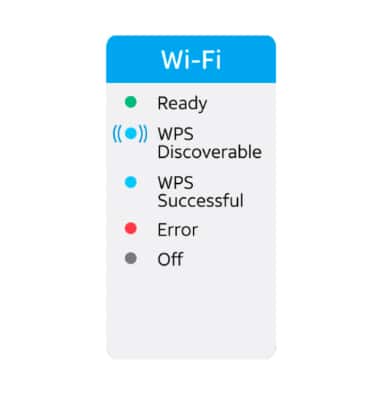
Understanding all the possible lights can prevent confusion. Here’s a quick reference:
| Light Color | Status | What It Means |
|---|---|---|
| Solid Green | Connected | Everything is working normally |
| Blinking Green | Starting Up | Booting or syncing with network |
| Solid Blue | Pairing Mode | Ready to connect with devices |
| Blinking Blue | Pairing/Connecting | Trying to connect to internet or another device |
| Red | Error | Connection problem or hardware issue |
| Orange/Amber | Firmware Update | Software update in progress |
If you see the blinking blue light for several minutes, it’s a sign to investigate further.
Common Causes Of At&t Wifi Blinking Blue
There are a few main reasons your AT&T WiFi device shows a blinking blue light. Knowing these can help you fix the problem faster.
- Internet Connection Setup or Reset
- After a power outage or when setting up a new device, the gateway may blink blue as it tries to reconnect.
- Firmware Update
- Your device might be updating its internal software. This can trigger blue blinking, especially if the update is interrupted.
- Pairing With Extenders or Mesh Units
- When adding a WiFi extender or mesh unit, the devices need time to connect. During this process, the blue light often blinks.
- Signal or Line Problems
- Loose cables, damaged ports, or issues with the fiber/copper line coming to your home can stop the device from connecting.
- Configuration Errors
- Incorrect settings (like WiFi name or password changes) can cause the gateway to cycle through pairing mode.
- Hardware Faults
- Rarely, a failing router or gateway will get stuck trying to connect, showing a constant blinking blue light.
Non-obvious insight: Some users don’t realize that a partial service outage in your area can also trigger this light, even if your neighbors’ internet appears fine.
Credit: www.reddit.com
Step-by-step Troubleshooting Guide
Before you call customer support, there are several things you can do to solve the blinking blue light on your own.
1. Check For Outages
First, see if there’s a known AT&T outage in your area. Visit the official AT&T outage page or use the myAT&T app. Outages can cause connection issues that affect all customers in a neighborhood.
2. Inspect Cables And Connections
Loose or damaged cables can break the link between your home and AT&T’s network. Carefully check:
- Power cable (firmly connected)
- Ethernet cable (between gateway and wall jack)
- Fiber or DSL line (no cuts or kinks)
If you find any damage, replace the cable.
3. Restart Your Gateway/router
A simple reboot fixes many tech problems. Unplug the power cable from your gateway, wait 30 seconds, and plug it back in. Watch the light sequence as the device restarts.
4. Reset The Device Properly
If a restart doesn’t work, try a factory reset:
- Find the small reset button (usually on the back)
- Use a paperclip to press and hold for 10 seconds
- Wait for the device to reboot
Important: A factory reset erases custom settings. Only do this if you’re comfortable reconfiguring your network.
5. Check For Firmware Updates
Use the AT&T Smart Home Manager app or your device’s web interface to check for updates. Keeping firmware current helps fix bugs and security issues.
6. Pair Extenders Or Mesh Units
If you’re adding a WiFi extender:
- Place it near the gateway during setup
- Press the WPS button on both devices
- Wait for the blue light to turn solid, then move the extender to its final location
Non-obvious insight: Some mesh systems take longer than expected to pair. Give them up to 10 minutes before deciding something is wrong.
7. Move Away From Interference
Too many devices nearby (microwaves, cordless phones, baby monitors) can cause signal problems. Try moving your router to a central, open location.
8. Contact At&t Support
If none of the steps above work, it’s time to reach out to AT&T. Have your account number, device model, and a description of what you’ve tried ready.
When To Worry: Blinking Blue Vs. Other Lights
Not every blinking blue light means disaster. But knowing when to worry is important.
- Short-term blinking (less than 5 minutes): Usually normal, especially after setup or reboot
- Continuous blinking (over 10 minutes): Possible issue—start troubleshooting
- Blinking blue plus red or orange: Could signal a bigger problem, like hardware failure or a failed update
If you see other lights blinking in addition to blue, check your device manual or AT&T’s online support for more details.
How At&t Gateways And Extenders Pair
Most AT&T routers and extenders use WPS (Wi-Fi Protected Setup) to pair. This process is simple but can confuse first-timers.
Here’s how it works:
- Press the WPS button on your main gateway
- Within 2 minutes, press the WPS button on your extender
- Wait for the lights to blink blue, then turn solid blue or green
If pairing fails, the lights might turn red or continue blinking blue. Try moving the devices closer or resetting both units.
Common Pairing Mistakes
- Waiting too long between button presses
- Placing extender too far from gateway
- Using the wrong WPS button (some devices have more than one)
- Not waiting long enough for the connection
Real-world Example: Troubleshooting At Home
Imagine you set up a new AT&T WiFi gateway. After plugging it in, the blue light keeps blinking for 15 minutes.
What Should You Do?
- Check for outages online—none reported
- Inspect all cables—find that the Ethernet cable is loose
- Push the cable in firmly
- Restart the gateway
Result: The light turns green and your devices connect. This simple fix is more common than you might think.
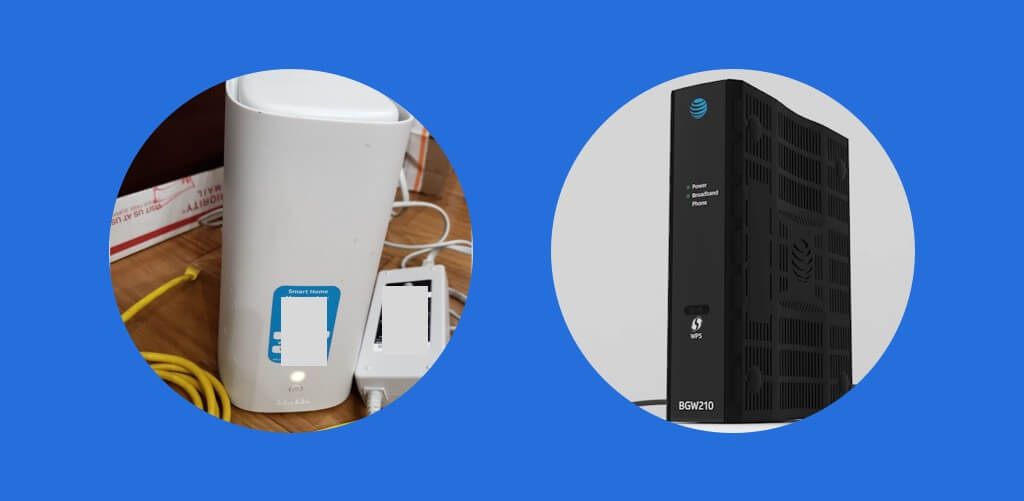
Credit: www.connectcalifornia.com
Comparing At&t Gateways: Light Behavior
Different AT&T devices may show slightly different light patterns. Here’s a quick side-by-side:
| Device Model | Blinking Blue Use | Other Key Light | Pairing Method |
|---|---|---|---|
| BGW210 | Pairing, connecting, firmware update | Solid Green for ready | WPS button |
| Pace 5268AC | Pairing only | Solid Green for ready | WPS button |
| Arris NVG589 | Pairing, connecting | Solid Green for ready | WPS or web interface |
| AirTies 4920 Extender | Pairing, connecting | Solid Blue for paired | WPS or manual sync |
Always check your specific model’s manual for exact light meanings.
Preventing Future Blinking Blue Issues
A few simple habits can help you avoid WiFi connection headaches:
- Keep firmware updated using the Smart Home Manager app
- Place the gateway in a central spot away from thick walls or electronics
- Check cables monthly for wear, especially if you have pets or kids
- Label your cables so you can quickly spot mistakes after cleaning or moving furniture
- Don’t overload WiFi with too many connected devices; consider adding a mesh system for larger homes
Pro tip: Many problems happen after moving your device or adding new equipment. Re-check everything after making changes.
Credit: www.att.com
Advanced Fixes For Persistent Problems
If you’re comfortable with technology, there are a few extra steps you can try:
Update Network Settings
Sometimes a manual update of your gateway’s network settings helps. Log in to the device’s admin page (usually at 192.168.1.254), and:
- Check for errors in the WAN or LAN settings
- Make sure DHCP is enabled for most home networks
Change Wifi Channel
Interference from neighbors can cause connection trouble. Change your WiFi channel from auto to a fixed number (like 1, 6, or 11 for 2. 4 GHz).
Replace Faulty Hardware
If your device is old or has taken a power surge, it may need to be replaced. AT&T support can confirm if your equipment is under warranty.
Try Wired Connection
If WiFi is unstable, connect a laptop directly to the gateway with an Ethernet cable. If the blue light still blinks, the problem is likely with your AT&T line—not your devices.
How At&t’s Smart Home Manager Can Help
AT&T’s Smart Home Manager app is a powerful, free tool for troubleshooting. It lets you:
- See device status and connection health
- Run speed tests
- Restart your gateway remotely
- Check for outages and updates
You can download the app from the App Store or Google Play. If you’re stuck, the app can often guide you through the next best steps.
How At&t Handles Service Calls
If you’ve tried everything and still see a blinking blue light, AT&T may need to send a technician. Here’s what usually happens:
- Technician checks your gateway and lines for problems
- They may replace faulty equipment
- If the issue is outside your home, they’ll repair the main line
Fact: According to AT&T, most home internet issues are solved without needing a technician. But if you’ve had repeated blue light problems, don’t hesitate to ask for a service visit.
Understanding Firmware Updates
Firmware is the software that runs your gateway. Updates can improve security, fix bugs, and add features. Sometimes, the blue light blinks during these updates.
Caution: Do not unplug your device during a firmware update. Interrupting the process can cause bigger problems, including a device that won’t start.
If the blue light stays on for more than 20 minutes during an update, contact AT&T for help.
Security And Your Wifi Device
A blinking blue light usually isn’t a security issue, but it’s wise to keep your network safe:
- Change your default WiFi password to something strong
- Keep your gateway firmware up to date
- Use WPA3 security if available
If you suspect someone has tampered with your settings, do a factory reset and set a new password.
When To Upgrade Your Equipment
Older routers and gateways are more likely to have connection problems and limited features. Consider upgrading if:
- Your device is over 5 years old
- You need faster speeds for multiple users or streaming
- You want better coverage for a large home
AT&T often offers free or discounted upgrades for existing customers—ask support if you qualify.
How Mesh Wifi Changes The Game
More homes are switching to mesh WiFi systems for better coverage. With mesh, your devices “talk” to each other for a seamless connection. Pairing mesh units can cause the blue light to blink, especially during setup.
Tip: Always follow the exact instructions for your mesh system. Each brand has unique steps.
How The At&t Blinking Blue Compares To Other Providers
Wondering if this issue is unique to AT&T? Here’s a quick comparison:
| Provider | Blinking Blue Meaning | Typical Fix |
|---|---|---|
| AT&T | Connecting/Pairing/Firmware Update | Restart, check cables, update firmware |
| Xfinity | WPS Pairing | Press WPS, wait for solid light |
| Spectrum | Connecting to Internet | Restart modem, check for outages |
| Verizon Fios | Pairing with Extender | WPS or app-based pairing |
Most providers use similar light patterns, but the details may vary. Always check your specific device’s manual.
When To Call A Professional
You’ve rebooted, checked cables, updated firmware, and still see a blinking blue light. At this point, it’s smart to call in a pro. Signs you need help:
- The light has blinked for hours
- You can’t connect any device to WiFi or Ethernet
- You smell burning or see visible damage
- You’ve had multiple outages in a short time
Professional help can save time and prevent bigger issues.
Additional Resources
For more detailed guides or to check for outages, visit the official AT&T Support page.
Frequently Asked Questions
Why Is My At&t Wifi Blinking Blue For A Long Time?
A blinking blue light for more than 10–15 minutes usually means your gateway can’t connect to the network or is stuck in pairing mode. Check for outages, inspect cables, and restart the device. If the problem continues, contact AT&T support.
Does A Blinking Blue Light Mean Someone Is Hacking My Wifi?
No, a blinking blue light usually signals a connection or pairing issue—not a security threat. However, always use a strong password and keep your firmware updated for safety.
Will Resetting My At&t Gateway Fix The Blue Blinking Light?
A reset can solve many problems, especially if caused by software glitches or incorrect settings. But it will erase custom settings, so only use this step if other fixes fail.
How Long Should It Take For The Blue Light To Turn Solid Or Green?
Normally, pairing or reconnecting takes less than 5 minutes. Firmware updates may take up to 20 minutes. If the light stays blue longer, start troubleshooting.
Can A Damaged Cable Cause The Blinking Blue Light?
Yes, damaged or loose cables are a common cause. Always check all connections before trying more advanced fixes.
Getting your internet back online shouldn’t be a guessing game. Now, you’re equipped with the knowledge, steps, and confidence to handle the AT&T WiFi blinking blue problem. With these tips, you can avoid unnecessary downtime, save on support calls, and keep your home connected. If you need help, AT&T’s resources and support team are just a click or call away.