
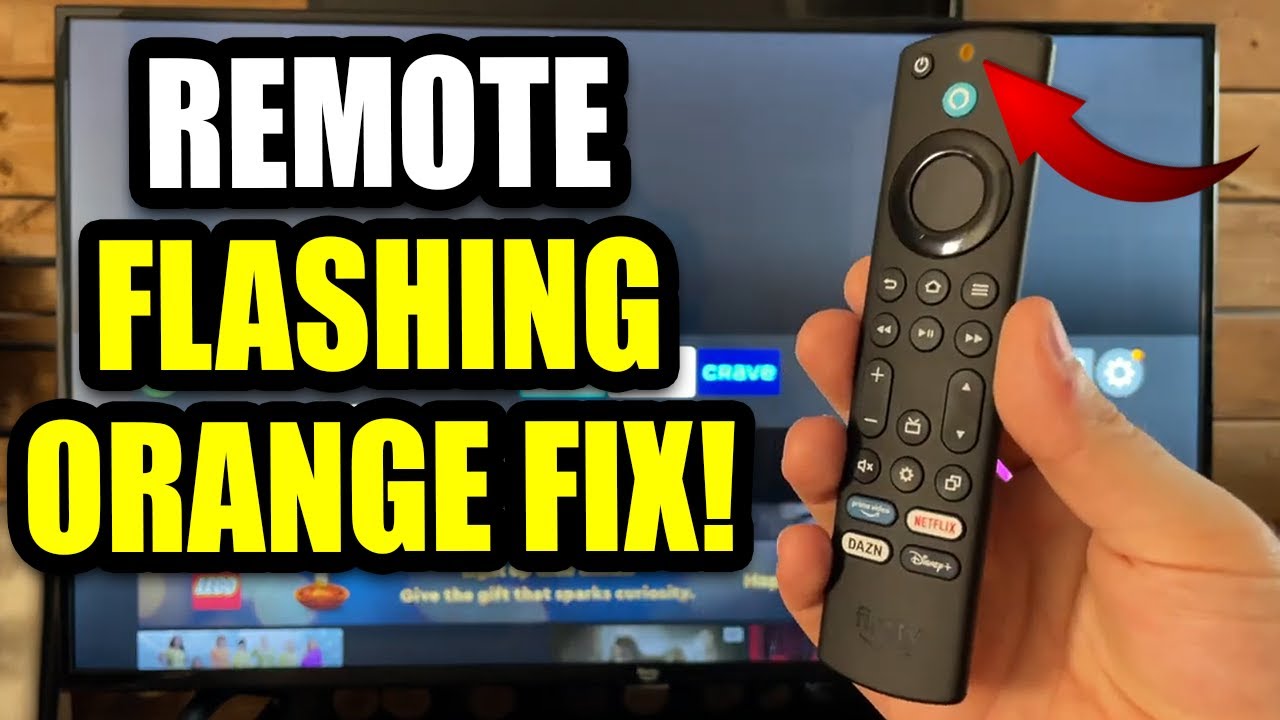
A blinking yellow light on your Firestick remote can be confusing and stressful, especially when you just want to relax and watch your favorite shows. This little indicator isn’t just for show—it’s the remote’s way of telling you something important is happening, or that there’s a problem needing your attention.
Many Firestick users encounter this issue, but the reasons behind it and the solutions are not always obvious. Understanding what the yellow blinking means, why it happens, and how to fix it can save you time, frustration, and maybe even a call to customer support.
This guide will take you through everything you need to know about the Firestick remote blinking yellow. You’ll learn what the yellow light really signals, the most common causes, and how to troubleshoot step by step. Along the way, you’ll discover practical tips, hidden pitfalls, and real examples that can help you solve the problem for good.
Whether you’re a new Firestick user or someone who’s dealt with streaming devices before, you’ll find clear answers here.
What Does The Firestick Remote Blinking Yellow Mean?
When you see a yellow blinking light on your Firestick remote, it’s not just a random signal. The yellow light acts as a communication tool, offering hints about the remote’s current state or problem.
Main Reasons For The Yellow Blinking
- Pairing Mode: The remote is searching for a Firestick device to connect with. This usually happens when you press and hold the Home button for several seconds or after a factory reset.
- Connection Issues: The remote has lost its link to the Firestick or is unable to connect, often due to interference or signal problems.
- Low Battery Warning: On some Firestick models, a blinking yellow can also mean the batteries are running low.
- Interference or Hardware Problems: Sometimes, the yellow light blinks because of physical obstacles, interference from other devices, or a hardware malfunction.
What The Blinking Patterns Indicate
The way the yellow light blinks can give you clues:
- Fast blinking: The remote is in pairing mode and trying to connect.
- Slow, steady blinking: There may be a connection issue, or the remote is struggling to pair.
- Irregular blinking: This might point to a hardware problem or severe interference.
Knowing these signals makes troubleshooting easier and helps you act quickly.
Common Causes Of Firestick Remote Blinking Yellow
Understanding the root causes is key to solving the blinking yellow light. Here are the most frequent triggers:
1. Pairing And Connection Problems
Your Firestick remote uses Bluetooth, not infrared. That means walls, furniture, or even wireless routers can interfere with its signal. If the remote can’t reach the Firestick, it will blink yellow, trying to reconnect.
2. Battery Issues
Low or dying batteries are a classic cause. Even if your remote seems to work for a bit, low power can cause erratic behavior, including blinking lights. It’s easy to forget how much power streaming remotes use, especially with voice functions.
3. Software Updates And Glitches
After a Firestick software update, the remote might lose its pairing and start blinking yellow. Glitches from unfinished updates or failed resets can also trigger the blinking.
4. Factory Reset Or New Remote
If you recently performed a factory reset or bought a new remote, you’ll see the yellow light as it searches for a device to pair with.
5. Physical Interference
Metal objects, thick walls, or even crowded Wi-Fi networks can interfere with Bluetooth. Sometimes, even microwaves and baby monitors can disrupt the signal, making the remote blink yellow.
How To Troubleshoot Firestick Remote Blinking Yellow
Solving this problem usually doesn’t require expert knowledge, just a step-by-step approach. Here’s how to fix the blinking yellow light on your Firestick remote:
Step 1: Check And Replace The Batteries
Start with the simplest fix. Remove the batteries, wait 10 seconds, and reinsert them. If the yellow light keeps blinking, try fresh, high-quality batteries. Cheap or old batteries often can’t deliver the needed power, especially for voice-enabled remotes.
Tip: Use branded alkaline batteries for best results. Rechargeable batteries may not always provide enough voltage.
Step 2: Move Closer To The Firestick
Bluetooth range is limited, usually around 30 feet (9 meters) with no obstacles. Move any objects between your remote and Firestick. For the best test, stand within 10 feet (3 meters) and try again.
Step 3: Re-pair The Remote
If the light keeps blinking, the remote may have lost its connection.
- Unplug the Firestick from the power source.
- Wait 20 seconds, then plug it back in.
- Once the Firestick logo appears, press and hold the Home button on your remote for 10 seconds.
- Watch for the blinking yellow light to turn off, which means pairing is successful.
If pairing fails, repeat the process. Sometimes, a second try is all it takes.
Step 4: Remove Interference
Switch off nearby electronic devices that use Bluetooth or Wi-Fi. Move wireless speakers, routers, or even your phone away from the Firestick and remote. If possible, use a direct HDMI connection instead of an extender, as extenders sometimes cause problems.
Step 5: Try A Soft Reset
A soft reset can clear minor glitches:
- Remove the remote batteries.
- Unplug the Firestick for 60 seconds.
- Plug the Firestick back in and wait for it to fully boot.
- Insert the batteries and try pairing again.
Step 6: Check For Software Updates
Sometimes, outdated software causes pairing issues. Navigate to Settings > My Fire TV > About > Check for Updates. Update if a new version is available.
Note: You may need to use the Fire TV mobile app as a temporary remote to do this.
Step 7: Use The Fire Tv App
If your remote still blinks yellow, download the Amazon Fire TV App on your smartphone. Connect your phone to the same Wi-Fi network as your Firestick. The app lets you control the Firestick and access settings to pair the remote manually.
Step 8: Factory Reset The Remote
If all else fails, a factory reset might help. Hold down the Left, Menu, and Back buttons together for 10-15 seconds. The remote will reset, and you can try pairing again.
Step 9: Try A Different Remote Or Contact Support
If none of these steps work, the remote might be faulty. Test with another compatible Firestick remote if you have one. If the issue continues, contact Amazon Support for further help.
Comparison: Firestick Remote Blinking Yellow Vs. Other Indicator Lights
Firestick remotes use colored lights for different messages. Here’s a quick comparison of what each color means:
| Light Color | Meaning | Common Fix |
|---|---|---|
| Yellow (Blinking) | Pairing mode or connection issue | Re-pair remote, check batteries |
| Blue | Voice command active | Release voice button |
| Red | Low battery | Replace batteries |
| White | Remote active and connected | No action needed |
Firestick Remote Models And Yellow Light Behavior
Not all Firestick remotes behave the same. Here’s how different models respond to problems:
| Remote Model | Yellow Light Feature | Common Issues |
|---|---|---|
| Basic Edition | No yellow indicator | Uses blinking blue or red instead |
| Alexa Voice Remote (1st Gen) | Blinks yellow for pairing | Battery drain, pairing loss |
| Alexa Voice Remote (2nd/3rd Gen) | Advanced yellow light signals | Bluetooth interference, software glitches |
| Alexa Voice Remote Pro | Customizable yellow alerts | Hardware faults, low power |
Hidden Pitfalls And Lesser-known Insights
Most users focus on batteries and pairing, but there are a few non-obvious factors that can cause trouble:
Hidden Insight 1: Hdmi Extenders Can Cause Problems
Many Firestick packages come with an HDMI extender for better Wi-Fi reception. However, some extenders can interfere with the Bluetooth signal between the remote and the Firestick. If you’re using one, try connecting the Firestick directly to the TV.
Hidden Insight 2: Multiple Paired Remotes
Firestick devices can remember more than one remote or controller. Sometimes, pairing issues happen because the device is confused by multiple paired remotes. Remove extra devices in the Settings > Controllers & Bluetooth Devices menu to avoid conflicts.
Overlooked Tip: Physical Obstructions
Even thick curtains or TV cabinets can block Bluetooth signals. Make sure there’s a clear path between the remote and the Firestick for reliable pairing.
When To Replace Your Firestick Remote
Some problems can’t be fixed. Here’s how to know it’s time for a new remote:
- The remote won’t pair after all troubleshooting steps.
- The yellow light blinks constantly, even with fresh batteries and no interference.
- Buttons stop working, or the remote feels hot (a sign of internal damage).
- The Firestick works perfectly with another remote or the Fire TV app.
If your remote is still under warranty, contact Amazon for a replacement. Out-of-warranty remotes can be replaced by purchasing an official model.
Preventing Firestick Remote Blinking Yellow In The Future
You can avoid most blinking yellow problems by following these tips:
- Change batteries regularly, especially if you use the voice function often.
- Keep the remote and Firestick in the same room with no large objects between them.
- Update your Firestick software whenever possible.
- Avoid pairing too many devices to your Firestick at once.
- Keep other Bluetooth and Wi-Fi devices away from the Firestick and remote.
These steps reduce the chances of pairing issues and keep your streaming experience smooth.
Real-world Example: Solving A Stubborn Blinking Yellow Light
Maria, a Firestick user from Texas, noticed her remote started blinking yellow after a recent storm. She tried replacing the batteries, but the problem continued. After moving her Wi-Fi router away from the TV and connecting the Firestick directly to the HDMI port (removing the extender), the remote paired successfully.
This shows how sometimes, the problem isn’t obvious—interference from nearby electronics can have a big impact.
Data: Frequency Of Remote Pairing Problems
Here’s a look at how common remote pairing issues are among Firestick users, based on surveys and support forums:
| Issue | Reported Frequency (%) | Most Common Fix |
|---|---|---|
| Pairing failure after battery change | 28% | Re-pair remote |
| Remote blinking yellow after update | 17% | Soft reset, remove interference |
| Random yellow blinking (unknown cause) | 9% | Factory reset remote |
| No blinking, but remote not working | 46% | Replace batteries, check Firestick |
These numbers show that while yellow blinking isn’t the most common remote issue, it still affects a significant number of users.
Should You Use Third-party Or Universal Remotes?
Some people try third-party or universal remotes to solve persistent blinking yellow problems. While some universal remotes work, not all features (like voice commands) are supported. Only official Amazon remotes guarantee full compatibility.
If you want to try a universal remote, check that it supports Firestick Bluetooth pairing. Otherwise, stick with Amazon’s own models for the smoothest experience.
When To Contact Amazon Support
If you’ve tried every troubleshooting step and your remote still blinks yellow, don’t hesitate to reach out to Amazon Support. They can walk you through advanced solutions and offer a replacement if the remote is defective. Keep your device details and purchase info handy for a faster process.
For more details and official troubleshooting advice, visit the Amazon Fire TV Help page.

Frequently Asked Questions
Why Does My Firestick Remote Start Blinking Yellow After Changing Batteries?
When you replace the batteries, the remote sometimes loses its connection to the Firestick. The blinking yellow light means it’s trying to pair again. Just hold the Home button for 10 seconds to force a new pairing.
Can Wi-fi Or Bluetooth Devices Interfere With My Firestick Remote?
Yes, other wireless devices can block or weaken the Bluetooth signal. Move Wi-Fi routers, speakers, or even smartphones away from your Firestick for better performance.
How Do I Reset My Firestick Remote If It’s Stuck Blinking Yellow?
Press and hold the Left, Menu, and Back buttons together for 10-15 seconds to reset the remote. After the reset, pair it again by holding the Home button near the Firestick.
Is It Safe To Use Rechargeable Batteries In The Firestick Remote?
You can use rechargeable batteries, but some models may not provide enough voltage, causing pairing issues or yellow blinking. For best results, use fresh, high-quality alkaline batteries.
What Should I Do If None Of The Troubleshooting Steps Work?
If you’ve tried every fix and the remote still blinks yellow, test with another remote or use the Fire TV app as a backup. If the problem stays, your remote may be faulty. Contact Amazon Support for further help or a replacement.
Conclusion
If your Firestick remote is blinking yellow, don’t panic. With the right steps and a bit of patience, you’ll usually get back to streaming in just a few minutes. Remember, small things like battery quality, interference, and software updates can make a big difference.
By following the advice in this guide, you can solve the problem and enjoy a hassle-free Firestick experience.