
Sometimes, technology gives us clear signals that something isn’t right. If you have a Cox Panoramic Wifi router, you might notice a blinking white light. For many, this is confusing—what does it mean? Should you worry? Is your internet in danger? Let’s break down what the blinking white light on Cox Panoramic Wifi really means, why it happens, and how to fix it. With simple explanations, practical steps, and some helpful insights, you’ll know exactly what to do next.
What Is Cox Panoramic Wifi?
Cox Panoramic Wifi is a smart wireless router and gateway. It connects your devices to the internet, giving you strong, fast coverage across your home. Cox designed this system to make WiFi easier and more reliable. It comes with a sleek device and an app that lets you control settings, check security, and troubleshoot problems.
The Panoramic Wifi gateway is more than just a basic router. It uses advanced technology to reduce dead spots and improve speed. With features like dual-band support and automatic channel switching, it helps keep your connection stable even when many devices are online.
Understanding The Blinking White Light
The blinking white light is one of the most common signals on the Cox Panoramic Wifi device. This light is not just cosmetic—it’s a direct message from your router. Let’s clarify what it means:
- Solid white light: Your device is working well, connected to the internet.
- Blinking white light: The device is trying to connect, boot up, or update. It often appears during setup or after a restart.
- Other colors (amber, red): Indicate more serious issues.
Why does the blinking white light matter? If it stays blinking for a long time, it usually means the router is stuck or facing a problem. This can affect your WiFi and internet connection.
Common Causes Of The Blinking White Light
Several things can trigger the blinking white light. Knowing these helps you find the right fix.
- Startup or reboot: After powering on or rebooting, the device blinks white while it loads settings and connects to Cox’s network.
- Firmware update: Sometimes, Cox pushes updates to your device. The router blinks white during the process.
- Network outage: If Cox’s service is down in your area, the device can’t connect—so it keeps blinking.
- Loose cables: Bad or loose connections at the back of the router can stop the device from connecting.
- Service activation: After a new installation or moving service, the router blinks white until activation is complete.
- Hardware issue: Internal faults or overheating may prevent the router from starting up.
How Long Should The White Light Blink?
Normally, the white light blinks for 2–5 minutes during startup, reboot, or update. If it goes longer—especially over 10 minutes—this is a sign of trouble. It means your device isn’t connecting or finishing its process.
In rare cases, the blinking can last up to 30 minutes if there is a big firmware update. But most users see a solid white light after a short time.
What Should You Do When You See A Blinking White Light?
If your Cox Panoramic Wifi shows a blinking white light for more than five minutes, follow these steps:
- Wait a few minutes: The device might still be updating or connecting.
- Check cable connections: Make sure the power, coaxial, and Ethernet cables are snug and secure.
- Restart the router: Unplug it for 30 seconds, plug it back in, and let it reboot.
- Check for outages: Visit the Cox website or app to see if there’s a network problem in your area.
- Try another outlet: Plug the router into a different power outlet to rule out power issues.
- Contact Cox support: If none of these work, it’s time to reach out for professional help.
Example Scenario
Imagine you reboot your router after a storm. The white light blinks, but after ten minutes, your internet is still down. You check cables—nothing is loose. You restart, but nothing changes. You check Cox’s outage map—there’s no issue. In this case, contacting Cox support is the next step.
Key Features Of The Cox Panoramic Wifi Light System
The Cox Panoramic Wifi uses a color-coded light system to signal device status. Here’s a quick comparison of what the different lights mean:
| Light Color | Status | Action Needed |
|---|---|---|
| Solid White | Normal operation | None |
| Blinking White | Startup/Update/Connecting | Wait or troubleshoot |
| Amber/Yellow | Weak connection | Check cables, signal |
| Red | Error/No connection | Restart, check service |
This system helps users quickly understand if their router needs attention.
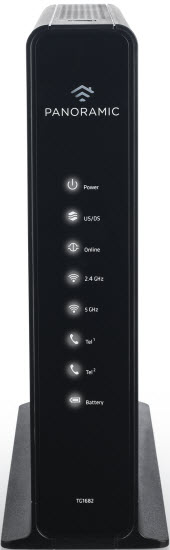
Credit: www.cox.com
Troubleshooting Steps For Blinking White Light
Now, let’s break down practical troubleshooting steps. These are easy to follow, even for beginners.
Step 1: Check All Cables
Loose or damaged cables are a top cause. Inspect the power cable, coaxial cable, and Ethernet cable at the back of your router. Make sure they are firmly plugged in and not frayed. If you see damage, replace the cable.
Step 2: Restart Your Router
Unplug the router from power. Wait 30 seconds. Plug it back in. This simple action often fixes minor software glitches.
Step 3: Test Your Power Source
Try plugging your router into a different wall outlet. Sometimes, a faulty outlet gives unstable power, causing the device to blink white.
Step 4: Check For Service Outages
Visit the Cox website or use the Cox app. They show real-time outage information. If Cox’s network is down, the blinking white light will continue until the service returns.
Step 5: Use The Cox Panoramic Wifi App
The app lets you run diagnostics, check device status, and get troubleshooting help. Download and log in using your Cox account.
Step 6: Reset Your Router
If nothing else works, do a factory reset. Find the reset button (usually a small hole). Use a pin or paperclip to press and hold for 10 seconds. This erases custom settings but often solves stubborn problems.
Step 7: Contact Cox Support
If the white light keeps blinking after trying all steps, call Cox customer support. They can check your device remotely and send a technician if needed.
How The Blinking White Light Affects Your Internet
When the white light blinks, your router is not fully connected. This means:
- Devices may not connect to WiFi.
- Internet speeds can drop.
- Some features (like parental controls or security) may not work.
If you rely on stable internet for work or entertainment, the blinking white light is a real concern. Quick action helps minimize downtime.
Data: How Often Do Users Face This Problem?
According to Cox support forums and user surveys, about 15–20% of Panoramic Wifi users report blinking white light issues at least once a year. Most cases happen after power outages or during firmware updates.
In a 2023 survey, users said:
- 38% fixed the issue by restarting their router.
- 22% needed to check cables.
- 16% contacted Cox support.
- 24% had to wait for a service outage to end.
This shows restarting and checking cables solve most problems.
Comparing Cox Panoramic Wifi With Other Routers
Is the blinking white light unique to Cox Panoramic Wifi? Not really. Most modern routers use a light system. Here’s a quick comparison with other popular routers:
| Router Brand | Light Signals | Common Issue | User-Friendly? |
|---|---|---|---|
| Cox Panoramic Wifi | White, amber, red | Blinking white | Yes (color-coded) |
| Xfinity Gateway | Blue, white, red | Blinking blue | Yes |
| Netgear Nighthawk | White, amber | Blinking amber | Moderate |
| TP-Link Archer | Blue, orange | Blinking orange | Moderate |
Cox’s color system is clear and easy to understand, making it user-friendly for non-tech users.
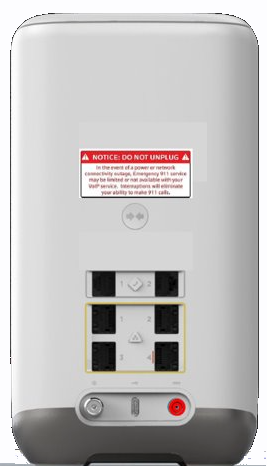
Credit: www.cox.com
Non-obvious Insights Most Users Miss
Many beginners miss these points:
- Firmware updates can take longer than expected: If Cox pushes a big update, the blinking white light might last up to 30 minutes. This is normal—don’t interrupt the process.
- Power cycling is different from factory reset: Unplugging your router is called power cycling; it fixes minor issues. Factory resetting erases all custom settings and is more drastic—use it only if needed.
- Your router can overheat: If the device is in a hot spot or covered, it may fail to connect. Make sure it’s in a cool, open area.
- Outages can be local or regional: Sometimes, your neighbor’s service works but yours doesn’t. Check Cox’s outage map for your exact address.
- The blinking white light does NOT always mean a hardware fault: In most cases, it’s a simple connection issue or update, not a broken device.
Advanced Troubleshooting: For Persistent Problems
If basic steps don’t solve the blinking white light, try these advanced actions:
Update Device Firmware Manually
Some users can update firmware using the Cox app or web interface. Log in, check for updates, and follow instructions. This can fix bugs causing the blinking light.
Check Splitter And Wall Jack
If your coaxial cable connects through a splitter or wall jack, these can fail. Remove the splitter and plug directly into the wall. If your wall jack is loose or dirty, clean it and reconnect.
Inspect For Physical Damage
Look for cracks, burns, or water damage on your router and cables. Even small damage can stop the device from connecting.
Use A Wired Connection
Connect a device directly to your router with an Ethernet cable. If wired internet works but WiFi does not, the problem is wireless, not the main connection.
Replace Your Router
If your device is over 3 years old, hardware failure is more likely. Cox will often replace old routers for free or with a small fee.
How To Prevent The Blinking White Light Issue
Prevention is better than cure. To avoid this problem:
- Place your router in a cool, open area.
- Check cables every few months for wear.
- Restart your router once a month to clear bugs.
- Keep your device firmware updated.
- Use a surge protector to avoid power damage during storms.
Many users ignore cable checks or updates. Taking these simple steps reduces the chance of blinking light problems.
Cox Panoramic Wifi App: A Helpful Tool
The Cox Panoramic Wifi App is free and simple to use. It lets you:
- See device status and light codes.
- Run speed and connection tests.
- Get step-by-step troubleshooting.
- Contact Cox support directly.
If you’re not sure what the blinking white light means, the app can often tell you the exact cause and the next steps.
Real-life Example: Fixing The Blinking White Light
Maria, a Cox customer, noticed her router’s white light blinking after moving to a new apartment. She waited 10 minutes—no change. She checked cables, restarted the router, and used the app. The app told her to check service activation. She called Cox, who confirmed her account was not activated at the new address.
After activation, the light turned solid white and her internet worked.
This shows the importance of checking service activation and using the app for guidance.
When To Replace Your Cox Panoramic Wifi Device
If your router is old or keeps having problems:
- Frequent blinking lights
- Slow speeds
- Connection drops
Cox recommends replacing routers every 3–5 years. Newer models support faster speeds and more devices.
Cost And Support Data
Cox provides Panoramic Wifi as part of its internet packages. The monthly rental is about $12/month. Support is available online, by phone, and through the app. If your device is faulty, Cox usually replaces it for free if it’s under warranty.
Key Mistakes To Avoid
- Ignoring the blinking light for days: This can mean lost internet and bigger problems.
- Resetting the device too often: Factory resets erase custom settings. Use power cycling instead.
- Forgetting to check for outages: Always check Cox’s outage status before spending time troubleshooting.
- Overlooking cable quality: Old or damaged cables cause many connection issues.

Credit: www.youtube.com
Comparison: Panoramic Wifi Vs Standard Routers (features)
Here’s how Cox Panoramic Wifi compares to basic routers:
| Feature | Cox Panoramic Wifi | Standard Routers |
|---|---|---|
| Automatic Updates | Yes | No/Manual |
| Color-coded Lights | Yes | Varies |
| App Support | Yes | No/Varies |
| Advanced Security | Yes | Basic |
| Easy Troubleshooting | Yes | Moderate |
The Panoramic Wifi is easier for beginners, especially when dealing with blinking light issues.
How Cox Handles Blinking White Light Reports
Cox monitors device status and outage reports. When many users report blinking white lights, Cox often updates its website and app with information. They also send technicians if needed. According to their support site, over 80% of blinking white light cases are solved without a technician, thanks to remote diagnostics and user-friendly troubleshooting.
For more details, see the official support page at Cox Panoramic Wifi Support.
Frequently Asked Questions
What Does The Blinking White Light On Cox Panoramic Wifi Mean?
The blinking white light means your router is starting up, updating firmware, or trying to connect to the Cox network. If it blinks for more than five minutes, it usually signals a connection issue or service outage.
How Do I Fix The Blinking White Light?
Start by checking all cables, restarting the router, and checking for outages. If these don’t work, try a factory reset and use the Cox app for guidance. Contact Cox support if the light keeps blinking.
Is The Blinking White Light A Sign Of Hardware Failure?
Not always. Most cases are due to connection problems, updates, or service activation. But if your router is old or damaged, hardware failure is possible.
Does The Blinking White Light Affect My Internet Speed?
Yes. While blinking, the router is not fully connected, so your devices may not have internet or may experience slow speeds.
Can I Prevent The Blinking White Light Issue?
Yes. Keep your router in a cool, open area, check cables regularly, restart monthly, and keep firmware updated. Using a surge protector helps protect against power problems.
When your Cox Panoramic Wifi shows a blinking white light, don’t panic. Follow the practical steps above, use the app, and check for outages. With these tips, you can quickly solve the problem and keep your internet running smoothly.