
When you see your CenturyLink modem blinking blue, it can make you feel confused and even a bit worried, especially if your internet is not working as it should. For many people, home internet is essential for work, study, and entertainment. A blinking blue light often means your modem is trying to connect but cannot complete the process. This article will help you understand what a blinking blue light on your CenturyLink device means, what causes it, and how you can fix it. You will also learn what to do if your modem won’t stop blinking blue, and when it’s time to call for help.
What Does A Blinking Blue Light On Centurylink Mean?
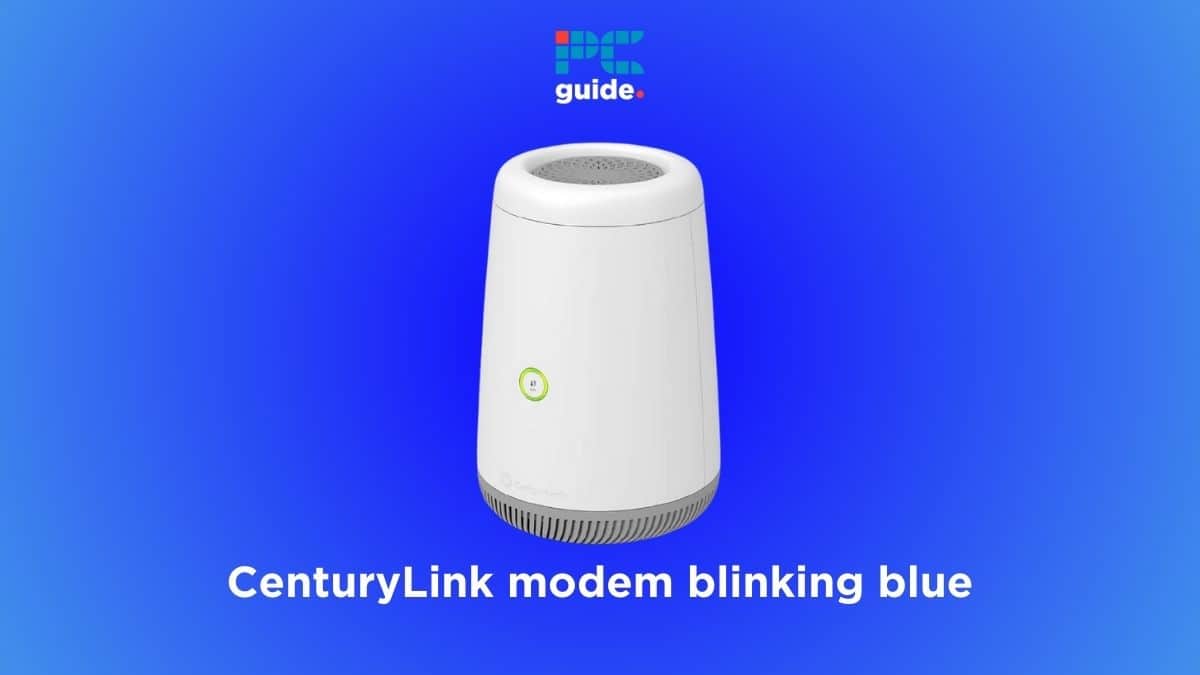
The lights on your modem act like a simple language. Each color and pattern tells you something about the modem’s status. When you see a blinking blue light, it usually means your device is in the process of syncing with CenturyLink’s network. In other words, your modem is searching for a connection and trying to establish communication with the service provider.
This is different from a solid blue or green light, which means your internet connection is working. If the blue light keeps blinking and never turns solid, that means your modem cannot finish the connection. This is a clear sign that something is wrong.
Why The Blue Light Blinks
Here are the most common reasons for a blinking blue light:
- Modem is starting up: After a restart or power loss, the modem tries to connect to the internet.
- Firmware update in progress: Sometimes, the modem is updating its internal software.
- Syncing with CenturyLink servers: The modem is trying to communicate with the network.
- Connection issues: Problems with cables, service outages, or device setup can interrupt the process.
A steady blinking blue light is not normal for long periods. If this happens for more than five minutes, it’s time to check for problems.
How Centurylink Modems Indicate Status
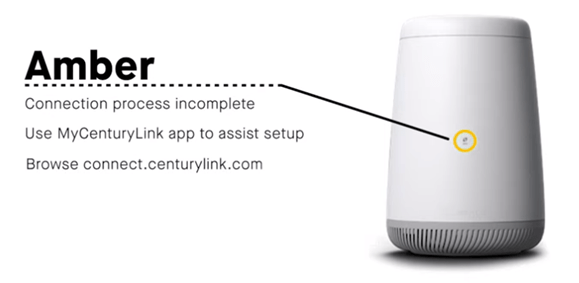
To fix your internet, you must first understand what the lights mean. Different models may use slightly different colors or positions, but most CenturyLink modems follow a similar pattern. Here’s a simple reference for the main status lights:
| Light Color | Status Pattern | Meaning |
|---|---|---|
| Green (Solid) | On | Normal operation, connected |
| Blue (Blinking) | Blinking | Trying to connect or update |
| Red | Solid or Blinking | Error or no connection |
| No Light | Off | No power or hardware problem |
If you are not sure about your model, you can check the label under the modem or visit CenturyLink’s support page for your exact device.
Credit: www.centurylink.com
Common Causes Of A Centurylink Blinking Blue Light
Fixing the issue starts with understanding what’s causing it. Here are the most frequent reasons for a persistent blinking blue light:
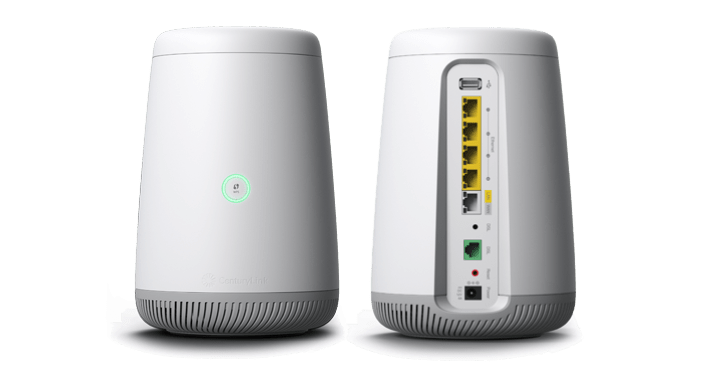
- Loose or damaged cables: If the DSL, Ethernet, or power cables are not connected well, your modem cannot sync.
- Service outage: Sometimes, CenturyLink’s network in your area is down for maintenance or due to weather.
- Incorrect setup or configuration: If you have just set up your modem or changed settings, errors can stop the connection.
- Firmware update stuck: The device may be trying (and failing) to update itself.
- Faulty modem: Hardware problems can prevent the device from connecting.
A common mistake is not checking cables carefully. Even a slightly loose cable can cause the blue light to blink for hours.
Step-by-step Troubleshooting Guide
When your CenturyLink modem is blinking blue, follow these steps to solve the problem. Start with the simplest solutions before moving to more advanced checks.
1. Check Cables And Power
- Make sure the power cable is plugged in securely.
- Confirm the DSL or fiber line is connected tightly to both the wall and the modem.
- Check the Ethernet cable (if you use a wired connection) for damage or loose ends.
- Avoid using old, bent, or frayed cables.
Sometimes, just unplugging and re-plugging cables can fix the issue.
2. Power Cycle The Modem
- Turn off the modem using the power button or by unplugging it.
- Wait at least 30 seconds.
- Plug it back in and turn it on.
- Wait for the modem to start up and watch the lights.
This simple restart often solves temporary glitches.
3. Check For Service Outages
- Visit the CenturyLink outage map or log in to your account on their website.
- Use your mobile data if your internet is down.
- If there is a reported outage, you must wait until CenturyLink restores service.
4. Review Modem Settings
- Access your modem’s setup page (usually at 192.168.0.1 in your browser).
- Log in using the default or your personal credentials.
- Check if the VPI/VCI values, username, and password are correct for your plan.
- If you changed any settings recently, try resetting to default.
Incorrect values or typos can prevent your modem from connecting.
5. Update Or Reset The Modem
- Some issues are caused by outdated firmware. Check for updates in the modem’s settings.
- If nothing else works, try a factory reset using the small reset button (hold for 10 seconds).
- Warning: A factory reset erases all custom settings, Wi-Fi names, and passwords.
6. Contact Centurylink Support
If you have tried everything and the blue light still blinks, it’s time to get help. Call CenturyLink support, describe the steps you have taken, and ask for further guidance.
Modem Self-test Vs. Centurylink Network Issues
Sometimes, the problem is inside your home (modem, cables, power), and sometimes it’s outside (network or service provider). Here’s a simple way to compare:
| Issue Location | Common Signs | What to Do |
|---|---|---|
| Inside Home | Loose cables, power loss, new modem setup, blinking blue light only at your house | Check cables, restart modem, review settings |
| Outside Home (Network) | Neighbors also have problems, outage map shows issues, no service after storms | Wait for CenturyLink to fix, contact support |
One non-obvious detail: If your phone line is also down (no dial tone), this often means the problem is on the CenturyLink side, not in your home.
How To Prevent Centurylink Modem Blinking Blue Issues
Prevention is often easier than repair. Here are some tips to avoid future internet issues:
- Use surge protectors to guard against power spikes.
- Check cables every few months for damage, dust, or loose connections.
- Keep modem firmware updated through the setup page.
- Avoid placing the modem near heat sources like radiators or direct sunlight.
- Label your cables if you have many devices, so you don’t unplug the wrong one.
A hidden tip: Sometimes, pets or cleaning can accidentally unplug a cable. Secure your modem area to prevent accidental disconnections.
When Should You Replace Your Centurylink Modem?
Even with good care, modems do not last forever. Here’s how you know it’s time for a new one:
- The modem is more than 5 years old.
- The device often needs to be restarted.
- The modem gets very hot or smells burnt.
- You see random disconnects even after all troubleshooting steps.
Newer modems are more reliable and often give better speeds and Wi-Fi range.
Centurylink Modem Vs. Other Internet Providers
How does CenturyLink’s hardware and troubleshooting compare with other ISPs like Xfinity, AT&T, or Spectrum? Here’s a quick comparison:
| Provider | Status Light Colors | Average Setup Time | Common Connection Issue |
|---|---|---|---|
| CenturyLink | Green, Blue, Red | 10-15 min | Blinking blue during sync |
| Xfinity | White, Red, Blue | 5-10 min | Solid red for outages |
| AT&T | Green, Amber, Red | 10-15 min | Flashing amber at startup |
| Spectrum | Blue, Red | 10 min | Blinking blue for updates |
CenturyLink’s blinking blue light is similar to Spectrum’s and Xfinity’s methods. All ISPs use color codes, but the meaning can change by brand.
Credit: www.pcguide.com
Advanced Troubleshooting (for Tech-savvy Users)
If you are comfortable with technical steps, you can try these advanced checks:
Check Line Statistics
- Log in to the modem’s web interface.
- Find the DSL status or line statistics section.
- Look for “SNR Margin” (Signal-to-Noise Ratio) and “Attenuation.”
- Values below 6 dB for SNR Margin or above 40 dB for Attenuation often mean a poor line.
Low SNR or high attenuation can cause constant syncing issues and keep the blue light blinking.
Test With A Different Modem
If possible, borrow a modem from a friend or use a backup device. If the new modem works, your old one might be faulty.
Check Phone Line Quality
- Plug a regular phone into the line.
- Listen for static, noise, or no dial tone.
- Static or silence means the line may need repair.
Update Network Adapter Drivers
On your computer, update the network adapter drivers. Outdated drivers can sometimes cause connection problems, especially after Windows or Mac updates.
When To Contact Centurylink Support
If all your efforts fail, support staff can run remote tests on your line. Here’s what to prepare before calling:
- Your modem model number (found on the label)
- Account details (name, address, phone)
- A list of steps you have already tried
- Description of lights and patterns
Ask if there are any open outages or maintenance in your area. Sometimes, the blinking blue light means a fix is already in progress.
Real-world Example: A Blinking Blue Light That Would Not Stop
Let’s look at a real situation. Maria had a CenturyLink modem that started blinking blue one morning. She checked the cables and restarted the modem, but nothing changed. Her neighbor’s internet worked, so it was not a neighborhood outage.
Maria called support and learned that her modem’s firmware update had failed. After a factory reset, the modem completed the update, and the light turned green. The lesson: Sometimes, a failed update is the cause, and a reset is the only solution.
How To Improve Your Home Internet Reliability
Fixing the blinking blue light is important, but you can also make your home network stronger:
- Place the modem in a central location in your home, away from walls and metal objects.
- Use a Wi-Fi analyzer app to find the best channel for your area.
- Name your Wi-Fi network something unique to avoid confusion with neighbors.
- Change your modem’s default password to improve security.
- Limit the number of devices connected at the same time.
These steps help reduce connection drops and keep your internet fast and stable.
Credit: www.centurylink.com
Key Takeaways And Final Thoughts
A CenturyLink blinking blue light is your modem’s way of saying, “I’m trying, but something is wrong.” Most of the time, the problem is a simple fix—loose cables, a quick restart, or waiting for a service outage to end. Sometimes, it’s a failed update or a modem that has reached the end of its life.
Be patient, start with simple steps, and don’t be afraid to contact support if you need help. Remember, every light and color tells a story about your connection. Learning to read these signals can save you time and frustration.
For more details about CenturyLink’s modem lights and troubleshooting, you can visit the official CenturyLink Modem Lights Guide.
Frequently Asked Questions
Why Does My Centurylink Modem Keep Blinking Blue After A Reset?
A blinking blue light after a reset often means the modem is trying to connect but cannot finish syncing. Check your cables, make sure your service is active, and confirm your settings are correct. If the light blinks for more than 10 minutes, there may be a line issue or a problem with the modem itself.
How Long Should The Blue Light Blink Before It Turns Solid?
In normal situations, the blue light blinks for 2–5 minutes during startup or after a reset. If it blinks longer, something is wrong. Waiting for more than 10 minutes is a sign you need to troubleshoot.
Can A Power Outage Cause The Centurylink Modem To Blink Blue?
Yes, a power outage can make the modem lose its connection and start blinking blue when power is restored. If this happens, restart your modem and check all cables. If the problem continues, there may be damage from the outage or a line issue.
What Should I Do If My Modem Blinks Blue But Wi-fi Works?
Sometimes, the modem might still be updating or syncing even though Wi-Fi is available. However, your connection may not be stable. It’s best to complete the troubleshooting steps, check for updates, and make sure the light turns green for full connectivity.
Is A Factory Reset Always Safe For Fixing The Blinking Blue Light?
A factory reset can fix many problems but will erase all custom settings and Wi-Fi names. Only use it as a last resort, and write down your settings before resetting. If you are not sure, ask support for help before trying this step.
If you follow the steps above, you should be able to solve most issues with a CenturyLink blinking blue light and enjoy a reliable internet connection again.