
If you own a Dell computer and suddenly see an amber light blinking on the front panel or power button, it can be worrying. This blinking light is not just a decoration—it’s a sign that something is wrong. Many Dell users, especially those with desktops or laptops out of warranty, have faced this situation and felt stuck. But don’t panic. Understanding what the amber light means, what causes it, and how to fix it can save you time, money, and stress.
This guide will help you decode the blinking amber light on your Dell computer. We’ll cover why it happens, what the different blinking patterns mean, and step-by-step solutions you can try at home. We’ll also discuss when it’s time to get professional help and answer common questions so you can get back to work or play as soon as possible.
What Does The Amber Light Blinking On Dell Computer Mean?
A blinking amber light on a Dell computer is a built-in diagnostic tool. Dell computers use color-coded lights to tell you about hardware problems. While a solid white or blue light usually means normal operation, a blinking amber light warns you something is not right.
Here’s what the amber light can indicate:
- Power supply issues: The system might not be getting enough power.
- Motherboard failure: A problem with the main circuit board.
- Component malfunction: Issues with RAM, CPU, or other internal parts.
- Overheating: Sometimes, thermal problems cause warning lights.
- Peripheral problems: Rarely, a faulty keyboard, mouse, or USB device can trigger the light.
The exact meaning depends on your Dell model and the blinking pattern—the number and speed of blinks. Reading this pattern correctly is key to finding the cause.
Understanding Dell’s Diagnostic Light Codes
Dell uses blinking light codes instead of error messages on the screen, especially when the computer can’t start up. These codes are often found on the power button or near the front panel.
There are two main types of amber light codes:
- Steady or Blinking Amber
- Blinking Patterns (number of blinks, pauses, repeats)
The following table shows typical blinking codes and their meanings for many Dell desktops:
| Amber Blinking Pattern | Possible Issue | What It Means |
|---|---|---|
| Steady Amber | Power supply or motherboard | Major hardware failure; system won’t boot |
| 2 blinks, pause, repeat | RAM not detected | Memory issue; reseat or replace RAM |
| 3 blinks, pause, repeat | Motherboard failure | Motherboard or chipset problem |
| 4 blinks, pause, repeat | RAM failure | Bad memory module |
| 5 blinks, pause, repeat | CMOS battery failure | Replace motherboard battery |
| 6 blinks, pause, repeat | Video card issue | Graphics card problem |
| 7 blinks, pause, repeat | CPU failure | Processor not working |
Tip: Always check your Dell model’s manual for the most accurate code descriptions, as patterns can vary between models.
Main Causes Of Amber Light Blinking On Dell Computers
Knowing the cause of the blinking light is half the battle. Here are the most common reasons for this warning:
1. Power Supply Problems
The power supply unit (PSU) converts AC power from your wall outlet into DC power your computer can use. If it fails, the computer may not start, and you’ll see a blinking amber light.
Signs of PSU issues:
- No fans or lights except the blinking amber
- No startup sound
- Unusual burning smell (rare but serious)
2. Motherboard Or System Board Failure
The motherboard is the heart of your computer. Any damage or short circuit can stop your system from booting.
Warning signs:
- No display on monitor
- Fans spin briefly and then stop
- Multiple components not working
3. Memory (ram) Issues
RAM problems are a very common cause of blinking amber lights. If the RAM is not installed correctly, is faulty, or is not compatible, the system won’t boot.
How to spot RAM issues:
- 2 or 4 blink patterns
- No beeps or display
- Computer tries to start, then shuts off
4. Cmos Battery Failure
The CMOS battery keeps your system’s date, time, and BIOS settings. If it dies, you may see a 5-blink amber pattern.
Symptoms:
- Time resets to default on every reboot
- BIOS settings lost
- Blinking amber with no boot
5. Video Card Or Graphics Failure
If your graphics card is loose or failing, you may see a 6-blink code. This is most common in desktops with separate graphics cards.
6. Processor (cpu) Failure
A failed CPU is less common but serious. The 7-blink pattern is a strong sign.
7. Overheating Or Fan Failure
Some Dell systems will blink amber if the CPU or power supply gets too hot or a fan fails.
8. Peripheral Short Circuits
Rarely, a USB device, keyboard, or mouse can cause a short, triggering the amber light.
Step-by-step Troubleshooting For Amber Light Blinking
You don’t always need to be an expert to fix a blinking amber light. Here’s a practical guide to diagnose and sometimes solve the problem yourself.
1. Identify The Blinking Pattern
Count the number of blinks, how fast they flash, and any pauses. Write this down—it’s key to finding the cause.
2. Disconnect External Devices
Unplug everything except the power cable, monitor, and keyboard/mouse. Remove USB devices, printers, and external drives. A shorted device can cause problems.
3. Power Cycle The Computer
Turn off the PC, unplug it from the wall, and hold the power button for 15 seconds. This discharges any stored energy and can clear minor faults.
4. Check The Power Supply
Plug the computer back in and try to turn it on. If the amber light blinks again:
- Listen for fans. No fan or light? Likely a power supply issue.
- Try a different power outlet.
- On some Dell models, there is a Built-In Self-Test (BIST) button near the power supply. Press it. If the light is green, the PSU is probably good.
5. Reseat Ram And Other Components
Open your computer (after unplugging it) and carefully remove and re-insert the RAM sticks. Do the same for the graphics card (if you have one), and check all cables.
Caution: Touch metal before handling components to avoid static damage.
6. Test With Minimum Configuration
Remove all RAM except one stick, unplug non-essential drives, and disconnect the graphics card (if possible). Try to boot with only the CPU, one RAM stick, and motherboard.
If the light changes or the system beeps, you’ve found a bad part.
7. Replace Suspect Parts
If reseating doesn’t help, try known-good RAM, power supply, or CMOS battery. These are the most common failures.
8. Check The Motherboard
Look for damaged or bulging capacitors on the board. Burn marks or a strong odor can mean the board is dead.
9. Consult The Manual Or Dell Support
Dell’s official support site lets you enter your service tag and get model-specific info. Always double-check codes for your exact model.
Example Troubleshooting Scenario
Imagine your Dell OptiPlex 7010 starts blinking amber twice, then pauses, and repeats.
- 2 blinks = RAM not detected
- Solution: Remove both RAM sticks, clean the contacts, and reinstall. If the problem continues, try one stick at a time or use new RAM.
If you see a steady amber light and nothing else works, the power supply or motherboard may need replacing.
Comparison: Amber Light Vs. Other Diagnostic Indicators
Dell computers use several ways to show errors. Here’s how the amber light compares to other indicators:
| Indicator | Common Location | What It Signals | When to Use |
|---|---|---|---|
| Amber Blinking Light | Power button, front panel | Hardware failure (power, RAM, motherboard, etc.) | When system won’t boot |
| Beep Codes | Internal speaker | Specific hardware issues (RAM, CPU, video) | When no video output |
| Diagnostic LEDs | Rear or side panel | Numbered lights for error codes | For quick error identification |
| On-Screen Messages | Monitor | Software or BIOS problems | When system can start to POST |
Insight: If your computer shows more than one error indicator (e.g., amber light and beep code), focus on the hardware indicated by both.
When Should You Call A Professional?
While many blinking amber light issues can be fixed at home, sometimes it’s best to get expert help. Call a professional if:
- You have replaced the power supply, RAM, and CMOS battery, but the light keeps blinking.
- The motherboard shows clear signs of damage (burn marks, bulging parts).
- You are not comfortable opening your computer or handling internal parts.
- The system is under warranty—opening it yourself may void coverage.
Non-obvious tip: If your Dell is still under warranty, always contact Dell support first. Attempting repairs yourself can sometimes void your warranty.

Credit: www.youtube.com
Preventing Future Amber Light Issues
Prevention is often easier than repair. Here are ways to reduce the risk of seeing the amber light again:
- Use a surge protector: Power surges can damage your power supply or motherboard.
- Clean your PC regularly: Dust buildup causes overheating and fan failure.
- Update BIOS and drivers: Outdated system software can cause hardware conflicts.
- Avoid cheap replacement parts: Low-quality PSUs or RAM often fail quickly.
- Check connections after moving your PC: Components can get loose during transport.
Real User Experiences And What They Teach Us
Many Dell users have shared their stories online, and their experiences offer some useful lessons.
Case 1: A user had a 4-blink code (bad RAM) but replacing the RAM didn’t help. The real issue was a bent pin in the RAM slot, only found after close inspection.
Lesson: Always inspect both the component and the slot for damage.
Case 2: Another user saw a steady amber light after a power outage. Unplugging all USB devices and performing a hard reset fixed the problem.
Lesson: External devices can sometimes trigger hardware warnings.
Case 3: A small office replaced three motherboards due to steady amber lights, but the real cause was a faulty power strip delivering unstable power.
Lesson: Power issues can start outside the PC. Check your environment, not just the computer.
How To Find The Right Replacement Parts
Replacing a failed component is often the best fix, but choosing the right part is important.
Key Factors To Consider:
- Compatibility: Always match the part number or check Dell’s website for approved replacements.
- Warranty: Genuine Dell parts often come with a warranty.
- Quality: Avoid unknown brands for power supplies or RAM.
Where To Buy
- Dell’s official online store
- Trusted electronics retailers
- Certified refurbished parts
Pro tip: For older models, refurbished parts can be just as reliable and much cheaper.
Table: Amber Light Blinking Patterns For Popular Dell Models
Some Dell models use different blinking patterns. Here’s a comparison for quick reference:
| Dell Model | Blinking Pattern | Common Meaning |
|---|---|---|
| OptiPlex 3020 | 2 blinks | No RAM detected |
| Inspiron 3847 | 5 blinks | CMOS battery issue |
| Vostro 270 | 6 blinks | Video card error |
| Latitude 3470 | 3 blinks | Motherboard failure |
Insider tip: Always check your Dell’s official support page for your model’s specific codes.

Credit: www.reddit.com
Amber Light Blinking On Dell Laptops Vs. Desktops
While the basic idea is the same, there are some differences:
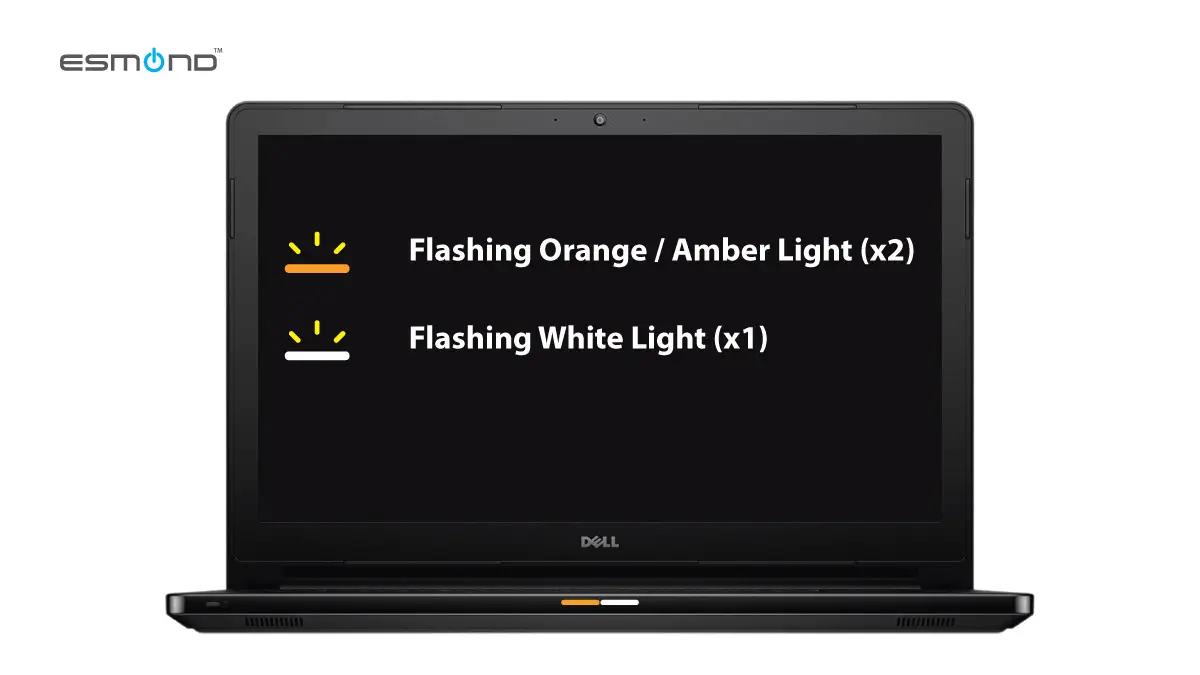
- Laptops: The blinking amber light is often next to the power button or battery icon. Battery or charger issues are more common in laptops.
- Desktops: The amber light is usually on the power button or front panel. Power supply and RAM issues are more common.
If your laptop blinks amber when charging, try a different charger or battery first.
The Importance Of Documentation
One thing many beginners forget: always document what you try. Write down each step you take—what you unplug, reseat, or replace. This makes it easier if you need to call for help and prevents repeating the same steps.
Non-obvious insight: Take a photo of the inside of your PC before disconnecting anything. This helps you reconnect cables correctly later.
Credit: elservicecentre.com
Useful Resources
If you need more detailed technical information, Dell’s support site is a goldmine. For official blinking code charts, troubleshooting guides, and downloads, check the Dell Official Support page.
Frequently Asked Questions
What Does A Steady Amber Light Mean On A Dell Desktop?
A steady amber light usually means a major hardware failure, often with the power supply or motherboard. The computer will not boot. The best first step is to unplug the system, wait a minute, and try again. If the light stays, professional repair may be needed.
Can A Bad Ram Stick Cause The Amber Light To Blink?
Yes, a bad or loose RAM stick is a very common cause. If you see a 2- or 4-blink pattern, reseat or replace the RAM. Try one stick at a time to find the faulty module.
Will Replacing The Cmos Battery Fix The Amber Light?
If your system gives a 5-blink code, replacing the CMOS battery can solve the issue. This small battery is easy to replace on most desktops and keeps your BIOS settings saved.
Is It Safe To Open My Dell Computer To Check Components?
If your system is out of warranty, it’s usually safe to open the case and check components. Always unplug the power first, and touch metal to avoid static electricity. If you’re unsure, it’s better to get help from a technician.
Does The Blinking Amber Light Mean My Computer Is Dead?
Not always. The blinking amber light is a sign of a hardware problem, but many issues (like RAM, power supply, or battery) are easy to fix. Only a failed motherboard or CPU usually means the computer is not repairable for most users.
If you follow the steps in this article, you’ll be better prepared the next time you see that worrying amber light blinking on your Dell computer. With patience and careful troubleshooting, most issues can be solved at home, saving you money and keeping your system running smoothly.