
When your Asus router starts blinking blue, it’s easy to feel confused or worried. Maybe your internet is slow, or you’re just not sure what the blinking means. This guide is for anyone who wants clear answers, simple explanations, and real solutions. Whether you’re new to routers or have some experience, you’ll find practical steps to solve the blinking blue light problem. You’ll also learn what causes it, how to prevent it in the future, and why your router’s lights matter more than you think.
What Does The Blinking Blue Light Mean?
The blinking blue light on an Asus router isn’t random. It’s a signal, and understanding it can help you fix your network faster. Usually, this light is found on the front of the router, near the logo, or marked as “WAN” or “Internet.”
Common Meanings
- Connecting to Internet: The router is trying to establish a connection with your ISP (Internet Service Provider).
- Firmware Update in Progress: The device is updating its internal software.
- WPS Mode Active: The router is waiting for a device to connect using WPS (Wi-Fi Protected Setup).
- Network Activity: Sometimes, blinking blue means data is being transferred or the router is busy.
Not all Asus routers use blue for the same things. Always check your specific model’s manual if you’re unsure.
When To Worry
A steady blue or a quick blink is usually normal, but continuous blinking can mean a problem. For example, if the light blinks for more than five minutes, the router might be stuck trying to connect. If your internet isn’t working, the blinking blue is a warning.
Causes Of Asus Router Blinking Blue
Understanding what triggers the blue light helps you fix issues faster. Here are the main reasons:
1. Internet Connection Problems
Your router may blink blue when it can’t connect to your ISP. This could be due to:
- Cable issues (loose or damaged wires)
- Service outages in your area
- Incorrect settings
2. Firmware Updates
When Asus releases a firmware update, your router might blink blue as it downloads and installs new software. This is normal, but if the light blinks for too long, something may be wrong.
3. Wps Pairing
If you press the WPS button, the router blinks blue while waiting for a device (like a phone or printer) to connect.
4. Hardware Faults
Sometimes, internal hardware issues—like overheating or a failed chip—can cause blinking lights. This is less common but important to consider.
5. Incorrect Configuration
Wrong settings in your router (like IP address or DNS settings) can prevent it from connecting, causing the blue light to blink.
6. Isp Issues
Problems from your provider, such as maintenance or outages, can make your Asus router blink blue even if everything else is fine.
How To Fix Asus Router Blinking Blue
Let’s look at practical steps to solve the blinking blue problem. You don’t need advanced tech skills—just follow each step carefully.
Step 1: Check Your Internet Connection
First, see if your modem has internet. If the modem’s lights are normal, the problem is probably with your router.
- Unplug the router and modem.
- Wait 30 seconds.
- Plug the modem in first, then the router.
If the blue light stops blinking, your network is back.
Step 2: Inspect Cables And Connections
Loose or damaged cables are a common cause. Check:
- Power cable (is it secure?)
- Ethernet cables (any damage?)
- WAN port (is it plugged in?)
Replace cables if you see wear or if they feel loose.
Step 3: Restart Your Router
A simple restart can solve many problems.
- Press the power button to turn off the router.
- Wait 10 seconds.
- Turn it back on.
If the blinking continues, move to the next step.
Step 4: Update Firmware
Outdated firmware causes trouble. To check and update:
- Connect a device to the router via Ethernet or Wi-Fi.
- Open a browser and enter your router’s IP address (usually 192.168.1.1).
- Log in with your admin details.
- Find “Firmware Upgrade” in settings.
- Click “Check” and update if needed.
Don’t unplug the router during an update.
Step 5: Reset Wps Mode
If the blinking started after pressing the WPS button, cancel WPS mode.
- Hold the WPS button for five seconds.
- The blinking should stop.
If not, restart the router.
Step 6: Restore Factory Settings
If nothing works, reset your router to factory defaults.
- Find the reset button (small hole, usually on the back).
- Use a paperclip to press and hold for 10 seconds.
- The router will reboot.
This erases all settings. Set up your Wi-Fi again after resetting.
Step 7: Contact Your Isp
If the router still blinks blue, call your provider. Ask if there’s an outage or if your account is active.
Step 8: Check For Hardware Issues
If the router feels hot or the blue light never stops, hardware may be failing. Try a different router if possible, or contact Asus support.
Comparing Asus Router Light Patterns
To understand your router better, it helps to compare what different light patterns mean. Here’s a simple guide:
| Light Color | Status | Meaning |
|---|---|---|
| Blue (Blinking) | Connecting | Trying to connect to internet/WPS pairing |
| Blue (Solid) | Connected | Internet connection established |
| Red | Error | No internet/Hardware fault |
| White | Normal | Device powered on/Ready |
| Green | Activity | Data transfer ongoing |
Most Asus routers use similar colors, but some models may differ. Always check your user manual for exact meanings.
Example: Asus Rt-ac68u Router
Let’s use the popular Asus RT-AC68U as an example. This model is widely used and shows typical light behavior.
- Blue blinking: WPS pairing or connecting to internet
- Red: No internet or hardware error
- White: Powered on, ready for setup
If your RT-AC68U blinks blue for more than five minutes, follow the troubleshooting steps above.
Advanced Troubleshooting Tips
Some problems are harder to solve. Here are non-obvious tips that most beginners overlook:
1. Change Dns Settings
Default DNS can slow down connections. Try switching to Google DNS (8. 8. 8. 8 and 8. 8. 4. 4) or Cloudflare DNS (1. 1. 1. 1).
- Log in to router admin panel.
- Find “DNS Server” settings.
- Enter new DNS addresses.
This often improves connection speed and stability.
2. Check For Ip Conflicts
If two devices have the same IP address, your router may blink blue and lose connection.
- Disconnect all devices.
- Reconnect one at a time.
- Assign static IPs if needed.
3. Upgrade Router Placement
Routers work best in open spaces, away from metal or electronic devices.
- Place router in central location.
- Avoid corners, closets, or near microwaves.
Poor placement causes weak signals and blinking lights.
4. Avoid Overheating
Hot routers fail often. Make sure there’s airflow around the device.
- Don’t cover with anything.
- Clean dust from vents.
5. Use Quality Power Supply
A weak power adapter can cause random blinking. Always use the original Asus adapter.

Credit: rog-forum.asus.com
When To Replace Your Asus Router
Sometimes, fixing is not enough. Here’s how to decide if you need a new router:
| Problem | Fixable? | Replace? |
|---|---|---|
| Continuous blue blinking | Maybe (check cables/settings) | If persists after resets |
| Overheating | Maybe (ventilation) | If issue repeats |
| Firmware cannot update | No | Yes |
| Physical damage | No | Yes |
| Internet keeps dropping | Maybe (ISP/settings) | If not solved |
If your router is over five years old, consider upgrading. Newer models have better security, speed, and stability.
Preventing Asus Router Blue Light Issues
You can avoid problems before they start. Here’s how:
1. Update Firmware Regularly
Check for updates monthly. Most routers can update automatically.
2. Use Surge Protectors
Protect your router from power spikes by plugging it into a surge protector.
3. Monitor Device Limits
Don’t connect too many devices. Overloading the router makes lights blink.
4. Schedule Reboots
Restart your router once a week. This clears memory and prevents errors.
5. Keep Router Clean
Dust and heat cause trouble. Wipe the router gently and make sure vents are clear.
6. Set Up Guest Networks
Separate guest devices to keep your main network stable.
7. Watch For Isp Outages
Sign up for outage alerts from your provider. This helps you know when the problem is outside your home.
Credit: medium.com
Asus Router Models And Blue Light Behavior
Different Asus routers may use the blue light for slightly different signals. Here’s a comparison of some popular models:
| Model | Blue Light Meaning | Common Issue |
|---|---|---|
| RT-AC68U | WPS/Internet connecting | Firmware update stuck |
| RT-AX88U | WPS pairing | Overheating |
| RT-AC86U | Internet status | ISP outage |
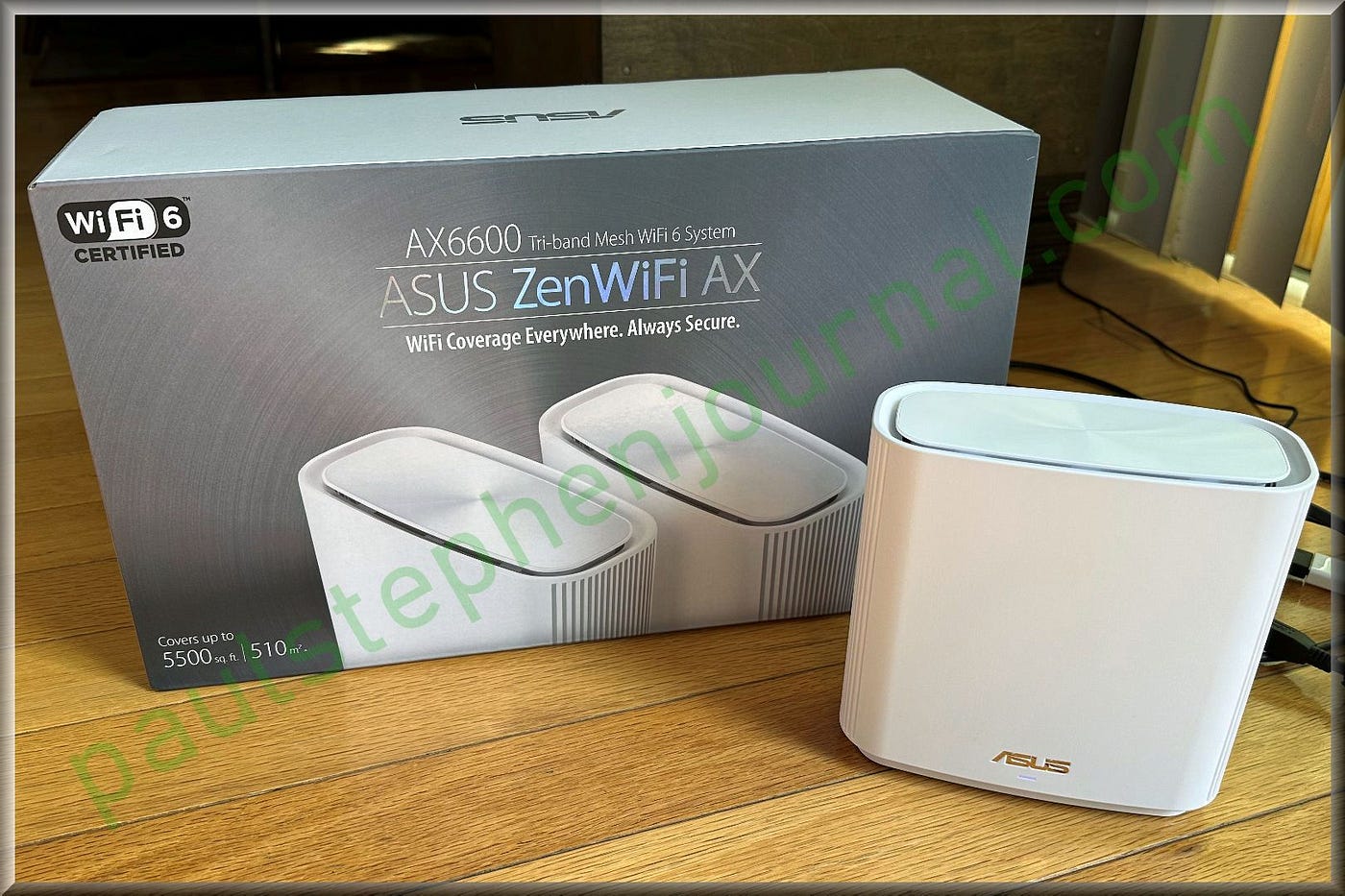
| ZenWiFi AX | Mesh node connecting | Node placement |
| RT-AX3000 | WPS/Internet status | Power supply fault |
Check your model’s manual for specific signals.
Real-life Example: Troubleshooting The Blue Light
Imagine Sarah, a student, sees her Asus router blinking blue. Her internet is slow, and she needs to submit homework. Here’s what she does:
- Checks cables—all secure.
- Restarts router—no change.
- Updates firmware—the light stops blinking.
- Internet returns to normal.
Sarah’s problem was old firmware. A quick update fixed her connection.
Non-obvious Insight
Most people don’t realize: firmware updates can happen automatically, but may fail if the router loses power or internet during the process. Always check for updates if your router blinks blue unexpectedly.
Credit: www.youtube.com
Asus Router Blinking Blue Vs. Other Brands
Asus routers use blue as a signal for connection and WPS, but other brands may use different colors. For example:
- Netgear: Uses white or amber lights for connection.
- TP-Link: Uses green or orange lights.
Asus stands out by using blue for WPS and connection status, making troubleshooting easier if you know what to look for.
Security Risks Associated With Blinking Blue
While blinking blue is not always a security risk, it can signal problems:
- Outdated firmware means weak security.
- WPS mode (blinking blue) can expose your network to attacks if left active.
- Continuous attempts to connect (blinking blue) may mean someone is trying to access your network.
Always turn off WPS mode when not needed, and update firmware for better security.
When To Contact Asus Support
If you have tried everything and the blue light won’t stop blinking, it’s time to call for help. Asus support can guide you through advanced fixes or recommend replacement.
- Have your model number ready.
- Explain what steps you’ve already tried.
For official help, visit the Asus Support page.
Frequently Asked Questions
What Does A Blinking Blue Light Mean On My Asus Router?
A blinking blue light usually means the router is trying to connect to the internet, is in WPS mode, or is updating firmware. If the light blinks for a long time, it could signal an issue with your connection or router.
How Do I Fix The Blinking Blue Light?
Start by checking cables, restarting the router, and updating firmware. If the problem continues, reset the router to factory settings or contact your ISP. Hardware issues may require a replacement.
Is It Safe To Use My Router When The Blue Light Is Blinking?
It depends. If the blue light blinks for a short time during WPS or updates, it’s safe. But if it blinks continuously and your internet isn’t working, fix the issue before using the router.
Can Blinking Blue Light Mean Someone Is Trying To Access My Network?
If the router is in WPS mode, the blinking blue light means it’s ready for new devices. Turn off WPS mode after use to prevent unwanted access. Continuous blinking without WPS may signal a connection problem, not a security risk.
Should I Replace My Asus Router If The Blue Light Won’t Stop Blinking?
If you’ve tried all troubleshooting steps and the blue light keeps blinking, it may be time to replace the router. Older devices and those with hardware faults often show persistent blinking.
Your Asus router’s blinking blue light is more than just a signal—it’s a guide to your network’s health. With the steps and insights above, you can solve most problems yourself, improve your internet speed, and keep your network safe. Remember, understanding your router’s signals is the first step to a smoother online experience. If you ever feel stuck, don’t hesitate to reach out for help or check reliable resources like Wikipedia for more details.