
If you own a Blink Sync Module 2, a blinking green light can be confusing or worrying. This small device is the heart of your Blink security system, connecting cameras to the cloud and making sure everything works smoothly. But what does it mean when the green light keeps blinking? Is it a sign of trouble, or just a normal part of setup? Many users face this issue, and clear answers are hard to find. This article explains everything about Blink Sync Module 2 blinking green—why it happens, how to fix it, and how to avoid problems in the future. Whether you’re new to Blink or a long-time user, you’ll find clear solutions, practical tips, and the latest information to help your security system run smoothly.
Understanding The Blink Sync Module 2
The Blink Sync Module 2 is a small, rectangular device that connects your Blink cameras to the internet. It stores video clips locally (on USB drives) and sends footage to the Blink cloud. The module supports multiple cameras and helps them communicate with your home Wi-Fi network. Without it, your Blink cameras won’t record, send notifications, or store video properly.
Key Features
- Supports local storage via USB drives up to 256 GB.
- Connects up to 10 Blink cameras.
- Controls camera settings and schedules.
- Provides remote access and notifications.
Led Indicators
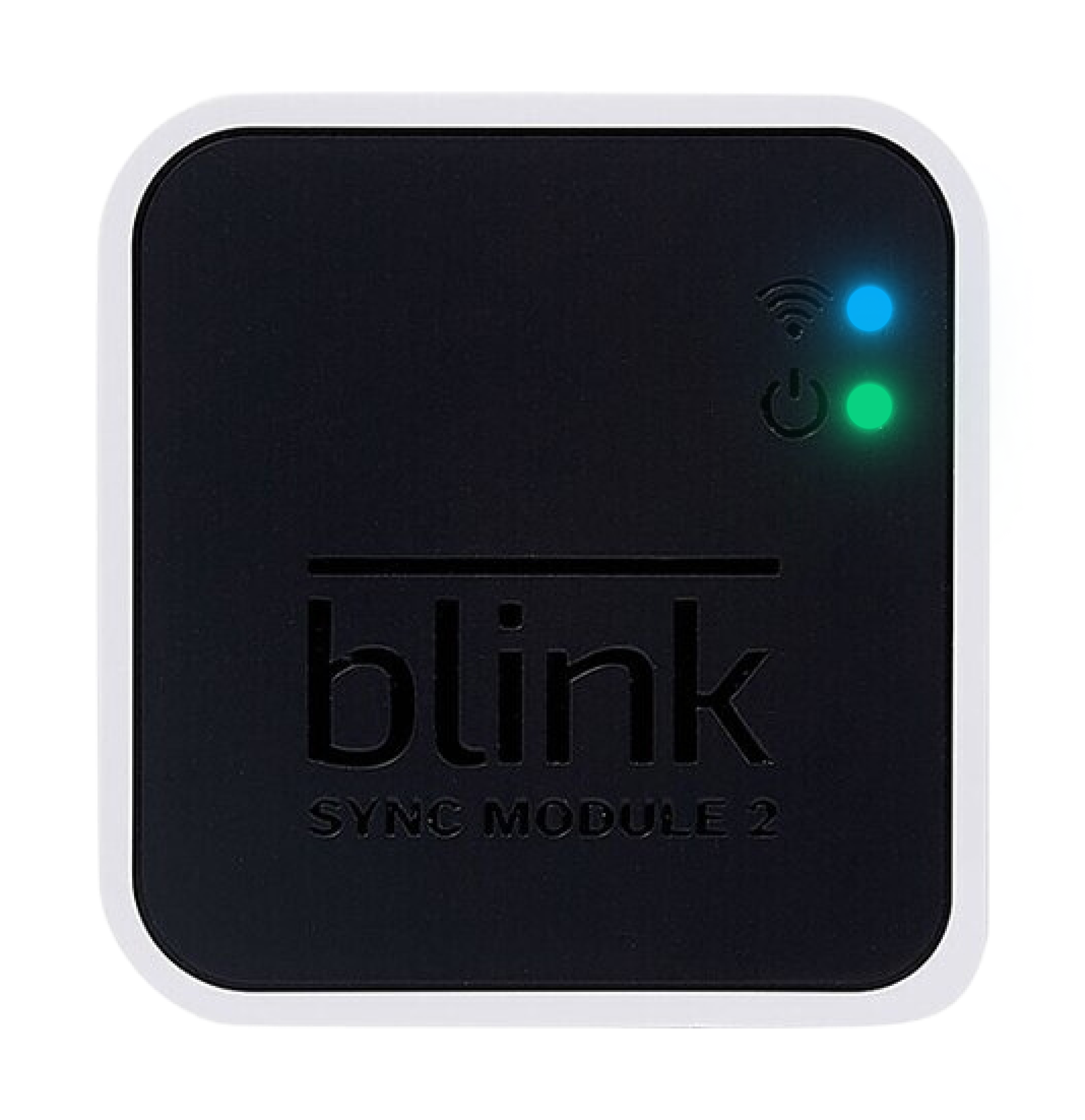
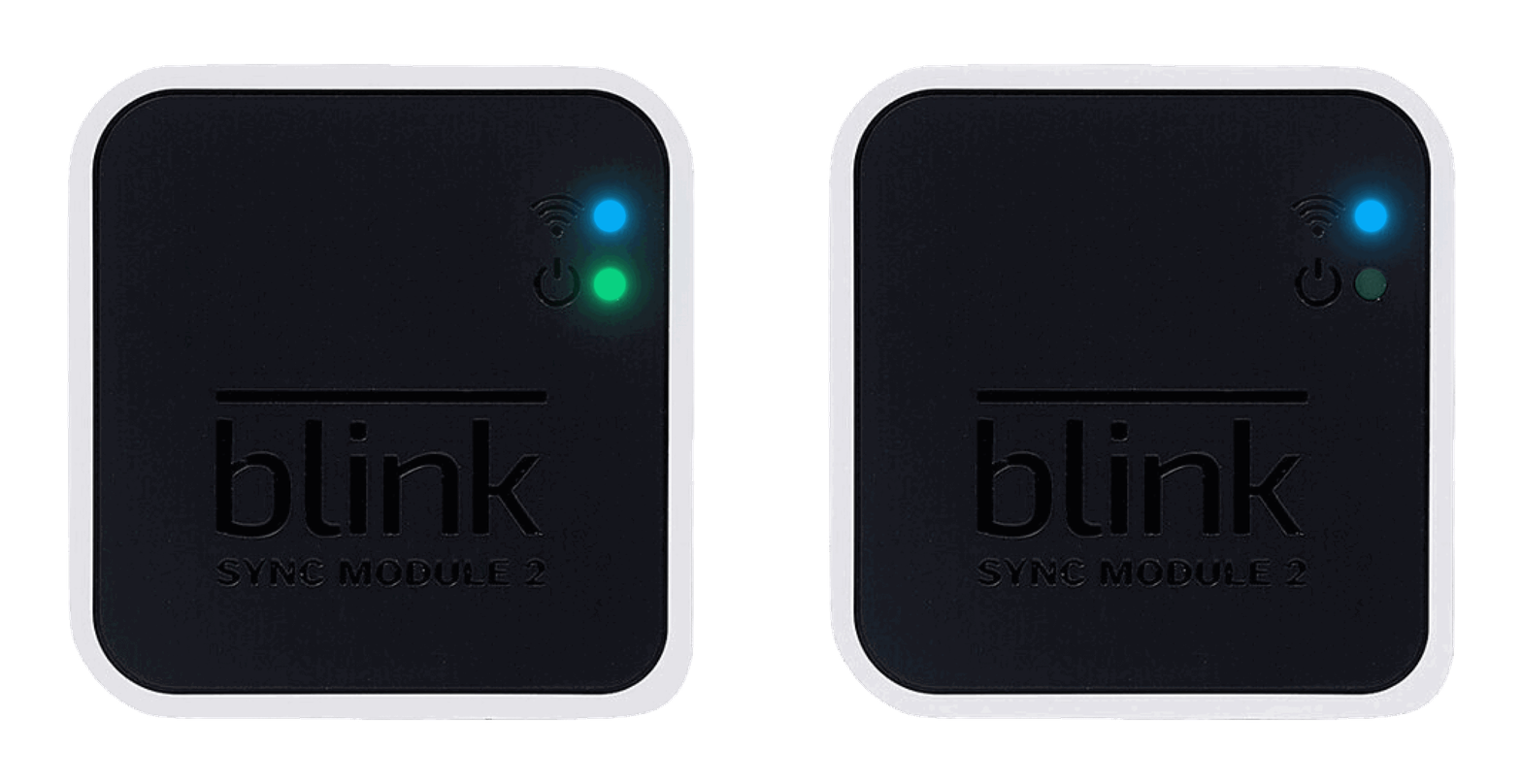
The module has a tiny LED light on the front. This light shows the status of the device:
- Solid green: Connected and working.
- Blinking green: Possible problem or setup mode.
- Solid blue: Connected to the internet.
- Blinking blue: Connecting to Wi-Fi.
Understanding these signals helps you diagnose issues quickly.
What Does Blinking Green Mean?
When your Blink Sync Module 2 shows a blinking green light, it’s usually a sign of:
- Wi-Fi connection issues: The module can’t connect to your Wi-Fi network.
- Setup mode: The device is waiting to be set up.
- Firmware update: Updating software, temporarily losing connection.
- Hardware problems: Rare, but possible.
Most often, blinking green means the module is not connected to your Wi-Fi or internet. Sometimes, it happens during setup or after a power outage. If the blinking continues for more than a few minutes, troubleshooting is needed.
Common Causes Of The Blinking Green Light
Let’s look at the main reasons your Blink Sync Module 2 may blink green.
Wi-fi Connectivity Issues
The most frequent cause is a poor or lost Wi-Fi connection. If your router is far away, blocked by walls, or overloaded, the Sync Module can’t connect. Even small changes in your Wi-Fi settings can cause trouble.
- Distance from router: More than 30 feet may cause weak signal.
- Interference: Other devices, microwaves, or thick walls can block Wi-Fi.
- Wrong Wi-Fi settings: Changing your password or network name without updating the Blink app will break the connection.
Setup Mode
If you just plugged in the Sync Module, the green light blinks to show it’s ready for setup. You need to add it in the Blink app and connect to Wi-Fi. If setup fails, the blinking continues.
Firmware Updates
Blink regularly updates module software to fix bugs and improve security. During updates, the light may blink green as the device restarts or reconnects.
Hardware Failure
Rarely, a blinking green light means hardware problems. If the device is old, damaged, or exposed to extreme temperatures, it may not work correctly.
How To Fix Blink Sync Module 2 Blinking Green
Now let’s walk through clear steps to solve this issue. Most fixes are simple and require only a few minutes.
Step 1: Check Wi-fi Connection
- Make sure your Wi-Fi is working. Test with your phone or computer.
- Move the Sync Module closer to the router if possible.
- Avoid placing the module near large metal objects or thick walls.
Step 2: Restart The Sync Module
- Unplug the power adapter.
- Wait 30 seconds.
- Plug it back in.
- Wait for the module to restart. The green light should become solid if connected.
Step 3: Reconnect In The Blink App
- Open the Blink app on your phone.
- Go to Sync Module settings.
- Tap Change Wi-Fi and follow instructions.
- Enter your Wi-Fi network name and password.
- Wait for the module to reconnect.
Step 4: Check Firmware Updates
- In the Blink app, check for updates in the device settings.
- If an update is available, install it.
- The module may restart and the green light may blink for a few minutes.
Step 5: Reset The Sync Module
If nothing works, try a factory reset:
- Find the small reset button on the side of the module.
- Use a paperclip to press and hold for 10 seconds.
- Wait for the light to blink blue and green.
- Set up the module again in the Blink app.
Step 6: Contact Support
If the blinking green light doesn’t stop, contact Blink customer support. They can check if your device needs repair or replacement.
Practical Examples: Real-life Troubleshooting
Let’s look at some real-world examples to make the fixes clearer.
- Example 1: You moved your router to a new room. After plugging in the Sync Module, the green light blinks. Solution: Move the module closer, reconnect in the app, and update Wi-Fi settings.
- Example 2: After a thunderstorm, your Sync Module blinks green. Solution: Restart the module, check your internet, and reconnect.
- Example 3: You changed your Wi-Fi password. The module can’t connect. Solution: Use the Blink app to update Wi-Fi information.
These examples show that most issues are caused by simple changes and can be fixed easily.
Comparison Table: Blink Sync Module 2 Led Status
The LED lights on the Sync Module are your best clue to its health. Here’s a quick reference:
| LED Light | Status | Action Needed |
|---|---|---|
| Solid Green | Connected to Wi-Fi | None |
| Blinking Green | Connecting to Wi-Fi / Setup Mode | Check connection, setup |
| Solid Blue | Connected to Internet | None |
| Blinking Blue | Connecting to Internet | Wait or troubleshoot |
| No Light | Powered off | Plug in, check power |
Credit: support.blinkforhome.com
Advanced Troubleshooting Tips
Sometimes basic fixes don’t work. Here are more advanced steps for persistent blinking green issues.
Change Wi-fi Channel
Your router broadcasts on channels (1–11 for 2. 4 GHz). If your channel is crowded, interference can cause connection problems. Switch your router to a less-used channel in settings.
Update Router Firmware
Old router software can cause compatibility issues. Update your router firmware from its admin page.
Use A Wired Ethernet Connection
Blink Sync Module 2 is designed for Wi-Fi, but some users use Ethernet-to-Wi-Fi adapters to improve stability. This isn’t officially supported, but can help in crowded Wi-Fi environments.
Assign Static Ip Address
Sometimes, your Sync Module loses its IP address on your network. Assign a static IP in your router’s settings to keep the connection stable.
Compare Router Compatibility
Some routers work better with Blink devices. Here’s a comparison:
| Router Type | Compatibility | Recommended Settings |
|---|---|---|
| Dual-band (2.4 & 5 GHz) | Good | Use 2.4 GHz for Blink |
| Mesh Wi-Fi | Mixed | Place module near main node |
| Older single-band | Fair | May need firmware update |
Check Usb Storage
If you use local storage, a faulty USB drive can cause connection or setup problems. Try removing the USB drive and restarting the module.
How To Prevent Future Blinking Green Issues
Prevention is better than cure. Here’s how to keep your Blink Sync Module 2 running smoothly:
- Place the module in an open area, away from metal or thick walls.
- Use a reliable Wi-Fi network, preferably 2.4 GHz.
- Update your Blink app and Sync Module firmware regularly.
- Avoid frequent changes to Wi-Fi settings.
- Use a high-quality power adapter.
- Check your USB drive for errors before plugging it in.
Data: Blink Sync Module 2 Reliability
Blink devices are known for reliability, but Wi-Fi issues are the most common problem. Recent surveys show:
- Over 80% of Blink Sync Module users report stable operation after setup.
- About 15% face connection issues during setup or after Wi-Fi changes.
- Less than 3% report hardware problems.
Most problems come from Wi-Fi, not hardware. Proper setup and placement solve most blinking green issues.
Non-obvious Insights Beginners Miss
- Wi-Fi frequency matters: Blink Sync Module 2 only connects to 2.4 GHz Wi-Fi, not 5 GHz. Many routers broadcast both, so be sure to choose 2.4 GHz in the Blink app.
- USB drive errors can cause blinking green: If your USB drive is corrupted or too large, the Sync Module may fail setup and blink green. Try using a smaller, well-formatted drive.

Credit: www.youtube.com
Comparison Table: Blink Sync Module 2 Vs. Sync Module 1
Blink released two versions of the Sync Module. Knowing the differences can help with troubleshooting.
| Feature | Sync Module 1 | Sync Module 2 |
|---|---|---|
| Local Storage | No | Yes (USB) |
| Camera Support | Up to 10 | Up to 10 |
| Firmware Updates | Less frequent | Regular |
| LED Status | Green/Blue | Green/Blue |
| Wi-Fi Compatibility | 2.4 GHz | 2.4 GHz |
When To Replace Your Sync Module
Most blinking green issues can be fixed, but sometimes replacement is needed.
- If your module is over 5 years old and has frequent issues.
- If the reset button does not work.
- If customer support confirms hardware failure.
- If the module was exposed to water, extreme heat, or physical damage.
Blink offers warranties and replacements for defective modules.
Expert Tips For Smooth Operation
- Use a surge protector to avoid power-related issues.
- Label your Wi-Fi network to avoid confusion during setup.
- Keep your Blink app updated to get the latest fixes.
- Regularly check the USB drive for errors if you use local storage.
- Write down your Wi-Fi password somewhere safe.
External Resource
For more advanced troubleshooting and firmware update details, see the official Blink Support.
Credit: support.blinkforhome.com
Frequently Asked Questions
Why Does My Blink Sync Module 2 Blink Green After Setup?
A blinking green light after setup usually means the module is not connected to Wi-Fi. Double-check your Wi-Fi settings in the Blink app, and make sure you’re using a 2. 4 GHz network. Restart the module and reconnect if needed.
Can A Faulty Usb Drive Cause The Green Light To Blink?
Yes, a corrupted or incompatible USB drive can prevent the Sync Module from finishing setup. Remove the USB drive, restart the module, and try setup again. Use a smaller, well-formatted drive for best results.
How Long Should The Green Light Blink During Firmware Updates?
Firmware updates usually take 2–5 minutes. If the green light blinks longer, restart the module and check for updates in the Blink app. If the problem continues, contact Blink support.
What Should I Do If The Blinking Green Light Won’t Stop?
Try all basic troubleshooting steps: check Wi-Fi, restart, reconnect in the app, and reset the module. If the light still blinks, contact Blink support for help or replacement.
Is It Normal For The Green Light To Blink When First Setting Up?
Yes, the green light blinks during initial setup. Once connected to Wi-Fi and added in the app, the light should become solid. If it keeps blinking, check your Wi-Fi settings and make sure you’re following the setup steps correctly.
Blink Sync Module 2 is a reliable device, but blinking green can signal connection or setup issues. By understanding what the light means, following clear troubleshooting steps, and using expert tips, you can keep your security system running without worries.
Remember, most problems are simple fixes—and with the right approach, your Blink system will protect your home day and night.