
If your DirecTV Gemini remote starts blinking blue, you might feel confused or worried. This small signal can mean several things, from pairing issues to battery problems. A blinking blue light is not always bad, but it needs attention. Understanding what this light means and how to fix it is key to getting your TV back to normal. Let’s explore why your Gemini remote blinks blue, how to solve common problems, and how to keep your remote working smoothly.
What Is The Directv Gemini Remote?
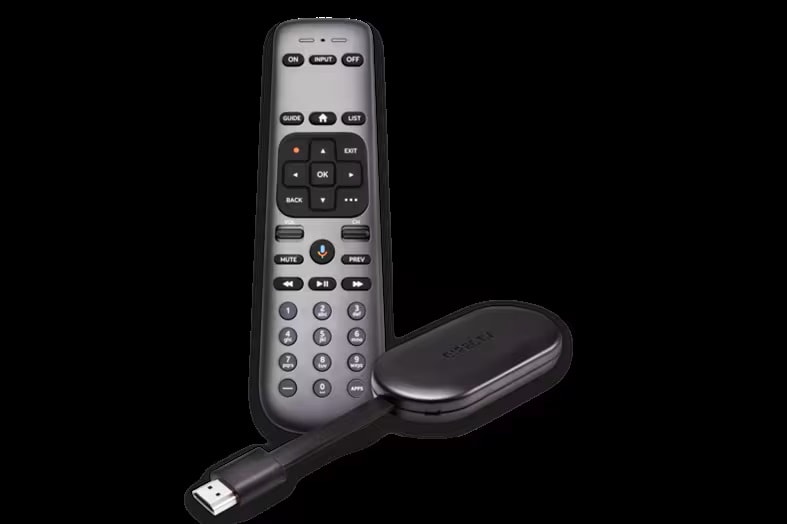
The Gemini remote is a modern controller designed for DirecTV’s streaming box and traditional satellite receivers. It uses Bluetooth and Infrared (IR) technology, letting you control your TV from farther away or even from another room. The remote has a simple design, with buttons for streaming apps, voice control, and quick channel access. Unlike older remotes, the Gemini remote can communicate without pointing directly at the box.
DirecTV introduced the Gemini remote to make TV control easier and smarter. With voice features and easy access to apps like Netflix and YouTube, it fits today’s viewing habits. The blue light is part of its feedback system, showing users what is happening or if there is a problem.
What Does The Blinking Blue Light Mean?
The blinking blue light on your Gemini remote acts as a signal. It can mean different things depending on how fast it blinks and what else is happening. Here are the most common reasons:
- Pairing Mode: The remote is trying to connect with the Gemini box or TV.
- Low Battery: The remote is warning you that batteries are getting weak.
- Firmware Update: Sometimes, the remote updates itself and blinks during this process.
- Signal Loss: The remote cannot communicate with the box.
- Button Stuck or Error: A button may be stuck, or the remote senses a malfunction.
Not every blink is a problem. Sometimes, the remote is just telling you it is ready to pair or update. But if the blinking does not stop, you need to check for issues.
Understanding Blinking Patterns
The Gemini remote uses different blink patterns to show what is happening. Here is a simple guide:
| Blink Pattern | Meaning | Action Needed |
|---|---|---|
| Fast blinking blue | Pairing mode | Complete pairing process |
| Slow blinking blue | Low battery | Replace batteries |
| Steady blue blink | Firmware update | Wait until finished |
| Random blink | Signal loss or error | Check connection |
Knowing these patterns helps you react the right way. For example, fast blinking means your remote is not paired, while slow blinking often means battery trouble.
How To Fix A Blinking Blue Gemini Remote
If your Gemini remote blinks blue and does not stop, follow these steps to fix it:
1. Check Pairing Status
The most common reason is pairing mode. The remote needs to connect with the Gemini box.
- Press and hold the Pair button (usually on the remote’s side or back).
- Wait for the blinking to stop.
- On your TV screen, follow instructions to pair the remote.
If pairing fails, move closer to the box, or restart both the box and remote.
2. Replace The Batteries
Low batteries often cause blinking. Gemini remotes use AAA batteries.
- Remove the battery cover.
- Take out old batteries and insert new ones.
- Make sure batteries are placed correctly.
If the blinking stops, you found the problem. If not, continue to the next step.
3. Restart The Remote And Gemini Box
Sometimes, electronics need a fresh start.
- Remove batteries from the remote.
- Unplug the Gemini box for 30 seconds.
- Plug the box back in.
- Insert batteries back into the remote.
Restarting both devices can fix signal and pairing issues.
4. Update Firmware
Gemini remotes update automatically, but sometimes updates fail.
- Make sure your Gemini box is connected to the internet.
- Check for firmware updates in Settings.
- Wait for the update to finish.
If the blue light blinks during update, do not interrupt it.
5. Check For Physical Problems
A stuck button or damage can cause blinking.
- Look for buttons that are stuck or jammed.
- Press each button gently to make sure they move freely.
- Check for cracks or signs of water damage.
If you see physical damage, you may need a new remote.
6. Re-pair The Remote Manually
If automatic pairing fails, try manual pairing.
- Press and hold both the Home and Back buttons for five seconds.
- Watch for the blinking pattern to change.
- Follow on-screen instructions to complete pairing.
Manual pairing works when signal or software problems block normal pairing.
7. Check Bluetooth And Ir Settings
Gemini remotes use both Bluetooth and IR. If Bluetooth fails, the remote switches to IR.
- Make sure nothing blocks the remote’s path to the box.
- Move other wireless devices away from the box.
- Try pairing again.
If IR works but Bluetooth does not, you may need to reset the box’s Bluetooth settings.
Common Causes Of Blinking Blue Light
Many issues cause the Gemini remote to blink blue. Let’s look at them in detail.
Pairing Problems
If the remote is not paired, it blinks blue to show it is searching. Pairing may fail because:
- The box is turned off.
- The remote is too far away.
- Bluetooth interference from other devices.
- Outdated software.
Pairing issues are more common when the box is newly installed or after a reset.
Battery Issues
Weak batteries cause the remote to blink blue. Sometimes, battery contacts are dirty or corroded, so cleaning them before inserting new batteries helps.
Firmware Or Software Updates
Updates are needed for new features and security. During an update, the remote blinks blue. If the update is interrupted, the remote can get stuck blinking.
Signal Loss
If the remote cannot communicate with the box, it blinks blue. Thick walls, wireless devices, or even microwave ovens can block the signal.
Physical Damage
Drops, spills, or pressure can damage the remote. Broken buttons or circuits cause blinking.
Directv Gemini Remote Vs. Other Directv Remotes
How does the Gemini remote compare to older DirecTV remotes? Let’s see:
| Remote Model | Connection Type | Common Issues | Blinking Light Signals |
|---|---|---|---|
| Gemini Remote | Bluetooth & IR | Pairing, battery, software | Blinks blue |
| RC73 | IR only | Line-of-sight, battery | Blinks red |
| RC66 | IR only | Signal loss, battery | Blinks red |
Gemini remotes are more advanced but also more sensitive to software and signal issues. Older remotes blink red, not blue, and do not use Bluetooth.
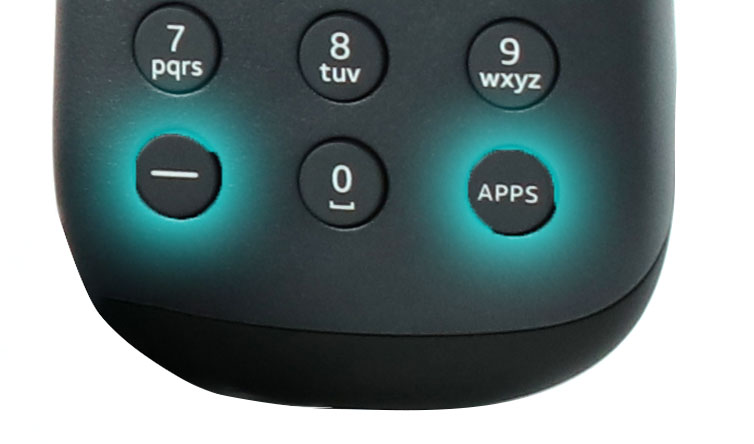
Credit: blog.solidsignal.com
When Should You Replace Your Gemini Remote?
Sometimes, blinking blue means the remote is failing. Here are signs you need a new one:
- Physical Damage: Cracks, broken buttons, or water inside.
- Permanent Blinking: Blue light never stops, even after resets.
- Cannot Pair: Pairing fails every time.
- Battery Drain: Batteries drain very quickly.
If your remote fits these signs, replacement is best. DirecTV offers replacements online and in stores.
Preventing Future Blinking Issues
You can avoid most blinking problems with good habits:
- Use quality batteries and replace them every six months.
- Keep the remote clean and dry.
- Avoid dropping or pressing buttons too hard.
- Keep the Gemini box updated.
- Place the box in a spot with good signal and few wireless devices nearby.
These steps keep your remote working longer and prevent sudden blinking blue lights.
Troubleshooting Gemini Remote Problems
Let’s walk through a step-by-step troubleshooting guide for blinking blue lights.
Step 1: Identify The Blink Pattern
Watch how the blue light blinks. Fast, slow, or steady? Each pattern means something different.
Step 2: Check For Pairing Issues
Try pairing the remote again using the Home and Back buttons. Follow on-screen instructions.
Step 3: Replace Batteries
Use new AAA batteries. Make sure they are placed correctly.
Step 4: Restart Devices
Remove batteries, unplug the box, and restart everything.
Step 5: Update Software
Go to Settings and check for updates. Let the update finish.
Step 6: Inspect For Physical Damage
Check all buttons and the remote body. If you see damage, consider replacement.
Step 7: Move Closer
Sometimes, moving closer to the box or removing wireless devices fixes the signal.
Real-life Examples And Statistics
DirecTV forums and customer support report that about 40% of Gemini remote issues are due to pairing problems. Battery issues make up another 35%, while firmware updates and physical damage are less common but still important.
For example, a DirecTV user in Texas reported that their remote blinked blue for days. Changing batteries did not help. The problem was a blocked Bluetooth signal caused by a nearby Wi-Fi router. Moving the router fixed the issue.
Another user in California found that their remote blinked blue after a software update failed. Restarting the box and re-pairing the remote solved the problem.

Credit: www.youtube.com
How Directv Support Handles Blinking Blue Remote Problems
DirecTV offers several ways to get help:
- Online Help Center: Step-by-step guides and FAQs.
- Live Chat: Immediate support from DirecTV agents.
- Phone Support: Call for troubleshooting and replacement requests.
- Community Forums: Other users share solutions and tips.
DirecTV support agents recommend checking batteries and pairing first before advanced troubleshooting. They often suggest restarting both the remote and box.
For official troubleshooting guides and more details, you can visit the DirecTV Support Center.
Gemini Remote Features That Affect Blinking Blue Light
The Gemini remote has special features that can cause or help prevent blue blinking:
- Voice Control: Sometimes, voice activation can trigger pairing mode.
- Streaming App Buttons: Frequent use can stress the remote, causing errors.
- Backlit Buttons: These use more battery power and can trigger low battery blinks.
- Bluetooth Range: Up to 30 feet, but walls and devices can block the signal.
Knowing these features helps you use the remote wisely and avoid issues.
Comparison: Gemini Remote Signal Range Vs. Other Remotes
To understand how far you can use the Gemini remote, see this signal range comparison:
| Remote Model | Bluetooth Range | IR Range |
|---|---|---|
| Gemini Remote | Up to 30 feet | Up to 25 feet (line-of-sight) |
| RC73 | None | Up to 25 feet (line-of-sight) |
| RC66 | None | Up to 25 feet (line-of-sight) |
Gemini’s Bluetooth lets you control the TV from farther away, but only if there is no interference.
Non-obvious Insights For Gemini Remote Users
Many beginners miss these important facts:
- Bluetooth Interference: Other devices like wireless headphones, speakers, and Wi-Fi routers can block the remote’s signal. Moving these devices away can fix blinking.
- Battery Contact Cleaning: Sometimes, changing batteries is not enough. Clean the battery contacts with a dry cloth to improve power supply.
- Hidden Firmware Updates: The remote updates silently. If your Gemini box is offline, updates fail, causing blinking. Keep your box connected to the internet.
These tips save time and prevent frustration.
Credit: www.directv.com
Safety And Environmental Tips
Proper care extends your remote’s life:
- Do not use old or leaking batteries.
- Recycle batteries properly to avoid environmental harm.
- Keep the remote away from water and extreme heat.
- Store the remote in a safe spot when not using it.
These simple steps keep your remote safe and working.
Frequently Asked Questions
What Does It Mean If My Directv Gemini Remote Blinks Blue Continuously?
A continuous blue blink usually means the remote is stuck in pairing mode or updating its firmware. Try pairing the remote again or wait for updates to finish. If the blink does not stop, check batteries and restart devices.
How Do I Manually Pair My Gemini Remote If It Blinks Blue?
Press and hold the Home and Back buttons for five seconds. Follow on-screen pairing instructions. If pairing fails, move closer to the box and remove any wireless devices nearby.
Can Wireless Devices Interfere With My Gemini Remote’s Blue Blinking?
Yes. Devices like Wi-Fi routers, Bluetooth speakers, and cordless phones can cause interference. Move these away from the Gemini box for better signal.
Is It Normal For The Gemini Remote To Blink Blue During Updates?
Yes. The remote blinks blue during firmware updates. Do not turn off the box or remove batteries during this time. Updates usually finish in a few minutes.
When Should I Replace My Gemini Remote?
Replace your remote if it has physical damage, cannot pair, blinks blue permanently, or drains batteries quickly. DirecTV offers replacements through their support center.
Conclusion
DirecTV Gemini remotes make TV control easy, but a blinking blue light needs attention. By understanding blink patterns, fixing common issues, and following smart habits, you can keep your remote working well. Always check batteries, pairing, and signal range before asking for help.
If you follow these steps, your Gemini remote will serve you for years without trouble.