
A blinking red light on a Chromebook while charging is more than just a minor annoyance. For many users, this signal triggers concern about battery health, charger problems, or even more serious hardware issues. If you’re seeing this blinking red light and wondering what it means, you’re not alone.
Chromebooks are popular for their simplicity and reliability, but their warning lights are not always clear for non-technical users. Understanding what this signal means, how to fix it, and how to avoid it in the future can save you time, money, and frustration.
This article will guide you through every aspect of the Chromebook blinking red light when charging issue. You’ll learn what causes it, how to diagnose the problem, solutions for different scenarios, and preventive tips. We’ll also cover data, real-world examples, and clear step-by-step instructions. By the end, you’ll feel confident in handling this situation, whether you’re a student, professional, or casual user. Let’s get started.
What Does The Blinking Red Light Mean?
Chromebooks use LED lights to communicate their status. The blinking red light is a universal sign that something is wrong with the charging process. Most Chromebooks have one or two small lights near the charging port. A steady white or green light usually means the battery is charging correctly or fully charged. A blinking red light, however, often signals a battery or power issue.
Here’s what the blinking red light might mean:
- Battery is critically low
- Charger is not supplying enough power
- Hardware fault or battery failure
- Charging circuit issue
- Overheating or protection mode
While some Chromebook models might use slightly different color codes, the red blinking light is almost always a warning. According to Google’s official support, this light should not be ignored, especially if it persists after reconnecting the charger.
Common Chromebook Light Codes
Below is a comparison of typical light codes for Chromebooks:
| Light Color | Pattern | Meaning |
|---|---|---|
| White | Solid | Fully charged or charging normally |
| Amber/Orange | Solid | Charging, battery not full |
| Red | Blinking | Battery issue or critically low |
| Red | Solid | Serious battery failure |
| No Light | None | No power or off |
If your Chromebook shows a blinking red light, it’s important to investigate right away. Ignoring it can lead to longer downtime or more expensive repairs.
Main Causes Of Blinking Red Light When Charging
Understanding the root causes will help you fix the problem faster. The blinking red light usually appears due to one or more of these reasons:
- Battery is Too Low: If you let the battery drain completely, the Chromebook may enter a protection mode. It won’t start charging normally until the battery voltage rises above a safe level.
- Faulty Charger or Cable: Using a damaged charger or a non-original cable can lead to power issues. Chromebooks need a specific voltage and current, and cheap chargers often fail to provide it.
- Charging Port Problems: Dust, debris, or physical damage in the charging port can prevent proper connection. Even a small obstruction can cause intermittent charging.
- Battery Failure: Lithium-ion batteries degrade over time. If your Chromebook is more than two years old, the battery may not hold charge or accept power reliably.
- System Glitch: Sometimes, the software controlling battery charging gets confused. This can happen after a sudden shutdown or firmware update.
- Overheating or Environmental Issues: If the Chromebook is too hot or cold, it may refuse to charge for safety reasons, triggering the blinking red light.
- Motherboard or Charging Circuit Fault: Rare, but possible. If internal components fail, charging cannot occur, and the Chromebook signals this with a red blinking light.
Real-world Data
According to a survey from Chromebook support forums, about 30% of blinking red light cases are caused by charger problems, while 55% are battery-related. Only 15% involve deeper hardware faults. This means most issues can be solved without replacing the entire Chromebook.

Credit: www.reddit.com
How To Diagnose The Problem
Diagnosing the blinking red light is not difficult, but it requires patience. Here’s a practical step-by-step guide:
- Check the Charger: Use the original charger. If you don’t have it, try a charger with the same voltage and current. Inspect the charger for visible damage or loose connectors.
- Inspect the Charging Port: Look for dust, lint, or broken pins. Clean gently with compressed air or a soft brush. Avoid metal objects.
- Connect to a Different Outlet: Sometimes, wall sockets have problems. Try a different power outlet.
- Look for Battery Signs: If the Chromebook turns on, check battery status in the system tray. If it doesn’t, leave it plugged in for 15–30 minutes before retrying.
- Hard Reset: Press and hold the refresh and power buttons for about 10 seconds. This resets the hardware and can clear temporary glitches.
- Test With Another Charger: If possible, borrow a charger from another Chromebook or compatible laptop. This can quickly rule out charger faults.
- Check for Overheating: Feel the bottom of the Chromebook. If it’s hot, let it cool for 30 minutes before plugging in again.
Diagnostic Comparison Table
Here’s how common causes compare in symptoms and solutions:
| Cause | Common Symptoms | Quick Solution |
|---|---|---|
| Battery is too low | Blinking red light, won’t power on | Leave plugged in, wait 30+ mins |
| Faulty charger | Blinking light, charger feels hot | Try another charger |
| Port problem | Loose fit, intermittent light | Clean port, check pins |
| Battery failure | Short battery life, won’t charge | Replace battery |
| Overheating | Hot device, won’t charge | Cool down, retry |
This process will help you quickly identify the most likely cause.
Solutions For Chromebook Blinking Red Light
Once you have diagnosed the cause, you can try specific solutions. Here are practical fixes based on different scenarios:
1. Battery Is Too Low
If you let your Chromebook battery drain completely, it can enter a deep discharge state. The blinking red light is warning you that the battery is critically low.
Solution:
- Plug in the original charger and leave it for at least 30 minutes.
- Avoid turning the Chromebook on during this period.
- If the light changes to amber or white after 30–60 minutes, the battery is recovering.
Tip: Sometimes, leaving the device plugged in overnight is needed for deep discharge recovery.
2. Faulty Charger Or Cable
If your charger or cable is broken, your Chromebook cannot charge properly. Cheap replacements often lack the power needed.
Solution:
- Try another charger from the same brand or a certified replacement.
- Inspect the cable for tears or bent connectors.
- Avoid using USB hubs or adapters for charging.
Tip: Always use a charger that matches the Chromebook’s voltage (usually 19V) and current (2–3A).
3. Dirty Or Damaged Charging Port
Dust, lint, or physical damage can block the charging pins. Even a small piece of debris can cause a blinking red light.
Solution:
- Clean the port with compressed air or a soft brush.
- Check for bent or missing pins.
- If the port is damaged, visit a professional repair shop.
Tip: Never use sharp objects or metal pins to clean the port.
4. Battery Failure
Batteries degrade over time. If your Chromebook is old or has been used heavily, the battery may need replacement.
Solution:
- Check battery health in Chrome OS: Type “chrome://battery” in the browser (if supported) or use a battery app.
- If battery health is below 60%, replacement is needed.
- Contact the manufacturer or a certified repair center for battery replacement.
Tip: Replacing the battery yourself is possible on some models, but can void warranty and is not recommended for beginners.
5. System Glitch
Sometimes, the software controlling charging gets confused. This can happen after updates or sudden shutdowns.
Solution:
- Perform a hard reset: Hold refresh + power for 10 seconds.
- For some models, use ESC + refresh + power to enter recovery mode.
Tip: If the blinking red light disappears after reset, you had a temporary glitch.
6. Overheating
If the Chromebook is hot, it may refuse to charge for safety.
Solution:
- Unplug the device and let it cool for at least 30 minutes.
- Avoid charging in direct sunlight or near heat sources.
- Try charging again once cooled.
Tip: Overheating can damage batteries permanently. Avoid charging on soft surfaces like beds or sofas.
7. Motherboard Or Charging Circuit Fault
Rarely, the internal charging circuit or motherboard may fail.
Solution:
- If none of the above steps work, professional repair is necessary.
- Contact the manufacturer for warranty support.
Tip: Hardware repairs are expensive. Check warranty status before proceeding.
Preventing The Blinking Red Light Issue
Prevention is better than cure. Here are practical tips to avoid the blinking red light in the future:
- Use Original Chargers: Always use the charger provided by the manufacturer. Avoid cheap replacements.
- Charge Regularly: Don’t let the battery go below 10%. Frequent deep discharges can damage batteries.
- Keep the Port Clean: Regularly check and clean the charging port. Dust and debris are common causes of charging issues.
- Avoid Extreme Temperatures: Don’t use or charge your Chromebook in very hot or cold environments.
- Update Chrome OS: Keep your Chromebook updated. Software patches often fix charging problems.
- Monitor Battery Health: Check battery health every few months. Replace batteries before they fail completely.
- Handle With Care: Avoid dropping or bumping the Chromebook, especially near the charging port.
Battery Lifespan Statistics
On average, Chromebook batteries last 3–5 years with regular use. Heavy users may see battery degradation in as little as 2 years. Charging cycles (one full discharge and recharge) are usually rated for 500–1000 cycles.
When To Seek Professional Help
While most blinking red light issues can be fixed at home, some require expert attention. Seek professional help if:
- The Chromebook still shows a blinking red light after trying all solutions.
- The battery won’t charge, and the device won’t turn on.
- There is visible damage to the charging port or motherboard.
- The device is under warranty.
Professional repairs can cost from $50 to $150 for battery replacement, and up to $300 for motherboard repairs. Check warranty coverage before spending money.
Chromebooks Vs Other Laptops: Charging Warnings
Chromebooks are not alone in using warning lights for charging issues. However, their signals are simpler than Windows laptops or MacBooks.
| Device | Charging Warning | Typical Solution |
|---|---|---|
| Chromebook | Blinking red light | Check charger, battery, port |
| Windows Laptop | Battery icon, no light | Check software, charger |
| MacBook | MagSafe/USB-C amber or no light | Reset SMC, check charger |
Chromebooks are easier to diagnose, but their blinking red light is more urgent than other systems.
Real-world Examples And Insights
Let’s look at two real-world situations:
Example 1: Maria, a student, noticed her Chromebook blinking red after forgetting to charge it for two days. She plugged it in, but nothing changed. After waiting 45 minutes, the light turned amber, and her Chromebook started charging. She learned to avoid deep discharges.
Example 2: Alex’s Chromebook showed a blinking red light even with a new charger. He cleaned the port, but it didn’t help. The battery was two years old. After checking battery health, he found it was below 50%. Replacing the battery solved the issue.
Non-obvious insight: Many users think the blinking red light always means battery failure, but often it’s just a charger or port issue. Waiting longer or using a proper charger can solve the problem without replacing parts.
Another insight: Environmental temperature plays a bigger role than most people realize. Charging in hot rooms or direct sunlight can trigger the blinking red light, even if everything else is fine.

Credit: www.reddit.com
Additional Resources
If you want more technical details or troubleshooting steps, Google’s official support pages are a good starting point. For detailed battery health info, you can use apps or Chrome OS commands. For hardware repairs, always check the warranty status first.
For further reading, visit Google Chromebook Help.
Frequently Asked Questions
What Should I Do First If My Chromebook Shows A Blinking Red Light When Charging?
Start by plugging in the original charger and leave the Chromebook connected for at least 30 minutes. If the light doesn’t change, inspect the charger and port for damage or debris. Try a hard reset by holding refresh and power for 10 seconds.
Can Using A Non-original Charger Cause The Blinking Red Light?
Yes, using a charger that doesn’t provide the correct voltage or current can trigger the blinking red light. Always use the original charger or a certified replacement. Cheap chargers often cause power issues.
How Do I Know If My Chromebook Battery Needs Replacement?
If your Chromebook doesn’t charge, has short battery life, or shows battery health below 60% (using Chrome OS tools or apps), it’s time to replace the battery. If your device is more than two years old and shows charging problems, battery degradation is likely.
Is It Safe To Keep Using The Chromebook With A Blinking Red Light?
No. The blinking red light is a warning that something is wrong. Continuing to use the device can lead to battery damage or charging failure. Diagnose and fix the issue before regular use.
What Can I Do To Prevent Charging Problems In The Future?
Charge your Chromebook regularly, keep the charging port clean, avoid extreme temperatures, and use only original chargers. Monitor battery health every few months and update Chrome OS to the latest version.
A blinking red light on your Chromebook when charging can seem worrying, but most causes are simple to fix. If you follow the steps and tips in this article, you’ll solve the problem quickly and prevent future issues. Chromebooks are reliable devices, but like all technology, they need regular care.
By understanding what the blinking red light means, you’ll keep your device running smoothly and avoid expensive repairs.
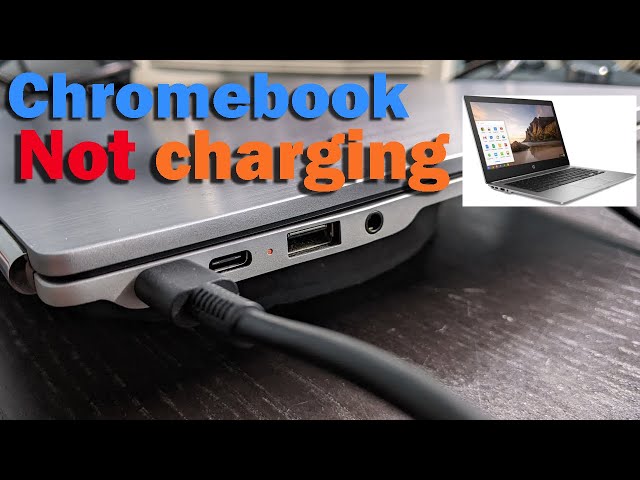
Credit: www.youtube.com