
Many people rely on their Rollo printer for fast and reliable label printing, especially for shipping and small businesses. However, nothing can be more frustrating than seeing your Rollo printer blinking red and refusing to print. That blinking red light is your printer’s way of telling you something is wrong. But what does it mean, and more importantly, how do you fix it quickly? Understanding the reasons behind the blinking red light can save you time, money, and unnecessary stress. In this article, you’ll learn why your Rollo printer blinks red, how to diagnose the problem, and practical steps to fix it. If you’re new to label printers, don’t worry—this guide covers everything in simple, clear language, with tips from real experience.
What Does The Rollo Printer Blinking Red Mean?
When you see the blinking red light on your Rollo printer, it’s a warning signal. This light means the printer has detected a problem that needs your attention. The issue can be as simple as running out of labels or as complex as a hardware malfunction. Unlike some other printers, the Rollo uses blinking patterns (how fast or slow the red light flashes) to indicate different problems. Understanding these patterns is key.
Common causes for the blinking red light include:
- Out of labels or paper jam
- Incorrect label size or alignment
- Dirty sensor
- Firmware or software error
- Overheating
Many users miss the fact that the blinking speed and pattern often point to specific issues. For example, a fast blink might mean a label jam, while a slow blink could indicate a sensor problem. Always check the user manual for your exact model to decode these signals.
Main Reasons Your Rollo Printer Is Blinking Red
Let’s break down the typical causes, what they look like, and how to tell them apart.
1. Out Of Labels Or Incorrect Loading
If your printer is out of labels, it cannot print and will blink red. Sometimes, even if you have labels loaded, they might not be inserted correctly. The printer’s sensor looks for the gap between labels; if it can’t find it, you’ll get an error.
Signs:
- The printer feeds but doesn’t print
- The red light blinks after you press the feed button
2. Label Jam Or Blockage
A piece of label stuck inside the printer will trigger the red light. Even a tiny bit of torn label can confuse the sensor.
Signs:
- The printer makes noise but labels don’t come out
- You see wrinkled or torn labels inside
3. Wrong Label Size Or Type
The Rollo printer is sensitive to label size. If the labels are too small, too large, or not the right type, the sensor might fail to detect them.
Signs:
- The printer spits out multiple blank labels
- The red light blinks in a steady pattern
4. Dirty Or Blocked Sensor
Sensors inside the printer detect the label’s position. Dust, adhesive, or debris on the sensor can stop it from working.
Signs:
- The red light blinks after you clean and reload labels
- Labels feed randomly
5. Firmware Or Software Error
Sometimes, the problem isn’t hardware, but the software or firmware. Corrupted drivers, failed updates, or incorrect settings can confuse the printer.
Signs:
- The printer was working fine until a recent update
- The red light blinks after connecting to a new computer
6. Overheating
If you print many labels very quickly, the printer can overheat. The red light warns you to take a break.
Signs:
- The red light blinks after long print jobs
- The printer feels hot to the touch
Credit: www.pitambaraplastic.in
How To Diagnose The Problem
Before you try to fix anything, spend a few minutes on diagnosis. This will save you a lot of effort.
- Check the blinking pattern: Is it fast, slow, or steady? Check your user manual or the Rollo website for the meaning.
- Open the printer: Remove the labels and look for jams or debris.
- Test with the feed button: Press and hold the feed button; watch if the printer feeds labels correctly.
- Try a different label roll: If possible, use a fresh roll from a known good batch.
- Restart everything: Turn off the printer, unplug it, and wait for 30 seconds.
Here’s a quick comparison of symptoms and possible causes:
| Blinking Pattern | Possible Cause | What to Check |
|---|---|---|
| Fast Blinking | Label jam or out of labels | Remove labels, check for jams |
| Slow Blinking | Sensor dirty or blocked | Clean sensor area |
| Steady Blinking | Wrong label size/type | Check label specifications |
Step-by-step Fixes For Rollo Printer Blinking Red
Once you’ve identified the likely cause, follow these steps to solve the problem. You don’t need special tools—just patience and careful work.
Fix 1: Reload Or Replace The Labels
- Turn off the printer and open the cover.
- Remove the label roll.
- Check for small pieces of label stuck inside.
- Load a fresh roll, making sure the labels are facing the right way and aligned with the guides.
- Close the cover and turn the printer back on.
Pro tip: Make sure the labels are “gap” type, not continuous or black mark, unless your model supports them.
Fix 2: Clear Label Jams
- Open the printer.
- Gently pull out any stuck labels—do not use sharp objects.
- Check the rollers and sensor area for adhesive residue.
- If there’s glue, clean gently with a lint-free cloth and a little isopropyl alcohol.
Fix 3: Calibrate The Sensor
Calibration helps the printer recognize the label’s size and position.
- Turn off the printer.
- Hold the feed button and turn on the printer; keep holding until the light blinks once, then release.
- The printer should feed a few labels and stop with the light green.
Fix 4: Clean The Sensor
Over time, dust and adhesive can block the sensor.
- Open the printer and locate the small black sensor under the label path.
- Use a soft brush or compressed air to remove dust.
- For sticky residue, a cotton swab with a little alcohol works well.
Fix 5: Check Software And Firmware
Sometimes, the problem is on your computer.
- Go to the Rollo website and download the latest drivers.
- Uninstall the old software before installing new drivers.
- Restart your computer and reconnect the printer.
If you’ve recently updated your operating system, check for compatibility issues.
Fix 6: Let The Printer Cool Down
If you’ve printed a large batch and the red light blinks, let the printer rest for 10-15 minutes. Overheating is more common than most people realize, especially in busy shipping seasons.
Advanced Troubleshooting Tips
If the simple fixes don’t work, here are extra steps that can help:
- Try a different USB port or cable. Bad connections can cause errors.
- Test on another computer. This helps you know if the problem is with your PC or the printer.
- Reset the printer to factory settings. Check the manual for the reset process.
- Contact Rollo support. If your printer is under warranty, don’t open it further—support may offer a free repair.
A helpful insight: Many users overlook the importance of using certified Rollo labels. Off-brand or poor-quality labels can cause frequent blinking errors due to size or gap inconsistencies. Always test with official labels if in doubt.
Here’s a quick look at the most effective fixes and how long they usually take:
| Fix | Average Time Needed | Success Rate |
|---|---|---|
| Reload labels | 2 minutes | High |
| Calibrate sensor | 3 minutes | High |
| Clean sensor | 5 minutes | Medium |
| Update drivers | 10 minutes | Medium |
Preventing Future Blinking Red Errors
Prevention is better than cure. Here are practical steps to avoid seeing that blinking red light again:
- Use high-quality labels recommended by Rollo.
- Clean your printer every few weeks, especially if you print a lot.
- Store labels in a cool, dry place to prevent adhesive build-up.
- Update software only from official sources.
- Avoid overloading the printer with long jobs in a short time.
A commonly missed tip: Don’t ignore small printing issues. If you notice slight misalignments or frequent blank labels, fix them early—these are often early signs of a problem that will trigger the red light soon.

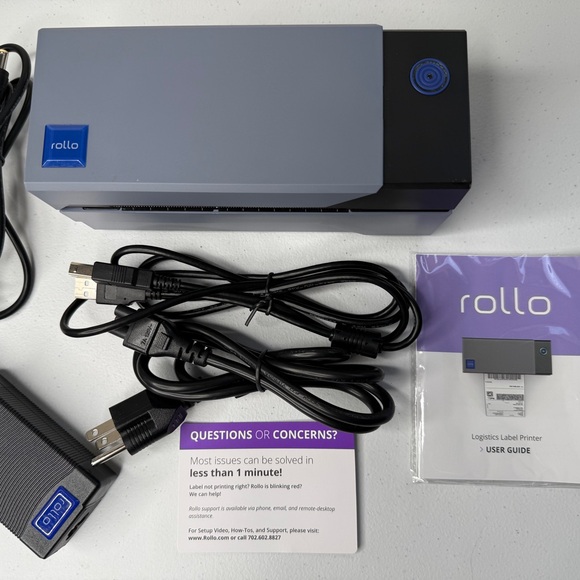
Credit: www.ebay.com
When To Seek Professional Help
Not every problem can be fixed at home. If you notice the following, it’s time to get help:
- The red light blinks even after trying all fixes
- The printer makes strange noises or smells burnt
- You see physical damage to the printer parts
- You need to print urgently and can’t risk further delays
You can reach out to Rollo’s official support or visit their support page for direct help.
Frequently Asked Questions
Why Does My Rollo Printer Blink Red After Every Print Job?
A common reason is improper label loading or dirty sensors. Make sure the labels are properly aligned and the sensor area is clean. If the problem repeats, try calibrating the printer.
How Do I Know If My Labels Are The Right Type For Rollo?
Check the label packaging for compatibility with the Rollo printer. Use “gap” type labels that match your printer’s specifications. Avoid off-brand labels with uneven gaps or poor adhesive.
Can A Bad Usb Cable Cause The Red Blinking Light?
Yes, a faulty or loose USB cable can interrupt communication and trigger errors. Try a different cable and USB port to rule this out.
Is There A Way To Reset My Rollo Printer To Fix The Blinking Red Light?
Most Rollo printers have a reset process. Usually, you hold the feed button while powering on, then release after the light blinks once. Check your user manual for exact steps.
What Should I Do If None Of The Fixes Work?
If you’ve tried all the solutions above with no luck, contact Rollo support or your seller. There could be a hardware problem that needs professional repair.
The Rollo printer blinking red light doesn’t have to stop your workflow. With the right steps, you can fix most issues quickly and get back to printing. Remember, regular cleaning and using the right labels can prevent most problems. If you follow these tips and still have trouble, don’t hesitate to ask for expert help. Your label printing should be fast, reliable, and stress-free.

Credit: sites.google.com