
A blue blinking light on your Cox modem can be confusing. You may wonder if your internet is working, or if something is wrong. Many people see this light and feel worried, especially if their connection is slow or not working at all.
Understanding what the blue blinking light means, and how to fix it, can save you time and stress. This article will help you know what causes the blue blinking light, what steps you can take, and how to prevent future problems.
You will also learn about common mistakes and get answers to the most frequent questions.
What Does The Blue Blinking Light Mean?
The blue blinking light on a Cox modem is not just decoration. It tells you about the modem’s status. Most Cox modems use colored lights to show their connection state. The blue blinking light is important because it signals one main thing: your modem is trying to connect to the internet.
When your modem is working properly, the lights usually turn solid green or solid blue. But if the blue light keeps blinking, your modem is searching for a signal. This means it is not fully online yet.
Main Causes Of The Blue Blinking Light
- Internet outage: Sometimes Cox is doing maintenance or there is a problem in your area.
- Loose cables: If the cables are not plugged in tightly, the modem cannot connect.
- Modem update: Your modem may be updating its software, which takes several minutes.
- Signal issues: Low signal from the wall jack or splitter can cause this problem.
- Hardware fault: Rare, but the modem might have a defect.
Understanding these reasons helps you decide what to do next. Not every blinking light needs a technician. Often, simple steps can solve the issue.
How Cox Modem Lights Work
Cox modems use several lights to show their status. Knowing what each color and pattern means will help you understand if your modem is working or not.
| Light Color | Pattern | Meaning |
|---|---|---|
| Green | Solid | Connected |
| Blue | Blinking | Searching for connection |
| Blue | Solid | High-speed connection |
| Red | Solid or blinking | Error or no connection |
| White | Blinking | Startup/booting |
A solid blue light often means your modem is using a high-speed connection, called “DOCSIS 3.1”. If you see a blue blinking light, it means the modem is not finished connecting.

Credit: www.wikihow.com
Step-by-step Troubleshooting Guide
Fixing the blue blinking light is usually easy. You can try several steps before calling Cox support. Here is a clear process:
1. Check For Cox Service Outages
First, check if Cox is having problems in your area. Go to the Cox website or use their app to see outage alerts. If there is an outage, you must wait until Cox fixes it. No action at home will solve the problem.
2. Inspect All Cables
Look at the cables connecting your modem to the wall and to your router. Make sure they are tight and not damaged. Sometimes, pets chew cables or they get pulled loose. Even a small disconnect can cause the blue blinking light.
- Unplug each cable and plug it back in.
- Look for bends, cuts, or frayed wires.
3. Restart Your Modem
Restarting is simple but powerful. It fixes many common problems. To restart:
- Unplug the modem from power.
- Wait 30 seconds.
- Plug it back in.
- Wait for the lights to stabilize.
Restarting gives the modem a fresh start and often solves temporary issues.
4. Remove Splitters
A splitter divides the signal between TV and internet. Splitters can weaken the signal. If you use one, remove it and connect the modem directly to the wall. Wait a few minutes to see if the blue blinking light turns solid.
5. Check Wall Outlet
Sometimes the wall jack is damaged or old. Try connecting your modem to another outlet if you have one. This helps you know if the original outlet is the problem.
6. Factory Reset (last Resort)
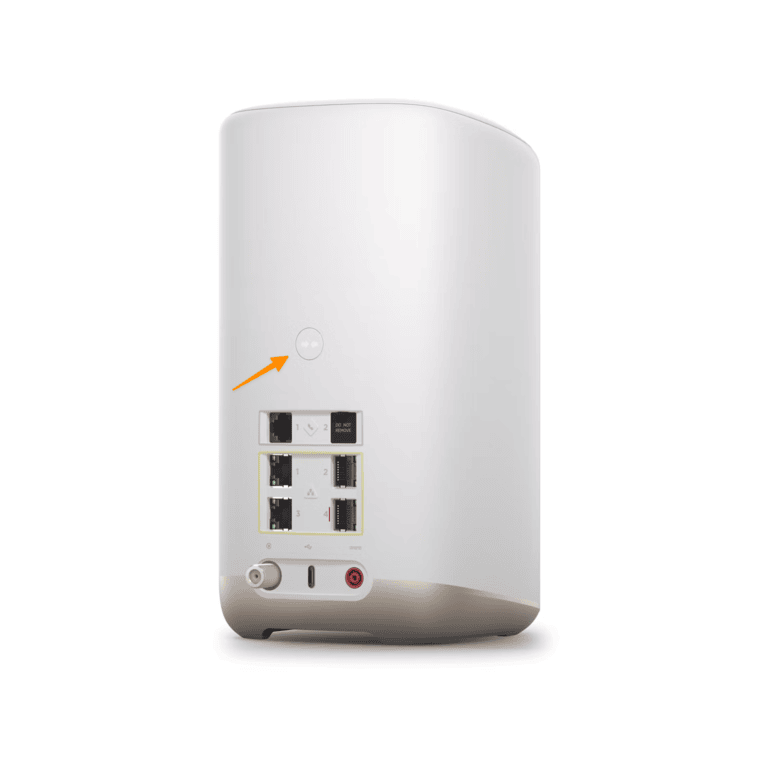
If none of the above steps work, try a factory reset. There is a small button on the back of most Cox modems. Use a paperclip to press it for 10 seconds. This will erase your settings and restart the modem.
Warning: Factory reset removes custom settings like Wi-Fi name and password.
When To Contact Cox Support
Some issues cannot be fixed at home. If the blue blinking light stays on after trying all steps, call Cox support. They can check your modem remotely and send a technician if needed. Support is also useful if you see other strange lights or error messages.
Modem Firmware Updates
Cox regularly updates the firmware on their modems. Firmware is the software inside the modem. When an update happens, the modem may blink blue for several minutes. This is normal. Do not unplug the modem during an update.
How Long Does A Firmware Update Take?
Usually, it takes 5–10 minutes. Sometimes, larger updates can last up to 30 minutes. If the blue blinking light stays on for more than 30 minutes, something may be wrong.
Modem Models And Differences
Different Cox modems have slightly different light patterns. Knowing your model helps you understand its signals.
| Modem Model | Blue Light Meaning | Special Features |
|---|---|---|
| Arris TG1682 | Blinking = searching; Solid = high-speed | Wi-Fi built-in |
| Technicolor CGM4141 | Blinking = connecting; Solid = ready | DOCSIS 3.1, Wi-Fi |
| Netgear CM1000 | Blinking = booting; Solid = online | Gigabit speeds |
| Motorola MB8600 | Blinking = update; Solid = connected | Multiple ports |
Always check your modem’s manual for exact light meanings. Most manuals are available on the Cox website.
Common Mistakes When Fixing The Blue Blinking Light
Beginners often make mistakes when they try to fix modem problems. Avoid these to save time and prevent damage.
Mistake 1: Unplugging During Firmware Update
If you unplug your modem while it is updating, you can damage the software. Always wait until lights turn solid before restarting.
Mistake 2: Ignoring Splitters
Many people leave splitters in place. Splitters can weaken the signal and cause connection issues. Try removing them if you see a blue blinking light.
Mistake 3: Skipping Cable Checks
Loose or damaged cables are a top cause of connection problems. Always check cables first.
Mistake 4: Factory Reset Too Soon
Do not use the factory reset unless you have tried all other steps. Resetting erases all settings and can make setup harder.
Signal Strength And Its Role
Your modem needs a strong signal to connect. Weak signals cause blinking lights and slow internet. Signal strength depends on cable quality, distance, and splitters.
Measuring Signal Strength
Most modems let you check signal strength in their settings page. You can access this by typing the modem’s IP address (often 192. 168. 100. 1) into a browser.
Look for values called “Downstream Power” and “SNR” (Signal-to-Noise Ratio).
- Downstream Power: Should be between -7 dBmV and +7 dBmV
- SNR: Should be above 33 dB
If your values are outside these ranges, your signal is weak.
Docsis Technology And Blue Lights
DOCSIS is the technology used by cable modems. There are several versions:
- DOCSIS 3.0: Older, slower, uses green lights for connection.
- DOCSIS 3.1: Newer, faster, uses blue lights for high-speed connection.
If your modem supports DOCSIS 3.1, a solid blue light means you are getting the best speed.
| DOCSIS Version | Max Download Speed | Light Color |
|---|---|---|
| DOCSIS 3.0 | 1 Gbps | Green |
| DOCSIS 3.1 | 10 Gbps | Blue |
Upgrading to a newer modem can improve speed and reduce blinking light problems.
Preventing Blue Blinking Light Issues
You can prevent future problems by following simple tips:
- Use quality cables: Cheap or old cables weaken the signal.
- Avoid splitters: Connect modem directly to wall if possible.
- Keep modem updated: Allow automatic firmware updates.
- Place modem in open area: Avoid tight spaces or heat.
- Check for outages regularly: Use Cox app for alerts.
These steps keep your modem running smoothly.
Real User Experiences
Many people share stories about their Cox modem showing a blue blinking light. In most cases, the issue was fixed by checking cables or restarting the modem. Some users found that their modem needed a software update, which took longer than expected.
One user in Phoenix reported a blue blinking light for two hours. After removing a splitter and restarting, the light turned solid and internet returned. Another family in San Diego found a loose cable behind their TV caused the issue.
After tightening, everything worked.
These examples show that most problems are simple and can be fixed without a technician.
Advanced Troubleshooting
If basic steps do not work, try these advanced options:
- Check modem logs: Some modems record errors. Access logs through the modem’s settings page.
- Update router firmware: Sometimes the router causes issues.
- Try a different modem: Borrow a modem from a friend to see if yours is faulty.
If none of these work, Cox support can run tests and may replace your modem.

Credit: www.youtube.com
Cox Modem Vs Third-party Modem
You can use either a Cox-provided modem or your own. Both options work, but there are differences.
Cox modems get automatic updates and support. Third-party modems may not get updates as often and may need manual setup.
Some users prefer third-party modems for better speed or features. But Cox only supports certain models. Check the Cox website for approved devices.
The Importance Of Firmware Updates
Keeping your modem’s firmware updated is key. Firmware updates fix bugs and improve security. Cox usually updates firmware automatically, but you can check manually in modem settings.
If you notice frequent blue blinking lights, ask Cox support if a firmware update is needed.
How To Identify A Hardware Fault
If your modem never connects, even after trying all steps, it may have a hardware fault. Signs of hardware faults:
- Modem feels hot
- Lights flicker randomly
- No lights at all
- Frequent resets needed
Hardware faults require replacement. Cox will send a new modem if needed.
Cox Support Resources
Cox offers several ways to get help:
- Phone support: Call Cox customer service.
- Chat support: Use Cox website for live chat.
- Cox app: The app gives outage alerts and troubleshooting tips.
- Official guides: Manuals and FAQs are on the Cox site.
For more technical details, visit Cox Internet Support.
Credit: datafeature.com
Frequently Asked Questions
Why Does My Cox Modem Have A Blue Blinking Light?
A blue blinking light usually means your modem is trying to connect to the internet. It is searching for a signal or waiting to finish a firmware update. If it stays blinking for more than 10–15 minutes, check cables and restart the modem.
Can I Fix The Blue Blinking Light Myself?
Yes, most problems are easy to fix. Check for outages, tighten cables, restart the modem, and remove splitters. Only call Cox support if the light stays blinking after these steps.
Does The Blue Blinking Light Mean My Internet Is Down?
Not always. Sometimes the modem is updating, or there is a signal issue. If you still have no internet after the light turns solid, check your router and device settings.
How Long Should The Blue Blinking Light Last?
Normally, the blue blinking light lasts a few minutes during startup or update. If it stays blinking for more than 15 minutes, something may be wrong. Try basic troubleshooting or contact Cox support.
Will Upgrading My Modem Fix Blue Blinking Light Problems?
Upgrading to a newer modem, especially one supporting DOCSIS 3. 1, can help. Newer modems connect faster and handle updates better. Always use approved models for the best results.
Conclusion
Getting a blue blinking light on your Cox modem can be stressful, but it is usually easy to fix. Most issues come from loose cables, splitters, or service outages. Knowing how to read your modem’s lights, and following simple troubleshooting steps, will help you get back online fast.
Regular maintenance and using quality equipment prevent most problems. If your modem still shows a blue blinking light after all steps, Cox support is ready to help. By understanding your modem, you take control of your internet and avoid frustration.