
Is your Nest Thermostat blinking green and you’re not sure why? Don’t worry—many people notice this flashing light and wonder if something is wrong. The Nest Thermostat is a smart device built for comfort and efficiency, but when it starts blinking in a color you don’t expect, it can be confusing.
In this guide, you’ll learn what the blinking green light means, how to troubleshoot it, and what steps to take if it won’t go away. You’ll also see useful tables and common questions answered, all in simple English.
What Does A Blinking Green Light Mean On Nest Thermostat?
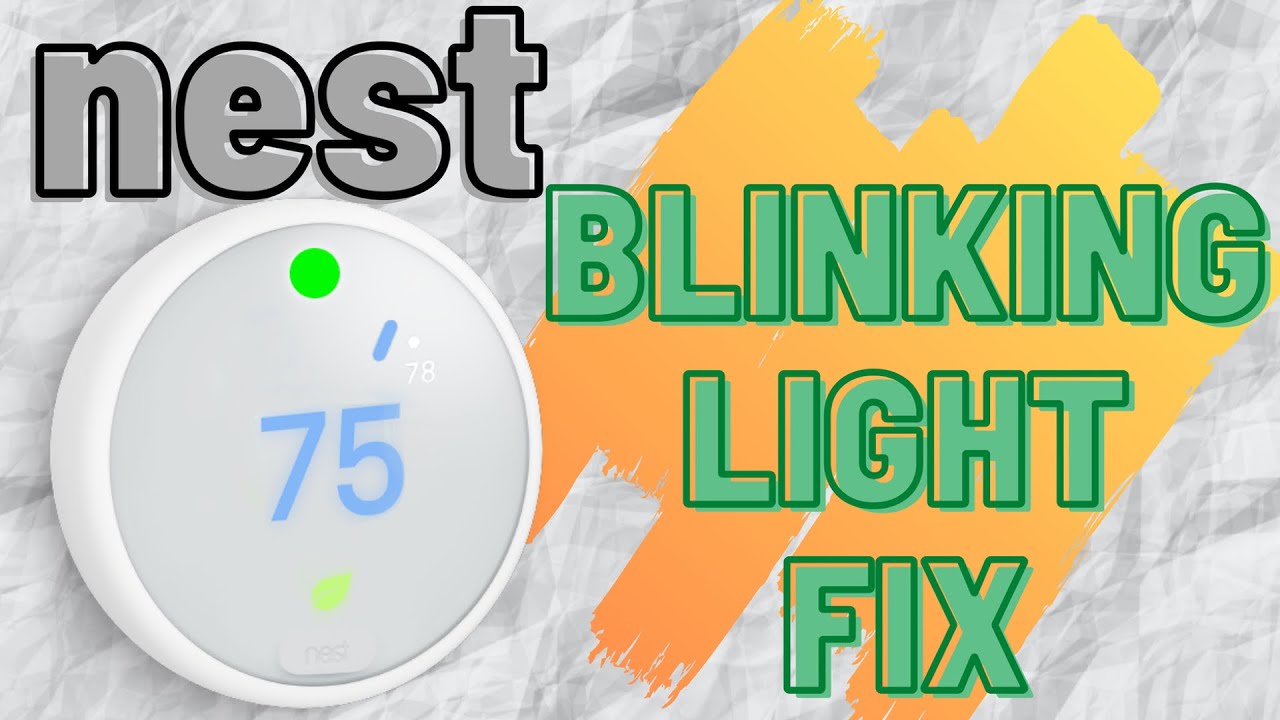
When you see a blinking green light on your Nest Thermostat, it usually means the device is updating its software or restarting. This is a normal part of how smart devices stay current and secure. The update process should finish within a few minutes. If everything works as expected, the green light will turn off and your thermostat will work as normal.
But sometimes, the green light keeps blinking or the thermostat becomes unresponsive. This can point to a different problem, like a frozen system, a failed update, or even a power issue. Understanding these causes helps you decide what to do next.
Common Causes Of A Blinking Green Light
- Automatic Software Update: The Nest is installing new features or security updates.
- Restarting After Power Loss: The device is rebooting due to a power cut or a reset.
- Frozen or Unresponsive Thermostat: The device has stopped responding during an update or restart.
- Wi-Fi Connection Issues: The thermostat can’t complete its update because it’s not connected to the internet.
- Hardware Faults: Rare, but possible if the device is older or damaged.
Knowing the reason helps you find the right fix and avoid unnecessary worry.
How Nest Thermostat Updates Work
Smart thermostats like the Nest are designed to update automatically. This keeps them safe from bugs and able to work with new smart home devices.
| Update Type | When It Happens | Average Duration |
|---|---|---|
| Minor Updates | Every few weeks | 1-3 minutes |
| Major Updates | 2-3 times per year | Up to 10 minutes |
| Emergency Fixes | As needed | Varies |
During an update, you should avoid removing the thermostat from its base or cutting power. Interrupting the update can cause software problems that are harder to fix.
What You’ll See During Updates
- Blinking green light (main sign)
- The screen might go dark or show a message like “Updating”
- No control over temperature until it finishes
In most cases, patience is all you need. But if the green light lasts more than 15 minutes, it’s time to check for problems.

Credit: www.youtube.com
Troubleshooting: What To Do If The Green Light Won’t Stop Blinking
If your Nest Thermostat keeps blinking green for more than 10–15 minutes, try these steps:
1. Wait A Little Longer
Sometimes, updates take more time—especially with slow internet or large updates. Give it up to 30 minutes before trying anything else.
2. Check Your Wi-fi Connection
A poor or lost Wi-Fi connection can stop updates. Make sure your router is on and working. You can check this by using your phone near the thermostat.
3. Gently Remove And Reattach The Display
Carefully pull the Nest display off its base, wait 10 seconds, and snap it back. This is like a soft reset and often fixes a stuck update.
4. Restart The Thermostat
To restart:
- Hold down the thermostat’s ring for about 10 seconds.
- Let go when the screen turns off.
- Wait for the device to power back on.
This should clear most software freezes.
5. Check For Power Issues
If your thermostat loses power during an update, it can freeze. Make sure the wires are firmly connected and your HVAC system is on. If you’re unsure, look for a small blinking red light (low battery sign) or check your circuit breakers.
6. Factory Reset (last Resort)
If nothing works, a factory reset will erase all settings but often solves stubborn problems. Only do this if the thermostat is still unresponsive after trying the above steps.
How To Factory Reset:
- Go to the thermostat’s Settings.
- Scroll to Reset.
- Choose All Settings.
You’ll need to set up your thermostat again after this.
Why The Blinking Green Light Sometimes Won’t Go Away
Most blinking green lights resolve quickly, but some cases are more stubborn. Here are two reasons beginners often miss:
- Low Battery: The Nest gets its power from HVAC wiring or a built-in battery. If your system doesn’t provide enough power, updates might freeze or fail to finish. This is more common in older homes or with incompatible wiring.
- Corrupt Update Files: If the internet connection drops during a download, the update file can get damaged. The thermostat may keep blinking as it tries to install a broken file.
In both cases, restarting the device or checking your wiring usually helps. If not, you might need help from Nest support.

Credit: www.reddit.com
How To Prevent Future Blinking Green Issues
You can avoid most green light problems with a few good habits:
- Keep Your Wi-Fi Strong: Make sure your router is close enough and not overloaded.
- Don’t Cut Power During Updates: Never turn off the HVAC or remove the thermostat when it’s updating.
- Check HVAC Compatibility: If you have ongoing power issues, your wiring may need an upgrade. Some users need a C-wire adapter for stable power.
- Update Your App: The Nest app on your phone should also be up to date for the best connection.
| Preventive Action | Benefit |
|---|---|
| Strong Wi-Fi | Fewer update failures |
| Stable Power Supply | Prevents device freezes |
| Regular App Updates | Better device control |
| HVAC System Checks | Long-term thermostat health |
These steps take only a few minutes but can save you hours of troubleshooting later.
When To Call For Professional Help
Most blinking green light problems can be fixed at home, but sometimes you need an expert. Call for help if:
- The green light blinks for over an hour and the device is totally unresponsive.
- You notice a blinking red light (shows battery or power trouble).
- The thermostat feels hot or smells like burnt plastic.
- You’re not comfortable checking wires or restarting the device.
A professional HVAC technician or Nest support can quickly spot wiring or hardware issues. If your device is still under warranty, repairs may be free or discounted.
Example Scenarios: Real User Experiences
Let’s look at two real-world cases to show how the blinking green light can show up.
Example 1: Quick Update
Maria noticed her Nest Thermostat flashing green while she was making coffee. She left it alone for 5 minutes, and the light turned off. The thermostat started working as normal. In this case, the green light was just a sign of a quick software update.
Example 2: Power Problem
Jake’s green light kept blinking for 30 minutes. He checked his furnace and found a tripped breaker. After turning the breaker back on and restarting the thermostat, the green light disappeared. His device needed a steady power supply to finish the update.
These stories show that sometimes patience is enough, and sometimes a small check of your system can save the day.
Advanced Tips For Troubleshooting
Some fixes aren’t obvious to beginners, but they can make a big difference:
- Use the Nest App: The app may show update progress or error messages, even if the thermostat screen is blank.
- Check Device History: In the app, look for device history. If you see “Update failed,” you may need to reconnect Wi-Fi or restart.
- Switch to 2.4GHz Wi-Fi: Some Nest devices work better on a 2.4GHz connection instead of 5GHz. Changing this in your router settings can improve update reliability.
- Update Router Firmware: Old router software can cause connection drops. Keeping it updated helps all your smart devices.
If you’re interested in more advanced support, the official Nest support page at Google Nest Help is a good resource.
Comparison: Nest Thermostat Vs. Other Smart Thermostats
How does the Nest handle updates compared to other brands? Here’s a quick look:
| Brand | Update Signal | User Control | Typical Duration |
|---|---|---|---|
| Nest | Blinking green light | Automatic only | 1–10 minutes |
| ecobee | On-screen message | Can schedule updates | 1–5 minutes |
| Honeywell | Blinking amber or screen icon | Partial user control | 1–8 minutes |
The Nest is simple but gives less control over timing. This means updates can sometimes surprise you, but the process is designed for safety and ease.
Frequently Asked Questions
Why Is My Nest Thermostat Blinking Green For A Long Time?
A long-blinking green light usually means the device is stuck updating or restarting. It could be due to Wi-Fi issues, power interruptions, or a software glitch. Try restarting the device or checking your power and Wi-Fi connections.
Can I Use My Thermostat While The Green Light Is Blinking?
No, you can’t control the temperature or change settings while the blinking green light is active. Wait for the light to stop before using the thermostat again.
Will I Lose My Settings If I Restart The Thermostat?
A simple restart won’t erase your settings. But a factory reset will delete all your customizations, so only use that if other fixes don’t work.
Is The Blinking Green Light Dangerous?
The green light itself is not dangerous. It’s just a sign of an update or restart. However, if you see smoke, smell burning, or the device is hot, turn off power and call for help.
How Do I Know If My Nest Needs A C-wire?
If your Nest often loses power or shows a low battery warning, you may need a C-wire. This wire gives steady power and is often needed in older homes. Check your wiring or ask a professional if you’re unsure.
When your Nest Thermostat blinks green, it’s almost always a normal sign of updating or restarting. With a little patience and a few simple checks, you can fix most issues yourself. Remember, strong Wi-Fi, stable power, and up-to-date apps make your smart thermostat run smoothly. If you ever feel stuck, don’t hesitate to get help from a professional or visit the official Nest Help page. Smart homes are meant to make life easier—and with the right steps, your Nest will keep you comfortable for years to come.
Credit: www.youtube.com