
If you see a Cox router blinking red, you probably feel frustrated and confused. You expect your internet to work smoothly, but a red light means there’s a problem. Many people search for quick answers, but they often find complex explanations or confusing advice. This article will help you understand why your Cox router shows a blinking red light, what it means, and how you can fix it. You’ll learn the causes, step-by-step solutions, and practical tips to prevent the issue. Whether you are a beginner or have some tech experience, you’ll find clear guidance here.
Understanding The Cox Router Blinking Red Light
Routers use colored lights to show their status. For Cox routers, a blinking red light is a warning sign. It usually means the device cannot connect to the internet, or there is a problem with the connection.
What Does The Red Light Mean?
A blinking red light does not always mean your router is broken. It can signal:
- No internet connection
- Connection interrupted
- Hardware failure
- Firmware update problems
Some routers blink red briefly during setup, but if the light stays red, it’s a sign you need to investigate.
Types Of Red Light Signals
Not all red lights mean the same thing. Here’s a quick guide:
| Light Pattern | Meaning | Action Needed |
|---|---|---|
| Blinking red | Connection lost or interrupted | Check cables, restart router |
| Solid red | Critical error or hardware failure | Contact Cox support |
| Blinking red and green | Firmware updating | Wait until update finishes |
Beginners often miss the difference between blinking and solid red. Solid red is more serious and needs urgent action.
Main Causes Of Cox Router Blinking Red
Understanding the reasons behind the blinking red light helps you fix it faster. Here are the most common causes:
1. Internet Outage
Sometimes, the problem is not your router. Cox may have an outage in your area. When this happens, the router cannot connect to the internet, and the red light blinks.
2. Loose Or Damaged Cables
Routers depend on cables to connect to your modem and the wall outlet. If cables are loose, unplugged, or damaged, the connection fails.
3. Incorrect Configuration
If you set up your router incorrectly, it may not communicate with the Cox network. Wrong settings can trigger the blinking red light.
4. Modem Issues
Your modem connects your home to the internet. If the modem is offline or malfunctioning, your router cannot work properly.
5. Firmware Problems
Routers need software updates to stay secure and function well. If a firmware update fails, the router may blink red until it is fixed.
6. Overheating
Routers generate heat. If they overheat, they can malfunction. The blinking red light can be an early warning sign.
7. Service Suspension
If your Cox account is suspended due to unpaid bills or other reasons, your router will not connect.
8. Hardware Failure
Rarely, a router may have a hardware defect. This can cause the blinking red light even if everything else is correct.
Step-by-step Solutions For Cox Router Blinking Red
Now, let’s look at practical steps to solve the problem. These steps are easy for beginners and effective for more advanced users.
1. Check For Cox Service Outages
Before touching your router, check if Cox is experiencing an outage. Visit the official Cox website or use their app. If there’s an outage, you must wait until the service is restored.
2. Inspect Cables And Connections
Unplug your router and modem. Check every cable:
- Make sure cables are plugged in tightly
- Look for visible damage or fraying
- Replace damaged cables
Reconnect everything and see if the red light stops blinking.
3. Restart Your Router And Modem
A simple restart can solve many problems:
- Unplug your router and modem from the power outlet.
- Wait for at least 30 seconds.
- Plug the modem back in first.
- Wait for all lights to stabilize.
- Plug in the router.
This sequence helps your devices reconnect and refresh their settings.
4. Reset Your Router
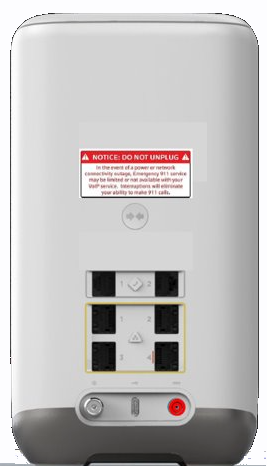
If restarting does not help, try a reset. Find the reset button on the back of your router. Press and hold it for 10 seconds. This will restore factory settings. Remember, you may need to re-enter your Wi-Fi password and settings.
5. Check Your Cox Account Status
Log into your Cox account. Make sure your bills are paid and your service is active. If your account is suspended, pay any overdue bills and wait for Cox to restore service.
6. Update Router Firmware
If the router’s firmware is outdated, you may need to update it:
- Log in to your router’s admin page (usually 192.168.0.1 or 192.168.1.1)
- Check for firmware updates
- Follow instructions to update
Do not turn off your router during the update. If you do, it may cause more problems.
7. Cool Down Your Router
If your router feels hot, turn it off and let it cool for 10-15 minutes. Place it in a well-ventilated area. Avoid putting it inside cabinets or near heat sources.
8. Contact Cox Support
If none of the above steps work, call Cox support. They can check your line, help with configuration, or replace faulty equipment.
Preventing Cox Router Blinking Red Issues
Fixing your router is good, but preventing problems is even better. Here are some tips to keep your router healthy and avoid the blinking red light.
Use Quality Cables
Cheap or old cables can cause connection issues. Use quality, shielded cables for your router and modem.
Keep Router Firmware Updated
Set your router to update automatically or check for updates monthly. This keeps your device secure and functional.
Place Router In A Good Location
Keep your router in a cool, open area. Avoid stacking devices or putting them in closed cabinets.
Regularly Restart Devices
Restart your router and modem once a month. This helps prevent software glitches.
Monitor Your Cox Account
Stay up to date with payments and account status. Set reminders for bills to avoid service interruption.
Protect From Power Surges
Use a surge protector to prevent damage from electrical spikes.
Credit: www.cox.com
Advanced Troubleshooting For Persistent Red Light
If your Cox router keeps blinking red even after basic fixes, you may need deeper troubleshooting.
Check Modem Compatibility
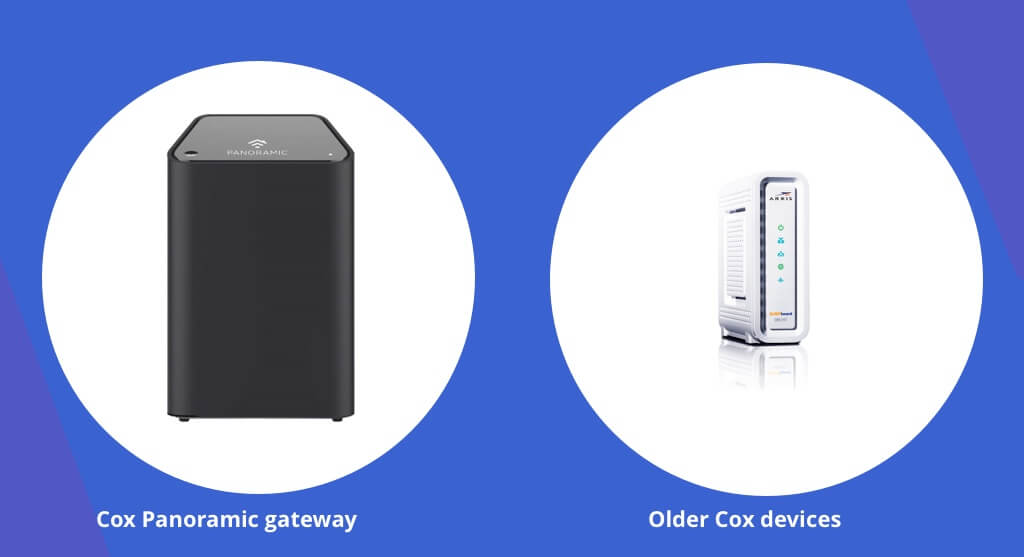
Not all modems work with Cox routers. Compare your modem model with Cox’s approved list.
| Modem Brand | Cox Approved | Maximum Speed |
|---|---|---|
| ARRIS SB6183 | Yes | 400 Mbps |
| Netgear CM500 | Yes | 300 Mbps |
| TP-Link TC-7610 | No | 150 Mbps |
If your modem is not on the approved list, it may cause connection issues.
Test With Another Router
Borrow or buy a second router. Connect it to your modem. If the new router works, your original router is likely defective.
Check For Network Interference
Electronics and Wi-Fi networks can interfere with your router. Move your router away from microwaves, cordless phones, and Bluetooth devices.
Use Cox Diagnostic Tools
Cox offers online diagnostic tools. Log in to your Cox account and run tests to identify problems.
Examine Router Logs
Advanced users can check router logs for error messages. Log in to your router admin page and review logs for repeated errors.
Contact Technical Support
If all else fails, Cox technical support can perform remote diagnostics or send a technician to your home.
Common Mistakes When Fixing Cox Router Blinking Red
Many people try to fix their router but make mistakes that cause more problems.
- Unplugging the router during a firmware update: This can permanently damage the device.
- Ignoring cable quality: Old or damaged cables cause frequent outages.
- Resetting too often: Factory resets erase settings and can cause confusion.
- Using incompatible modems: Always check compatibility before buying.
- Skipping account checks: Unpaid bills can cause outages, but many users overlook this.
Beginners often forget that some problems come from the Cox network, not their own equipment.

Credit: wi-fiplanet.com
When To Replace Your Cox Router
Routers do not last forever. Here’s when you should consider replacing yours:
- After 3–5 years of use
- If the red light blinks frequently, despite troubleshooting
- When firmware updates no longer solve problems
- If your device overheats regularly
- When Cox support recommends replacement
Modern routers offer better speed, security, and reliability. If you have an old router, upgrading can solve many issues.
Choosing The Right Replacement Router
When buying a new router for Cox, consider:
| Feature | Why It Matters | Common Mistake |
|---|---|---|
| Speed Rating | Matches your internet plan | Buying too slow for your needs |
| Wi-Fi Standard | Newer standards (Wi-Fi 6) are faster | Buying older Wi-Fi 4/5 devices |
| Compatibility | Works with Cox network | Choosing unsupported models |
| Security Features | Protects your network | Ignoring security settings |
Avoid buying based only on price or appearance. Check reviews and compatibility.
How To Set Up A New Cox Router
Setting up your new router correctly prevents the blinking red light.
- Connect cables: Plug in the power, Ethernet, and coaxial cables.
- Power on the modem: Wait for lights to stabilize.
- Power on the router: Wait for the router lights.
- Log in to router admin page: Usually 192.168.0.1. Set your Wi-Fi name and password.
- Update firmware: Check for updates immediately.
- Test your connection: Browse the internet to confirm everything works.
If you see a blinking red light, double-check your connections and settings.
Credit: www.connectcalifornia.com
Non-obvious Insights Beginners Miss
- Router placement matters more than you think: Keeping your router away from metal objects and high-traffic areas reduces interference and improves stability.
- Account status is a frequent cause: Many users spend hours troubleshooting, only to discover their Cox account was suspended.
- Cable quality affects speed and reliability: Upgrading to shielded, high-quality cables can solve persistent red light issues.
- Firmware updates often trigger temporary blinking: If your router blinks red during an update, do not panic—this is normal and usually resolves itself.
Real-world Example
Maria, a Cox user in Phoenix, noticed her router blinking red every morning. She tried restarting and resetting, but nothing worked. After checking her Cox account, she discovered an unpaid bill caused her service to be suspended. Once she paid, the red light disappeared.
This shows that sometimes the solution is not technical, but administrative.
Where To Find More Help
If you need more information, Cox has detailed guides and support pages. You can also visit Cox Support for official troubleshooting steps.
Frequently Asked Questions
What Should I Do First If My Cox Router Is Blinking Red?
Always check for Cox service outages before troubleshooting your equipment. Visit the Cox website or use their app to see if there is an outage in your area.
Is A Blinking Red Light Always A Hardware Problem?
No, a blinking red light can signal many issues, including service interruption, configuration errors, or even a firmware update. Hardware failure is less common.
How Long Should I Wait After Restarting My Router?
Wait at least 2–3 minutes after restarting your router and modem for all lights to stabilize. Some routers may take longer, especially after a firmware update.
Can A Bad Cable Cause The Red Light To Blink?
Yes, damaged or loose cables are a frequent cause of connection problems and blinking red lights. Always check and replace any faulty cables.
Should I Reset My Router If Nothing Else Works?
Try restart and cable checks first. Only reset your router if you have tried other steps and the problem persists. Remember, resetting erases your settings.
Conclusion
A blinking red light on your Cox router can be stressful, but most problems are easy to fix. By understanding the causes, using step-by-step solutions, and knowing when to ask for help, you can get your internet working again quickly.
Remember to check your account status, use quality cables, and keep your router updated. If you still see the red light, Cox support is ready to help. With these tips, you can stay connected and avoid future problems.