
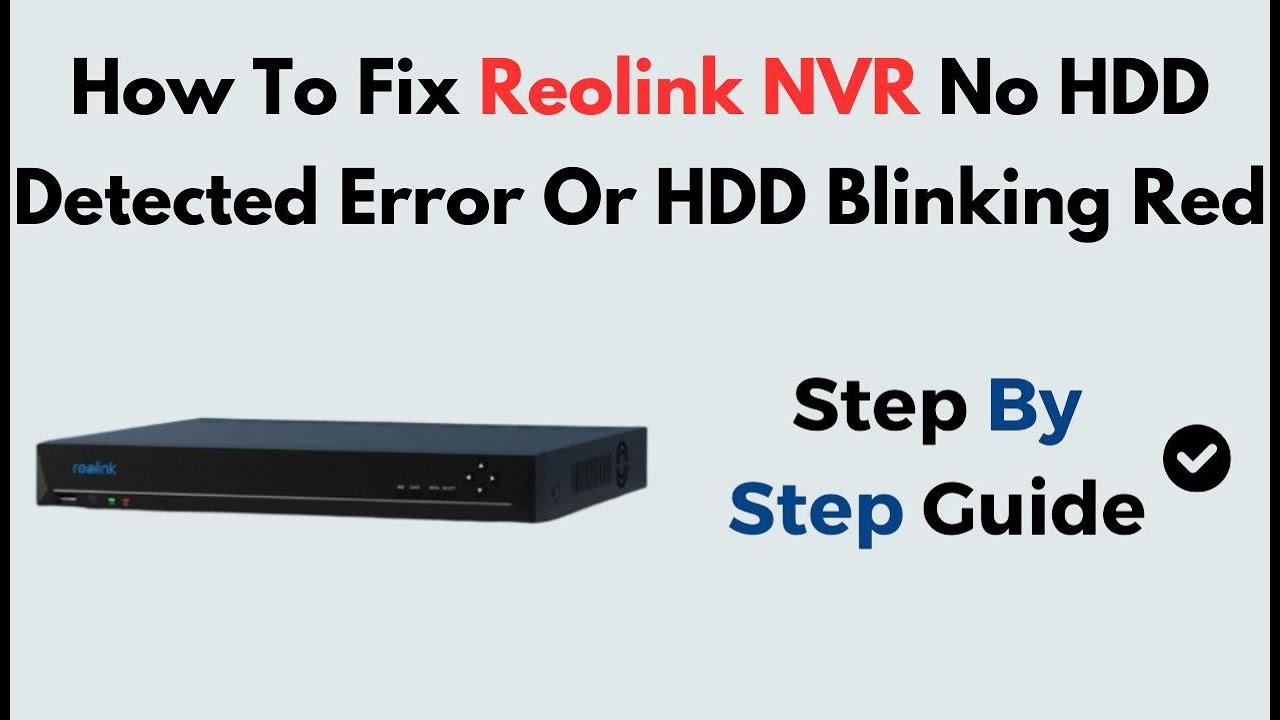
A blinking red HDD light on your Reolink security system can cause worry, especially when you rely on your cameras to protect your home or business. What does this signal really mean? Is your data at risk? And how can you fix the problem quickly, without losing important footage? In this guide, you’ll find clear explanations, practical solutions, and expert advice on dealing with the Reolink HDD light blinking red. If you’re not a tech expert, don’t worry—every step is explained in simple, easy-to-follow language.
What Does The Reolink Hdd Light Blinking Red Mean?
The HDD light on a Reolink NVR or camera system is a tiny LED that gives you direct feedback on the health and status of your hard drive. Normally, you’ll see this light:
- Solid green or blue: Everything is working fine.
- Blinking red: There’s a problem with the hard drive.
- Off: No hard drive detected, or the system is off.
When you see the HDD light blinking red, it signals an error. This could mean:
- The hard drive is not recognized.
- There’s a hardware failure.
- The drive is full and cannot record more video.
- The system is trying to repair disk errors.
Ignoring the blinking red light can lead to lost footage or system failure. It’s important to act quickly.
Common Causes Of Hdd Light Blinking Red On Reolink
Understanding the cause will help you solve the problem faster. Here are the most frequent reasons:
1. Hard Drive Not Installed Or Disconnected
If you recently moved your Reolink NVR or opened the case, the hard drive cable might be loose. Sometimes, the drive was never installed.
2. Hard Drive Failure
Over time, all hard drives wear out. Reolink NVRs use standard SATA drives, which can fail after a few years, especially if the system runs 24/7.
3. Hard Drive Full
A full hard drive can make the system blink red. While most Reolink NVRs are set to overwrite old footage, misconfigured settings or a locked drive can prevent this.
4. File System Errors
A sudden power loss, improper shutdown, or firmware bug can corrupt the hard drive file system. This stops the NVR from reading or writing data.
5. Incompatible Hard Drive
Not all hard drives are made for surveillance. Using a non-surveillance or non-SATA drive may cause errors.
6. Power Supply Problems
A weak or failing power adapter may not supply enough power for the hard drive, leading to read/write errors.

Credit: www.reddit.com
How To Diagnose The Problem
Before you can fix the blinking red light, you need to find the cause. Here’s a step-by-step approach:
Step 1: Check The System Menu
Use the NVR’s connected monitor and mouse, or the Reolink app, to open the storage settings. Look for messages like:
- “No HDD detected”
- “HDD error”
- “HDD full”
Step 2: Listen For Drive Noises
A healthy hard drive makes a quiet spinning sound. Clicking, beeping, or silence can mean a failed drive.
Step 3: Check The Connections
Turn off the NVR. Open the case and make sure both the SATA data and power cables are tightly connected to the hard drive.
Step 4: Test With A New Drive
If possible, swap in a known-good hard drive. If the red light stops blinking, your original drive is likely bad.
Step 5: Look For Power Issues
If the NVR randomly reboots or other lights blink, test with a new power adapter.
Solutions To Fix Reolink Hdd Light Blinking Red
Once you know the cause, use these fixes. Always back up important footage before making changes if possible.
Reconnect Or Install The Hard Drive
- Turn off and unplug the NVR.
- Remove the top cover.
- Reseat both the SATA data and power cables to the hard drive.
- Reassemble and restart the system.
Replace The Hard Drive
If the drive is old, noisy, or not detected after reconnecting, replace it with a new surveillance-rated SATA hard drive. Popular brands include Seagate SkyHawk and Western Digital Purple.
Format The Hard Drive
If the system detects the drive but shows errors, try formatting:
- Go to the NVR’s storage settings.
- Select the hard drive.
- Choose “Format” (this will erase all data).
- Confirm and wait for the process to finish.
Enable Overwrite Mode
If the drive is full:
- Open storage settings.
- Find the “Overwrite” option.
- Enable it so the system automatically deletes old footage to make room for new.
Update Firmware
Older firmware can cause compatibility and disk errors. Always use official firmware from the Reolink website.
- Download the latest firmware.
- Update using the NVR’s menu or via USB.
Use A Compatible Power Adapter
If you suspect power issues, use the adapter that came with your NVR or a replacement with the same voltage and current rating.
Credit: www.youtube.com
Choosing The Right Hard Drive For Reolink Nvr
Many users choose the wrong drive, leading to errors. Here’s what matters:
| Hard Drive Type | Works with Reolink NVR? | Expected Lifespan (24/7 use) |
|---|---|---|
| Desktop HDD | No (not recommended) | 1-2 years |
| Surveillance HDD | Yes (best choice) | 3-5 years |
| SSD | Sometimes (check NVR support) | 3+ years |
Surveillance drives are built for continuous writing and high temperatures. Avoid using standard desktop drives—they may fail early and cause errors like the red blinking light.
Tips To Prevent Hdd Light Issues In The Future
- Use only surveillance-rated drives.
- Keep the NVR in a cool, dust-free place.
- Use a UPS (uninterruptible power supply) to protect against power loss.
- Update firmware twice a year.
- Check drive status monthly via the storage menu.
- Set overwrite mode so you never run out of space.
Understanding Reolink Hdd Light Patterns
Sometimes, the HDD light can blink in different ways. Knowing what each pattern means can help you diagnose issues faster.
| Light Pattern | Meaning | Action Needed |
|---|---|---|
| Solid green/blue | Drive working normally | None |
| Blinking red | Error or full drive | Check drive and settings |
| Off | No drive detected | Install or reconnect drive |
| Rapid blinking | Drive initializing | Wait, then check again |
A common mistake is confusing rapid blinking (normal during startup) with slow, regular blinking (error). If the red light keeps blinking after 2–3 minutes, it’s time to troubleshoot.
Real-world Example: Solving A Persistent Blinking Red Light
Maria installed a Reolink NVR with a 2TB desktop hard drive she had at home. After six months, the HDD light started blinking red. She tried formatting the drive, but the issue came back. After reading the manual, she learned that desktop drives are not made for surveillance workloads. Maria replaced the drive with a Seagate SkyHawk 2TB, and the problem disappeared.
Non-obvious insight: Using the wrong type of hard drive can cause repeated errors—even if the drive is new. Always check compatibility before buying.
What If You Lose Footage Due To Hdd Errors?
If you see the red light blinking and can no longer access recordings, your footage may be at risk. Try these steps:
- Stop using the drive to avoid overwriting data.
- Remove the drive and connect it to a PC using a SATA-to-USB adapter.
- Use recovery tools like Recuva or Stellar Data Recovery.
- If the drive is physically damaged, contact a professional recovery service.
Insight for beginners: Data recovery is not always possible, especially if you continue to use a failing drive. Make regular backups of important footage if possible.
Comparing Reolink To Other Nvr Brands
How does Reolink handle hard drive errors compared to similar brands?
| Brand | HDD Error Notification | Supported Drives | User-Friendly Fixes |
|---|---|---|---|
| Reolink | Blinking red light, on-screen alerts | Surveillance SATA, some SSDs | Yes, simple menu |
| Hikvision | On-screen only | Surveillance SATA | Yes |
| Dahua | Beep sound, on-screen | Surveillance SATA | Yes |
| Amcrest | Blinking LED, on-screen | Surveillance SATA, some SSDs | Yes |
Reolink’s blinking red light is easy to spot, making it simple for users to notice issues quickly. The clear menu system also helps beginners solve problems with less stress.

Credit: www.youtube.com
When To Contact Reolink Support
If you’ve tried all the above steps and the red light keeps blinking, it may be time to get help from the official support team. Provide them with:
- Your NVR model and firmware version
- The hard drive brand and size
- Any error messages from the menu
- What troubleshooting steps you’ve tried
They can give advanced advice or arrange a warranty replacement if needed. For official resources, visit the Reolink Support Center.
Frequently Asked Questions
Why Is My Reolink Nvr Not Detecting The Hard Drive?
This usually means the SATA or power cable is loose, the hard drive is dead, or it’s incompatible. Try reconnecting cables, using a different drive, or checking the storage menu for errors.
Can I Use An Ssd In My Reolink Nvr?
Some Reolink NVRs support SSDs, but always check your model’s manual. SSDs run cooler and quieter, but are usually more expensive than regular surveillance HDDs.
How Long Should A Reolink Hard Drive Last?
A surveillance-rated hard drive should last 3–5 years with 24/7 use. Desktop drives may fail sooner. Replace the drive if you see frequent errors or hear unusual noises.
Does Formatting The Hard Drive Fix The Blinking Red Light?
Formatting can fix file system errors, but it won’t help if the drive is physically damaged. Back up important footage first, as formatting erases all data.
What Happens If I Ignore The Blinking Red Hdd Light?
You risk losing video recordings and may miss important events. The NVR may stop recording entirely. Always address HDD errors as soon as possible.
A blinking red HDD light on your Reolink NVR is a clear warning. With the right information and a calm approach, you can fix the problem quickly and avoid losing important footage. Remember to use the correct hard drive, keep your system updated, and make regular checks.
If you ever feel stuck, don’t hesitate to ask for help. Your security system will reward you with peace of mind and reliable protection.