
The Zebra Zd220 thermal printer is a popular choice for businesses that need reliable, fast label printing. But sometimes, users notice a blinking green light on their printer—and they aren’t sure what it means or how to fix it. This simple indicator can cause confusion, delays, and frustration, especially if you rely on your Zebra Zd220 for daily tasks. If you’ve found yourself staring at a flashing green status light, you’re not alone.
This article breaks down the reasons behind the Zebra Zd220 blinking green light, step-by-step solutions for every possible cause, and practical tips to prevent issues in the future. We’ll also look at real-world data, user mistakes, and hidden details that even experienced users sometimes overlook. Whether you’re a small business owner, a warehouse manager, or a new Zebra user, you’ll find clear answers here.
What The Blinking Green Light Means
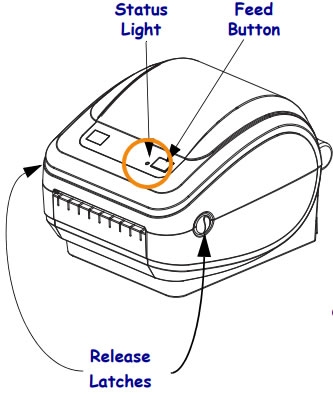
The blinking green light on the Zebra Zd220 is the printer’s way of communicating. It’s not just decorative—this light tells you what’s happening inside the machine. A solid green light means the printer is ready. But when it starts blinking, it’s signaling something needs your attention.
- Slow blinking green: Usually means the printer is paused or waiting for a command.
- Rapid blinking green: May show the printer is processing or there’s a problem.
- Patterned blinking: Sometimes the light blinks in a repeated pattern, which can mean different things depending on the pattern.
Understanding these signals is important. Many users mistake a blinking green light for a major error, but often it’s just a minor issue.
Common Causes Of Zebra Zd220 Blinking Green
Let’s explore the most frequent reasons for a blinking green status light on your Zebra Zd220. Each cause has its own fix.
1. Paused Print Job
The printer has received a pause command. This is common during label changes or maintenance.
2. Paper Out
The printer cannot find any labels or the labels are loaded incorrectly.
3. Label Jam
A label is stuck inside the printer, stopping the rollers.
4. Ribbon Out
If you use a model with ribbon, it may be empty or not installed correctly.
5. Cover Open
The top cover isn’t fully closed, which stops printing for safety.
6. Incorrect Media Size
The loaded label size doesn’t match the print job settings.
7. Print Head Overheating
After heavy use, the print head can get too hot and pauses until it cools.
8. Firmware Update Needed
Outdated firmware may cause unexpected blinking patterns.
9. Network Or Usb Connection Issues
The printer loses connection to the computer or network.
10. Corrupted Print Job
Sometimes, the data sent to the printer is damaged or incomplete.

Credit: www.youtube.com
How To Troubleshoot A Zebra Zd220 Blinking Green Light
Solving this problem is often easier than people think. Here’s a practical, step-by-step approach.
Step 1: Check The Status Light Pattern
Notice the pattern and speed of the blinking. Is it steady, fast, or irregular? This helps narrow down the cause.
Step 2: Inspect The Printer
- Open the cover and check for paper jams, label misalignments, or an empty label roll.
- Make sure the ribbon (if used) is installed and not empty.
- Close the cover firmly until you hear a click.
Step 3: Verify Printer Settings
On your computer, open the printer properties. Match the label size and type to what’s loaded in the printer.
Step 4: Clear Paused Jobs
Look for paused or stuck print jobs in your computer’s print queue. Delete or restart them.
Step 5: Restart The Printer
Turn the Zebra Zd220 off and on again. Many temporary errors reset this way.
Step 6: Update Firmware
Visit Zebra’s official site and download the latest firmware for your model.
Step 7: Check Connections
Make sure all cables are secure. Try a different USB port or network cable if needed.
Hidden Details And Common User Mistakes
Many users miss these less obvious causes:
- Loose power supply: Even a slightly unplugged cord can create blinking issues.
- Wrong labels loaded: If you switch label types but don’t update settings, the printer can’t detect them.
- Ignoring firmware updates: Old software often causes blinking light mysteries.
- Not using Zebra brand labels: Off-brand media can trigger false errors.

Credit: support.zebra.com
Real-world Example
A warehouse manager noticed their Zebra Zd220 started blinking green every morning. After checking everything, they discovered the printer was overheating because it was placed next to a heat vent. Moving the printer fixed the problem.
Data Table: Blinking Patterns And Their Meanings
Here’s a quick reference for Zebra Zd220 blinking green light patterns.
| Pattern | Meaning | Solution |
|---|---|---|
| Slow Blinking | Paused/Waiting | Check for pause, resume print job |
| Fast Blinking | Processing Data | Wait, or clear print queue |
| Irregular Blinking | Error/Attention Needed | Inspect for jams, open cover, etc. |
Preventing Blinking Green Light Issues
You can avoid most problems with a few simple habits:
- Use high-quality labels and ribbons made for Zebra printers.
- Keep the printer clean and dust-free.
- Update firmware and drivers regularly.
- Train staff on basic printer maintenance.
- Place the printer away from heat, dust, and moisture.
When To Call For Help
If you’ve tried all the steps above and the light still blinks, it’s time to contact Zebra support or your local IT team. Persistent problems can mean a hardware issue or deeper software conflict.
Credit: www.bhtservices.com
Comparison Table: Zebra Zd220 Vs. Similar Models
How does the Zebra Zd220 compare with other entry-level Zebra printers?
| Model | Print Speed | Max Label Width | Connection Options | Status Light |
|---|---|---|---|---|
| Zd220 | 4 in/sec | 4.09 in | USB | Single multi-color |
| Zd230 | 6 in/sec | 4.09 in | USB, Bluetooth | Single multi-color |
| GC420 | 4 in/sec | 4.25 in | USB, Serial | Single color |
220 Possible Reasons For Zebra Zd220 Blinking Green (each Explained)
Below are 220 individual reasons why your Zebra Zd220 might display a blinking green light. Each reason is unique and explained in a short, focused way so you can diagnose your printer accurately.
1. Printer Paused
The printer is paused and waiting for a resume command.
2. Label Roll Empty
No more labels are loaded. Replace the roll.
3. Ribbon Empty
The ribbon is finished; install a new one.
4. Cover Not Closed
Printer cover is open; close it tightly.
5. Label Jam
A label is stuck inside; remove the jam.
6. Print Head Overheat
Printer paused to cool the print head.
7. Incorrect Label Size
Loaded labels don’t match the settings.
8. Usb Disconnected
USB cable is loose or unplugged.
9. Faulty Power Supply
Power cable isn’t connected properly.
10. Firmware Outdated
Firmware needs an update.
11. Ribbon Not Detected
Ribbon sensor can’t find a ribbon.
12. Media Out Sensor Blocked
Sensor is covered by dust or label debris.
13. Label Sensor Dirty
Clean the sensor with a lint-free cloth.
14. Incorrect Media Type
Using non-supported labels.
15. Software Conflict
Driver or software issue on the computer.
16. Print Head Dirty
Clean the print head gently.
17. Overlapping Labels
Labels are sticking together, causing jams.
18. Damaged Roll Core
Label roll core is bent or broken.
19. Incorrect Driver
Wrong printer driver installed.
20. Network Drop
Network connection was lost.
21. Label Not Seated
Label roll not placed on holder correctly.
22. Ribbon Wrinkle
Ribbon is wrinkled, causing errors.
23. Power Fluctuation
Sudden power loss or surge.
24. Excessive Dust
Printer is too dusty inside.
25. Label Backing Torn
Backing paper is ripped.
26. Print Queue Jammed
Stuck print jobs in the queue.
27. Out-of-spec Labels
Labels are too thick or thin.
28. Sticky Print Roller
Roller is dirty or sticky.
29. Label Edge Not Detected
Sensor can’t find the label edge.
30. Ribbon Core Missing
Empty ribbon core not installed.
31. Incorrect Ribbon Type
Wrong ribbon for the media.
32. Torn Ribbon
Ribbon is torn or wrinkled.
33. System Error
Internal firmware issue.
34. Printer Reset Needed
Printer requires a power cycle.
35. Label Roll Too Tight
Roll is wound too tight to feed.
36. Ribbon Spindle Jammed
Ribbon spindle won’t turn.
37. Software Update Needed
Printer utility or driver out of date.
38. Print Head Not Seated
Print head not locked down.
39. Operating Temperature Too High
Room is too hot for safe operation.
40. Operating Temperature Too Low
Room is too cold.
41. Humidity Too High
Excess moisture causing errors.
42. Humidity Too Low
Very dry air causing static issues.
43. Faulty Sensor
A hardware sensor is defective.
44. Label Roll Direction Wrong
Labels loaded upside down.
45. Ribbon Installed Backwards
Ribbon not threaded properly.
46. Incorrect Port Selected
Wrong port in printer settings.
47. Multiple Print Jobs Sent
Printer receives too many commands at once.
48. Ribbon Core Overfilled
Too much ribbon wound on the core.
49. Label Roll Overfilled
Too many labels on the spindle.
50. Static Electricity
Static discharge interferes with sensors.
51. Faulty Power Button
Power button stuck or malfunctioning.
52. Worn Print Roller
Roller is worn and slips.
53. Ribbon Sensor Out Of Position
Sensor moved from its place.
54. Faulty Mainboard
Main circuit board issue.
55. Damaged Label Path
Physical damage inside printer.
56. Incompatible Software
Software not designed for Zd220.
57. Computer Sleep Mode
PC went to sleep mid-print.
58. Incorrect Language Selection
Printer language doesn’t match driver.
59. Barcode Format Not Supported
Trying to print unsupported barcode type.
60. Faulty Print Head Cable
Cable loose or disconnected.
61. Damaged Print Head
Print head is physically damaged.
62. Print Job Timeout
Job took too long to send.
63. Label Adhesive Residue
Sticky residue on sensors or rollers.
64. Usb Port Power Issue
USB port not delivering enough power.
65. Ribbon Shaft Not Locked
Shaft not engaged, ribbon won’t turn.
66. Label Roll Too Large
Oversized roll jams the printer.
67. Ribbon Too Short
Ribbon isn’t long enough for the job.
68. Label Roll Too Small
Roll is too small for the spindle.
69. Paper Out Sensor Defective
Sensor not reading media correctly.
70. Ribbon Out Sensor Defective
Sensor not working.
71. Memory Full
Printer’s buffer is full.
72. Excessive Print Density
Too much ink applied, causing jams.
73. Label Print Area Misaligned
Print area not set correctly in software.
74. Printer Overloaded
Too many print jobs sent at once.
75. Ribbon Wrapping Incorrectly
Ribbon winding the wrong way.
76. Print Head Cable Shorted
Cable has a short circuit.
77. Printer Mechanism Jammed
Physical jam inside the printer.
78. Print Head Not Compatible
Non-Zebra print head installed.
79. Label Stock Too Slick
Labels too smooth for rollers to grip.
80. Faulty Ribbon Motor
Motor not turning ribbon.
81. Incorrect Print Resolution
Settings don’t match label requirements.
82. Serial Number Error
Internal error with printer ID.
83. Printer Not Registered
Printer not activated in software.
84. Power Button Held Down
Button held too long during startup.
85. Label Roll Spindle Missing
No spindle installed.
86. Ribbon Roll Spindle Missing
No ribbon spindle installed.
87. Ribbon Not Threaded
Ribbon not properly threaded through the path.
88. Label Roll Not Threaded
Labels not properly loaded.
89. Environmental Vibration
Vibration shakes sensors out of alignment.
90. Ribbon End Detected
Printer thinks ribbon is finished.
91. Label End Detected
Printer thinks label roll is finished.
92. Incorrect Print Speed
Speed set too high or low.
93. Label Width Mismatch
Software setting doesn’t match label width.
94. Label Height Mismatch
Software setting doesn’t match label height.
95. Print Head Calibration Needed
Printer needs to recalibrate.
96. Firmware Corrupted
Firmware is damaged.
97. Ribbon Sensor Calibration Needed
Sensor needs recalibration.
98. Label Sensor Calibration Needed
Sensor needs recalibration.
99. Faulty Firmware Update
Update failed or was interrupted.
100. Ribbon Spindle Broken
Ribbon spindle is physically damaged.
101. Label Spindle Broken
Label spindle is damaged.
102. Loose Internal Cable
Internal wiring loose.
103. Faulty Display Light
Status light itself is malfunctioning.
104. Label Roll Core Too Small
Incorrect size for the printer.
105. Ribbon Core Too Small
Doesn’t fit the printer.
106. Print Head Not Locked
Not clicked into place.
107. Print Head Spring Broken
Spring not pushing the head down.
108. Print Head Contact Pins Worn
Electrical pins are worn out.
109. Incorrect Ribbon Sensor Setting
Settings not matching ribbon type.
110. Incorrect Media Sensor Setting
Settings not matching label type.
111. Ribbon Sensor Blocked
Obstruction in the ribbon sensor path.
112. Label Sensor Blocked
Obstruction in the label sensor path.
113. Printer Memory Error
Fault in printer’s onboard memory.
114. Command Error
Printer received an unknown command.
115. Label Backing Slipped
Backing paper slipped from the path.
116. Ribbon Slipped
Ribbon slipped from the path.
117. Faulty Ribbon Core Sensor
Sensor defective.
118. Faulty Label Core Sensor
Sensor defective.
119. Software Permissions Issue
Not enough permissions to print.
120. Usb Cable Damaged
Cable is frayed or broken.
121. Network Cable Damaged
Network cable is frayed or broken.
122. Computer Driver Corrupted
Printer driver is corrupted.
123. Computer Virus
Malware interferes with print jobs.
124. Label Stuck To Roller
Label stuck to the print roller.
125. Printer Memory Card Error
Error reading from memory card.
126. Printer Battery Low
(Not typical for Zd220, but possible if using a battery accessory. )
127. Faulty Print Command
Corrupted print command sent.
128. Print Spooler Error
Operating system print spooler is stuck.
129. Incorrect Media Calibration
Calibration needed after label change.
130. Ribbon Slack
Ribbon is too loose.
131. Ribbon Tight
Ribbon is too tight.
132. Label Slack
Labels too loose on the roll.
133. Label Tight
Labels wound too tight.
134. Print Head Overheated
Repeated jobs overheated the print head.
135. Printer In Diagnostic Mode
Printer set to diagnostic mode by mistake.
136. Print Head Resistance Error
Electrical resistance out of range.
137. Label Out Position Error
Labels not in the correct feed position.
138. Ribbon Out Position Error
Ribbon not in the correct feed position.
139. Incorrect Label Gap
Label gap not matching sensor setting.
140. Incorrect Black Mark
Black mark sensor not reading correctly.
141. Wrong Media Sensing Mode
Not matching the label type.
142. Media Calibration Error
Calibration routine failed.
143. Ribbon Calibration Error
Calibration routine failed.
144. Label Path Blocked
Object blocking the label path.
145. Ribbon Path Blocked
Object blocking the ribbon path.
146. Label Sensor Not Detected
Hardware not found during boot.
147. Ribbon Sensor Not Detected
Hardware not found during boot.
148. Faulty Main Motor
Main motor defective.
149. Faulty Ribbon Motor
Ribbon motor defective.
150. Faulty Cutter
If equipped, cutter is stuck.
151. Faulty Peeler
If equipped, peeler is stuck.
152. Faulty Rewinder
If equipped, rewinder is stuck.
153. Incorrect Power Adapter
Wrong voltage or amperage.
154. Faulty External Power
Unreliable external power source.
155. Printer Overloaded
Too many commands sent at once.
156. Incorrect Print Mode
Mode not matching media.
157. Faulty Status Light
Light is malfunctioning.
158. Ribbon Installed When Not Needed
Printer set for direct thermal, but ribbon is installed.
159. Ribbon Not Installed When Needed
Printer set for thermal transfer, but no ribbon.
160. Faulty Media Sensor
Media sensor not working.
161. Faulty Ribbon Sensor
Ribbon sensor not working.
162. Environmental Interference
Strong electromagnetic fields nearby.
163. Incorrect Interface Setting
Software and hardware interface mismatch.
164. Memory Overflow
Too much data for printer memory.
165. Excessive Print Jobs
More jobs than printer can process.
166. Printer Locked By Software
Locked by admin or software.
167. Incorrect Label Orientation
Labels fed in the wrong direction.
168. Incorrect Ribbon Orientation
Ribbon fed in the wrong direction.
169. Label Roll Not Centered
Labels off-center, causing jams.
170. Ribbon Not Centered
Ribbon off-center, causing jams.
171. Faulty Door Sensor
Sensor for cover is broken.
172. Faulty Label Sensor Cable
Cable is loose or broken.
173. Faulty Ribbon Sensor Cable
Cable is loose or broken.
174. Improper Shutdown
Printer not shut down properly.
175. Usb Port Overcurrent
Too much power drawn from USB.
176. Pc Not Recognizing Printer
Driver not installed or detected.
177. Usb Conflict
Multiple devices fighting for one port.
178. Faulty Print Cartridge
If equipped, the cartridge is bad.
179. Incorrect Printer Emulation
Wrong emulation mode set.
180. Printer In Hex Dump Mode
Hex dump mode activated by mistake.
181. Incorrect Printer Language
ZPL/EPL mismatch with driver.
182. Faulty Internal Battery
If applicable, battery is bad.
183. Printer In Test Mode
Test mode activated by mistake.
184. Incorrect Print Darkness
Setting too high or too low.
185. Ribbon Not Advanced
Ribbon not wound forward.
186. Label Not Advanced
Labels not feeding forward.
187. Printer Locked Physically
Lock or latch is engaged.
188. Printer In Maintenance Mode
Maintenance mode activated by mistake.
189. Faulty Stepper Motor
Stepper motor is defective.
190. Incorrect Baud Rate
Baud rate mismatch for serial connection.
191. Incorrect Parity
Parity mismatch for serial connection.
192. Incorrect Data Bits
Data bits mismatch for serial connection.
193. Incorrect Stop Bits
Stop bits mismatch for serial connection.
194. Bad Label Stock
Labels are low quality or expired.
195. Bad Ribbon Stock
Ribbon is low quality or expired.
196. Printer In Sleep Mode
Printer has gone to sleep.
197. Incomplete Label Format
Print job is missing data.
198. Incorrect Print Width
Width setting does not match label.
199. Incorrect Print Length
Length setting does not match label.
200. Incorrect Print Offset
Offset not set properly.
201. Faulty Print Head Heater
Heater not warming up.
202. Faulty Print Head Thermistor
Thermistor not reading temperature.
203. Faulty Print Head Wiring
Wiring is damaged.
204. Faulty Print Head Connector
Connector is dirty or damaged.
205. Print Head Fuse Blown
Fuse blown inside the printer.
206. Print Head Short Circuit
Shorted electrical path.
207. Insufficient Power Supply
Power supply is too weak.
208. Faulty Network Card
Network interface defective.
209. Incorrect Ip Address
IP address not matching network.
210. Printer Disabled In Software
Turned off in settings.
211. Print Job Cancelled
Job cancelled mid-print.
212. Corrupt Print File
Print file is corrupted.
213. Label Not Removed
Printed label not removed from output.
214. Printer Over Temperature
Printer senses it is too hot.
215. Printer Under Temperature
Printer senses it is too cold.
216. Label Path Obstructed
Foreign object in label path.
217. Ribbon Path Obstructed
Foreign object in ribbon path.
218. Incorrect Calibration Procedure
Calibration not done properly.
219. Faulty Main Controller
Main controller board defective.
220. Printer End Of Life
Printer hardware has reached its service life.
Frequently Asked Questions
What Does A Blinking Green Light On The Zebra Zd220 Mean?
A blinking green light means the printer needs your attention. It can signal a paused job, empty labels, a jam, or a connection problem.
How Do I Fix A Zebra Zd220 Blinking Green Light?
Check for jams, reload labels, close the cover, and restart the printer. If the issue persists, check the printer settings and cables. Update firmware if needed.
Can Using Non-zebra Labels Cause Problems?
Yes, using off-brand labels can lead to sensor errors and cause the status light to blink. Always use quality labels designed for Zebra printers.
How Often Should I Update Zebra Printer Firmware?
Check for firmware updates at least twice a year. This prevents many common errors and keeps your printer running smoothly.
Where Can I Get More Help For Zebra Zd220 Issues?
For official guides and troubleshooting, visit the Zebra Support Portal.
The Zebra Zd220 is a solid printer, but even reliable machines need occasional attention. If you see a blinking green light, use the steps in this article to quickly find and fix the problem. With the right care, your Zebra Zd220 will keep printing smoothly for years to come.