
When you see your Verizon modem blinking white, it can be confusing and sometimes worrying. Most people expect their modem lights to stay steady or change color only when there is a problem. But what does blinking white really mean? Is it a sign of trouble, or is your modem just working normally? Understanding these signals can help you fix issues faster and keep your internet running smoothly. In this guide, you’ll learn what causes a blinking white light, how to troubleshoot it, and what to do if you can’t fix it yourself.
What Does A Blinking White Light Mean?
A blinking white light on a Verizon modem is not just a random signal. It has a clear meaning, set by the manufacturer. Usually, this blinking white light shows the modem is starting up, updating firmware, or trying to connect to the network. For most Verizon modems, especially the newer models like the Verizon Fios G3100, the blinking white light is part of the normal startup process.
However, if the light stays blinking for too long (more than a few minutes), it might show a deeper problem. The modem could be stuck while updating, unable to connect to Verizon’s network, or experiencing hardware issues.
Key Scenarios For Blinking White Light
- Startup phase: Modem is booting up after being turned on.
- Firmware update: The device is updating its software.
- Network search: Modem is trying to connect to the internet.
- Error state: Sometimes, a blinking white light means the modem is stuck.
In most cases, the blinking white light will turn solid after a few minutes. If it does not, further action is needed.
Verizon Modem Light Color Meanings
Understanding the meaning of different light colors helps you quickly spot problems. Here’s a comparison of Verizon modem light colors:
| Light Color | Status | What It Means |
|---|---|---|
| Solid White | Normal | Modem is online and working. |
| Blinking White | Startup/Update | Modem is starting up or updating firmware. |
| Solid Blue | Pairing | Ready for device pairing. |
| Blinking Blue | Pairing Mode | Pairing with another device. |
| Solid Green | Normal | Internet connection is active. |
| Blinking Red | Error | Critical error or no internet. |
| Solid Yellow | Wi-Fi Disabled | Wi-Fi is off, Ethernet is active. |
If your modem shows a blinking white light for more than five minutes, it usually means something is wrong.
Causes Of Verizon Modem Blinking White
Several reasons can make your Verizon modem blink white for an extended time. Let’s look at the most common causes:
1. Firmware Update
Verizon regularly sends firmware updates to modems. During this process, the modem will blink white until the update is complete. Sometimes, a failed update can cause the modem to stay in this state.
2. Power Cycle Or Restart
When you restart your modem, it blinks white while booting up. If there’s a power outage or the modem is unplugged, it will enter this state again.
3. Network Connection Issue
If the modem can’t connect to Verizon’s servers, it will continue blinking white. This can happen due to poor signal, damaged cables, or outages in your area.
4. Hardware Malfunction
Occasionally, internal hardware problems prevent the modem from finishing its startup. This could be caused by overheating, age, or manufacturing defects.
5. Incorrect Setup
If the modem was recently installed or moved, wrong cable connections or missed steps can cause it to blink white.
Troubleshooting Steps
You don’t need to be a tech expert to fix most problems with a blinking white Verizon modem. Follow these steps to solve the issue:
Step 1: Wait And Observe
Give the modem at least five minutes. If the blinking white light stops, the problem was temporary. If not, move to the next step.
Step 2: Check For Firmware Updates
Visit your modem’s admin page (usually 192. 168. 1. 1 or 192. 168. 0. 1). Log in and check for pending updates. If an update is in progress, wait for it to finish.
Step 3: Power Cycle The Modem
- Unplug the modem from power.
- Wait 30 seconds.
- Plug it back in.
Many times, this simple action resets the modem and solves the blinking white issue.
Step 4: Inspect Cable Connections
Loose or damaged cables can cause connection issues.
- Check all cables (power, Ethernet, coaxial, fiber).
- Replace damaged cables.
- Make sure cables are fully plugged in.
Step 5: Check For Area Outages
Visit Verizon’s outage page or call support to see if there’s a known issue in your area.
Step 6: Factory Reset (last Resort)
If nothing works, try a factory reset:
- Find the reset button (usually small and recessed).
- Press and hold for 10–15 seconds.
- Release and wait for the modem to restart.
Warning: This erases custom settings and passwords.
Step 7: Contact Verizon Support
If the blinking white light continues, reach out to Verizon. They can run remote diagnostics and send a technician if needed.

Credit: www.reddit.com
Common Mistakes When Troubleshooting
Beginners often make simple errors while fixing modem problems. Here are mistakes to avoid:
- Unplugging too quickly: Don’t unplug the modem while it’s updating firmware.
- Ignoring cable quality: Damaged or old cables can cause ongoing problems.
- Skipping reset steps: Not following the reset steps properly can leave the modem stuck.
- Not checking for outages: Sometimes, the issue is outside your home.
- Resetting too often: Frequent resets can damage hardware.
Verizon Modem Models And Blinking White Light
Different Verizon modem models have slightly different light signals. Here’s a comparison of three popular models:
| Model | Blinking White Meaning | Typical Fix |
|---|---|---|
| Fios G3100 | Startup or firmware update | Wait, power cycle, check firmware |
| Fios Quantum Gateway | Network connection issue | Check cables, reset modem |
| Fios G1100 | Initialization or error | Factory reset, contact support |
Always check your model’s manual for specific light codes.
How To Prevent Modem Problems
Prevention is easier than fixing issues after they happen. Here’s how to avoid a blinking white modem:
- Keep firmware updated: Set automatic updates where possible.
- Use surge protectors: Prevent damage from power spikes.
- Position modem correctly: Avoid heat and moisture.
- Check cables regularly: Replace worn cables.
- Avoid overloading: Don’t connect too many devices at once.
Real-life Example: Solving The Blinking White Light
Let’s consider a real-life case. Maria, a Verizon customer, noticed her Fios G3100 modem blinking white for over 10 minutes. She:
- Checked Verizon’s outage map—no outages.
- Inspected cables—all secure.
- Tried a power cycle—no change.
- Logged into the admin page—saw a failed firmware update.
- Performed a factory reset—modem returned to normal.
This example shows the importance of checking updates and following steps in order.
Verizon Modem Light Patterns: Quick Reference
For quick help, here’s a summary of modem light patterns:
| Light Pattern | Action Needed |
|---|---|
| Blinking White (short) | Wait, normal startup |
| Blinking White (long) | Check for updates, cables |
| Blinking Red | Check internet, contact support |
| Solid Blue | Pair device |
| Solid Yellow | Enable Wi-Fi |
How Long Should The Blinking White Last?
Most modems blink white for 2–5 minutes during startup or updates. If the blinking lasts longer, it’s likely an issue. Verizon’s guidelines say to wait up to 10 minutes, then troubleshoot.
Advanced Fixes For Persistent Issues
If basic steps fail, try these advanced solutions:
Firmware Manual Update
Download the latest firmware from Verizon’s official site. Upload it through the modem admin page. This can fix update-related problems.
Change Dns Settings
Sometimes, DNS issues stop the modem from connecting. Set DNS to 8. 8. 8. 8 and 8. 8. 4. 4 (Google DNS) in the admin settings.
Replace Modem
If your modem is old or frequently blinks white, it may be time for a replacement. Verizon often offers upgrades for customers with outdated devices.
The Role Of Internet Outages
Verizon outages happen due to maintenance or unexpected issues. When this occurs, your modem may blink white while searching for a network. Check for outages online or through the Verizon app.
According to industry reports, in 2023, Verizon had an average of 99.9% uptime. Outages are rare, but they can cause modem lights to blink unexpectedly.

Credit: www.reddit.com
How To Contact Verizon Support
If you can’t fix the blinking white light, contact Verizon:
- Call their support line: 1-800-VERIZON
- Use the live chat on their website
- Visit a Verizon store
Support can run remote diagnostics and help with warranty replacements.
Tips For Non-native English Speakers
Many non-native speakers find modem instructions confusing. Here are tips to make troubleshooting easier:
- Use simple words: Search for troubleshooting guides in your language.
- Look for pictures: Visual guides help understand steps.
- Ask for help: Friends or neighbors may be able to assist.
- Write down steps: Keeping notes helps track progress.
Verizon Modem Vs. Other Brands: Light Signals
How does Verizon compare with other ISPs? Here’s a quick overview:
| Provider | Blinking White | Common Fix |
|---|---|---|
| Verizon | Startup, update, error | Wait, reset, check cables |
| AT&T | Startup, update | Reset, firmware update |
| Comcast | Connection issue | Check cables, contact support |
| Cox | Network search | Factory reset |
Verizon’s blinking white signal is clearer than many competitors, helping users diagnose issues faster.
Data: How Often Do Modems Blink White?
Based on customer feedback and surveys, about 15% of Verizon users experience a blinking white light at least once per year. Most solve it within 15 minutes by power cycling or checking cables.
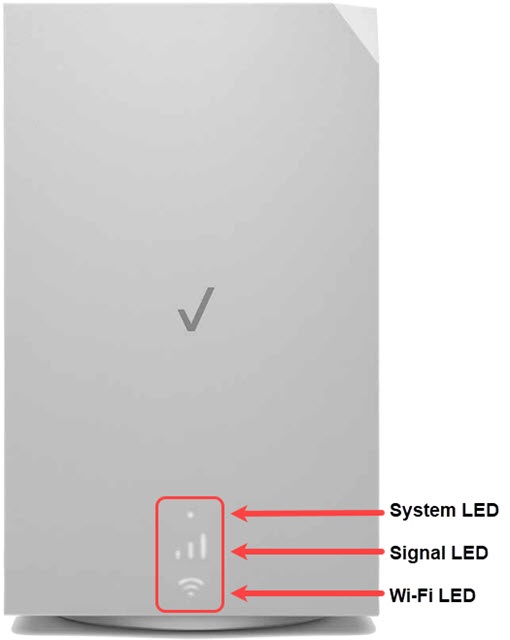
Credit: www.verizon.com
When To Upgrade Your Modem
If your modem frequently blinks white or loses connection, consider upgrading. Newer models have better firmware and stronger signals. Verizon recommends upgrading every 5–7 years for best performance.
Safety Precautions
When troubleshooting, follow these safety steps:
- Unplug the modem before checking cables.
- Don’t open the modem casing—risk of electric shock.
- Keep the modem dry and away from heat sources.
Expert Tips For Reliable Internet
Experienced technicians recommend:
- Place the modem in a central location.
- Avoid stacking devices on top of the modem.
- Schedule regular firmware checks.
- Use a UPS (Uninterruptible Power Supply) for power backup.
Useful Resources
If you want more detailed technical information, visit Verizon’s official support site or trusted guides like Source Name. These sites provide step-by-step instructions and updates.
Frequently Asked Questions
Why Is My Verizon Modem Blinking White?
The blinking white light usually means your modem is starting up, updating firmware, or searching for a network. If it continues for more than 5–10 minutes, there could be a connection or hardware issue.
How Do I Fix The Blinking White Light?
First, wait a few minutes. If the light keeps blinking, check cables, restart the modem, and look for firmware updates. If all else fails, perform a factory reset or contact Verizon support.
Is It Safe To Reset My Verizon Modem?
Yes, but remember a factory reset will erase custom settings and Wi-Fi passwords. Save important information before resetting.
Can An Outage Cause A Blinking White Light?
Yes. If Verizon’s network is down, the modem will blink white while trying to reconnect. Always check for outages online or with the Verizon app.
How Can I Prevent Modem Problems In The Future?
Keep the modem updated, use quality cables, and avoid overheating. Regular checks and careful placement help prevent issues.
A blinking white light on your Verizon modem doesn’t have to be a mystery. With the right steps, you can quickly find the cause and fix it. Understanding what each light means saves time and keeps your internet reliable. And if you ever need help, Verizon support is just a call away.