
A blinking red light on your Verizon router can be worrying. You expect a steady green or white light that shows everything is working. But when you see red, it usually means something is wrong. Maybe you’ve lost your internet connection.
Maybe there’s a hardware problem. Or maybe your router is trying to tell you something else. If you’re not a tech expert, this can be confusing and stressful. The good news is that most blinking red light issues can be fixed at home, with a little patience and the right steps.
This guide will help you understand what a blinking red light means on your Verizon router, why it happens, and how you can fix it. You’ll get practical advice, simple instructions, and clear explanations. Whether you’re new to routers or have some experience, you’ll find answers to your questions.
Let’s get started and turn that blinking red light back to normal.
What Does A Blinking Red Light Mean On A Verizon Router?
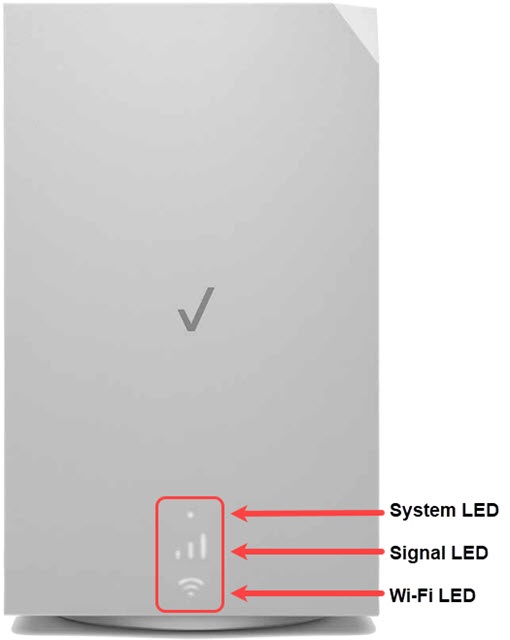
When you see a blinking red light, your router is trying to alert you to a problem. The meaning can change depending on the pattern and the router model. For most Verizon routers, the red light is a warning. Here are the most common meanings:
- No internet connection: The router cannot connect to your internet provider.
- Hardware failure: There is a problem with the router’s internal parts.
- Overheating: The device is too hot and may shut down to protect itself.
- Firmware update issue: The router tried to update its software and failed.
- Connection to ONT lost: For fiber setups, the router can’t communicate with the Optical Network Terminal (ONT).
Red Light Patterns And Their Meanings
Not all red lights mean the same thing. The blinking pattern gives you a clue:
| Blinking Pattern | Possible Meaning |
|---|---|
| Solid Red | Hardware failure or overheating |
| Fast Blinking Red | Failed firmware update |
| Slow Blinking Red | No internet connection or lost ONT link |
| Intermittent Red/White | Trying to connect, unstable connection |
Knowing the pattern helps you decide what to do next. Some issues are easy to fix. Others may need a replacement or expert help.
Main Causes Of A Verizon Router Blinking Red
A blinking red light is not random. It’s a sign of specific problems. Here are the top reasons you might see it:
- Internet Outage: Sometimes, your internet service provider (ISP) has issues. If there’s a network outage, your router can’t connect and will blink red.
- Loose or Damaged Cables: If the cables connecting your router to the wall or ONT are loose, unplugged, or damaged, the router loses its link and shows a red light.
- Overheating: Routers need airflow. If dust blocks the vents, or if the router sits in a hot place, it can overheat. Many routers will blink red and slow down or shut off to prevent damage.
- Firmware Problems: Firmware is the software inside your router. If an update fails or the firmware is corrupted, the router may show a blinking red light.
- Hardware Failure: Sometimes, the router’s internal components fail. Power surges, old age, or physical damage can cause this.
- ONT Issues (Fiber only): For Verizon Fios customers, the ONT is a key part. If it has no power or loses signal, the router will notice and warn you with a red light.
- ISP Authentication Problems: If your account is suspended or there’s a billing issue, the router can’t log in, causing a blinking red.
Example: How A Simple Cable Can Cause Red Light
Many users overlook cable issues. But a single loose Ethernet cable can break the connection. For example, if your dog pulls the cable out, or if the cable gets bent sharply, the copper wires inside can break. The router then shows a blinking red, even though everything else seems fine.
Credit: www.verizon.com
How To Troubleshoot A Verizon Router Blinking Red
Fixing a blinking red light is often possible without expert help. Here’s a step-by-step guide to diagnose and solve the problem.
1. Check For Internet Outages
Before touching your router, check if there’s an outage in your area.
- Use your phone’s mobile data to visit Verizon’s outage page.
- Ask a neighbor if their Verizon service is working.
- Try the Verizon app for outage alerts.
If there’s a known outage, you’ll have to wait until Verizon fixes it.
2. Inspect All Cables And Connections
Look at the cables connected to your router. Make sure:
- Power cable is secure and plugged in.
- Ethernet cables are firmly in place.
- No visible damage, cuts, or sharp bends on the cables.
If you find a damaged cable, replace it. Even small damage can cause a big problem.
3. Restart Your Router
A simple restart can solve many issues. Here’s how:
- Unplug the router from power.
- Wait at least 30 seconds.
- Plug it back in.
- Wait 2-3 minutes for the router to fully start.
This clears temporary glitches and resets the connection.
4. Check For Overheating
Touch your router. Is it hot? If so:
- Move it to an open, cool area.
- Remove any objects blocking the vents.
- Clean dust from the vents with a dry cloth or compressed air.
Let it cool down, then restart. Overheating is more common in summer or if the router is near windows or in a cabinet.
5. Inspect The Ont (for Fiber Users)
If you have Verizon Fios, find your ONT (usually in the basement or a closet). Check that:
- It has power (lights should be on).
- All cables are secure.
- The battery backup (if any) is working.
If the ONT has a warning light or is off, try restarting it or call Verizon support.
6. Update Firmware
If your router supports manual updates:
- Connect a computer to the router with an Ethernet cable.
- Log in to the router’s web interface (usually 192.168.1.1).
- Check for firmware updates in the settings.
- Follow instructions to update.
A failed update can cause the red light to blink rapidly. Never unplug the router during an update.
7. Factory Reset
If nothing else works, a factory reset may help. Warning: This erases all your settings.
- Find the reset button (usually a small hole).
- Use a paperclip to press and hold for 10–15 seconds.
- Release and wait for the router to reboot.
You’ll need to set up your Wi-Fi name and password again after this.
8. Contact Verizon Support
If the red light stays after all these steps, call Verizon. There may be a deeper issue or you might need a new router.
When To Replace Your Verizon Router
Sometimes, the blinking red light means your router is at the end of its life. Most routers last 4–6 years. Signs you need a replacement:
- Frequent red lights, even after resets.
- Slow speeds, dropped connections.
- Router doesn’t respond to resets or firmware updates.
- Physical damage (cracks, burned smell, broken ports).
Verizon can help you get a new router, or you can buy a compatible one yourself.
Comparing Router Models And Lifespans
If you need a new router, here’s a simple comparison of popular Verizon models:
| Model | Wi-Fi Standard | Average Lifespan | Max Speed |
|---|---|---|---|
| G3100 | Wi-Fi 6 | 5-7 years | Up to 2.3 Gbps |
| G1100 | Wi-Fi 5 | 4-6 years | Up to 1 Gbps |
| CR1000A | Wi-Fi 6E | 5-8 years | Up to 10 Gbps |
Choosing a newer model often solves old hardware problems and improves your internet speed.
Common Mistakes People Make When Fixing A Blinking Red Light
Trying to fix your router can sometimes create new problems. Here are mistakes to avoid:
- Unplugging cables randomly: Always note which cable goes where. Mixing up connections can make things worse.
- Ignoring overheating: Some think it’s normal for routers to be hot. Excess heat shortens lifespan and causes malfunctions.
- Resetting too soon: Some users reset the router immediately. Try simple steps first. Factory resets should be a last resort.
- Forgetting to check for outages: Many people think their router is broken when it’s just a provider issue.
- Skipping firmware updates: Updates fix bugs and security holes. Ignoring them leads to more problems.
A little patience and careful troubleshooting go a long way.
How To Prevent Future Blinking Red Light Issues
Prevention is easier than fixing problems after they happen. Here are smart habits to keep your Verizon router healthy:
1. Place The Router In A Cool, Open Area
Keep it off the floor, away from windows and heat sources. Airflow helps prevent overheating.
2. Dust And Clean Regularly
Use a dry cloth or compressed air to keep vents clear.
3. Check And Replace Old Cables
Every 1–2 years, inspect cables for wear or damage. Replace as needed.
4. Update Firmware
Set a reminder to check for firmware updates every few months.
5. Use A Surge Protector
Power surges can damage routers. Plug your router into a surge protector, especially in areas with unstable electricity.
6. Monitor For Outages
If your internet goes out, check Verizon’s site or app before trying fixes.
7. Label Your Cables
Use small tags to label each cable. This makes troubleshooting easier if you need to disconnect and reconnect things.
These small steps reduce the chance of sudden issues and make your home internet more reliable.

Credit: wi-fiplanet.com
Verizon Router Light Guide: What Other Lights Mean
Routers use colored lights to send messages. Here’s a quick guide to Verizon router lights, so you know what’s normal and what’s not:
| Light Color | Status | Meaning |
|---|---|---|
| White (Solid) | Normal | Router is on and connected |
| White (Blinking) | Normal | WPS pairing or startup |
| Red (Solid/Blinking) | Error | Hardware or connection problem |
| Yellow/Amber | Warning | Weak connection or pairing mode |
| Blue | Pairing | WPS setup in progress |
Understanding these lights helps you spot problems early and act quickly.
When To Call A Professional
Sometimes, troubleshooting at home isn’t enough. You should call Verizon or a professional if:
- The red light stays on after all your fixes.
- You smell burning or see smoke from the router.
- The router won’t power on at all.
- Firmware updates fail repeatedly.
- The ONT (for fiber) is not working after reset.
Verizon support can run remote tests, send a technician, or replace faulty equipment. If you’re renting your router, replacements are often free if the device is faulty.
Real-world Example: Fixing A Blinking Red Light
Let’s look at a real scenario to show how these steps work:
Maria noticed her Verizon router started blinking red one afternoon. She checked her phone and found her neighbors also had no internet. After waiting two hours, the red light stayed. She checked all cables and found the Ethernet cable was loose.
After plugging it in tightly and restarting the router, the red light disappeared and her internet was back.
This shows that sometimes the solution is simple, but it pays to go step by step.
Non-obvious Insights For Beginners
Many new users miss these two important points:
- Router Placement Affects Everything: If you keep your router in a closed cabinet, it not only overheats but can also make your internet signal weaker. Open spaces are best for both cooling and coverage.
- ISP Authentication Can Cause Red Lights Even If Cables Are Fine: If you forget to pay your bill, or if there’s an account problem, your router can show a blinking red even when all cables and hardware seem perfect. Always check your account status if nothing else works.
These details save you time and help avoid repeat issues.

Credit: www.youtube.com
Frequently Asked Questions
Why Is My Verizon Router Blinking Red After A Storm?
Power surges during storms can damage routers or ONTs. If your router blinks red after a storm, try unplugging it for a few minutes, check all cables, and inspect for signs of electrical damage. If the problem continues, the surge may have damaged the device, and you may need a replacement.
Does A Blinking Red Light Always Mean The Router Is Broken?
Not always. A blinking red light often means a connection or configuration issue. Many times, it’s something simple like a loose cable or a temporary service outage. Only if the red light stays after all basic troubleshooting should you suspect hardware failure.
Can I Use Any Router As A Replacement For My Verizon Router?
You can use a compatible router, but not every model works with Verizon. Fios users especially need routers that support Verizon’s authentication and fiber connections. Check Verizon’s list of approved devices before buying a new router.
How Do I Know If The Problem Is With My Ont Or My Router?
If your ONT has no lights or shows errors, the problem is likely with the ONT or the fiber line. If the ONT looks fine but your router blinks red, the problem is probably with the router or its settings.
Sometimes, both devices need to be checked and restarted.
Where Can I Find Official Troubleshooting Tips From Verizon?
Verizon provides step-by-step guides and updates on their official support site. For the latest troubleshooting information, visit Verizon Support.
Conclusion
Seeing a blinking red light on your Verizon router isn’t fun, but it’s rarely the end of the world. With some basic checks, careful troubleshooting, and a little patience, you can usually solve the problem yourself. Keep your router clean, cables secure, and stay up to date with firmware to prevent future issues. And remember: if you ever feel stuck, Verizon support is there to help. With these tips, you’ll be back online in no time and better prepared if it happens again.