
If you see your AirPods blinking orange, it probably means something isn’t working as it should. For many people, orange (or amber) light on AirPods is confusing. Is it a battery problem? Is there a connection issue? Or is something else wrong with your AirPods or the case? Don’t worry—this guide will help you understand exactly what the orange light means, what causes it, and how you can fix it.
Most people use their AirPods every day. They’re small, portable, and very easy to use. But when a blinking orange light appears, it can stop you in your tracks. You might worry that your AirPods are broken, or you may not know what to do next. This article will explain all the main reasons for the orange light, how to troubleshoot each one, and what steps you can take to solve the problem. You’ll also find answers to common questions and some tips that even experienced AirPods owners often miss.
Let’s get started and turn that confusing orange light into a simple fix.
What Does The Orange Light On Airpods Mean?
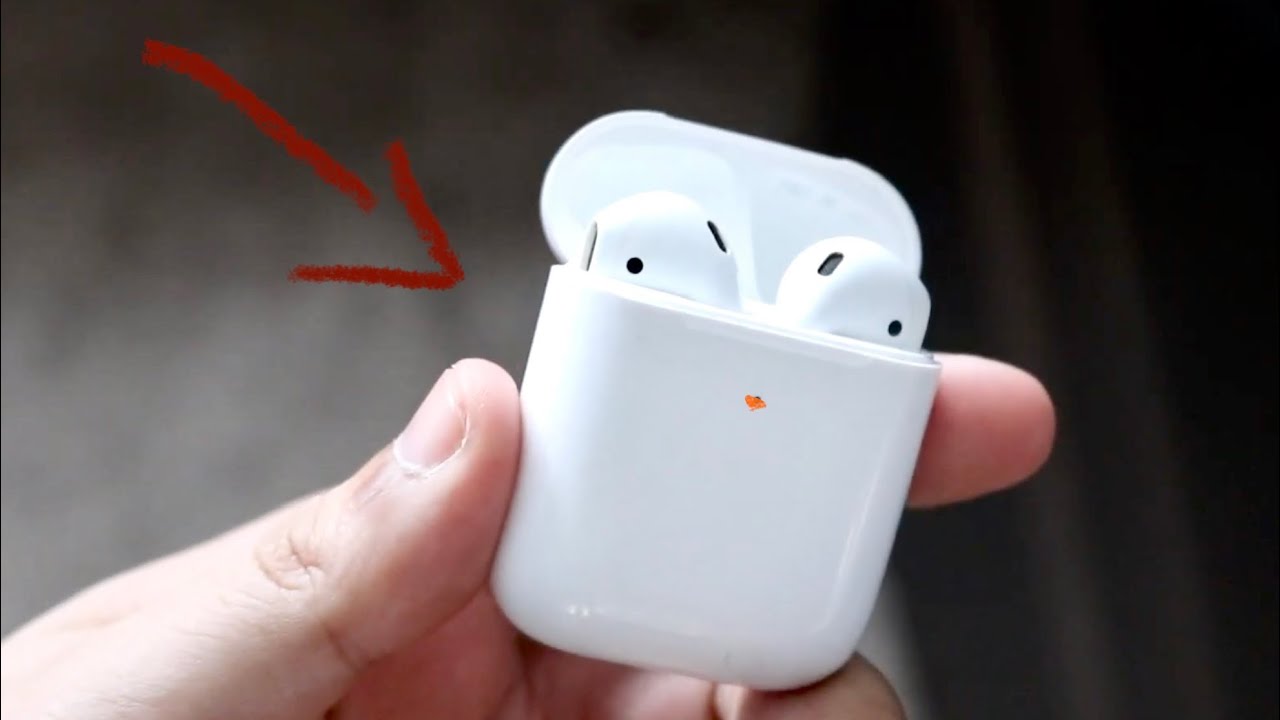
The status light on your AirPods (or the charging case) tells you important information. The color and pattern—solid or blinking—have different meanings.
Solid Vs. Blinking Orange
- Solid orange (also called amber): Your AirPods or case is charging, but not fully charged.
- Blinking orange: There’s a problem. This usually means pairing issues, a failed reset, or a hardware fault.
Where Is The Light?
- AirPods 1st/2nd/3rd Gen: The light is inside the case (if it charges with wires) or on the front (for wireless models).
- AirPods Pro: The light is on the front.
- AirPods Max: A small LED is next to the charging port.
The orange light can appear on any model, but the meaning is mostly the same.
Orange Light Patterns
| Light Pattern | Meaning |
|---|---|
| Solid orange | Charging (not full) |
| Blinking orange | Error: Pairing, firmware, or hardware issue |
| No light | No power or case is empty |
| Solid green | Fully charged |
| Blinking white | Pairing mode |
Knowing the difference between solid and blinking orange is key. If your AirPods are *blinking* orange, read on.
Main Causes Of Airpods Blinking Orange
Understanding why your AirPods are blinking orange helps you fix the problem faster. Here are the main causes:
- Pairing issues – The AirPods aren’t connecting to your device.
- Reset failed – A reset did not work as expected.
- Firmware problem – The AirPods software is outdated or corrupted.
- Charging problems – The case or AirPods are not charging correctly.
- Hardware damage – There may be physical problems with the AirPods or case.
- Unmatched AirPods – One or both AirPods are not original or don’t match the case.
Let’s look at each cause in detail.
1. Pairing Issues
Most of the time, a blinking orange light means your AirPods can’t pair with your iPhone, iPad, or other devices. This can happen if:
- You connected to a new device and the pairing failed.
- Bluetooth is off or not working.
- The AirPods are paired with another device nearby.
2. Reset Problems
If you tried to reset your AirPods (for example, by holding the setup button), but the process failed, you might see the orange blinking light. This usually means the AirPods didn’t disconnect from previous devices, or the reset was interrupted.
3. Firmware Or Software Errors
AirPods have built-in software, called firmware. If this becomes outdated or corrupted, your AirPods may not function correctly and could show a blinking orange light.
4. Charging Or Battery Problems
If your AirPods or the case is not charging properly, it can trigger the orange light. Sometimes, the contacts inside the case are dirty, or the battery is damaged.
5. Hardware Damage
If you dropped your AirPods or they got wet, the internal hardware might be damaged. This is less common, but a blinking orange light can be a warning sign.
6. Unmatched Airpods
If you mix two AirPods from different sets, or one AirPod isn’t paired with the case, you can get a blinking orange light. The case checks if both earbuds are original and matched.
Credit: www.youtube.com
How To Troubleshoot Airpods Blinking Orange
Now that you know the main causes, let’s walk through how to fix the blinking orange light step by step.
Step 1: Check For Simple Pairing Errors
Before you try anything else, make sure your AirPods are near your device, and Bluetooth is turned on.
- Open the case (with AirPods inside) next to your iPhone.
- Wait for the setup animation to appear.
- If nothing happens, close the lid, wait 10 seconds, and try again.
If your AirPods still don’t connect, move on to the next step.
Step 2: Reset Your Airpods
A full reset often fixes most orange light problems.
- Put both AirPods in the charging case and close the lid.
- Wait 30 seconds.
- Open the lid.
- Press and hold the setup button on the back of the case for about 15 seconds, until the light flashes amber and then white.
- Reconnect to your device.
For AirPods Max: Hold the noise control button and the Digital Crown until the LED flashes amber, then white.
Tip: If the light never turns white, keep holding the button for a few more seconds.
Step 3: Charge Airpods And Case
A low battery can cause the orange light.
- Plug your case into power (use the official Apple cable if possible).
- Leave the AirPods in the case.
- Wait at least 30 minutes before checking again.
If the orange light keeps blinking, try a different cable or charger.
Step 4: Update Firmware
Firmware updates fix bugs. AirPods update automatically when connected to an Apple device with internet access.
- Make sure your AirPods are in the case, connected to your iPhone, and charging.
- Keep your iPhone near the case and connected to Wi-Fi for at least 30 minutes.
- There is no manual way to force an update, but staying connected makes it more likely.
Step 5: Clean Your Airpods And Case
Dirty contacts can prevent charging and cause errors.
- Use a dry, soft brush or cotton swab to clean the metal contacts inside the case and on the AirPods.
- Do not use water or cleaning sprays.
Pro Tip: Even a small amount of dirt or pocket lint can break the connection.
Step 6: Check For Hardware Problems
If your AirPods have been dropped or exposed to water, inspect for visible damage.
- Look for cracks, dents, or water inside the case.
- Try using each AirPod separately to see if one is faulty.
If you suspect hardware damage, contact Apple Support for help.
Data Table: Common Airpods Status Lights And Solutions
Here’s a quick guide to what each light means and what you should do.
| Status Light | Possible Cause | Suggested Action |
|---|---|---|
| Blinking orange | Pairing or hardware error | Reset AirPods, check for device conflicts |
| Solid orange | Charging | Wait for full charge |
| Blinking white | Pairing mode | Connect device via Bluetooth |
| Solid green | Fully charged | Use as normal |
| No light | No power or empty case | Charge the case |
How To Avoid Airpods Blinking Orange In The Future
Once you solve the problem, it’s smart to avoid it happening again. Here are some tips:
- Charge regularly – Don’t let your AirPods or case run out of battery often.
- Keep them clean – Dirt is a common cause of charging problems.
- Update your devices – Keep your iPhone, iPad, and AirPods firmware up to date.
- Store safely – Avoid dropping or exposing your AirPods to water.
- Don’t mix AirPods – Always use both AirPods from the same set.
Data Table: Airpods Models And Status Light Location
To help you find the status light on your model:
| AirPods Model | Status Light Location |
|---|---|
| AirPods (1st/2nd Gen) | Inside the charging case |
| AirPods (3rd Gen) | On the front of the case |
| AirPods Pro (all) | On the front of the case |
| AirPods Max | Next to the charging port |
Non-obvious Insights Most Users Miss
While the above steps work for most people, here are two things many users don’t realize:
- Interference from Other Devices: If you’ve connected your AirPods to many devices (like a MacBook, iPad, iPhone, Apple TV), previous Bluetooth connections can confuse the AirPods. Try forgetting your AirPods on all devices and then pair them again.
- Battery Imbalance Between AirPods: Sometimes, one AirPod charges faster or slower than the other. If one is much lower, the case may blink orange. Try charging both earbuds separately in the case.
When To Contact Apple Support
If you’ve tried all the steps and the orange light is still blinking, it could be a hardware defect. Apple offers a one-year warranty for most AirPods and sometimes replaces or repairs them if there is a known issue.
- Visit the nearest Apple Store or authorized service provider.
- Bring your AirPods, the case, and proof of purchase.
- If your AirPods are out of warranty, you may need to pay for repair or replacement.
You can check your warranty and support options on the official Apple Support website.
How To Use Airpods While Troubleshooting
If only one AirPod is working, you can use it while you fix the other. Pair just the working earbud to your device, and you’ll still be able to listen to music or take calls. This is a handy trick while you’re waiting for replacement parts or repairs.
Credit: www.plattar.com
Comparing Orange Light Causes: Fast Reference
Here’s a quick comparison of what usually triggers the orange blinking light, how urgent it is, and how hard it is to fix.
| Cause | Urgency | Difficulty to Fix |
|---|---|---|
| Pairing issue | Medium | Easy |
| Firmware error | Medium | Easy/Medium |
| Hardware damage | High | Difficult |
| Charging problem | Medium | Easy |
| Unmatched AirPods | Medium | Medium |
Frequently Asked Questions
Why Do My Airpods Blink Orange When Charging?
A solid orange light usually means your AirPods or case is still charging and not fully charged. If the light is blinking, there’s likely an error. Leave your AirPods to charge for a while, then check if the light turns green. If it keeps blinking, follow the troubleshooting steps above.
Can Blinking Orange Mean My Airpods Are Broken?
Not always. Blinking orange often signals a connection or pairing issue, not a broken device. Try resetting your AirPods and pairing again. If nothing works and you see physical damage, then it could be a hardware problem.
Will A Firmware Update Fix The Blinking Orange Light?
Sometimes, yes. Outdated or buggy firmware can cause problems. Make sure your AirPods are charging and near your iPhone with Wi-Fi, so they can update automatically. There’s no manual update button, so patience is needed.
Is It Safe To Keep Using Airpods With A Blinking Orange Light?
If only the light is blinking but the AirPods are working normally, you can use them. But it’s better to fix the issue soon. A blinking orange light can lead to connection drops or battery drain. If you notice problems with sound or pairing, stop using them and troubleshoot.
What If Only One Airpod Blinks Orange?
If one AirPod is blinking orange and the other is not, it could be a mismatch or a charging problem. Try cleaning both AirPods and the case, then reset. If you use AirPods from two different sets, they may not work together and can cause the orange light.
Conclusion
If you follow these steps, you should be able to fix the blinking orange light on your AirPods quickly. While it can be frustrating, most problems have simple solutions. And with regular care—cleaning, charging, and updating—you can avoid many AirPods issues in the future.
If you ever feel stuck, don’t hesitate to ask for help from Apple Support. That little orange light is there to help you, not to scare you. With the right steps, your AirPods will be back to normal in no time.