
When you see your Xfinity Gateway blinking green, it can be confusing and even stressful—especially if your internet stops working. Many people believe this green light means the device is working fine, but in reality, a blinking green usually points to a problem. This article will help you understand why your Xfinity Gateway blinks green, what it means for your internet, and how you can fix it yourself before calling support. Whether you use the internet for work, entertainment, or staying connected with family, a reliable connection is essential. By the end of this guide, you’ll know what steps to take, what to avoid, and how to keep your Xfinity Gateway running smoothly.
What Is The Xfinity Gateway And Its Indicator Lights?
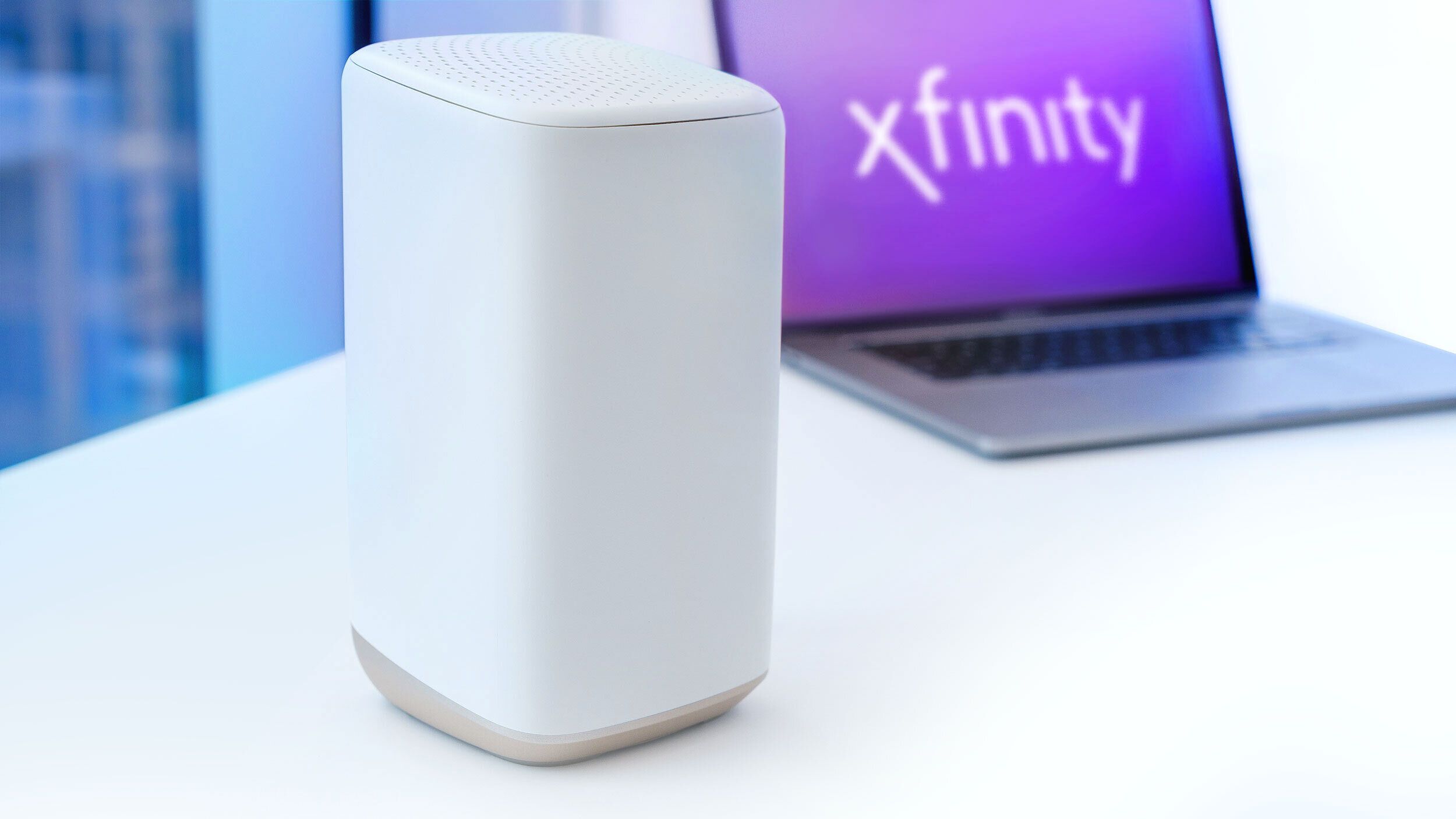
The Xfinity Gateway is a device that combines a modem and a router. It brings internet from your wall cable into your home and sends Wi-Fi to your devices. Like most modems and routers, it uses different colored indicator lights to show its status. Each color and blinking pattern means something different.
A solid green light usually means everything is working. A blinking green light, though, is a warning sign. The blinking green is not just a “booting up” signal. It tells you that your device is having trouble making or keeping a stable connection. Understanding what the lights mean can save you time and frustration.
Here’s a quick reference comparing common Xfinity Gateway light signals:
| Light Color | Light Pattern | Meaning |
|---|---|---|
| Green | Solid | Normal operation |
| Green | Blinking | Connection issue |
| Amber/Orange | Solid or blinking | Firmware update or startup |
| Red | Solid | No internet detected |
| Blue | Blinking | WPS pairing in progress |
Why Is My Xfinity Gateway Blinking Green?
When your Xfinity Gateway blinks green, it’s signaling a specific type of problem. While many users think it’s just a small hiccup, this light often means your modem-router is struggling to connect to the Comcast network. Let’s explore the main causes:
1. Loose Or Damaged Cables
If your coaxial cable (the thick cable from the wall) is not plugged in tightly or is damaged, your Gateway can’t get a clear signal. Even small bends, cuts, or loose connectors can disrupt service.
2. Service Outage In Your Area
Sometimes, the problem isn’t in your home. If Comcast is doing maintenance or there’s a widespread outage, your Gateway can’t connect, and the green light blinks.
3. Device Overheating
Like any electronic device, the Gateway can overheat. If it gets too hot, it may lose connection and start blinking green to warn you.
4. Firmware Updates
Occasionally, a blinking green light can happen during a firmware update, but this usually doesn’t last long. If the blinking continues for more than 10 minutes, it’s probably a different issue.
5. Signal Interference
Electrical interference from other devices or poor wiring in older homes can disrupt the Gateway’s ability to connect.
6. Splitter Or Extra Devices
Using splitters to connect multiple devices on the same line can weaken the signal. If you have a TV and internet on the same cable, check if removing the splitter helps.
7. Internal Hardware Failure
Gateways can fail over time. If none of the above reasons fit, the device itself might be faulty.
Non-obvious insight: Sometimes, a blinking green light is caused by a recent storm. Water can get into outside cables or connectors, causing temporary problems that are hard to see from inside your home.

Credit: www.wikihow.com
How The Blinking Green Light Affects Your Internet
A blinking green light on your Xfinity Gateway almost always means interrupted internet service. You may notice:
- No internet access on any device
- Slow or unstable connection
- Wi-Fi showing “connected, no internet”
- Frequent disconnects or drops
For people who work from home or stream movies, this can be a big problem. If the light blinks for more than a few minutes, you likely need to take action.
Step-by-step Troubleshooting
You don’t need to be a tech expert to fix most blinking green light problems. Here’s a simple guide:
1. Check For Service Outages
Before touching your equipment, check if there’s a Comcast outage in your area. Visit the Xfinity Status Center online or use the Xfinity app. If there’s an outage, you’ll need to wait until Comcast restores service.
2. Inspect And Reconnect Cables
Unplug the power cord from the Gateway. Then, check all cables:
- Make sure the coaxial cable is tightly connected to both the wall outlet and the Gateway.
- Look for any damage, bends, or frayed wires.
- Remove any splitters, if possible, and connect the Gateway directly to the wall.
Reconnect everything and turn the Gateway back on. Wait 5–10 minutes to see if the light changes.
3. Power Cycle Your Gateway
A simple reboot often solves connection issues.
- Unplug the Gateway from power.
- Wait 60 seconds.
- Plug it back in and wait for all lights to stabilize.
This process clears minor software glitches.
4. Move The Gateway (if Possible)
If your device is near other electronics or in a closed space, move it to a more open area. Good airflow prevents overheating and reduces interference.
5. Try A Different Outlet
Plugging the Gateway into a new power outlet can rule out electrical problems.
6. Update Gateway Firmware
Most Xfinity Gateways update automatically. If you suspect a firmware problem, log in to the Gateway’s settings (usually at http://10.0.0.1) and check for update options. If you’re unsure, contact Xfinity support.
7. Factory Reset (last Resort)
If nothing works, you can do a factory reset.
Warning: This erases all custom settings (Wi-Fi name, password, etc.).
- Find the small reset button (usually on the back).
- Use a paperclip to press and hold it for 15 seconds.
- Wait for the Gateway to reboot and watch the lights.
If the green light still blinks after this, it’s time to call Xfinity.
Non-obvious insight: Sometimes, the problem is with the wall connector itself, especially in older homes. If you have another coaxial outlet, try moving your Gateway there.
Credit: www.androidpolice.com
Common Mistakes To Avoid
Many people accidentally make things worse by:
- Forcing cables into ports, which can damage connectors.
- Resetting too often—frequent resets can cause more problems, especially during service outages.
- Ignoring slow changes—if the green light is blinking slowly, it may mean a different issue than fast blinking.
- Overlooking splitters—these are a common source of signal loss but are often missed during troubleshooting.
- Not checking all devices—sometimes, only the Wi-Fi or only the wired connection is down, which helps you narrow the problem.
When To Call Xfinity Support
If you’ve tried all the steps above and your Xfinity Gateway is still blinking green, it’s time to contact Xfinity customer support. Be ready to tell them:
- How long the light has been blinking
- What troubleshooting steps you tried
- Whether there’s an outage in your area
- Any error messages you see in the Xfinity app or on your device
Xfinity may send a technician to check your lines or replace your Gateway. In many cases, they can also run remote diagnostics.
Comparing Xfinity Gateway Models
Different Xfinity Gateway models show status lights in different ways. While the blinking green means “connection issue” for most, older or newer models may use different colors or patterns. Here’s a comparison of popular models:
| Model | Main Status Light Color | Unique Features |
|---|---|---|
| XB3 | Green | Dual-band Wi-Fi, basic DOCSIS 3.0 |
| XB6 | White/Green | DOCSIS 3.1, improved range |
| XB7 | White/Blue | Wi-Fi 6, better speed, 2.5 Gbps port |
| XB8 | White/Blue | Wi-Fi 6E, newest tech, fastest speeds |
Always check the manual for your specific model. If you see a blinking green light on an XB7 or XB8, it’s still a sign of connection trouble, even if the color looks a little different.
How To Prevent Future Blinking Green Problems
While some internet issues are out of your control, you can lower the risk of seeing that blinking green light again by following these tips:
- Check connections regularly. Every few months, make sure all cables are tight and undamaged.
- Keep the Gateway cool. Place it in an open area, away from heat sources.
- Limit splitters. Only use a splitter if you must, and choose high-quality ones.
- Use a surge protector. Power surges can damage your Gateway and cause blinking lights.
- Update your device. If you rent from Xfinity, ask about getting the latest Gateway model.
- Monitor for outages. Sign up for Xfinity outage alerts on your phone or email.
Pro tip: If you move to a new home, always have a technician check your wall cables. Old or damaged wiring is a common cause of blinking green lights and slow internet.
Is It Time To Upgrade Your Gateway?
If you often see a blinking green light or experience frequent outages, it might be time to upgrade your Xfinity Gateway. Newer models support faster speeds, better Wi-Fi coverage, and more stable connections. Here’s a quick comparison to help you decide:
| Feature | Older Gateway (e.g., XB3) | Newer Gateway (e.g., XB7/XB8) |
|---|---|---|
| Wi-Fi Standard | Wi-Fi 5 | Wi-Fi 6/6E |
| Max Speed | Up to 400 Mbps | Up to 2.5 Gbps |
| Connection Stability | More drops | More stable |
| Device Support | Fewer devices | More devices |
| Energy Efficiency | Average | Improved |
If you rent your Gateway from Comcast, you can often upgrade for free or for a small monthly fee. If you own your device, check compatibility before buying a new one.
Real-world Example: Troubleshooting Success
Let’s look at a real-life situation. Maria, a remote worker in Chicago, noticed her internet cutting out every afternoon. Her Xfinity Gateway started blinking green around 2 p. m. each day. She tried restarting her computer, but nothing changed.
Here’s what she did:
- Checked for Comcast outages—none were reported.
- Inspected her cables and found a loose coaxial connector.
- Tightened the connection and moved the Gateway away from the window (where sunlight was overheating it).
- Waited five minutes after rebooting.
Her green light turned solid, and her internet worked perfectly. The cause was a combination of a loose cable and overheating—both things that are easy to miss if you only focus on the device itself.
Should You Replace Or Repair Your Gateway?
If your Gateway is more than five years old, replacing it is usually the best choice. Older devices can fail and may not support the speeds you’re paying for. If your device is newer and you only see the green blinking light once, a repair or cable check may be enough.
Xfinity sometimes offers equipment swaps at their local stores, so you don’t have to wait for shipping. If you own your Gateway, check the warranty before buying a new one.
How Xfinity Customer Support Helps
If you need to call support, Xfinity can:
- Remotely test your Gateway and lines
- Schedule a technician visit
- Send a replacement device if yours is faulty
- Give you step-by-step instructions if you’re comfortable troubleshooting
Keep your account number and device model handy for a faster call.
External Resource For More Help
For official troubleshooting steps and outage information, you can visit the Xfinity Support Center. This site has the latest guides and status updates.
Frequently Asked Questions
Why Does My Xfinity Gateway Blink Green After A Power Outage?
A blinking green light after a power outage usually means the Gateway is struggling to reconnect to the internet. This can happen if the power surge caused a temporary signal loss or if the device needs more time to reboot.
Wait five minutes, then try a manual restart. If the problem continues, check your cables and call Xfinity if needed.
How Long Should I Wait Before Worrying About A Blinking Green Light?
If your Gateway blinks green for more than 10 minutes with no change, it’s time to troubleshoot. Short blinking (1–2 minutes) can happen during reboots or updates, but longer periods usually mean a real problem.
Can Wi-fi Interference Cause The Blinking Green Light?
No, the blinking green light is not directly caused by Wi-Fi interference from other devices. It shows a problem with the Gateway’s connection to the internet, not local Wi-Fi traffic. However, electrical interference can cause similar symptoms if it affects the power or coaxial cable.
Is It Safe To Use My Own Modem Instead Of The Xfinity Gateway?
Yes, you can use your own modem if it’s compatible with Xfinity service. Many users choose their own devices for better features or to save on rental fees. Be sure to check Xfinity’s approved device list before buying.
Will Resetting My Gateway Delete My Wi-fi Password And Settings?
Yes, a factory reset will erase all custom settings, including your Wi-Fi network name and password. Write down your settings before resetting, or be ready to set them up again afterward.
Conclusion
A blinking green light on your Xfinity Gateway doesn’t have to ruin your day. With a little patience and the right steps, most people can solve this problem at home. By understanding what the light means, checking your cables, and knowing when to call support, you’ll get your internet back up and running in no time.

Credit: www.youtube.com