
If your Fios box is blinking green and red, it can be worrying—especially when your internet, TV, or phone services suddenly stop working. Most people see these flashing lights and wonder: What do they mean? Is something broken? Can I fix it myself, or do I need help from Verizon?
Understanding what these blinking lights mean can save you time, stress, and maybe even a service call. This article explains in simple terms what causes a Fios box to blink green and red, what each color means, and how you can fix most problems yourself. We’ll also look at when it’s best to call for support, common mistakes to avoid, and some tips to prevent future issues.
What Is A Fios Box?
A Fios box (also called an ONT, or Optical Network Terminal) is a small device installed in your home or office if you have Verizon Fios services. This box connects the fiber optic cable from Verizon to your home’s internal wiring for internet, TV, and phone.
The Fios box is usually installed in a basement, utility room, garage, or sometimes outside. It’s easy to recognize because it has several indicator lights, including green and red. These lights help you and Verizon technicians know the status of your connection.
Understanding Fios Box Lights
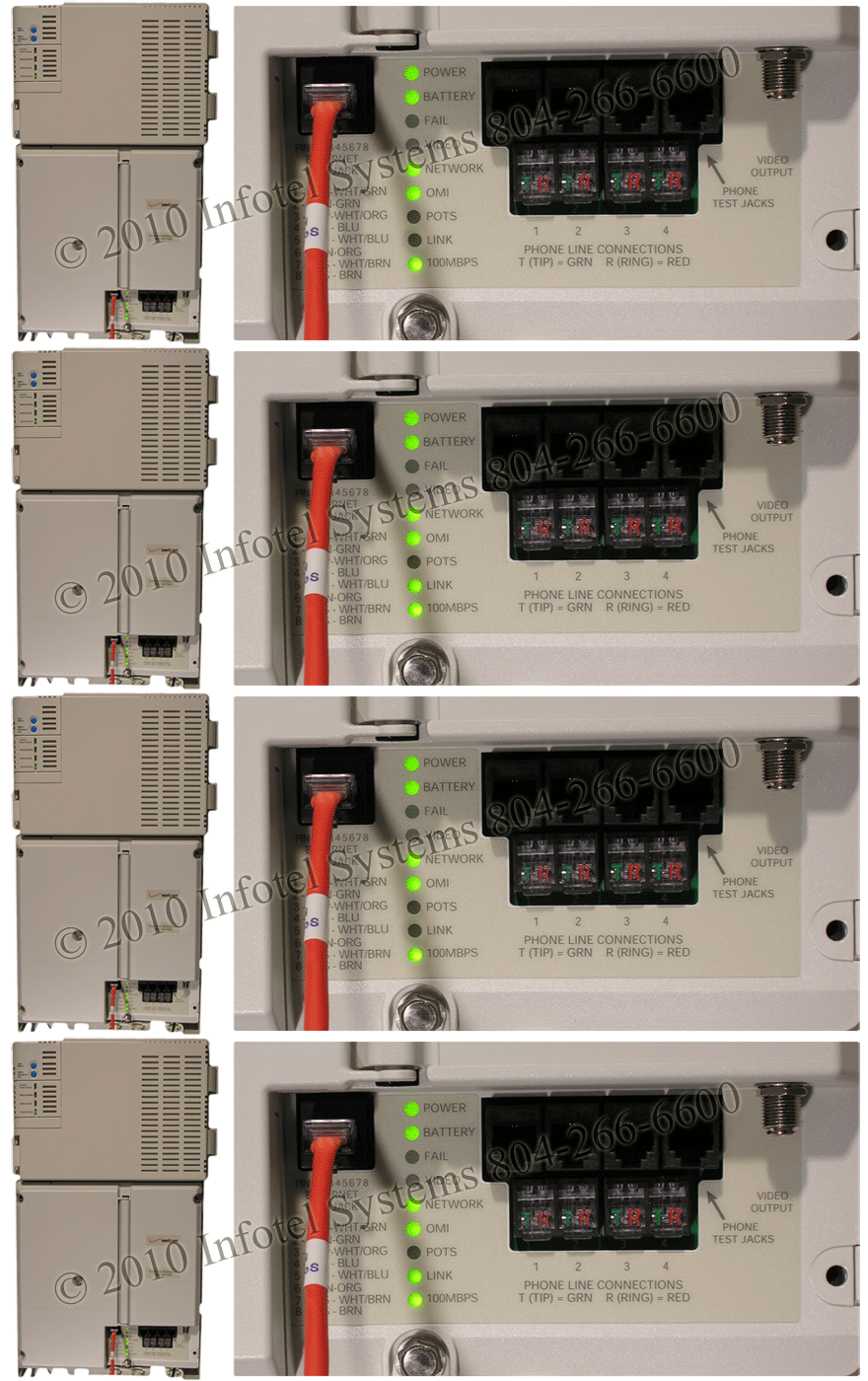
The lights on a Fios box are not just for decoration—they give you important information about your connection. Here’s what the main lights usually mean:
- Solid green: Everything is working as expected.
- Blinking green: The box is trying to establish a connection, rebooting, or updating.
- Solid red: There is a serious problem, such as no signal or a hardware issue.
- Blinking red: A service error or hardware fault has occurred.
Some models have more lights and labels (like “PON,” “LOS,” or “Battery”), but green and red are always key indicators.
Why Do The Colors Blink?
A blinking light usually means something is happening—either the box is working to fix a problem, or it needs attention. For example, if the green light blinks, the box is trying to connect. If the red light blinks, there’s an error you may need to solve.
Main Reasons For Green And Red Blinking
You might see your Fios box blinking green and red for several reasons. Here are the most common causes:
- Power Reset or Reboot: When the box restarts, the green light often blinks as it reconnects.
- Firmware Update: During automatic updates, lights can blink green and red.
- Network Signal Loss: If the fiber signal drops, you may see the red light blink.
- Loose or Damaged Cables: A bad cable connection can cause blinking lights.
- Battery Backup Issue: Some boxes have backup batteries; a problem here can cause red or green blinking.
- Hardware Fault: Internal errors or device failure can trigger red blinking.
- Service Outage: A problem with Verizon’s network may cause lights to blink until service returns.
Understanding the situation helps you decide what to do next.
What Each Blinking Pattern Means
Different Fios box models may use slightly different light patterns, but these are the most common meanings:
Blinking Green Only
- What it means: The box is powering up, rebooting, or trying to connect to the network.
- What to do: Wait 2–5 minutes. If the green light keeps blinking, check for loose cables or power issues.
Blinking Red Only
- What it means: There is a service error, signal loss, or hardware problem.
- What to do: Check cables, power, and look for Verizon service outages.
Blinking Green And Red Together
- What it means: The box may be updating, resetting, or reporting a more serious error.
- What to do: Wait a few minutes. If it doesn’t stop, try resetting the box.
Sometimes, the lights blink in a pattern (for example, green for two seconds, then red for two seconds). This can mean a specific error code. Check your Fios box manual or Verizon’s website for model-specific meanings.
First Steps: Quick Checks
Before calling Verizon, you can fix many problems yourself. Try these steps:
- Check Power: Make sure the Fios box is plugged in and the outlet works. Try another device in the same outlet.
- Inspect Cables: Check all cables for secure connections. Fiber, Ethernet, and power cables should be tight and undamaged.
- Look for Outages: Visit the Verizon outage map online or use the My Fios app to see if your area is affected.
- Wait a Few Minutes: Sometimes, the box just needs time to reset or update.
When To Be Patient
If your area had a storm, or if Verizon announced maintenance, your Fios box may blink green and red for up to 30 minutes. Avoid unplugging or restarting the box during updates unless instructed.
Step-by-step Troubleshooting Guide
Solving the Fios box blinking green and red issue is usually straightforward if you follow these steps.
1. Power Cycle The Fios Box
Unplug the box from power. Wait 30 seconds. Plug it back in. Watch the lights. If it returns to normal (solid green), the problem is solved.
2. Check Cables And Connections
- Remove and reinsert all cables.
- Inspect fiber optic and Ethernet cables for damage.
- Replace cables if you see cuts, kinks, or exposed wires.
3. Inspect The Backup Battery
Some Fios boxes have a battery backup. If the battery light is blinking or red, the battery may be bad. Replace it if needed. Most Fios services work without the battery, but phone service may not during power outages.
4. Check For Service Outages
Use your mobile device to visit Verizon’s support page or search “Verizon outage map. ” If your area is affected, you must wait for Verizon to fix the issue.
5. Factory Reset (advanced Step)
If basic steps fail, you can reset the box to factory settings. There’s usually a small reset button on the device. Use a paperclip to press and hold it for 10 seconds. Warning: This may erase custom settings. Only do this if you’re comfortable reconfiguring your network.
6. Contact Verizon Support
If all else fails, call Verizon Fios support. Tell them the light pattern and what you’ve tried. They may send a technician if the problem is with the equipment or fiber line.
Common Mistakes To Avoid
- Don’t unplug the box repeatedly during a firmware update.
- Don’t ignore a solid red light for more than a few minutes.
- Don’t open the box or try to repair internal parts—this can void your warranty.
Examples Of Real-world Scenarios
Let’s look at a few common examples where the Fios box blinking green and red is resolved:
Example 1: Power Outage Recovery
After a storm, the Fios box blinks green and red. You wait 15 minutes, but it continues. Checking cables, you find the fiber cable loose. After reconnecting, the light turns solid green.
Example 2: Firmware Update
You notice the box blinking green and red late at night. You wait 10 minutes, and the lights return to solid green. The box was updating—no action needed.
Example 3: Service Outage
Both green and red lights blink and your internet is down. You check Verizon’s outage map and see a report for your area. You wait until Verizon restores service.
Example 4: Battery Issue
The battery light is blinking red. You replace the backup battery, and the red light turns off.
How Fios Box Models Differ
Not every Fios box uses the same pattern for green and red lights. Here’s a comparison of common models and their indicator meanings.
| Model | Blinking Green | Blinking Red | Both Blinking |
|---|---|---|---|
| Alcatel-Lucent I-211M-L | Connecting/Updating | Error/Loss of Signal | Firmware Update |
| Motorola ONT1000G | Powering Up | Battery Fault | Severe Error |
| Tellabs 1600 | Normal Boot | Critical Fault | Hardware Reset |
Always check your specific model’s manual for exact meanings.
Comparing Fios Box Issues To Other Providers
How do Fios box blinking issues compare to other providers’ devices? Here’s a quick look:
| Provider | Common Light Colors | What Blinking Means | DIY Fixes |
|---|---|---|---|
| Verizon Fios | Green, Red | Connection/Error | Power cycle, reset, check cables |
| AT&T Fiber | Green, Amber, Red | Update/Error | Similar steps |
| Xfinity | White, Blue, Red | Connection/Pairing/Error | Restart, check app |
Most providers use similar colors and troubleshooting steps. If you move or switch providers, you’ll find many of the same ideas apply.
Preventing Fios Box Problems
Many issues with Fios box blinking green and red can be prevented by following these tips:
- Keep the box in a dry, cool place. Heat and moisture can damage electronics.
- Do not block airflow. Make sure the box can “breathe” to avoid overheating.
- Use a surge protector. Power surges can damage the box and cause errors.
- Check cables twice a year. Tighten loose connections and replace worn cables.
- Update your contact info with Verizon. They’ll notify you before planned maintenance.
- Test your battery backup annually if you use Fios phone service.

Credit: www.youtube.com
Key Insights Most Beginners Miss
Many beginners see blinking lights and worry the box is broken. But in reality, most blinking is temporary—caused by updates or short outages. Here are two insights that help:
- Wait before acting. Many problems fix themselves in 5–10 minutes, especially after power is restored or during scheduled updates.
- Battery backups are not required for internet or TV. If your battery is old and the light blinks red, you can remove it for most services (except landline phone).
When To Replace The Fios Box
Fios boxes are built to last, but sometimes replacement is needed. Signs you need a new box:
- Persistent red blinking, even after resets and cable checks.
- Physical damage (cracks, water inside).
- Verizon support says the device has failed.
Verizon usually provides replacements free if the box fails through normal use.

Credit: www.reddit.com
How To Request A Service Call
If you’ve tried all DIY steps and the lights keep blinking, call Verizon support. Be ready with this information:
- Your account number or phone number.
- The model of your Fios box.
- The exact blinking pattern (describe clearly).
- What troubleshooting you have done.
- If your neighbors have similar issues.
The technician may run remote tests or schedule an in-person visit.
Cost Of Repairs And Replacement
Most repairs and replacements are covered if you rent the Fios box from Verizon. However, if you damaged the box (for example, by spilling water), you may pay a fee. Check your service agreement for details.
Tip: Always ask Verizon if there are any charges before agreeing to a service call.
Data: How Common Are Fios Box Issues?
According to Verizon’s support statistics (2022–2023):
- About 8% of Fios users experience a blinking light issue each year.
- Over 60% of problems are fixed by power cycling or checking cables.
- Less than 5% require a technician visit.
This means most problems are simple and can be solved without waiting for help.
Verizon’s Official Guidance
Verizon’s support site and user manuals offer helpful guides for every Fios box model. If you’re unsure, check the official resources. They update their troubleshooting steps as technology changes.
For more details, you can visit the official Verizon Fios Support page.
Credit: statuslights.com
Frequently Asked Questions
Why Is My Fios Box Blinking Both Green And Red?
Your Fios box blinks green and red when it is updating, restarting, or has detected a service error. Usually, waiting a few minutes is enough. If the lights don’t return to normal, check power and cables, then contact Verizon if the problem continues.
Will My Internet Work If The Fios Box Is Blinking Green And Red?
No. Blinking green and red means the box is not fully connected to the network. You may have slow or no internet, and TV/phone services may also be affected. Fix the underlying issue to restore service.
How Long Should I Wait Before Calling Support?
If the lights are still blinking after 10–15 minutes and you have checked all cables and power, it’s a good idea to contact Verizon support. If there’s a known outage in your area, you may need to wait longer.
Is It Safe To Remove The Backup Battery From My Fios Box?
Yes, for most users. The backup battery is needed only if you use Fios landline phone service and want phone service during power outages. For internet and TV, you can remove a failing battery without affecting service.
Can A Storm Or Power Surge Cause These Blinking Lights?
Yes. Power outages or surges can interrupt the Fios box and cause blinking green and red lights. Always use a surge protector and wait a few minutes after power returns before troubleshooting.
The blinking green and red lights on your Fios box can be stressful, but in most cases, you have the power to solve the problem. By understanding what the lights mean, carefully checking cables and power, and knowing when to wait or act, you can restore your service quickly.
If you reach out to Verizon, your preparation makes their job easier and speeds up your fix. Stay calm and remember—these lights are there to help you.