
The gentle hum of technology fills modern homes, but sometimes, a small detail—like a blinking red light on your Hubble camera—can spark big worries. Security cameras are meant to make life easier and safer. So, when the Hubble camera blinking red interrupts your routine, it’s natural to feel concerned. Is your camera offline? Is it a security risk? Or is it just a simple fix? In this guide, you’ll find clear answers. We’ll explore what the blinking red light means, why it happens, and how you can resolve it. Whether you’re new to smart cameras or a seasoned user, you’ll gain practical advice and hidden tips most guides miss.
Understanding The Hubble Camera System
The Hubble camera is a popular smart security device for homes and small offices. It connects to your Wi-Fi and lets you view live video or recordings from your phone, tablet, or computer. Many people choose Hubble for its easy setup, mobile alerts, and useful features like two-way audio and night vision.
Key Features Of Hubble Cameras
- Wireless connectivity: Most Hubble cameras connect to Wi-Fi, so you don’t need to run cables.
- Mobile app access: You control settings and view footage through the Hubble app.
- Cloud storage: Recorded clips are saved online, protecting them even if the camera is stolen.
- Smart alerts: The camera can send notifications to your phone if it detects movement or sound.
- Night vision: You can see what’s happening even in complete darkness.
These features make Hubble cameras user-friendly, but they also depend on a stable internet connection and proper setup. When something goes wrong, the camera uses lights—especially the red blinking indicator—to communicate problems.
What Does The Blinking Red Light Mean?
A blinking red light on your Hubble camera is not just for show. It’s the device’s main way to tell you something needs attention. While many users quickly search for “Hubble camera blinking red” to find answers, understanding the specific signals can save time and frustration.
Common Reasons For A Blinking Red Light
- Connection Issues: The camera cannot connect to your Wi-Fi network or is having trouble reaching the Hubble servers.
- Setup Mode: The camera is waiting to be paired with the Hubble app.
- Firmware Update Problems: An update failed or the device is stuck during installation.
- Power Issues: The camera is not receiving enough power or has an unstable power supply.
- Account/Login Problems: The camera is not correctly linked to a user account, or the account has been logged out.
Each Hubble model may blink red in slightly different situations, but these are the most common causes. Sometimes, the pattern or speed of blinking gives extra information. For example, a fast blink might mean setup mode, while a slow blink could signal a connection failure.
Hubble Camera Indicator Light Patterns
Below is a quick comparison of light patterns and their meanings for many Hubble cameras:
| Light Color & Pattern | Meaning | Common Fix |
|---|---|---|
| Blinking Red (Slow) | Wi-Fi not connected | Check router, restart camera |
| Blinking Red (Fast) | Setup mode | Pair with app |
| Solid Red | Firmware issue | Reset or update firmware |
| Blinking Blue | Connecting to Wi-Fi | Wait or re-enter Wi-Fi details |
| Solid Green | Working normally | No action needed |
Always check your specific model’s manual, as light codes can sometimes differ.
Credit: emausasturias.org
Typical Scenarios When The Hubble Camera Blinks Red
Scenario 1: After Power Outage
Many users notice their Hubble camera blinking red after a power outage. This usually means the device lost its Wi-Fi connection and is trying to reconnect.
- The camera might not find the Wi-Fi if the router takes longer to reboot than the camera.
- Sometimes, the Wi-Fi password or settings changed during a router reset.
Scenario 2: During Initial Setup
If your camera is new or has just been reset, a blinking red light means it’s waiting for you to pair it with the app. The device is in “setup mode. ”
Scenario 3: Randomly Or After Update
Sometimes, the blinking red light appears unexpectedly. A failed firmware update or a brief network drop can cause this. In rare cases, server-side issues with Hubble’s cloud service can temporarily disconnect your camera.
Scenario 4: After Changing Wi-fi Settings
If you changed your Wi-Fi password, network name (SSID), or router, the camera will blink red until you set it up with the new details.
Scenario 5: Power Supply Problems
A loose power cable, faulty adapter, or unstable outlet can interrupt the camera’s operation, causing the blinking red indicator.
Step-by-step Troubleshooting For Hubble Camera Blinking Red
Fixing the blinking red light doesn’t have to be stressful. Most issues are easy to solve with a methodical approach. Here’s a step-by-step guide.
1. Check Power Supply
- Make sure the camera’s power adapter is plugged in securely.
- Try a different wall outlet or adapter if possible.
- Look for visible damage to the cable.
Insider tip: Low-quality or old adapters are a hidden cause of camera failures. Always use the original power supply.
2. Check Wi-fi Connection
- Make sure your Wi-Fi is working for other devices.
- Bring your phone or laptop near the camera and test the Wi-Fi signal.
- Restart your router and wait 2-3 minutes before testing the camera again.
If the camera is far from the router, thick walls or interference can block the signal. Try moving the camera closer to the router.
3. Reboot The Camera
- Unplug the camera from power for 30 seconds.
- Plug it back in and wait for the lights to stabilize.
- Watch if the blinking red light changes.
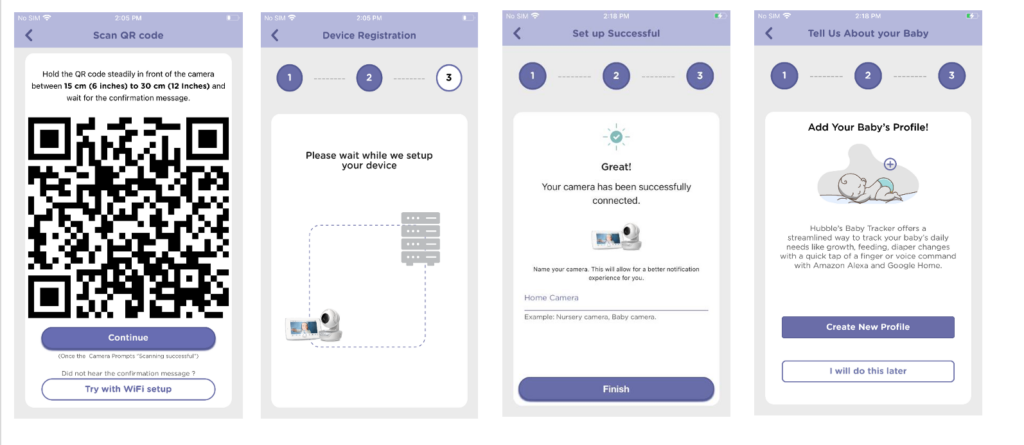
4. Re-pair The Camera To The App
If the light keeps blinking red, it may be in setup mode or have lost its account connection.
- Open the Hubble app.
- Select “Add camera” or “Re-connect camera.”
- Follow the on-screen prompts.
5. Reset The Camera
If nothing works, a factory reset may help:
- Find the reset button (often a small pinhole).
- Hold the button for about 15 seconds using a pin.
- Wait for the camera to reboot and enter setup mode (usually a fast blinking red light).
- Re-add the camera in the app.
Warning: Resetting erases settings and Wi-Fi info. Only do this if other steps fail.
6. Check For Firmware Updates
- In the Hubble app, look for firmware update options.
- Update if one is available, following instructions carefully.
Insight: Interrupted updates are a hidden cause of blinking lights. Avoid turning off the camera during updates.
7. Review Account Status
- Log out and log back into the Hubble app.
- Make sure your subscription is active if using cloud storage.
- Re-link the camera if it’s missing from your device list.
8. Contact Support
If all else fails, contact Hubble’s support team. Provide details like camera model, steps tried, and when the issue started.
Comparing Hubble Camera To Other Brands On Error Indicators
How does Hubble’s blinking red light system compare to other smart cameras? Here’s a side-by-side look at indicator lights in common smart cameras.
| Brand | Error Light Color | Main Error Indication | Typical Fix |
|---|---|---|---|
| Hubble | Blinking Red | Wi-Fi or setup issues | Reconnect, reset, update |
| Wyze | Blinking Yellow/Red | Offline, setup needed | Re-pair, check power |
| Ring | Blinking Blue | Network connection | Restart, move closer to router |
| Arlo | Flashing Amber | Low battery, sync fail | Recharge, re-sync |
| Google Nest | Pulsing Yellow | Wi-Fi or power issue | Check Wi-Fi, reset |
Non-obvious insight: Not every brand uses red for errors. Always check the manual for your camera’s unique codes.
Preventing Hubble Camera Blinking Red Problems
Being proactive can prevent most blinking red light issues. Here are some proven strategies:
1. Use Reliable Power
- Plug your camera into a stable outlet, not a loose extension cord.
- Use the charger that came with your camera.
- Avoid plugging the camera into the same outlet as heavy appliances.
2. Maintain Strong Wi-fi
- Keep your router updated and in a central location.
- Set your camera within 30 feet of the router for best results.
- Reduce interference from microwaves or cordless phones.
Advanced tip: If your house has thick walls, a Wi-Fi extender can help cameras stay online.
3. Update Regularly
- Check for app and camera firmware updates every few months.
- Update during the day when you can monitor the process.
4. Label Cables And Plugs
- Mark your camera’s power adapter, so it doesn’t get switched by accident.
- Avoid sharing power outlets with other devices.
5. Test After Power Outages
- When power returns, check your camera’s status in the app.
- If you see a blinking red light, follow the troubleshooting steps quickly to restore coverage.

Credit: cosgrovescosmos.com
Advanced Solutions For Persistent Blinking Red Light
Sometimes, basic troubleshooting isn’t enough. If your Hubble camera continues blinking red, try these advanced methods.
Check Router Settings
- Make sure the Wi-Fi network uses a compatible frequency (most Hubble cameras use 2.4GHz, not 5GHz).
- Avoid special characters in your Wi-Fi network name or password.
- Enable DHCP in your router settings so the camera can get an IP address automatically.
Assign A Static Ip Address
Some cameras reconnect more reliably if given a fixed IP address. In your router settings, assign the camera’s MAC address a reserved IP.
Review Firewall And Security Settings
- Disable guest networks if the camera is connected to your main network.
- Check if the router firewall is blocking camera traffic.
Test With Another Network
If possible, set up a mobile hotspot and try connecting the camera. If it works, the problem is likely with your home Wi-Fi.
Replace The Camera
If your camera is old or often shows hardware problems, consider replacement. Frequent blinking red lights can sometimes mean the device is failing.
When To Worry: Security And Privacy Concerns
A blinking red light usually signals a technical issue, not a security breach. But there are times when you should pay extra attention:
- The camera’s light pattern changes without you making any changes.
- The camera is missing from your app, or you can’t access it remotely.
- You see unusual activity in your Hubble account (new logins, unknown devices).
If you suspect hacking or unauthorized access:
- Change your Hubble app password.
- Reset the camera and re-add it.
- Update your router password.
- Contact Hubble support for help.
Hidden risk: Cheap or reused passwords are a leading cause of smart camera hacks. Always use a strong, unique password.

Credit: emausasturias.org
Real-world Examples: Users Solving The Blinking Red Light
To bring these tips to life, here are a few real-world examples:
- After moving to a new house: A user set up their Hubble camera but saw a blinking red light. They discovered the new Wi-Fi network used a 5GHz band, but the camera only worked with 2.4GHz. After switching to the correct band, the camera connected.
- Power surge aftermath: Another user’s camera blinked red after a lightning storm. They found the power adapter was damaged and replaced it, resolving the issue.
- App update confusion: One user updated the Hubble app but forgot to update the camera’s firmware. The camera blinked red until both were updated.
These stories show that the blinking red light isn’t always a sign of a serious problem—often, a simple fix does the trick.
When To Call A Professional
While most Hubble camera blinking red problems are easy to solve, some cases need professional help:
- Persistent blinking after every fix.
- Physical damage (water, impact, or severe wear).
- Camera overheats or smells burnt.
- The camera affects other devices on your network.
If you face these issues, contacting Hubble’s technical support or a qualified technician is the safest move.
Essential Maintenance Tips For Hubble Cameras
Routine care can help you avoid the blinking red light and other problems:
- Wipe the camera lens gently with a soft cloth.
- Inspect cables and connectors monthly.
- Test the camera in the app once a week.
- Keep the camera’s firmware and app updated.
Staying proactive can save time and keep your security system running smoothly.
The Hidden Importance Of Reading The Manual
Many users skip the manual, but it often contains unique troubleshooting advice for your camera model. For example, some Hubble cameras have special reset procedures or light codes not found online. Keeping the manual handy—or downloading it from the official website—can provide answers faster than searching forums.
The Role Of Customer Support
Hubble’s customer support team can help with advanced troubleshooting, warranty questions, and replacement parts. When contacting support, have your camera’s model number, purchase date, and a clear description of the problem ready. This speeds up the process and helps the support team give you the right solution.
For more technical details about smart cameras and their error signals, you can visit Wikipedia’s surveillance camera entry.
Frequently Asked Questions
Why Is My Hubble Camera Blinking Red After Setup?
A blinking red light after setup often means the camera couldn’t connect to your Wi-Fi network. Double-check your Wi-Fi password, signal strength, and that your router is set to 2. 4GHz (not 5GHz). Restart both the camera and your router, then try setup again.
Does The Blinking Red Light Mean Someone Is Watching My Camera?
Usually, no. The blinking red light signals a technical issue, not remote viewing. However, if you see other strange signs (like missing devices in your app), change your password and reset the camera as a precaution.
How Long Should The Camera Blink Red During Updates?
Firmware updates usually take 2-5 minutes. If the red light blinks for longer than 10 minutes, there may be a problem. Try unplugging the camera and plugging it back in. If the issue continues, try a factory reset or contact support.
Can The Camera Work Without The App If The Red Light Is Blinking?
No, a blinking red light means the camera is not working properly. You need to fix the underlying issue (Wi-Fi, power, or setup) before you can use the camera through the app or view footage.
What If My Camera Blinks Red Even With Strong Wi-fi And Power?
If you’ve checked Wi-Fi and power, and the light still blinks red, try updating the firmware, resetting the camera, or testing on a different Wi-Fi network. Persistent problems could mean a hardware fault—contact Hubble support for further help.
The blinking red light on a Hubble camera can be unsettling, but with the right approach, it’s usually easy to fix. By understanding what the light means, following practical troubleshooting steps, and staying proactive with maintenance, you can keep your home secure and your camera working smoothly.
Remember, every technical hiccup is a chance to learn more about your devices and protect your peace of mind.