
If you see your Google Fiber Jack blinking red, you know something is wrong. The red light usually means there’s a problem with your fiber internet connection. For many users, this signal can be confusing or even a little scary—especially if you depend on stable internet for work or entertainment. This article will guide you step by step through what the blinking red light means, why it happens, and what you can do to fix it. By the end, you’ll know how to troubleshoot, when to call for help, and how to avoid problems in the future.
What Is A Google Fiber Jack?
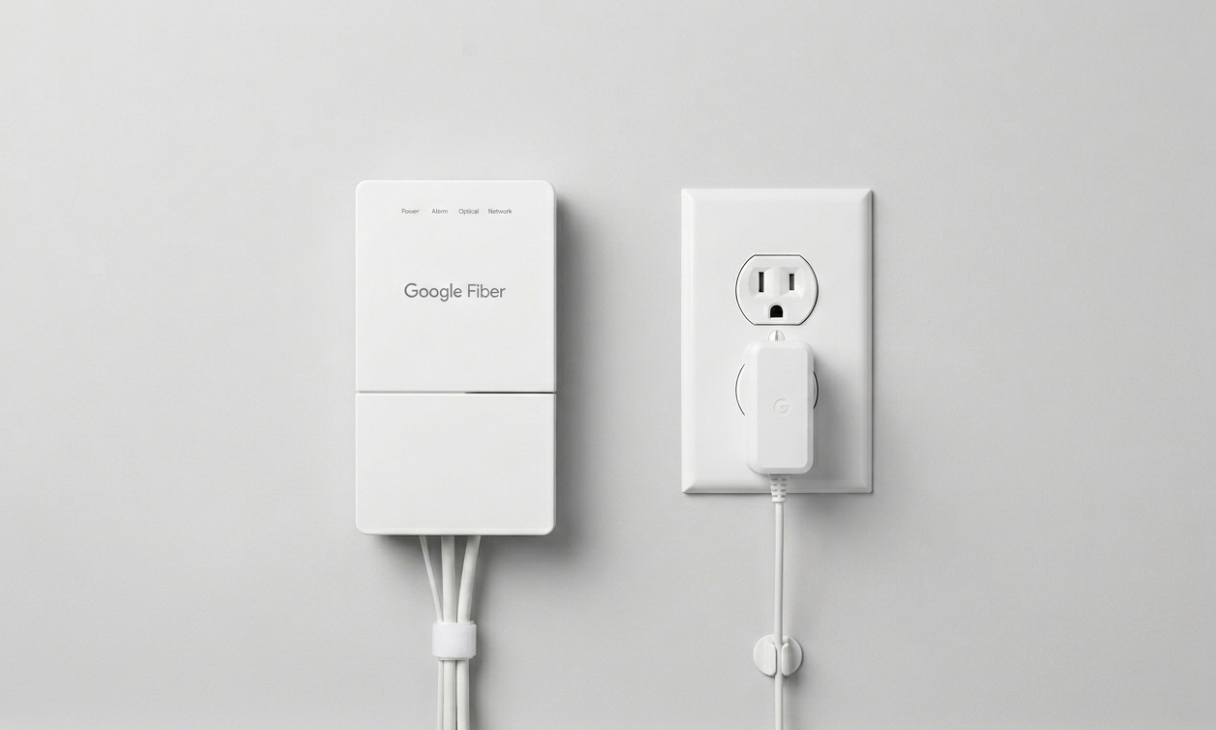
The Google Fiber Jack is a small device that connects the fiber optic cable coming from outside your home to your Google Fiber Network Box. Sometimes called an Optical Network Terminal (ONT), this box translates the fiber signal so your devices can access the internet.
Here’s what the Fiber Jack does:
- Receives internet data from the fiber optic cable.
- Sends that data to your router or Network Box.
- Provides status information through its LED lights.
Most homes have the Fiber Jack installed on a wall, often near where the fiber line enters the building. It’s a key part of your home internet setup.
Understanding The Led Lights On A Google Fiber Jack
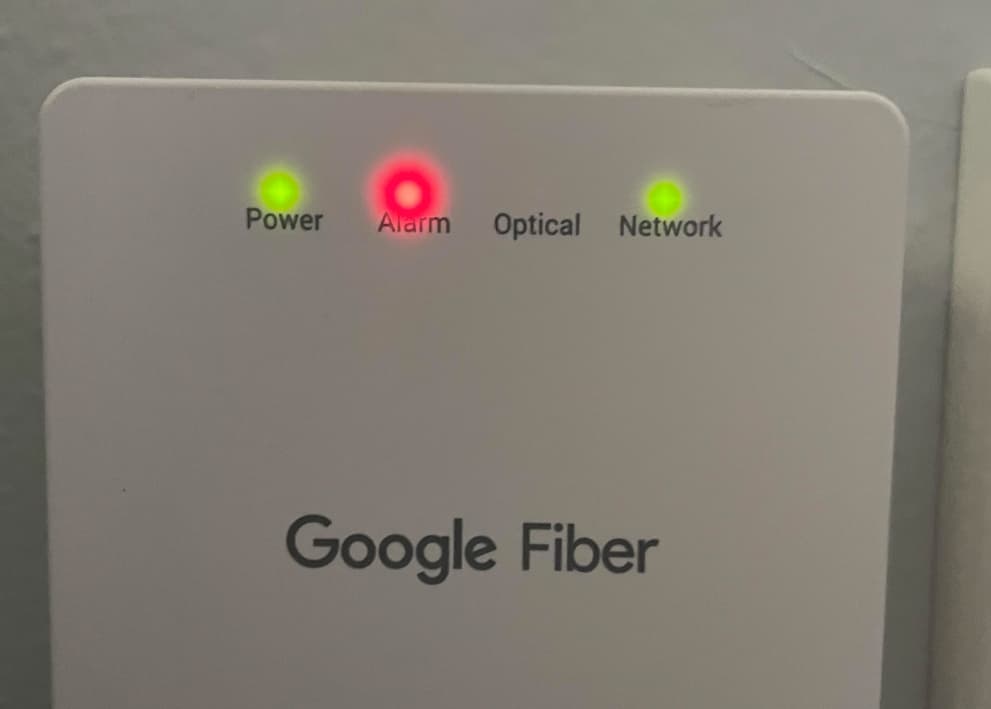
The LED lights on your Fiber Jack communicate the device’s status. Here’s a quick overview:
| LED Color | Status | Meaning |
|---|---|---|
| Solid Blue/Green | Normal | Connection is working |
| Blinking Red | Error | Problem with fiber signal |
| Off | No Power/Connection | Jack is off or not getting signal |
Solid blue or green means everything is working. Blinking red is a warning sign that needs attention.
Credit: grupolabrasa.com
What Does “blinking Red” Actually Mean?
When your Google Fiber Jack is blinking red, it’s telling you that the device is not receiving a proper signal from the fiber network. In simple terms, the internet can’t reach your home through the fiber line.
A few key facts about the blinking red light:
- It’s different from a solid red, which means a hardware failure.
- Blinking usually points to a connection or signal issue, not the device itself.
- The problem can be inside your home, outside, or with Google’s network.
Understanding this can help you focus your troubleshooting efforts.
Common Causes Of A Blinking Red Fiber Jack
Why does the red light appear? Here are the most common reasons:
- Loose or damaged fiber cable – The cable from outside may be unplugged, cut, or bent.
- Power outage or surge – Loss of power or sudden voltage changes can disrupt the device.
- Construction or street work – Recent digging or repairs outside can damage underground fiber lines.
- Google Fiber service outage – Sometimes, the issue is with Google’s network, not your home.
- Router or Network Box issues – Problems with your connected devices can sometimes cause errors.
- Moisture or water damage – Water entering the cable pathway or device can break the signal.
- Pest damage – Rodents or insects can chew through the fiber cable, especially in basements or outside walls.
Let’s look at these causes in more detail.
Loose Or Damaged Fiber Cable
Fiber optic cables are very thin and sensitive. If the cable is pulled, bent sharply, or disconnected, the light signal can’t travel. Even a small crack can break the connection.
Non-obvious tip: Sometimes, a cable may look fine on the outside but be broken inside. A professional tool is needed to test fiber continuity.
Power Issues
The Fiber Jack needs steady power. If the outlet is faulty, or a power surge happens, the device may restart or enter an error state.
- Check if other devices in the same room lost power.
- Power surges can damage the device even if it turns back on.
Construction And Street Work
If you recently saw construction crews digging near your home, they might have accidentally cut or disturbed the underground fiber line. This is a common cause of sudden outages.
Service Outages
Sometimes, the problem is not in your home but with the Google Fiber service in your neighborhood. When this happens, you’ll see many neighbors with the same issue.
Practical insight: Google usually updates outage information online or through their customer service.
Device Issues
The blinking red light is most often a signal issue, but occasionally, a hardware failure can also cause it. If your Fiber Jack is very old, this is more likely.
Environmental Or Pest Damage
Moisture and pests are less obvious causes. Rainwater can leak into wall outlets or along the cable’s path. Rodents sometimes chew cables in basements, attics, or outside walls.
Non-obvious tip: If you notice the problem after a storm or in an older building, always consider water or pest damage.
Step-by-step Troubleshooting Guide
If your Google Fiber Jack is blinking red, you can try these steps before calling support. Many problems are easy to solve at home.
1. Check Power
- Make sure the Fiber Jack is firmly plugged into a working outlet.
- Try plugging another device into the outlet to test it.
- If using a power strip or surge protector, try plugging directly into the wall.
2. Inspect The Fiber Cable
- Trace the fiber cable from the wall to the Fiber Jack.
- Look for kinks, bends, or signs of damage.
- Make sure both ends are securely connected.
- If you see dust or dirt on the connector, gently clean it with a soft cloth (never use water).
3. Restart The Fiber Jack
- Unplug the power cable from the Fiber Jack.
- Wait at least 60 seconds.
- Plug it back in and watch the LED lights as it restarts.
- Give it 2–3 minutes to fully reboot.
4. Check For Service Outages
- Visit the official Google Fiber website or app to check for reported outages.
- You can also search “Google Fiber outage [your city]” or ask neighbors if they have the same problem.
5. Restart Your Router/network Box
- Unplug the power from your Network Box or router.
- Wait 30 seconds.
- Plug it back in and let it restart.
6. Look For Recent Construction
- Think about any recent street, yard, or building work.
- If workers were digging nearby, the fiber line may be damaged.
7. Examine The Environment
- Check for signs of water damage near the Fiber Jack or cable.
- Look for pest droppings or bite marks on cables.
8. Contact Google Fiber Support
If none of these steps work, call Google Fiber customer support. They have tools to check your connection remotely. Be ready to tell them:
- When the problem started.
- What troubleshooting steps you tried.
- Any recent construction or weather events.
Pro tip: Take photos of any visible damage. This helps the technician diagnose faster.
When Should You Call For Professional Help?
While many problems can be fixed at home, some need a trained technician. Contact support if:
- The red light stays on after all troubleshooting steps.
- You see clear damage to the fiber cable (cut, chewed, or burned).
- There was major construction, flooding, or a storm.
- Multiple neighbors have the same issue.
Important: Never try to repair or replace fiber optic cables yourself. They require special tools and safety measures.
How Google Fiber Technicians Diagnose The Problem
When you call support, here’s what usually happens:
- Remote check: Google tests your connection from their side.
- Guided steps: They may ask you to restart or check cables.
- Technician visit: If the problem is outside or with the cable, a technician schedules a home visit.
Technicians use special devices to measure the light signal through the fiber. They can pinpoint the break or fault, even underground.
Insider fact: Most home visits take less than an hour if the problem is inside your house. Outdoor repairs may take longer.
What To Expect During A Technician Visit
When a technician arrives, here’s what usually happens:
- They check the Fiber Jack and cables inside your home.
- If the problem is in the wall or outside, they may access exterior boxes or underground lines.
- They test the signal using a fiber optic meter.
- If they find a problem, they may replace the Fiber Jack, repair the cable, or call for a crew to fix underground lines.
Most visits are free if the problem is not caused by user damage. If you caused the damage (for example, drilling through a wall and cutting the cable), there may be a charge.
Comparison: Fiber Jack Issues Vs. Router Problems
Sometimes, it’s hard to tell if your internet problem comes from the Fiber Jack or your router. Here’s a quick comparison:
| Symptom | Fiber Jack Issue | Router Issue |
|---|---|---|
| Blinking red light on Fiber Jack | Yes | No |
| No internet, but Fiber Jack light is solid blue/green | No | Yes |
| Wi-Fi network disappears | No | Yes |
| All devices lose internet at once | Yes | Yes |
If only the router has issues, your Fiber Jack light will usually stay blue or green.
Preventing Future Fiber Jack Problems
Once you fix the blinking red light, you probably want to avoid it happening again. Here are some tips:
- Don’t move or bend fiber cables – They’re fragile and can break easily.
- Keep the area dry – Avoid placing plants or water sources near the Fiber Jack.
- Use surge protectors – Protect your devices from power surges.
- Check after construction – If any digging happens outside, check your internet right away.
- Inspect for pests – Especially in basements and older buildings, watch for rodents.
Little-known tip: If you plan home renovations, tell the workers about the fiber cable location. Many accidental cuts happen during remodeling.
Real-world Examples: When The Red Light Meant Trouble
Let’s look at a couple of examples to make this clearer.
Case 1: After A Big Storm
A homeowner in Austin noticed the Fiber Jack blinking red after a heavy storm. They checked their power and cables—no problems. Neighbors had the same issue. The cause: water leaked into an underground fiber access panel, breaking the signal for the whole street. Google Fiber fixed it the next day.
Case 2: Chewed Cable In The Basement
A renter found the Fiber Jack blinking red one morning. Inspecting the cable, they found tiny bite marks—mice had chewed through the fiber line behind a washing machine. A technician replaced the section of cable, and internet was restored.
Case 3: Construction Accident
A family lost internet suddenly while workers dug in their yard to plant a tree. The Fiber Jack started blinking red. The technician found the newly planted tree had pinched the underground cable. A repair crew had to dig up and replace the damaged section.
These examples show how both indoor and outdoor events can cause a red light error.
The Science: Why Fiber Cables Are So Sensitive
Fiber optic cables carry data as light, not electricity. They use hair-thin strands of glass or plastic. Even a tiny crack or sharp bend can block or scatter the light, breaking the signal.
Key facts about fiber cables:
- They’re immune to electrical interference, but very sensitive to bending and pressure.
- They can carry huge amounts of data (over 1,000 times more than copper).
- Special tools are needed to test and repair them.
Beginner mistake: Trying to patch or tape a fiber cable like an electrical wire will not work. The glass inside must be perfectly aligned and clean.
How To Communicate With Google Fiber Support
If you need to contact support, these tips can make the process smoother:
- Have your account number or service address ready.
- Write down the exact error (for example, “Fiber Jack blinking red for 2 hours”).
- List the troubleshooting steps you’ve already tried.
- Take photos of visible damage or error lights.
- Ask if there is a known outage in your area.
Pro insight: Support teams prioritize urgent outages (like many homes affected) over single-device issues.
How Long Does It Take To Fix A Blinking Red Fiber Jack?
The repair time depends on the cause:
- Simple cable disconnection: Often fixed in minutes at home.
- Device replacement: 1–2 hours, if a technician is available.
- Outdoor fiber cut: May take 1–3 days, depending on crew availability and weather.
- Major outage: Can take longer if repairs require digging or specialized equipment.
Google Fiber aims to resolve most issues within 24–48 hours, but severe cases (like after a storm) can take longer.
Comparison: Google Fiber Vs. Other Providers’ Ont Devices
How does Google Fiber’s Jack compare with similar devices from other internet providers?
| Feature | Google Fiber Jack | AT&T Fiber ONT | Verizon Fios ONT |
|---|---|---|---|
| LED Error Signal | Blinking red light | Red alarm light | Red fail light |
| User Troubleshooting | Easy reset, simple cable check | Similar steps | Similar steps |
| Technician Needed | For cable/device issues | For cable/device issues | For cable/device issues |
While the signal and steps are similar, some providers use different colors or terms. Always check your provider’s support site for their device’s error codes.
When To Upgrade Your Google Fiber Equipment
Most Fiber Jacks last many years without issues. However, you may need an upgrade if:
- Your device is over 7–10 years old and often fails.
- Google Fiber notifies you of a new device rollout.
- You need higher speeds or new features.
Upgrading can prevent future problems and improve performance.
Tip: Don’t upgrade just because of a red light—only if the device is confirmed faulty by a technician.

Credit: www.reddit.com
Resources For More Help
If you want to learn more about fiber optic technology, troubleshooting, or common internet problems, check out the official Google Fiber Help Center. Their guides are easy to understand and updated often.
Frequently Asked Questions
Why Is My Google Fiber Jack Blinking Red But My Power Is Fine?
A blinking red light usually means a signal issue, not a power problem. Even if your Fiber Jack has power, it may not be receiving a fiber signal due to a cable issue, service outage, or device error.
Can I Use My Internet If The Fiber Jack Is Blinking Red?
No. The blinking red light means the Fiber Jack can’t connect to the fiber network, so your internet will not work until the issue is fixed.
Will Restarting The Fiber Jack Fix The Red Blinking Light?
Restarting can solve temporary glitches, but not physical problems like cable damage or service outages. Try restarting first, but if the red light returns, you’ll need to investigate further.
How Do I Contact Google Fiber Support For A Red Blinking Light?
Visit the Google Fiber Help Center online, use the support chat, or call their customer service. Have your account details ready and explain the problem and what you’ve tried so far.
Is A Blinking Red Fiber Jack Dangerous?
No, it’s not dangerous. It simply means there’s a signal issue. However, never open the device or cut cables yourself—fiber optic cables can be delicate and require special handling.
Conclusion
A blinking red Google Fiber Jack can be frustrating, but most issues are easy to diagnose and fix with the right steps. Take your time, check for obvious problems, and don’t hesitate to call for professional help if you need it.
With a little knowledge and preparation, you’ll keep your internet running smoothly and avoid common mistakes.
Credit: gfiber.com