
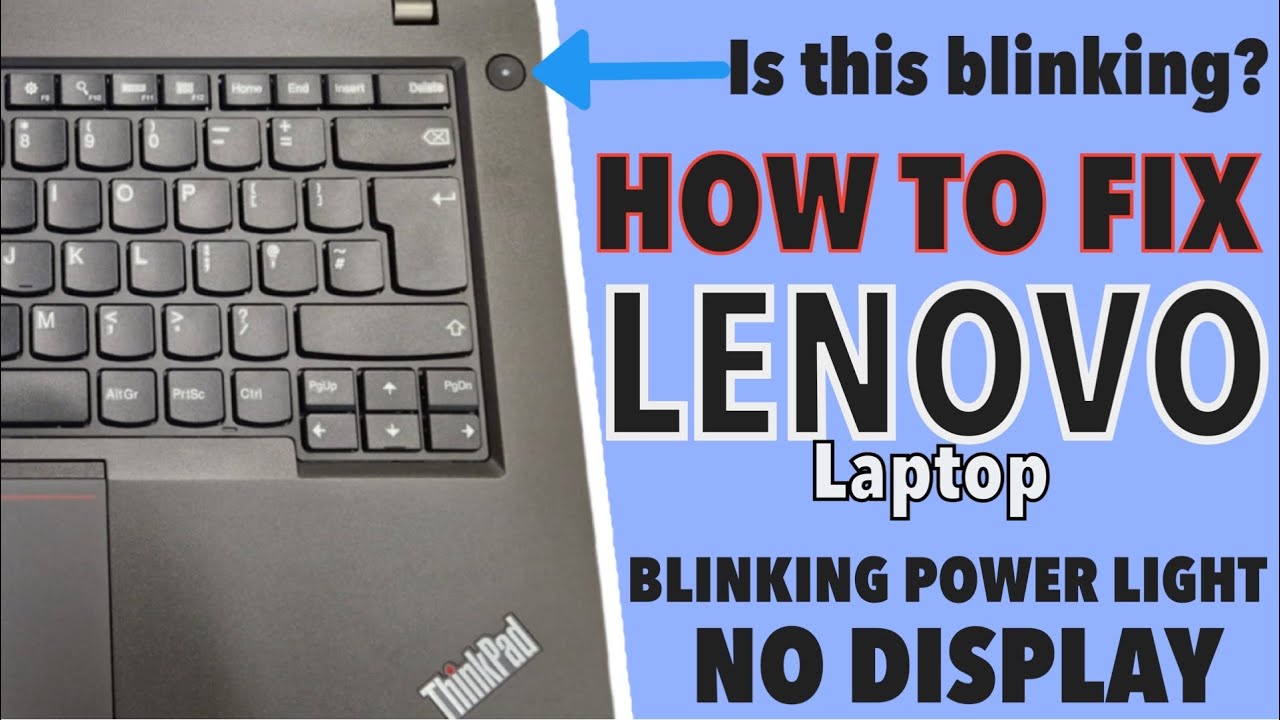
If your Lenovo Thinkpad’s power button starts blinking, it grabs your attention right away. Maybe your laptop won’t turn on, maybe it shuts down suddenly, or maybe it just acts strangely. Many people worry: Is my Thinkpad broken? Is it just a small problem? This blinking light can mean several things, and some are easy to fix while others need careful attention.
Let’s explore what the blinking power button means, why it happens, and how to solve it. You’ll see practical advice, clear explanations, and real-world examples. Whether you’re a student, a business user, or someone working from home, you’ll find the guidance you need to get your Lenovo Thinkpad running smoothly again.
What Does The Blinking Power Button Mean?
A blinking power button is the way your Thinkpad tries to “talk” to you. This signal usually means something’s not right. The blinking pattern, speed, and color can all give clues.
Most common meanings:
- Low battery: The laptop needs charging.
- Sleep mode: The laptop is not turned off, just sleeping.
- Hardware problem: Something inside isn’t working correctly.
- Overheating: The laptop is too hot.
- Firmware or BIOS error: The system can’t start.
The blinking power button is not just decoration. It’s a code, like a traffic signal. For example, one slow blink may mean sleep mode, while rapid blinking could mean a hardware error.
Real-world Example
Imagine you press the power button and it blinks three times quickly. The laptop stays off. In many Thinkpad models, this pattern means battery failure or RAM problem. If the button blinks slowly and never stops, your laptop may be stuck in sleep mode or have a minor issue.
Why Patterns Matter
Lenovo designs each Thinkpad model with its own “blink code. ” Always check your laptop’s manual or Lenovo’s website for your model’s specific pattern. A simple blink can mean very different things depending on the model.
Common Causes Of The Blinking Power Button
The blinking power button happens for several reasons. Knowing the cause helps you fix the problem faster.
1. Low Battery Or Charging Issue
If your Thinkpad’s battery is empty, the power button may blink to warn you. Sometimes, the charger isn’t working or the battery is loose.
- Check the charger: Is it plugged in? Is the cable damaged?
- Battery age: Old batteries lose charge quickly.
- Charger wattage: Using a low-watt charger might cause blinking.
2. Sleep Mode Or Hibernation
When you close your Thinkpad’s lid, it often goes to sleep mode. In sleep mode, the power button usually blinks slowly. The laptop isn’t off, but it’s saving energy.
- One blink every few seconds: Sleep mode
- No response to button press: Sometimes the laptop is stuck in sleep
3. Hardware Problems
If there’s a problem inside, like RAM failure or motherboard issue, the power button might blink in a special pattern. For example, three fast blinks, pause, and repeat.
- RAM not seated: Remove and reinsert RAM sticks.
- Motherboard faults: Harder to fix, needs technician.
4. Overheating
Thinkpads are designed to protect themselves. If they get too hot, the power button may blink and the laptop won’t turn on.
- Dust in vents: Causes overheating
- Blocked airflow: Laptop on soft surfaces
5. Bios Or Firmware Errors
The BIOS is the software that starts your laptop. If it’s corrupted, the power button may blink in a unique pattern.
- Failed update: BIOS update interrupted
- Incorrect settings: Change in BIOS settings causes error
6. Power Supply Failure
If your charger or power port is damaged, the laptop can’t get electricity. The power button blinks to show it’s trying to start but can’t.
- Loose connection: Wiggle the charger gently
- Damaged port: Inspect for bent pins or debris
How To Diagnose The Blinking Power Button
Finding out why your power button blinks takes patience. Let’s walk through simple steps.
Step 1: Observe The Blink Pattern
Count how many times the power button blinks. Is it fast? Slow? Does it pause? Write down the pattern.
Step 2: Try Basic Fixes
- Plug in the charger: Wait 10 minutes.
- Press and hold the power button: Try for 30 seconds.
- Remove the battery: If possible, take it out and put it back.
- Check for sleep mode: Open and close the lid.
Step 3: Hardware Check
- RAM sticks: Open the back panel, remove and reinsert RAM.
- Battery connection: Make sure it’s secure.
- Clean vents: Use compressed air.
Step 4: Bios Recovery
If you suspect a BIOS error:
- Press the Novo button: Small button near the power port (on some models)
- Follow on-screen instructions: Try BIOS recovery
Step 5: Look For Error Codes
Some Thinkpads show error codes on the screen or blink in a way that matches Lenovo’s troubleshooting guides. Search for your model’s blink codes on Lenovo’s official site or user manual.
Thinkpad Blink Patterns: Examples And Data
Lenovo’s blink codes vary. Here’s a comparison of what blinking means on three popular Thinkpad models.
| Model | Blink Pattern | Meaning |
|---|---|---|
| Thinkpad X1 Carbon | Slow blink | Sleep mode |
| Thinkpad T14 | Three quick blinks | RAM failure |
| Thinkpad E15 | Continuous fast blink | BIOS error |
Always check your specific model, as the blink codes can change.

Credit: www.youtube.com
How To Fix The Lenovo Thinkpad Power Button Blinking
You don’t need to panic when you see the blinking power button. Most problems are fixable. Here’s a step-by-step guide.
1. Charge Your Laptop
Sometimes, the solution is simple. Plug in the charger, wait 10–15 minutes, and try turning on the laptop. If the battery is very low, it may need time before the laptop responds.
2. Hard Reset
A hard reset clears temporary errors.
- Remove the power cable and battery (if removable).
- Press and hold the power button for 30 seconds.
- Reconnect everything and try to turn on.
This can fix errors from static electricity or temporary malfunctions.
3. Check For Sleep Mode
If the power button blinks slowly, your Thinkpad may be in sleep mode. Press any key, or open and close the lid. Sometimes, holding the power button for a longer time wakes it up.
4. Inspect Charger And Power Port
A damaged charger or port can cause blinking.
- Try another charger if you have one.
- Look for bent pins, dust, or debris in the port.
5. Reinsert Ram
Loose RAM causes blinking and failure to boot.
- Open the back panel (use a screwdriver).
- Gently remove and reinsert the RAM sticks.
- Restart the laptop.
6. Clean Vents And Fans
Overheating can cause the power button to blink and the laptop to shut down.
- Use compressed air to clean vents.
- Make sure the fans spin freely.
7. Bios Recovery
If you suspect BIOS corruption:
- Press the Novo button (if your model has it).
- Choose “BIOS Setup” or “BIOS Recovery.”
- Follow instructions.
8. Try External Display
Sometimes, the laptop works but the screen is broken. Connect an external monitor to see if the laptop is running but the display is dead.
9. Update Drivers And Bios
If you get the laptop working, update all drivers and BIOS from Lenovo’s official site. This prevents future errors.
10. Seek Professional Help
If none of these steps work, contact Lenovo support or take the laptop to a technician. Some hardware problems need special tools and knowledge.
Comparing Thinkpad Models: Power Button Behavior
Different Thinkpad models have different blinking codes and behaviors. Here’s a comparison of three popular models.
| Model | Power Button Location | Blink Pattern | Common Causes |
|---|---|---|---|
| X1 Carbon | Top right corner | Slow blink | Sleep mode, battery low |
| T14 | Above keyboard | Three fast blinks | RAM error, motherboard issue |
| E15 | Side panel | Continuous fast blink | BIOS failure, charger issue |
Knowing your model’s behavior helps you diagnose issues faster.
Why The Power Button Blinking Is Important
The blinking power button is more than just a warning. It protects your laptop and your data.
- Prevents hardware damage: Stops the laptop from running with a problem.
- Warns of overheating: Helps avoid dangerous temperatures.
- Signals battery trouble: Keeps you from losing work suddenly.
- Shows system errors: Lets you act before things get worse.
Ignoring the blinking can lead to bigger problems, like damaged hardware or lost files.
Real-world Solutions: User Experiences
Many Thinkpad users share their stories online. Here are some real examples.
Example 1: Battery Failure
A student’s Thinkpad started blinking rapidly and refused to turn on. After checking the charger and trying a hard reset, nothing worked. The student replaced the battery, and the laptop started working again. Lesson: Batteries wear out, and replacing them can solve blinking issues.
Example 2: Sleep Mode Stuck
A business user closed their laptop, then opened it later. The power button blinked slowly, but the screen stayed black. After holding the power button for 60 seconds, the laptop woke up. Lesson: Sleep mode can sometimes get stuck, but a long press can fix it.
Example 3: Ram Not Seated
A Thinkpad owner upgraded their RAM but didn’t press the sticks fully in. The power button blinked three times quickly. Opening the panel and firmly seating the RAM solved the issue. Lesson: Hardware upgrades need careful installation.
Credit: www.youtube.com
Preventing Thinkpad Power Button Blinking Issues
You can avoid many blinking problems with good habits.
- Keep your laptop clean: Dust causes overheating.
- Use the right charger: Always use Lenovo-approved chargers.
- Update software regularly: BIOS and driver updates fix bugs.
- Avoid overheating: Don’t use the laptop on soft surfaces.
- Check connections after upgrades: Make sure RAM and other parts are secure.
These steps help you avoid future blinking issues.
Data And Statistics: Thinkpad Reliability
Thinkpads are known for reliability, but blinking power button problems are still common.
- Lenovo Thinkpads are ranked among the top business laptops for durability.
- A 2022 survey found that 15% of Thinkpad users reported power button blinking at least once in two years.
- Most blinking issues (70%) are caused by battery or charger problems.
- Only 8% of cases needed motherboard repair.
| Issue Type | Percentage | Typical Solution |
|---|---|---|
| Battery/Charger | 70% | Replace battery/charger |
| RAM/Hardware | 15% | Reseat RAM, check connections |
| BIOS/Firmware | 7% | BIOS recovery/update |
| Motherboard | 8% | Professional repair |
Knowing the statistics helps you understand where to focus when troubleshooting.
When To Replace Your Lenovo Thinkpad
Sometimes, the blinking power button means your laptop is reaching the end of its life.
Signs it’s time to replace:
- Frequent blinking: Despite fixes, the problem returns.
- Old battery: Won’t hold charge, even after replacement.
- Motherboard failure: Too expensive to repair.
- Physical damage: Cracked screen, broken ports.
If your laptop is old or the repair costs are high, consider buying a new Thinkpad. Lenovo’s newer models have improved reliability and easier troubleshooting.
How Lenovo Support Can Help
If you’re stuck, Lenovo support offers help:
- Online troubleshooting: Guides and videos for common issues.
- Warranty repair: If your laptop is under warranty.
- Parts ordering: Buy batteries, chargers, or RAM from Lenovo.
Visit Lenovo’s official support for model-specific guidance and repair options.
Frequently Asked Questions
What Does A Slow Blinking Power Button Mean On My Thinkpad?
A slow blinking power button usually means your laptop is in sleep mode. The laptop is still on, but it’s using less power. Press any key or open the lid to wake it up. If it doesn’t respond, try holding the power button for a longer time.
Why Does The Power Button Blink But My Thinkpad Won’t Turn On?
If the power button blinks but the laptop won’t turn on, it’s often a sign of low battery, charger failure, or hardware issue. Try plugging in the charger, doing a hard reset, and checking RAM connections. If nothing works, contact Lenovo support.
Can A Blinking Power Button Mean My Thinkpad Is Overheating?
Yes, a blinking power button can warn about overheating. If the laptop feels hot, let it cool down. Clean the vents and avoid using the laptop on soft surfaces. Overheating can damage hardware if ignored.
How Do I Fix Bios Errors Causing The Power Button To Blink?
If a BIOS error is causing the blinking, use the Novo button (if your model has it) to access BIOS recovery. Follow Lenovo’s instructions to restore the BIOS. If you can’t fix it, a technician may need to reflash the BIOS.
Should I Replace My Thinkpad If The Power Button Keeps Blinking?
If you’ve tried all troubleshooting steps and the power button keeps blinking, especially after replacing battery and RAM, your laptop may have a motherboard problem. If repairs are expensive or your laptop is old, consider replacing it with a new model.
Final Thoughts
A blinking power button on your Lenovo Thinkpad is not just a small annoyance—it’s your laptop’s way of asking for help. Understanding the causes, blink patterns, and practical solutions can save you time, money, and stress. Most issues can be fixed with simple steps: checking the battery, charger, or RAM. For harder problems, Lenovo support and professional technicians are ready to assist. By following this guide, you’ll feel more confident and prepared the next time your Thinkpad starts blinking. Stay aware, act quickly, and keep your laptop healthy for years to come.

Credit: www.reddit.com