
When you press the power button on your HP laptop, you expect to see the familiar logo or Windows screen. But sometimes, instead of starting, the power LED blinks continuously, and the screen stays dark—no display, no sound, just blinking lights. This can be frustrating, especially if you depend on your laptop for work or study. But don’t panic. This problem is common with HP laptops, and there are practical steps you can take to identify and possibly solve the issue. In this guide, you’ll learn why the power LED blinks, what the signals mean, and how to troubleshoot your HP laptop effectively—even if you’re not a tech expert.
Understanding The Power Led Blinking On Hp Laptops
When an HP laptop won’t turn on and the power LED blinks repeatedly, it’s not just a random error. The blinking light is a code from your laptop. HP engineers designed these light patterns to help you find out what’s wrong inside the system. The number of blinks, the speed, and whether other lights (like the Caps Lock LED) blink as well—all these details matter.
For example, three long blinks followed by two short blinks can indicate a memory problem. A single blink, repeating, might point to a different hardware failure. HP laptops use both power LED and Caps Lock LED blinking codes to communicate errors. Understanding these codes is the first step toward a solution.
Main Causes Of Power Led Blinking With No Display
A continuously blinking power LED with no display usually means a hardware problem. Here are the most common causes:
- RAM failure – Faulty or loose memory modules often cause display problems and blinking codes.
- Motherboard issues – Damage to the main board can stop the laptop from working, leading to error blinks.
- BIOS corruption – If the BIOS gets corrupted, the laptop may not start, and the LED blinks to signal this.
- Battery or adapter problems – Power supply issues can prevent a proper startup.
- Other hardware faults – Problems with the CPU, GPU, or other components can also trigger blinking codes.
Some users believe a blinking LED means a battery issue, but in most cases, it’s related to RAM or the motherboard.
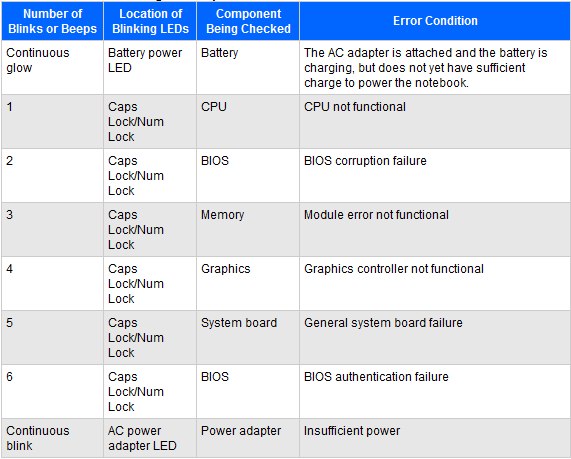
Credit: h30434.www3.hp.com
Decoding Hp Laptop Power Led And Blink Patterns
Let’s look at what different blinking patterns mean. HP provides documentation, but here’s a simplified summary for quick reference:
| Blink Pattern (Power/Caps Lock) | Possible Cause | What It Means |
|---|---|---|
| 1 blink | CPU failure | Processor not functioning |
| 2 blinks | BIOS corruption | Firmware issue detected |
| 3 blinks | Memory (RAM) error | RAM not detected/failed |
| 4 blinks | Graphics (GPU) failure | Display chip problem |
| 5 blinks | System board failure | Mainboard issue |
| 6 blinks | BIOS authentication error | Security/firmware issue |
Note: The pattern may repeat with a short pause. Count both long and short blinks. Some models use the Caps Lock LED instead of the power LED, or both together.
Step-by-step Troubleshooting: Power Led Blinking, No Display
If your HP laptop is showing a blinking power LED and no display, follow these steps. You don’t need to be a computer engineer—just careful and systematic.
1. Count The Blink Pattern
Observe the power LED and Caps Lock LED. Write down the number of blinks and whether they are long or short. This is your main clue.
2. Perform A Hard Reset
A hard reset can clear out minor errors and static electricity that sometimes cause boot issues.
- Turn off the laptop.
- Disconnect all external devices (USB drives, mouse, etc. ).
- Remove the power adapter and battery (if removable).
- Hold the power button for 15-20 seconds.
- Reconnect the battery and power, then try to start the laptop.
A hard reset works in about 25–30% of cases with simple startup errors.
3. Check The Ram (memory)
Since RAM problems are a common cause, reseating or replacing the memory can help.
- Unplug the laptop and remove the battery.
- Open the RAM access panel (usually on the bottom).
- Carefully remove the RAM modules.
- Use a dry, clean eraser to gently clean the gold contacts.
- Reinsert the modules firmly in their slots.
- Replace the cover, reconnect power, and test the laptop.
If your laptop has two RAM sticks, try each one separately to see if one is faulty.
4. Remove External Devices
Faulty USB devices can stop the system from starting.
- Disconnect all USB drives, SD cards, and peripherals.
- Start the laptop with only the power cord and battery.
5. Test With Only Adapter Or Battery
Sometimes, a failing battery or adapter causes startup issues.
- Try to start the laptop with just the power adapter (battery removed).
- Then, try with only the battery (adapter unplugged).
If it works with one and not the other, you’ve found a faulty component.
6. Reset The Bios
If the BIOS is corrupted, the laptop may not display anything. HP laptops often have a BIOS recovery mode.
- Turn off the laptop.
- Press and hold the Windows + B keys, then press the power button for 2–3 seconds.
- Release the power button but keep holding the keys for about 10 seconds.
- If the BIOS recovery screen appears, follow the prompts.
This method works on newer HP models.
7. Inspect The Motherboard
If none of the above helps, the motherboard may be damaged. Look for:
- Burnt smells or visible burn marks
- Swollen or leaking capacitors
- Loose connections (especially near the charging port)
Motherboard issues usually need professional repair.
8. Seek Professional Help
If your laptop is under warranty or the above steps seem risky, contact HP support or a trusted repair center. Do not attempt advanced repairs if you’re unsure—they can cause more damage.

Credit: www.youtube.com
Common Mistakes When Troubleshooting Hp Laptop Power Led Blinking
Many users make errors when trying to fix their laptop. Here are some mistakes to avoid:
- Ignoring blink codes – Not counting or understanding the blink pattern leads to wasted effort.
- Forcing components – Applying too much force when removing or inserting RAM or batteries can break them.
- Skipping static precautions – Not grounding yourself before touching internals can damage sensitive parts.
- Replacing parts blindly – Swapping batteries, chargers, or motherboards without confirming the real issue can be costly.
- Overlooking warranty – Opening your laptop may void the warranty. Check before disassembling.
Understanding and avoiding these mistakes will save time and money.
When Should You Replace Vs. Repair?
Deciding whether to repair or replace your HP laptop depends on the cause of the issue, the laptop’s age, and the repair cost. Here’s a simple comparison:
| Problem | Repair Feasible? | Replacement Recommended? |
|---|---|---|
| Loose RAM | Yes (simple fix) | No |
| Bad battery/adapter | Yes (easy to replace) | No |
| BIOS corruption | Sometimes (if recovery works) | Rarely |
| Motherboard failure | Usually expensive | Yes, especially for old laptops |
| Graphics/CPU issues | Rarely (costly repair) | Often better to replace |
For laptops more than 3–4 years old, investing in a new device may make more sense if the motherboard or CPU fails.
Real-world Examples: Hp Laptop Power Led Blinking
Let’s look at two real scenarios:
Example 1: 3 Blinks on Power LED
Sarah’s HP Pavilion shows three quick blinks, then a pause, and repeats. No display at all. She removes the RAM, cleans the contacts, reinserts them, and the laptop starts normally. In this case, a simple RAM reseating solved the problem.
Example 2: 5 Blinks on Caps Lock
Carlos’s HP EliteBook won’t turn on. The Caps Lock blinks five times, no display. He tries a hard reset and BIOS recovery, but nothing works. A repair shop confirms a failed motherboard. Since the laptop is five years old, Carlos decides to buy a new one.
These stories show why it’s important to decode the blinks and not panic. Sometimes, the fix is easy; sometimes, replacement is smarter.
How To Prevent Power Led Blinking Issues
You can reduce the risk of seeing the blinking power LED and no display in the future:
- Keep your laptop clean – Dust and dirt inside can cause overheating and hardware failure.
- Update BIOS and drivers – Regular updates from HP can fix bugs and prevent firmware issues.
- Use a surge protector – Power surges damage motherboards and adapters.
- Handle with care – Dropping your laptop can loosen or damage internal parts.
- Don’t ignore early warnings – If your laptop sometimes fails to start or shows random errors, don’t wait. Fix small problems before they grow.
Many users miss this: updating the BIOS and drivers is more important than it seems. Outdated firmware is a common cause of startup issues, including blinking codes.
When To Call Hp Support Or Visit A Service Center
If you’ve tried all basic steps and the blinking continues, it’s time to seek help. Here’s when you should contact a professional:
- The blink code points to motherboard, CPU, or GPU failure.
- BIOS recovery doesn’t work.
- The laptop is under warranty.
- You’re not comfortable opening the laptop.
HP has official support pages and phone lines. Always use authorized service centers to avoid fake parts and poor repairs. For official troubleshooting guides, check the HP Support website.
Advanced Troubleshooting (for Tech-savvy Users)
If you have some technical knowledge, you can try these extra steps. But remember, these actions can void your warranty.
Test With External Monitor
Connect your laptop to an external monitor using HDMI or VGA. If the external display works, your laptop’s screen or cable is faulty—not the motherboard.
Check For Loose Connections
Laptops sometimes develop loose internal connections, especially after drops. Carefully check the:
- RAM slots
- Display cable (ribbon cable inside)
- Power jack
Re-seat connectors gently if you feel comfortable.
Replace Cmos Battery
A dead CMOS battery can stop the laptop from booting, especially if you see BIOS-related blink codes. The CMOS battery is a small coin-cell battery on the motherboard.
- Remove the main battery and power.
- Open the laptop’s bottom cover.
- Locate the CMOS battery, remove it for 10 minutes, then reinstall or replace.
This step is often skipped by beginners but can resolve stubborn boot issues.
Reflash The Bios (advanced)
Some users can reflash the BIOS using a USB drive if the standard recovery doesn’t work. This process varies by model and is risky—follow HP’s official instructions exactly.

Credit: www.hp.com
Comparing Hp Laptop Blinking Codes With Other Brands
HP is not the only brand with LED blink codes. Here’s a comparison with two other major brands:
| Brand | Where LEDs Blink | Common Blink Code | Most Common Cause |
|---|---|---|---|
| HP | Power, Caps Lock | 3 blinks | RAM failure |
| Dell | Power, Battery, WiFi | 2,3,4 blinks | RAM, Motherboard |
| Lenovo | Power, Battery | Continuous blink | Motherboard, BIOS |
While the patterns vary, RAM and motherboard issues are the most common reasons for no display with blinking LEDs across brands.
Frequently Asked Questions
Why Is My Hp Laptop Power Led Blinking But The Screen Is Black?
The blinking power LED signals a hardware problem. Most often, it’s a RAM, motherboard, or BIOS issue. The laptop is not passing its startup check and cannot display anything.
How Do I Fix My Hp Laptop When The Power Light Blinks But Does Not Turn On?
Start with a hard reset and check the blink code. Reseat the RAM, disconnect external devices, and try BIOS recovery. If nothing helps, a hardware component may need repair or replacement.
Can A Dead Battery Cause The Power Led To Blink With No Display?
It’s rare. Most blinking codes are related to internal hardware faults. However, a shorted or faulty battery can cause startup problems. Test the laptop with only the adapter or battery to isolate the cause.
Is It Safe To Open My Hp Laptop And Reseat The Ram?
Yes, if you follow static safety steps and your warranty allows it. Ground yourself before touching components. If you’re unsure, ask a technician.
How Do I Find The Meaning Of The Blink Code On My Specific Hp Laptop Model?
Check your laptop’s user manual or visit the official HP Support website for a detailed list of blink codes for your model.
Final Thoughts
HP laptops are reliable, but even the best devices can have problems. The key is to read the blinking codes carefully, follow safe troubleshooting steps, and know when to seek help. Most display issues caused by a blinking power LED are fixable, especially if you act early and avoid common mistakes. With this guide, you’re better prepared to bring your HP laptop back to life—or make a smart decision about repair or replacement.