
When your Honeywell AC shows a blinking “Cool On” light, it can be confusing and even worrying. Many people quickly assume something is broken, but often, this blinking is a signal from your thermostat or air conditioner, not a sign of failure. Understanding what the blinking means, how to react, and when to call for help can save you time, money, and discomfort. This guide explains, in clear terms, why the “Cool On” indicator blinks, what you should do, and how to keep your system running smoothly.
What Does “cool On” Blinking Mean On Honeywell Ac?
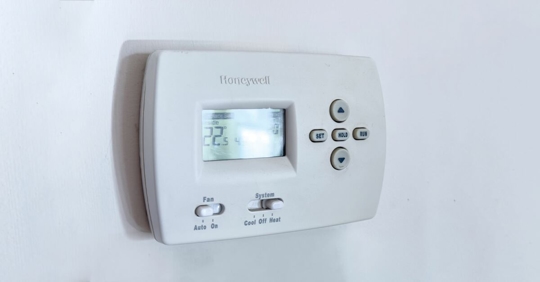
The “Cool On” light is a simple message from your Honeywell thermostat. When it blinks, it’s not just a warning—it’s telling you that the AC is in a waiting or protection mode. Here’s what’s happening:
- Your thermostat has sent a signal to start cooling, but the air conditioner hasn’t turned on yet.
- The blinking can also mean the thermostat is waiting to protect the AC system from short cycling (turning on and off too quickly).
- In some cases, the blinking is a sign of a problem like a wiring issue or a failing component.
Short cycling protection is one of the most common reasons. If your AC turns on and off quickly, it can damage the compressor. Honeywell thermostats add a delay—usually 5 minutes—before cooling starts again, and during this time, the “Cool On” light blinks.
How Honeywell Thermostat And Ac Communicate
Your Honeywell thermostat acts as the brain for your cooling system. When you set a temperature, the thermostat checks the current room temperature. If the room is warmer than your setting, it tells the air conditioner to start. However, to prevent damage, the thermostat may pause for a few minutes before sending the signal. This is called a compressor protection delay.
During this delay, the “Cool On” message blinks. This blinking usually lasts from 3 to 5 minutes. It is a safety feature, not a malfunction. If the blinking continues for longer, it could mean there is a deeper issue.
Why Is There A Delay?
Modern ACs are expensive. The compressor is one of the most expensive parts to replace. If it turns on and off quickly, it can overheat and fail. Honeywell thermostats add a short delay after each cycle to protect the compressor. The blinking “Cool On” lets you know this delay is active.
Main Causes Of “cool On” Blinking
Several things can trigger the blinking “Cool On” message on your Honeywell thermostat. Some are normal, and some need your attention.
- Compressor Protection Delay
- As explained, this is the most common reason. Wait 5 minutes and see if the AC starts.
- Power Interruption
- If your home loses power, or there is a quick power dip, the thermostat may reset and start the delay.
- Thermostat Settings Changed
- If you change the temperature, mode, or fan settings, the system may enter a protection delay.
- Low or Dead Batteries
- Some Honeywell thermostats use batteries. Low batteries can cause the thermostat to act strangely.
- Wiring or Installation Issues
- Loose, corroded, or damaged wires can stop the system from working.
- System or Component Failure
- Problems with the AC itself, like a bad capacitor or compressor, can also cause delays.
- Dirty or Blocked Air Filter
- If airflow is blocked, the system may overheat or fail to start.
How To Respond When “cool On” Is Blinking
Don’t panic if you see the blinking light. Here’s a calm, step-by-step way to handle it:
Step 1: Wait 5 Minutes
This is the most important step. Most of the time, the blinking will stop on its own after a few minutes as the system delay ends.
Step 2: Check Thermostat Batteries
If your thermostat uses batteries, replace them with new ones. Weak batteries can cause many strange problems, including blinking messages.
Step 3: Check Ac Power
Make sure the AC unit has power. Check the circuit breaker and the switch near the indoor unit. If the breaker has tripped, reset it once. If it trips again, call a professional.
Step 4: Review Thermostat Settings
Check that your thermostat is set to Cool mode and the temperature is set lower than the current room temperature. Also, make sure the fan is set to “Auto” or “On” as desired.
Step 5: Inspect Air Filter
A clogged air filter can block airflow and cause the system to shut down. Replace or clean the filter if it looks dirty.
Step 6: Look For Error Codes
Some Honeywell thermostats display error codes or other messages. Check the screen for any extra information.
Step 7: Reset The Thermostat
If the blinking continues for more than 10 minutes, try resetting the thermostat. Remove it from the wall (if possible), wait 30 seconds, and put it back. Or, use the reset button if your model has one.
Common Honeywell Thermostat Models And Their Behavior
Not all Honeywell thermostats work the same way. Some popular models include:
- Honeywell RTH2300/RTH221B: Basic programmable models, show “Cool On” blinking during delay.
- Honeywell T5/T6: Smart thermostats, show “Cool On” blinking and sometimes a padlock symbol.
- Honeywell 8000 series: Touchscreen models, may also show “Wait” or “Cool On” blinking.
Here’s a comparison of how different models handle the “Cool On” blinking:
| Model | Blinking Behavior | Delay Length | Error Display |
|---|---|---|---|
| RTH2300/RTH221B | Blinks “Cool On” only | 3-5 minutes | No error codes |
| T5/T6 | Blinks “Cool On” + padlock icon | Up to 5 minutes | Shows error codes |
| 8000 Series | Blinks “Cool On” and “Wait” | 5 minutes | Error messages possible |
Knowing your model helps you understand what to expect and where to look for more information.
Troubleshooting “cool On” Blinking That Won’t Stop
Sometimes, the blinking “Cool On” message lasts much longer than 5 minutes. This points to a deeper issue. Here’s how to troubleshoot:
1. Confirm Room Temperature
Use a separate thermometer to check if the room temperature matches the thermostat display. If the thermostat is reading too high or too low, it may not turn on cooling.
2. Inspect The Outdoor Ac Unit
Go outside and listen. Is the outdoor compressor running? Is the fan spinning? If not, check for:
- Blown fuses in the disconnect box
- Debris blocking the fan
- Ice or frost on the coils
3. Listen For Clicking Or Unusual Noises
If you hear clicks but the AC doesn’t start, the contactor or capacitor might be faulty. These are common failure points.
4. Check For Water Leaks
Many modern systems have a condensate overflow switch. If water backs up in the drain, the switch will shut off the AC to prevent water damage. Clear the drain line and reset the switch if needed.
5. Inspect Wiring Connections
Loose or corroded wires can break the signal between the thermostat and the AC. Only open the thermostat or AC panel if you are comfortable. Otherwise, call a technician.
6. Review Recent Changes
If you recently installed a new thermostat or changed wiring, double-check all connections against the manual. A common mistake is swapping the Y and O/B wires.
When To Call A Professional
If you’ve tried all the steps above and the “Cool On” light still blinks, it’s time to call for help. Here are signs that you need a licensed HVAC technician:
- Blinking continues for more than 10 minutes after a reset
- AC blows warm air or no air at all
- You see error codes you don’t understand
- The system repeatedly trips the breaker
- You hear loud buzzing, grinding, or electrical noises
Many AC problems require special tools and training. Trying to fix these yourself can be dangerous or cause more damage.
Preventing Future “cool On” Blinking Problems
Some “Cool On” blinking is normal, but you can reduce unwanted delays and breakdowns with simple maintenance.
Replace Air Filter Regularly
A clean filter is the easiest way to keep your system running well. Replace it every 1–3 months, depending on use.
Keep The Thermostat Clean
Dust and dirt can affect thermostat sensors. Gently clean the outside and screen with a dry cloth.
Schedule Annual Ac Service
A yearly checkup by a certified HVAC technician can catch problems early. They will clean coils, check refrigerant, and test all controls.
Use The Correct Thermostat For Your System
Some Honeywell thermostats work only with certain AC types (single-stage, multi-stage, heat pump, etc. ). Using the wrong model can cause errors and delays.
Protect Against Power Surges
Install a surge protector for your AC. Lightning or power spikes can damage both the thermostat and the AC unit.
Update Thermostat Firmware
If you have a smart Honeywell thermostat, check for updates. New firmware can fix bugs and improve performance. Updates are usually available through the Honeywell app or website.
Credit: www.premierwellbeing.ie
Signs Of A Serious Ac Problem
While the blinking “Cool On” is often harmless, sometimes it’s a symptom of something bigger. Watch for these warning signs:
- AC never starts: Even after the blinking stops, no cool air comes out.
- Thermostat screen is blank or frozen: May indicate a power or wiring issue.
- High humidity indoors: AC may be running, but not removing moisture.
- Unusual smells or smoke: Turn off the system immediately and call for help.
These signs mean you should stop troubleshooting and get a professional diagnosis.
Real-world Example: What Happens In A Power Outage?
Let’s say you have a quick power outage on a hot day. When power comes back, your Honeywell thermostat may blink “Cool On” for up to 5 minutes. This is because the compressor needs to “equalize” before starting again. If you wait, the system usually returns to normal.
If the blinking lasts much longer, check your breaker, thermostat batteries, and settings.
Comparing Honeywell To Other Brands
Not all thermostats handle AC delays the same way. Here’s a quick look at how Honeywell compares to Ecobee and Nest:
| Brand | Delay Notification | User Control | Common Issues |
|---|---|---|---|
| Honeywell | Blinking “Cool On” message | Manual reset, basic error info | Filter clogs, wiring issues |
| Ecobee | “Waiting for Equipment” message | More advanced diagnostics | Wi-Fi drops, sensor errors |
| Nest | “Delay” or “Starting Soon” message | App-based resets, updates | Power stealing, C-wire needed |
Honeywell is known for straightforward messaging and reliability, but other brands may give more detailed troubleshooting steps.
Two Non-obvious Insights Most Beginners Miss
1. Blinking can mean your system is working properly. Many people think any blinking is bad. But with Honeywell, it’s often a sign that the thermostat is protecting your AC from damage.
2. Power issues often cause delays. If your system blinks “Cool On” after a storm or power dip, it’s usually not a fault in your AC. It’s a normal safety delay. Don’t rush to call for repairs unless the problem lasts.

Credit: www.youtube.com
Useful Tips For Faster Recovery
- If you must reset your system, turn off the thermostat first, wait 30 seconds, then turn off the breaker to the AC for one minute. Restore power, then turn the thermostat back on.
- Keep your thermostat in a location that doesn’t get direct sunlight or drafts. These can trick the sensor and cause delays.
- If you have pets or allergies, change your filter more often—every 1–2 months.
- Label your thermostat wires if you ever need to remove it. This avoids confusion during re-installation.
How To Read Honeywell Thermostat Error Codes
Some advanced Honeywell thermostats display codes like “E1”, “E2”, or “E3” along with the blinking message. Here’s what these codes can mean:
- E1: Communication error with AC unit.
- E2: Sensor problem.
- E3: Wiring or power issue.
If you see these, check your manual or the Honeywell website for exact meanings. For some models, you can clear errors by resetting the thermostat.

Credit: www.wikihow.com
Where To Find Official Honeywell Support
Honeywell’s official website offers manuals, troubleshooting guides, and live chat. For the latest information, visit the official Honeywell Home Support page.
Frequently Asked Questions
What Does It Mean If My Honeywell Thermostat Says “cool On” But Nothing Happens?
The blinking “Cool On” means the thermostat is waiting to start the AC, usually for safety reasons. Wait 5 minutes. If nothing happens, check power, batteries, and settings. If the problem continues, you may have a wiring or system issue.
How Long Should The “cool On” Blinking Last?
For most Honeywell thermostats, the “Cool On” blinking lasts 3–5 minutes. This is the compressor protection delay. If blinking continues beyond 10 minutes, further troubleshooting is needed.
Can I Bypass The Compressor Delay On My Honeywell Thermostat?
No, this delay is built into the thermostat to protect your AC’s compressor. There is no safe way to bypass it. Forcing the system to start too soon can cause expensive damage.
What If My Ac Runs But Doesn’t Cool Even After “cool On” Stops Blinking?
If the system is blowing air but not cooling, check the air filter, outdoor unit, and refrigerant level. Warm air usually means a deeper problem, such as a refrigerant leak or compressor failure. Call a professional if these steps don’t help.
Why Does My Honeywell Thermostat Show “cool On” After A Power Outage?
After power is restored, the thermostat enters a safety delay to protect the compressor. The “Cool On” will blink for up to 5 minutes, then the AC should start. If it doesn’t, check for tripped breakers, loose wires, or blown fuses.
Conclusion
A blinking “Cool On” light on your Honeywell AC isn’t always bad news. In fact, it often means your system is taking steps to protect itself. By understanding what this message means and following the right steps, you can avoid unnecessary stress and service calls.
Remember, patient observation and basic checks often solve the problem, but don’t hesitate to call a professional if you suspect a bigger issue. With a little knowledge, you can keep your home cool and comfortable all summer long.