
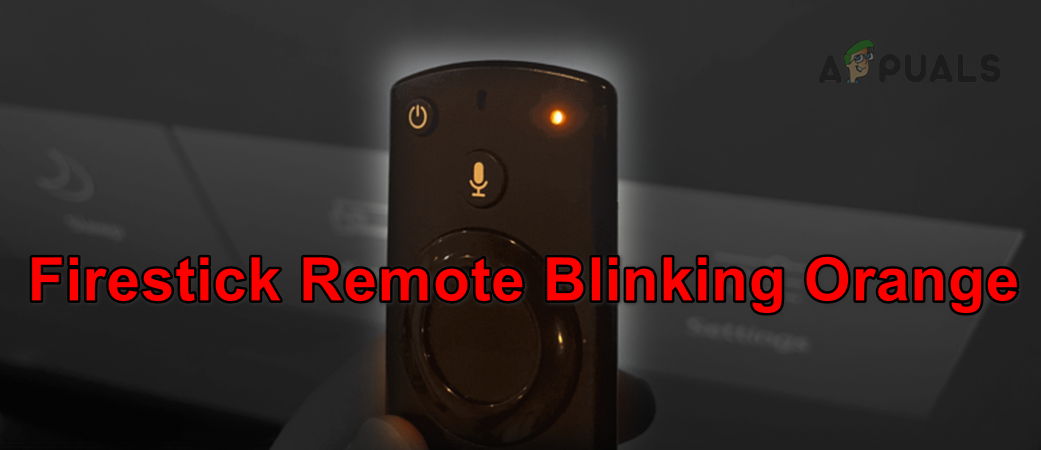
A blinking orange light on your Fire TV remote can be confusing and frustrating. The light is small, easy to miss, but the problem it signals can stop your streaming experience. Many users see the orange blinking light and wonder: What does this mean? Is the remote broken? Do I need a new one? The good news is that this issue is common and, in most cases, fixable at home.
If you rely on your Fire TV device for entertainment, you want quick solutions. This guide explains what the orange blinking light means, why it happens, and how you can fix it. Whether you use a standard Fire TV Stick or a Fire TV Cube, the steps below will help you get back to watching your favorite shows.
Understanding The Fire Tv Remote Orange Blinking Light
The blinking orange light is not just a random color. On Fire TV remotes, this light is a way for the device to communicate with you. When you see the orange light, it means the remote is trying to tell you something important.
For most Fire TV remotes, a blinking orange light means:
- The remote is in pairing mode (searching for a Fire TV device to connect to)
- The connection between the remote and your Fire TV device is lost or weak
- There is a problem with the remote’s software or hardware
Some newer remotes may use different colors or patterns, but orange is the standard warning signal. This visual alert is designed to help you troubleshoot without complex error messages.
When Does The Orange Light Blink?
The orange light usually blinks when:
- You insert new batteries
- The remote loses connection with the Fire TV device
- You manually put the remote in pairing mode (by pressing certain buttons)
- There is interference or a software problem
A steady orange light is rare. If the light keeps blinking for more than a minute or two, it’s a sign that something is wrong and needs fixing.
Common Reasons For The Orange Blinking Light
There are several possible causes for the orange blinking light. Understanding these helps you pick the right solution.
1. Remote Is Not Paired
The most common reason is that the remote is not paired with your Fire TV device. Pairing means the remote and TV “know” each other and can communicate.
2. Battery Issues
Low or faulty batteries are another frequent cause. Weak batteries may not send a strong enough signal for the remote to work.
3. Signal Interference
Other wireless devices, thick walls, or even microwaves can cause signal interference. This weakens the connection between the remote and your Fire TV.
4. Software Glitches
Sometimes, the Fire TV software or the remote’s firmware develops a glitch. This can cause the remote to lose its connection or become stuck in pairing mode.
5. Hardware Problems
A damaged remote (from dropping it, water, etc.) can also trigger the orange blinking light. In rare cases, the Fire TV device itself may have a hardware fault.
How To Fix Fire Tv Remote Blinking Orange
Now let’s look at step-by-step solutions. Start with the simplest fix and move to more advanced steps if needed.
1. Check And Replace Batteries
Weak batteries are often the problem. Even if the remote works sometimes, replace the batteries with new, high-quality ones.
- Remove the battery cover.
- Take out the old batteries.
- Insert fresh AAA batteries (check the correct direction).
- Wait a few seconds and watch the light. If it stops blinking, the problem was the batteries.
Insight: Cheap or old batteries can sometimes leak and damage the remote. Always use good-quality batteries and replace both at the same time.
2. Re-pair The Remote To Your Fire Tv
If the orange light continues, the remote may need to be paired again.
- Unplug your Fire TV device from power and wait 30 seconds.
- Plug it back in and wait for it to fully start.
- On your remote, press and hold the Home button for 10 seconds.
- The orange light should blink, then turn off if pairing succeeds.
- If not, repeat the process once more.
Tip: Make sure you are close (within 10 feet) to the Fire TV device when pairing.
3. Clear Interference
Move any wireless devices (like routers, Bluetooth speakers, or cordless phones) away from your Fire TV and remote. Remove any objects blocking the line of sight.
- Try pairing the remote again.
- If it works, interference was likely the problem.
4. Restart Your Fire Tv Device
A simple restart can clear minor software bugs.
- Unplug your Fire TV Stick or Cube from the power outlet.
- Wait at least 30 seconds.
- Plug it back in.
- Wait for it to boot up and test the remote.
5. Reset The Remote
If nothing works, try a full remote reset. The steps may differ slightly depending on your model.
For most Fire TV remotes:
- Unplug the Fire TV device from power.
- Hold the Left, Menu, and Back buttons together for 12 seconds.
- Release the buttons and wait 5 seconds.
- Remove the batteries.
- Plug in your Fire TV device and wait for it to boot.
- Insert the batteries back in the remote.
- Press the Home button for 10 seconds.
Non-obvious insight: Some users forget to remove the batteries before resetting. This step is important as it clears any memory stored in the remote.
6. Try With Another Remote Or The Fire Tv App
Download the Fire TV app from Google Play or the Apple App Store. Use your phone as a remote to see if the Fire TV device is working.
If the app works but the physical remote does not, your remote likely has a hardware problem.
7. Factory Reset Fire Tv Device
Use this as a last resort. It will erase all data and apps on your Fire TV.
- Go to Settings > My Fire TV > Reset to Factory Defaults.
- Confirm and wait for the reset.
- Pair your remote again using the steps above.
Warning: Only do this if all other steps fail.
Comparing Fire Tv Remote Indicator Lights
Different lights mean different things. Understanding them can save time.
| Light Color | What It Means | Common Causes |
|---|---|---|
| Orange (Blinking) | Pairing Mode / Connection Problem | Not paired, low battery, interference |
| Blue (Blinking) | Voice Command Activated | Microphone button pressed |
| Red | Low Battery or Error | Batteries need replacement |
| No Light | Normal / Remote Off | Good connection or dead batteries |
Non-obvious insight: If you see a light color not mentioned in your manual, check for firmware updates or contact support, as new remotes may add more signals.
When To Replace Your Fire Tv Remote
If you have tried all solutions and the orange light keeps blinking, it may be time for a new remote.
Signs You Need A New Remote
- The remote does not work even with new batteries.
- The Fire TV app works, but the physical remote does not.
- Visible damage (cracks, water damage, corrosion).
- The orange light stays on or blinks forever, even after resets.
Buying Tips
- Buy an official Amazon Fire TV remote for best compatibility.
- Avoid very cheap third-party remotes, as these may not support all features.
- Check the model number on your Fire TV device and match it with the remote.
Comparison: Official Vs Third-party Remotes
| Feature | Official Remote | Third-Party Remote |
|---|---|---|
| Compatibility | Guaranteed | May vary |
| Voice Control | Full support | Often missing |
| Price | Higher | Lower |
| Build Quality | Better | Varies |
Tip: Always buy from trusted sellers to avoid counterfeit products.
How To Prevent Future Issues
Fixing the blinking orange light is great, but preventing it saves time in the future.
1. Keep Remote And Device Close
Fire TV remotes use Bluetooth. They work best within 10 feet and with a clear line of sight.
2. Use Quality Batteries
Replace batteries every few months, even if the remote seems fine. Store spare batteries in a cool, dry place.
3. Avoid Physical Damage
Do not drop or spill liquids on the remote. Keep it away from pets and small children.
4. Update Fire Tv Software
Software updates fix bugs and improve remote performance.
- Go to Settings > My Fire TV > About > Check for Updates.
5. Limit Interference
Place your Fire TV device away from routers, microwaves, and other strong electronics.
Troubleshooting: What If Nothing Works?
Sometimes, nothing seems to help. In these rare cases:
- Test the remote on another Fire TV device if possible.
- Try pairing a friend’s remote to your device.
- Contact Amazon customer support for warranty help.
Real User Experiences
Many users have faced the blinking orange light issue. Some common stories from online forums and reviews:
- “I changed the batteries three times, but the light kept blinking. A full remote reset finally fixed it.”
- “My remote worked after moving the Fire TV Stick away from the back of the TV. There was too much interference.”
- “The Fire TV app saved me while waiting for a replacement remote.”
Insight: Most problems are fixed with patience and by following steps carefully. Users often skip full resets, which can be the key to success.
Fire Tv Remote Models And Compatibility
Amazon has released several Fire TV remote models. Not all are the same. Here’s a quick comparison.
| Remote Model | Main Features | Compatible Devices |
|---|---|---|
| Basic Remote | Navigation, play/pause | Fire TV Stick (older) |
| Alexa Voice Remote (2nd Gen) | Voice control, power, volume | Most Fire TV devices |
| Alexa Voice Remote Pro | Backlight, remote finder | Fire TV Stick 4K, Cube, etc. |
Tip: Check your Fire TV device’s manual or the official Amazon website for the correct remote model.
Credit: appuals.com
What To Do If Your Remote Is Lost Or Broken
If your remote is lost or broken, you have several options:
- Use the Fire TV app on your smartphone.
- Borrow a compatible remote from a friend or family member.
- Order a replacement remote from Amazon or a trusted seller.
- Use voice commands with Alexa-enabled devices (like an Echo speaker) if your Fire TV supports it.
Warning: Not all remotes are cross-compatible. Always check before buying.
Key Troubleshooting Steps Recap
To help you remember, here’s a quick summary of the essential steps to fix a blinking orange light:
- Replace the batteries.
- Re-pair the remote (hold Home for 10 seconds).
- Remove interference.
- Restart your Fire TV device.
- Reset the remote (Left + Menu + Back for 12 seconds).
- Try the Fire TV app.
- Factory reset the Fire TV device as a last resort.
If the issue continues, consider replacing the remote.
Credit: www.antillespr.edu
More Resources
For official troubleshooting, you can visit the Amazon Fire TV Help Page. This resource offers videos, step-by-step guides, and contact options for advanced support.
Frequently Asked Questions
Why Is My Fire Tv Remote Blinking Orange Even With New Batteries?
The orange blinking light usually means the remote is in pairing mode or cannot connect to your Fire TV device. New batteries solve power issues, but you may still need to re-pair the remote. Hold the Home button for 10 seconds near your Fire TV device to try pairing again.
Can I Fix A Fire Tv Remote With A Blinking Orange Light At Home?
Yes, most orange blinking light issues are fixable at home. Try replacing batteries, re-pairing the remote, restarting your Fire TV device, and removing interference. Only a small number of cases need a new remote.
Will Using The Fire Tv App Help If My Remote Blinks Orange?
The Fire TV app can control your device when the physical remote is not working. It helps you test whether your Fire TV device is the problem or the remote itself. If the app works but the remote does not, the remote is likely faulty.
How Do I Know If My Fire Tv Remote Is Damaged?
Physical damage like cracks, water stains, or battery leaks are clear signs. If the remote never pairs, even after resets and battery changes, it may have internal damage. In this case, a replacement is needed.
Where Can I Get More Help If None Of The Solutions Work?
If you have tried all steps, visit the official Amazon Fire TV Help Page for advanced troubleshooting or to contact support.
A blinking orange light on your Fire TV remote can disrupt your streaming, but it does not have to mean buying a new device. With careful troubleshooting, most issues can be solved at home. Remember the key steps: check batteries, re-pair, remove interference, reset, and use the Fire TV app if needed. If you keep having trouble, it may be time for a replacement. Stay patient, follow the steps, and enjoy your Fire TV experience again.

Credit: www.youtube.com