
You sit down to work, but your Dell computer shows an amber blinking light. You stare at it, wondering what it means. Is your PC broken? Is it just a minor issue? The amber blinking light is more than just a warning—it’s a coded message from your computer. Understanding this signal can save you hours of frustration and help you fix your device quickly.
This article will guide you through everything about the amber blinking light Dell issue. You’ll learn what it means, how to interpret different blink patterns, common causes, troubleshooting steps, and practical fixes. The guide also covers how to prevent future problems and includes comparison tables for quick reference. Whether you’re a beginner or have some tech experience, you’ll find clear, simple advice to solve your Dell’s blinking light problem.
What Does The Amber Blinking Light Mean?
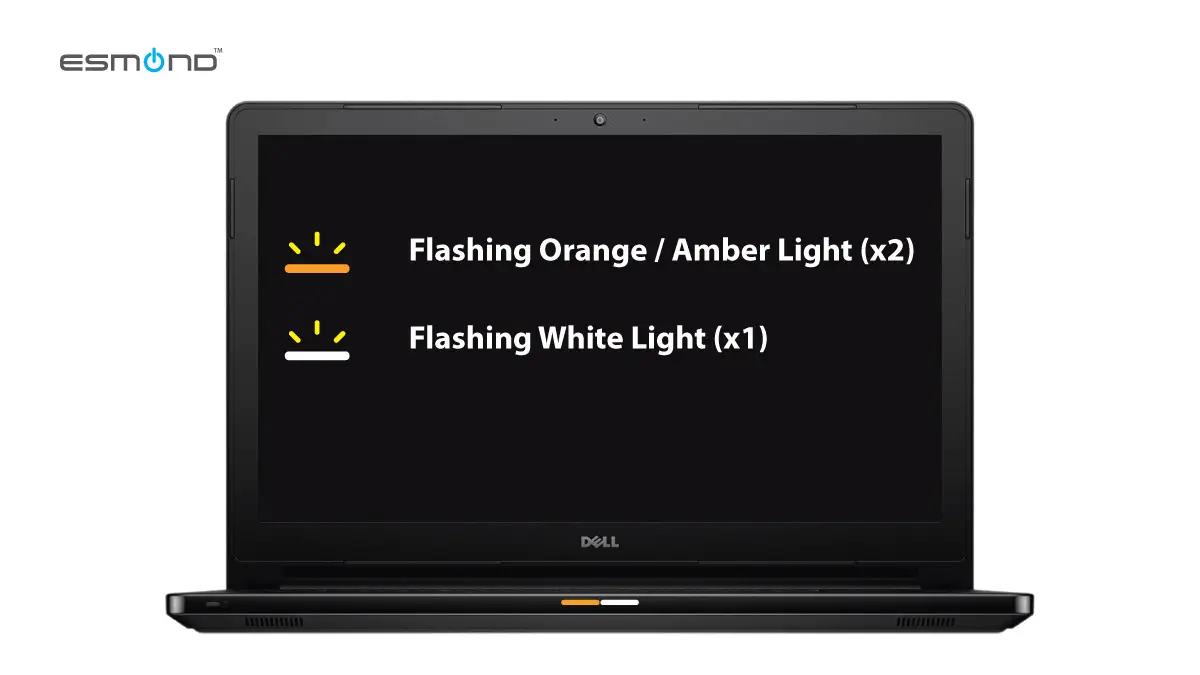
When your Dell computer shows an amber blinking light, it’s signaling a problem. The light is not random—it follows specific patterns to indicate different issues. Usually, you’ll see this light near the power button or on the front panel.
- Amber blinking means the device has detected a problem, usually with hardware.
- The pattern of blinks (slow, fast, steady, or in sequence) can help you identify the exact issue.
- It is common in Dell desktops and Dell laptops.
Unlike a green or white light that signals normal operation, amber means “something is wrong. ” But “wrong” can mean many things—from a loose cable to a failed motherboard. The blinking pattern is your first clue.
Common Causes Of Amber Blinking Light
Several problems can cause the amber blinking light. Here are the most frequent reasons:
- Power supply failure: The computer is not getting enough power. Either the power supply is faulty or the connection is loose.
- Motherboard issues: If the motherboard is damaged or experiencing errors, the amber light will blink.
- RAM problems: Faulty or incorrectly installed memory modules can trigger the blinking light.
- Overheating: If the computer gets too hot, it may shut down or show an amber light.
- Loose cables: Internal cables (like those connecting the motherboard and hard drive) may be loose or disconnected.
- Peripheral device errors: Sometimes, connected devices (mouse, keyboard, printer) cause errors.
- BIOS errors: Corrupt BIOS or failed update can create startup issues.
- Battery problems (laptops): If the battery is dead or not charging, you’ll see an amber light.
- Fan malfunction: If the cooling fan fails, the system may warn you with an amber light.
Real Examples
- A Dell OptiPlex user noticed a fast amber blink after a power outage. The cause was a failed power supply.
- Another user had a slow amber blink on a Dell Inspiron laptop. The issue was a loose RAM module.
- In many cases, the blinking stops after reseating cables or replacing faulty parts.
Credit: elservicecentre.com
How To Decode Amber Blinking Patterns
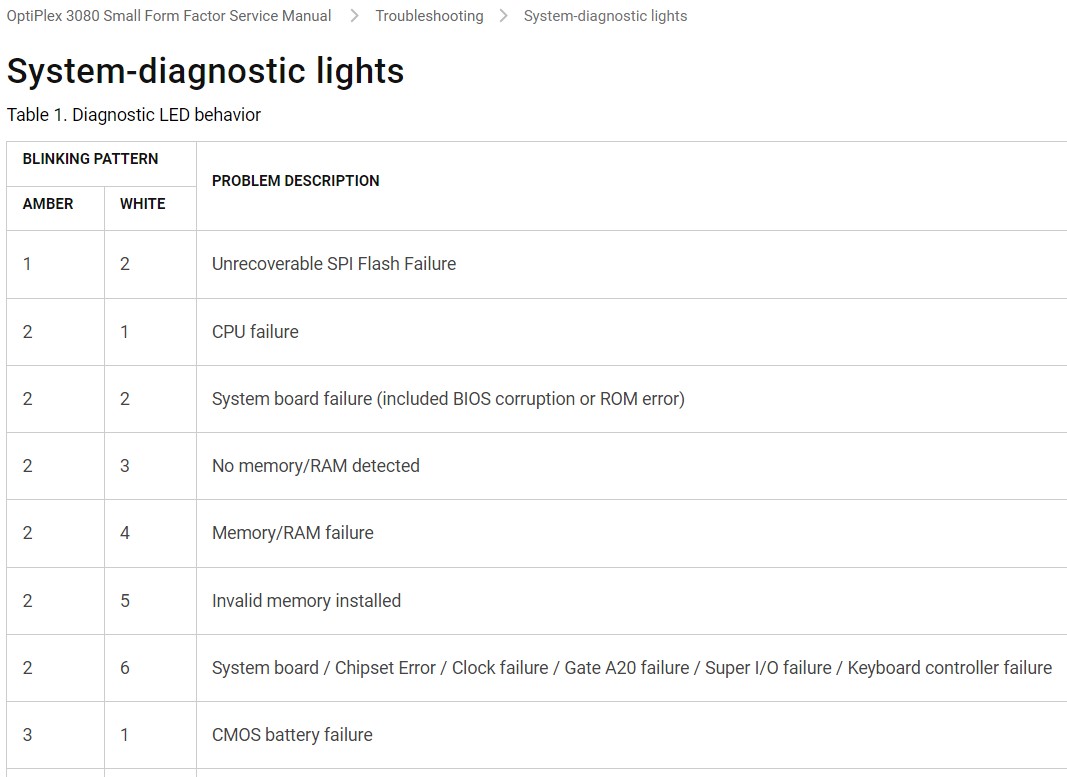
Dell computers use blink codes to help you diagnose the issue. The number and speed of blinks matter. Here’s how to interpret them:
Desktop Blink Codes
| Pattern | Possible Cause |
|---|---|
| Steady amber | Power supply or motherboard failure |
| Amber blinking (2x) | Memory issue (RAM) |
| Amber blinking (3x) | Motherboard error |
| Amber blinking (4x) | CPU failure |
| Amber blinking (5x) | CMOS battery problem |
| Amber blinking (6x) | Video card issue |
Laptop Blink Codes
| Blink Pattern | Meaning |
|---|---|
| Slow amber blink | Battery issue |
| Fast amber blink | Overheating or power failure |
| Amber & white alternating | System board failure |
| Amber blinking (2x), pause, repeat | RAM problem |
Why Patterns Matter
Each blink sequence is a message. For example, if your desktop blinks amber two times then pauses, it’s telling you there’s a memory issue. If it’s steady amber, the power supply or motherboard may be at fault.
Step-by-step Troubleshooting: Desktop And Laptop
Solving the amber blinking light Dell problem requires systematic troubleshooting. Here’s how to do it for both desktops and laptops.
For Dell Desktops
- Turn off the computer and unplug it from the power source.
- Check the power cable. Make sure it’s firmly connected and not damaged.
- Inspect the power supply. If you have another compatible power supply, try swapping it.
- Open the case (if comfortable). Look for loose cables and connections.
- Check the RAM. Remove and reseat memory modules. Try using one module at a time.
- Test the motherboard. Look for burnt marks or bulging capacitors.
- Remove external devices. Unplug all USB devices and see if the light changes.
- Check the fan. Make sure the cooling fan is working.
- Replace the CMOS battery if the blink code suggests battery failure.
- Power on and observe. After each step, turn on the computer and check the light.
For Dell Laptops
- Disconnect the battery (if removable) and unplug the power adapter.
- Hold the power button for 30 seconds to discharge any residual power.
- Reconnect battery and power adapter. Try powering on.
- Check for overheating. Clean the air vents and fan.
- Reseat RAM. If you’re comfortable, remove and reinstall the memory module.
- Test with/without battery. Sometimes, a bad battery causes the amber blink.
- Try external power adapter. If available, use another adapter.
- Remove peripherals. Unplug all external devices.
- Observe blink pattern. Note the sequence and check Dell’s official blink code chart.
- Contact support if the issue persists.
Hidden Insights
Many users ignore the sequence of blinks. Counting the blinks and pauses is essential to decode the exact problem. Also, sometimes just removing all peripherals fixes the issue, especially after a surge or connecting a faulty device.
Comparison: Dell Vs. Other Brands
How does Dell’s amber blinking light compare to warning lights on other brands? Here’s a quick look:
| Brand | Warning Light Color | Meaning | Diagnostic Patterns |
|---|---|---|---|
| Dell | Amber | Hardware or power issue | Blink codes, steady, alternating |
| HP | White, amber | Power, battery, motherboard | Blink codes, beep codes |
| Lenovo | Orange, red | Battery, overheating | Blink codes, beep codes |
| Acer | Blue, amber | Power or battery | Steady, blinking |
Dell’s blink codes are unique. While other brands often use beeps, Dell relies heavily on light patterns. This makes troubleshooting easier if you know what to look for.
Preventing Amber Blinking Light Issues
It’s possible to avoid most amber blinking light problems with simple habits:
- Keep your computer clean. Dust buildup can cause overheating and hardware failure.
- Regularly check cables. Loose or damaged cables are a common cause.
- Use a surge protector. Power surges damage power supplies and motherboards.
- Update BIOS. Keep your BIOS up to date for better hardware compatibility.
- Avoid overloading USB ports. Too many devices can cause errors.
- Monitor battery health. For laptops, check battery status regularly.
Practical Prevention Tips
- Clean air vents weekly. Use compressed air or a soft brush.
- Inspect power adapters and cords. Replace damaged parts immediately.
- Restart after updates. Sometimes, updates cause temporary errors.
- Backup data. If hardware fails, you won’t lose important files.
- Check for software conflicts. Sometimes, new software causes hardware issues.
Repair Or Replace: Deciding What To Do
Sometimes, the amber blinking light signals a major problem. Here’s how to decide whether to repair or replace your Dell device.
When To Repair
- Minor issues (loose cable, RAM error, dead battery) are easy and cheap to fix.
- Power supply replacement costs less than buying a new PC.
- Motherboard repairs are possible but can be expensive.
When To Replace
- Multiple hardware failures (motherboard plus power supply) often mean it’s time for a new device.
- Old computers (5+ years) are less cost-effective to repair.
- Severe overheating that damages internal parts is hard to fix.
Quick Comparison Table
| Problem | Repair Cost | Replacement Cost | Recommended Action |
|---|---|---|---|
| Power supply failure | $40–$100 | $300–$800 (new PC) | Repair |
| Motherboard failure | $100–$300 | $300–$800 (new PC) | Repair if PC is new |
| Multiple failures | $200–$400 | $300–$800 (new PC) | Replace |
| Battery failure (laptop) | $50–$80 | $400–$1000 (new laptop) | Repair |
Non-obvious insight: Many people try to repair old devices without considering the total cost. Sometimes, replacing saves money in the long run.
When To Contact Dell Support
If you have tried all steps and the amber blinking light remains, it’s time to contact Dell support. Here’s when:
- Blink codes indicate motherboard or CPU failure.
- You are unable to open the case safely.
- Device is under warranty.
- Repeated power supply issues.
Dell’s support team can help with advanced diagnostics, warranty repair, or replacement.
For more detailed blink codes and support options, you can check the official Dell Support Knowledge Base.
Credit: www.dell.com
Additional Troubleshooting Tips
Here are a few practical tips that are often missed:
- Try a different wall socket. Sometimes, outlets are faulty.
- Check for BIOS reset option. Some Dell models have a BIOS reset jumper.
- Listen for beeps. Some Dell computers combine light and beep codes.
- Look for visible damage. Burn marks or broken connectors mean hardware needs replacement.
Safety Precautions
Working with computer hardware can be risky. Always follow these safety steps:
- Unplug the device before opening it.
- Discharge static electricity. Touch a metal object to avoid damaging components.
- Use proper tools. Avoid using metal screwdrivers near the motherboard.
- Don’t force connections. If something doesn’t fit, check compatibility.
Hidden insight: Many beginners break connectors by forcing them. Always check orientation before inserting RAM or cables.

Credit: www.youtube.com
Real User Experiences
Learning from others can help you solve your issue faster. Here are some real stories:
- A user with a Dell XPS desktop saw a steady amber light. After opening the case, he found a loose RAM module. Reseating it fixed the problem.
- Another user had an amber blinking battery light on a Dell Latitude laptop. Replacing the battery solved it.
- A tech support worker noticed many amber blink cases caused by power surges after storms. Using surge protectors reduced incidents.
Frequently Asked Questions
What Does The Amber Blinking Light Mean On My Dell Computer?
The amber blinking light is a warning sign. It usually signals a hardware problem such as power supply failure, motherboard error, RAM issues, or battery trouble. The blink pattern helps identify the exact cause.
How Can I Fix The Amber Blinking Light Issue?
First, check the power supply and cables. Then, reseat or replace RAM, remove external devices, and clean fans. If the problem persists, consult Dell’s blink code chart or contact support.
Is It Safe To Use My Dell Computer When The Amber Light Is Blinking?
No, it’s not safe. The blinking light means something is wrong. Using the computer in this state can cause further damage. Always fix the problem before continuing.
Can Software Cause An Amber Blinking Light?
Usually, software errors don’t trigger an amber blinking light. However, BIOS corruption or failed updates can cause hardware issues that result in the light blinking.
What Should I Do If My Dell Laptop’s Battery Light Blinks Amber?
A blinking amber battery light usually means the battery is failing or not charging. Try removing and reinstalling the battery, using a different adapter, or replacing the battery if needed.
Final Thoughts
The amber blinking light Dell issue is more than just a nuisance—it’s a sign your computer needs attention. By understanding the blink patterns, identifying the cause, and following clear troubleshooting steps, you can fix most problems yourself. Remember to use safety precautions, keep your device clean, and check cables regularly. If the issue is serious or you’re unsure, don’t hesitate to reach out to Dell support. With this guide, you’re ready to decode, fix, and prevent the amber blinking light on your Dell.